Image2 min read
How to Convert SVG to JPG (With a Clean White Background)
Some upload forms only take JPG. Here's how to turn an SVG logo, chart or illustration into a sharp JPG with a white background instead of a black box.
By the ZapMorph team
On this page
Just want it done?
Open the SVG to JPG Converter — it runs in your browser and nothing is uploaded.
Here's a familiar one. You've got your company logo as an SVG, and the conference website, the marketplace listing or the HR portal only accepts JPG. If you screenshot it you get a fuzzy image. Some converters turn the transparent background black, which looks terrible.
This one fills it with white and lets you choose the resolution.
When to use JPG instead of PNG
PNG is usually the better target for logos (see SVG to PNG). Go with JPG when:
- The platform only accepts JPG (common on older forms and marketplaces).
- You want a white background baked in, not transparency.
- The SVG is an illustration with gradients, where JPG is often smaller than PNG.
How to convert SVG to JPG with ZapMorph
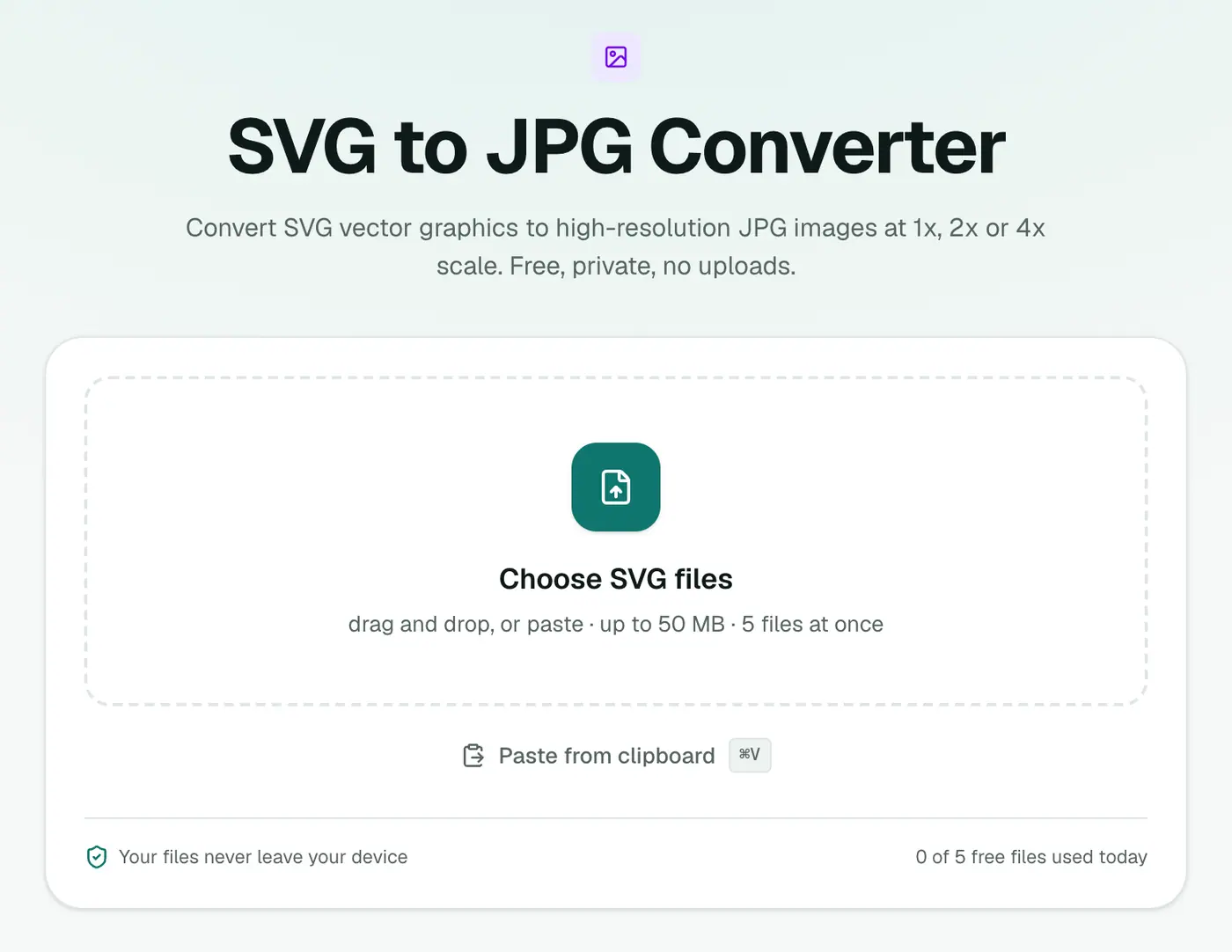
1. Open the converter
Go to the SVG to JPG converter.
2. Add the SVG and choose settings
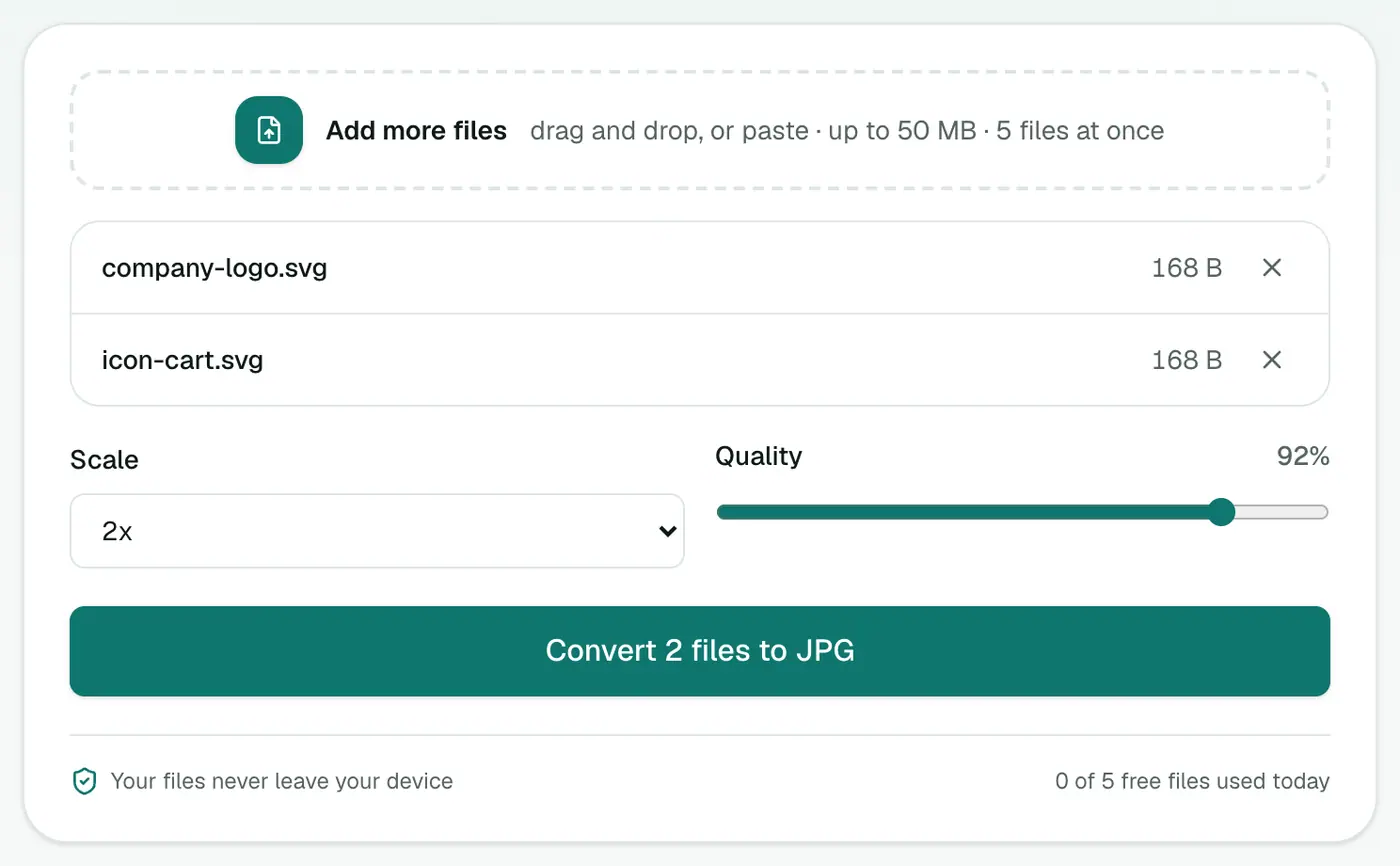
Drop in your SVGs. There are two settings:
- Scale: 1x, 2x or 4x the SVG's size. 2x is a good default.
- Quality: 92% by default. Logos with sharp edges look best at 92% or higher.
3. Convert and download
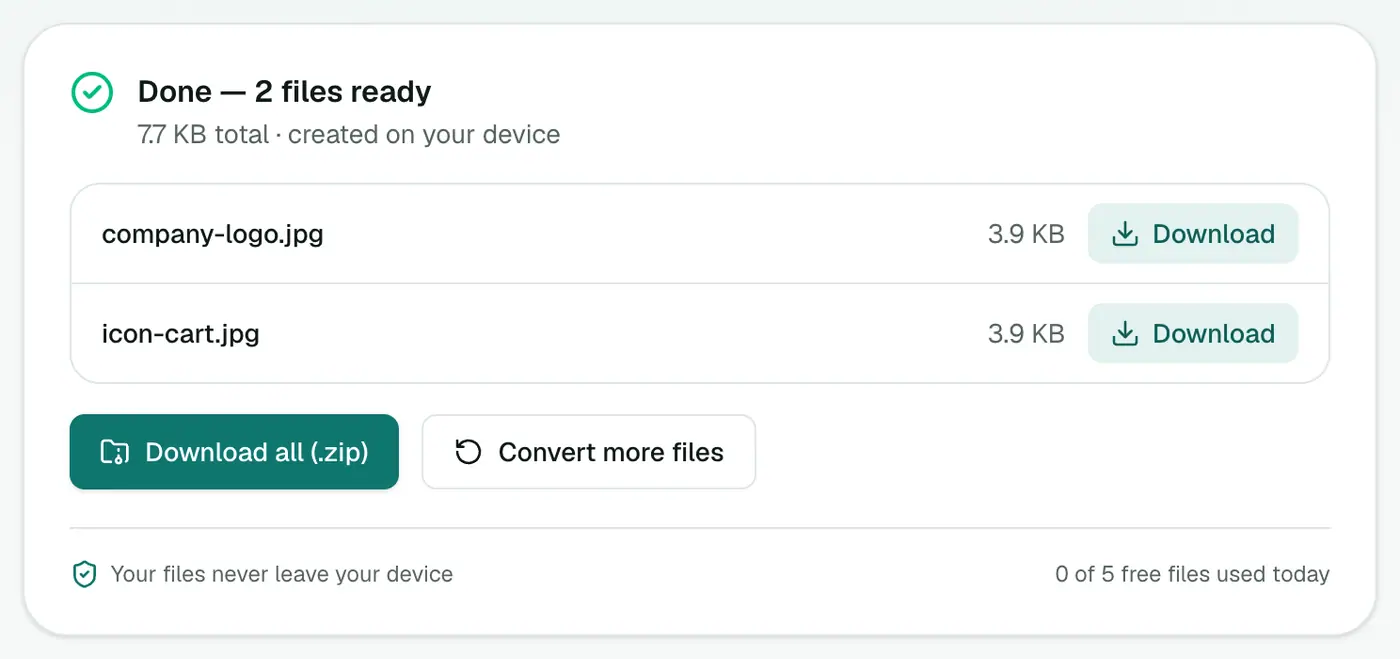
Click Convert to JPG and save the results.
Without a converter
If you have Illustrator, Figma or Inkscape, export JPG straight from the source. In Figma, select the frame, add an export setting, choose JPG and set the scale.
On a Mac, Preview can open many SVGs and export to JPEG, but results vary with complex files.
Tips
- Text looks wrong? The SVG probably uses a font you don't have installed. Outline the text in your design tool.
- Edges look soft? Raise the quality to 95%+ or use 4x scale.
- Hit a file size limit? Drop to 1x, or compress the result with the image compressor.
- Need transparency after all? Use SVG to PNG.
Where JPG is required
- Upload forms that only take JPG (job portals, marketplaces, government sites).
- Social media posts where a solid background is wanted anyway.
- Email newsletters with older clients that don't render SVG.
- Print shops that ask for JPG artwork.
Choosing the background
Transparent areas turn white in the JPG. If your logo is white or very light, it will disappear. Either use SVG to PNG to keep transparency, or add a coloured background shape to the SVG before converting.
Done
For forms and platforms that insist on JPG, the SVG to JPG converter gives you a clean result on white, at the resolution you choose.
FAQs
What happens to transparent areas?
They become white. JPG has no transparency, and white is what most people expect.
Should I use JPG or PNG for an SVG logo?
PNG if you need transparency or the logo is mostly flat colors and text. JPG if a form or platform specifically asks for JPG.
What scale and quality should I use?
2x scale and 92% quality suit almost everything. For print, use 4x and push quality to 95–100%.
Is my SVG uploaded?
No. It's rendered in your browser.
What if my SVG has no size set?
SVGs without a width, height or viewBox are rendered at 512 px. Use 2x or 4x for a bigger image.
Try the SVG to JPG Converter
Free to start, no install, and your files never leave your device.