Image2 min read
How to Convert SVG to PNG at High Resolution (1x, 2x or 4x)
Need your SVG logo or icon as a PNG for social media, email or a slide deck? Here's how to export a crisp PNG with a transparent background.
By the ZapMorph team
On this page
Just want it done?
Open the SVG to PNG Converter — it runs in your browser and nothing is uploaded.
SVG is perfect for websites: one small file that stays razor sharp at any size. But try putting it in an email signature, a LinkedIn banner, a Google Slides deck or a Word document, and you'll often hit a wall. Lots of places still want a plain image.
PNG is the answer, as long as you export it big enough.
Why scale matters
An SVG doesn't have pixels. When you convert it, you're deciding how many pixels the PNG gets. Get that wrong and your logo looks fuzzy on a retina screen or blurry when printed.
The converter gives you three choices:
- 1x: the SVG's natural size. Fine for small icons on the web.
- 2x: double. The best default for slides, documents and modern high-density screens.
- 4x: quadruple. For print, posters, or if you'll crop and resize later.
When in doubt, go bigger. It's easy to shrink a PNG and impossible to add detail.
How to convert SVG to PNG with ZapMorph
1. Open the converter
Go to the SVG to PNG converter.
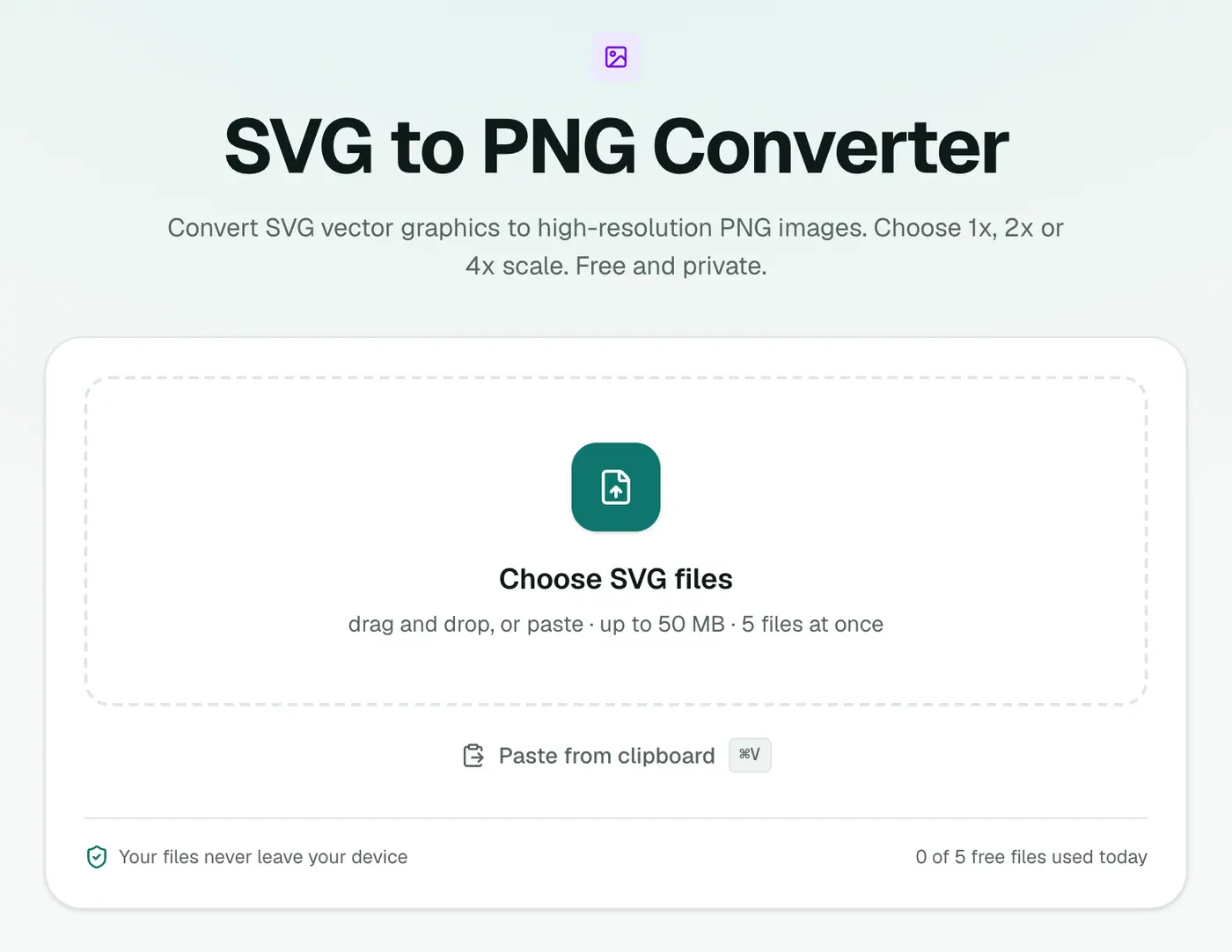
2. Add your SVG files and pick a scale
Drop in one or more SVGs and choose Scale. For a logo going into a presentation, 2x is usually right.
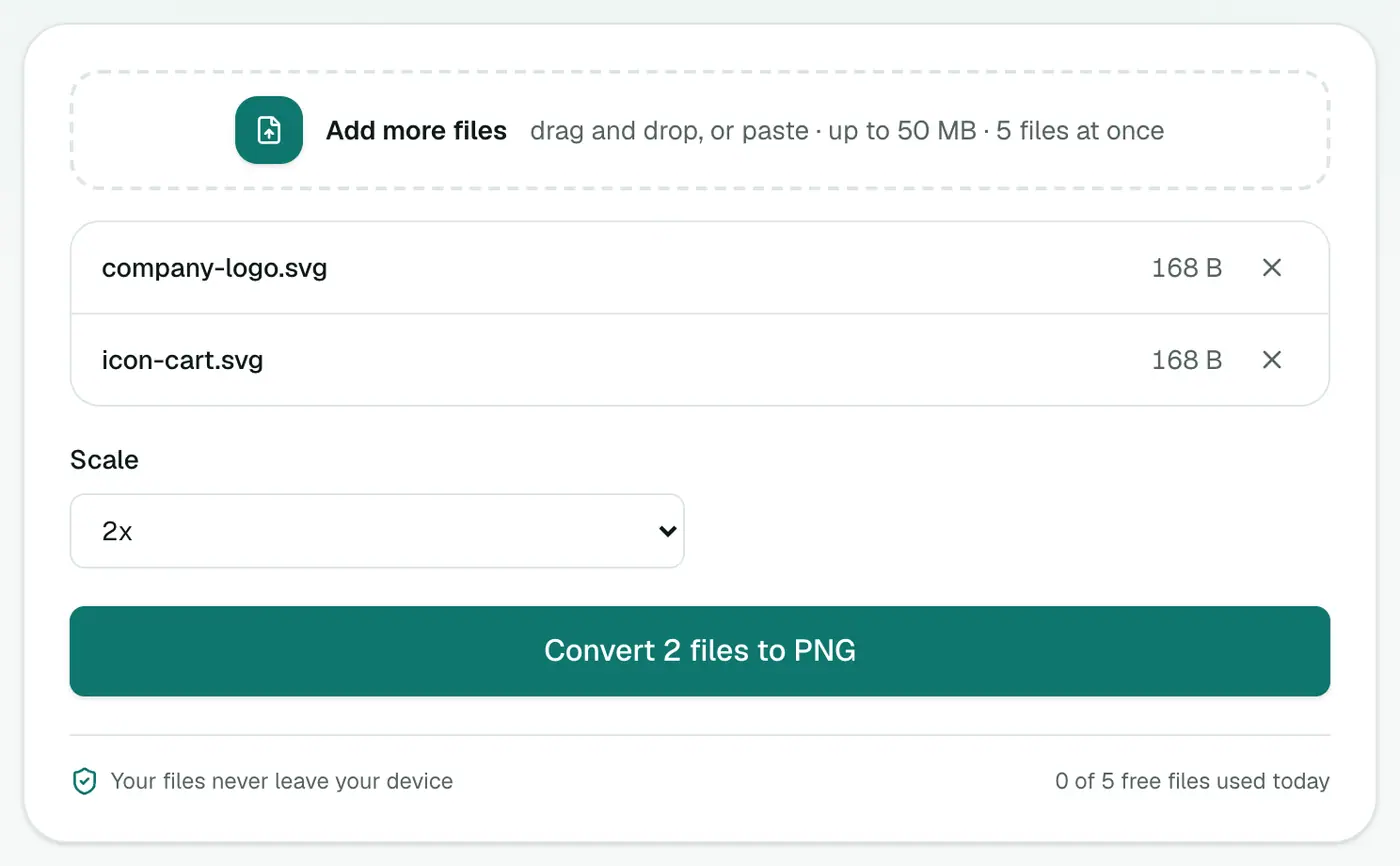
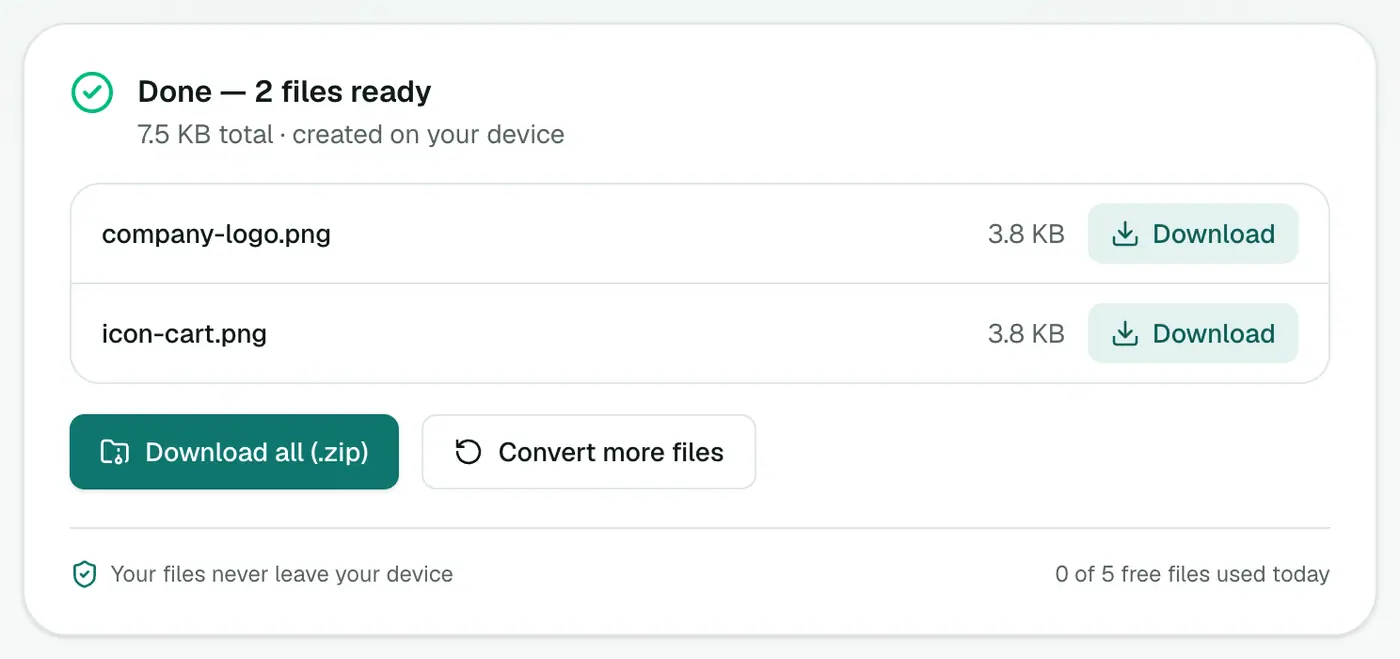
3. Convert and download
Click Convert to PNG. Transparent areas stay transparent.
Other ways
- Figma, Illustrator, Inkscape: if you have the source file, export PNG directly. You get full control over size.
- Browser screenshot: open the SVG in a tab and screenshot it. Quick, but you lose transparency and resolution.
- Command line:
rsvg-convertor Inkscape's CLI are great for automating large batches.
Things that can go wrong
- Missing fonts. If the SVG references a font your computer doesn't have, the text renders in a fallback font. Outline the text in your design tool first.
- External images. An SVG that links to images on another server may render with gaps. Embed the images or use a self-contained SVG.
- Very small logos. If the SVG is declared at 24×24, even 4x only gives you 96×96. Edit the width and height in the SVG, or use a design tool.
- Need a white background? Use SVG to JPG. It fills transparent areas with white automatically.
Which scale for which use?
| Use | Scale |
|---|---|
| Website or email at normal size | 1x |
| Retina / high-DPI screens, presentations | 2x |
| Print, large displays, app store graphics | 4x |
SVG vs PNG
- SVG stays sharp at any size and is tiny for simple graphics. Ideal on websites.
- PNG works everywhere SVG doesn't: Word, PowerPoint, Google Docs, social media, email clients and most upload forms.
Keep the SVG as your master and export PNGs as needed.
Quick summary
Pick 2x for screens and slides, 4x for print, and the SVG to PNG converter will give you a sharp, transparent PNG in a few seconds. Making a site icon from that logo? The favicon generator takes it from there.
FAQs
What scale should I choose?
1x renders the SVG at its own declared size. 2x is right for most screens and slides. 4x gives you a large image for print or for cropping later.
Will the PNG keep a transparent background?
Yes. Anything without a fill in the SVG stays transparent in the PNG.
Why does my text look different in the PNG?
If the SVG uses a font that isn't embedded or installed on your computer, the browser substitutes another font. Convert text to outlines in your design tool before exporting the SVG.
My SVG has no size set. What happens?
The converter falls back to the SVG's viewBox dimensions. Use 2x or 4x if the result looks small.
Is my SVG uploaded?
No. It's rendered in your browser.
Can I convert several SVGs at once?
Yes. Add them all, choose one scale, and download the PNGs together.
Try the SVG to PNG Converter
Free to start, no install, and your files never leave your device.