Image4 min read
How to Convert HEIC to JPG (iPhone Photos on Windows, Mac or Android)
iPhone photos showing up as HEIC files nobody can open? Here's how to turn them into normal JPGs, a whole batch at a time, without uploading them anywhere.
By the ZapMorph team
On this page
Just want it done?
Open the HEIC to JPG Converter — it runs in your browser and nothing is uploaded.
You took the photos on your iPhone, AirDropped or emailed them to your laptop, and now Windows shows a row of blank icons. Or a job portal says "file type not supported" when you try to upload one. Welcome to HEIC.
The good news is that turning them into ordinary JPGs takes about a minute, and you don't need to install anything.
Why your iPhone photos are HEIC in the first place
Since iOS 11, iPhones save photos in HEIC (High Efficiency Image Container) by default. Apple did this for a good reason: a HEIC photo is roughly half the size of the same photo as a JPG, with the same quality. Your phone storage goes further.
The problem is everything outside Apple's world. Here's where HEIC tends to cause trouble:
- Windows PCs often can't open HEIC unless you've installed extra codecs from the Microsoft Store.
- Websites and upload forms (visa applications, job portals, marketplaces) usually only accept JPG or PNG.
- Older Android phones and smart TVs just show an error.
- Printing kiosks and photo labs sometimes refuse them.
JPG, on the other hand, opens on basically every device made in the last 25 years. That's why converting is usually the easiest fix.
How to convert HEIC to JPG with ZapMorph
This is the quickest route if you have more than a couple of photos, or if you're on a computer where you can't install software (a work laptop, a library PC).
1. Open the HEIC to JPG converter
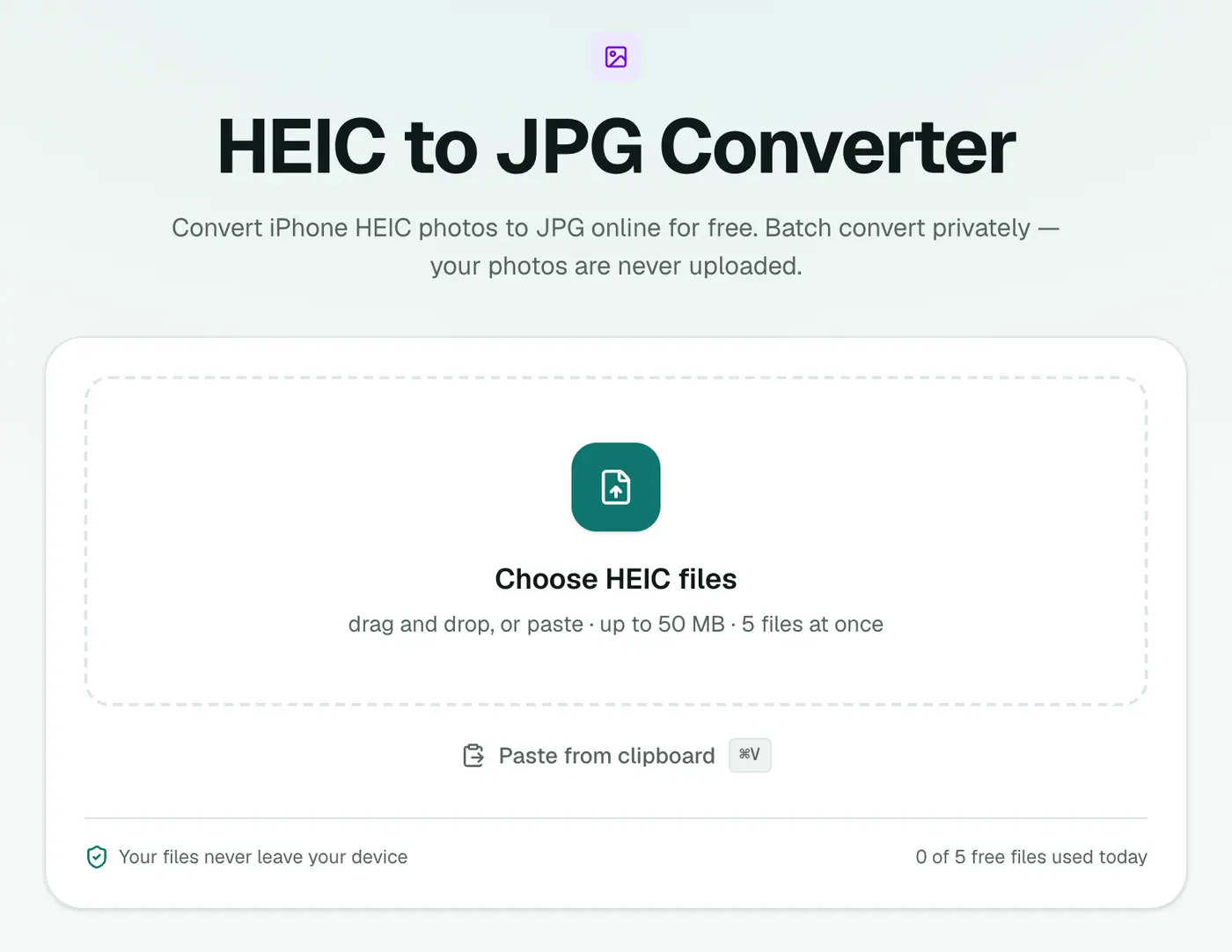
Go to the HEIC to JPG converter. You'll see an upload box. Nothing gets uploaded, despite the name. The files are read by your browser on your own device.
2. Add your HEIC photos
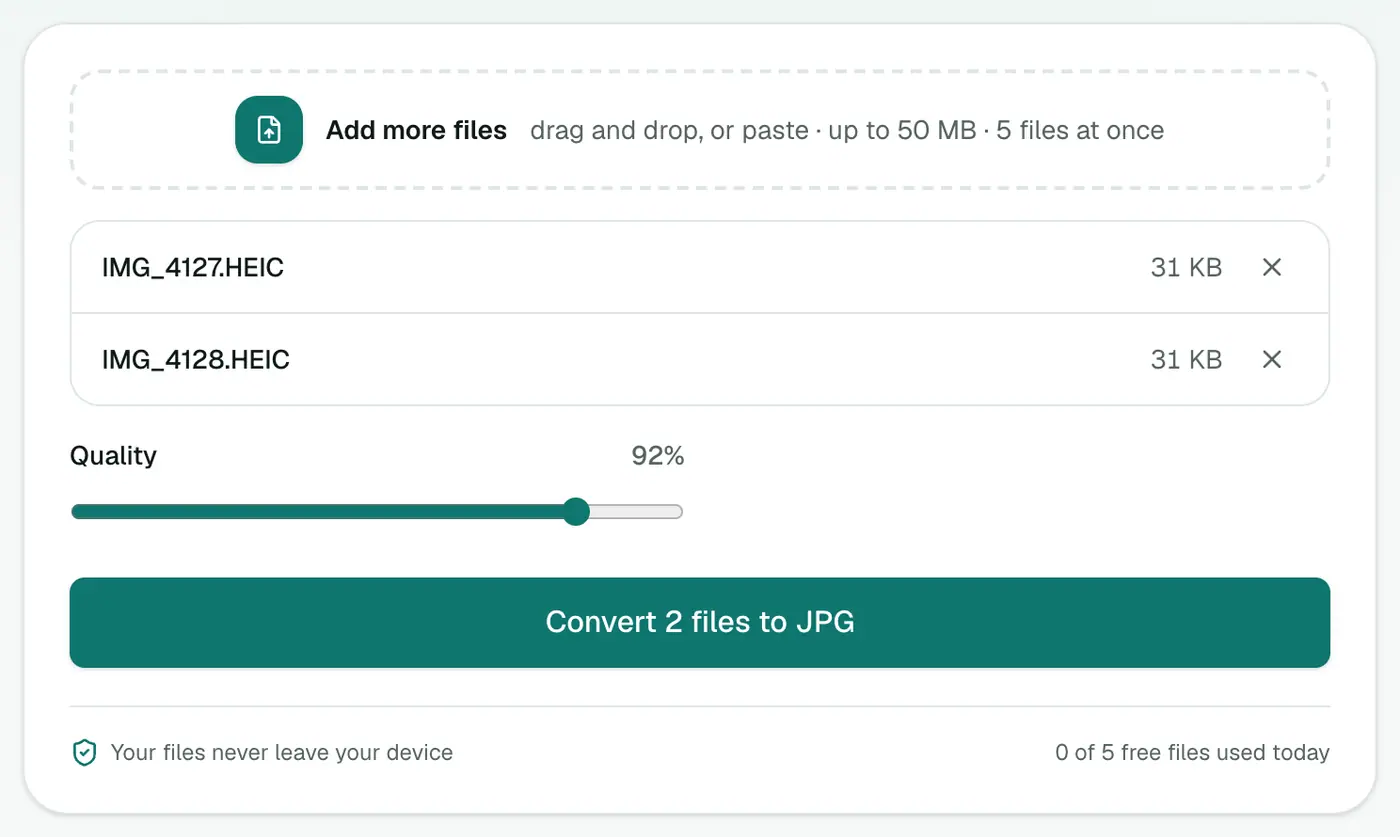
Click the box and pick your photos, or drag them straight from File Explorer or Finder. You can select several at once, and add more with the "Add more files" box if you missed some. Picked the wrong one? Hit the × next to it.
There's a Quality slider too. Leave it at 92% unless you have a reason to change it. Drop it to around 80% if you need smaller files for email; push it to 100% if you're sending them to print.
3. Convert and download
Press Convert to JPG. A typical iPhone photo takes a second or two. When it's done, download the JPGs one by one, or grab everything as a single ZIP.
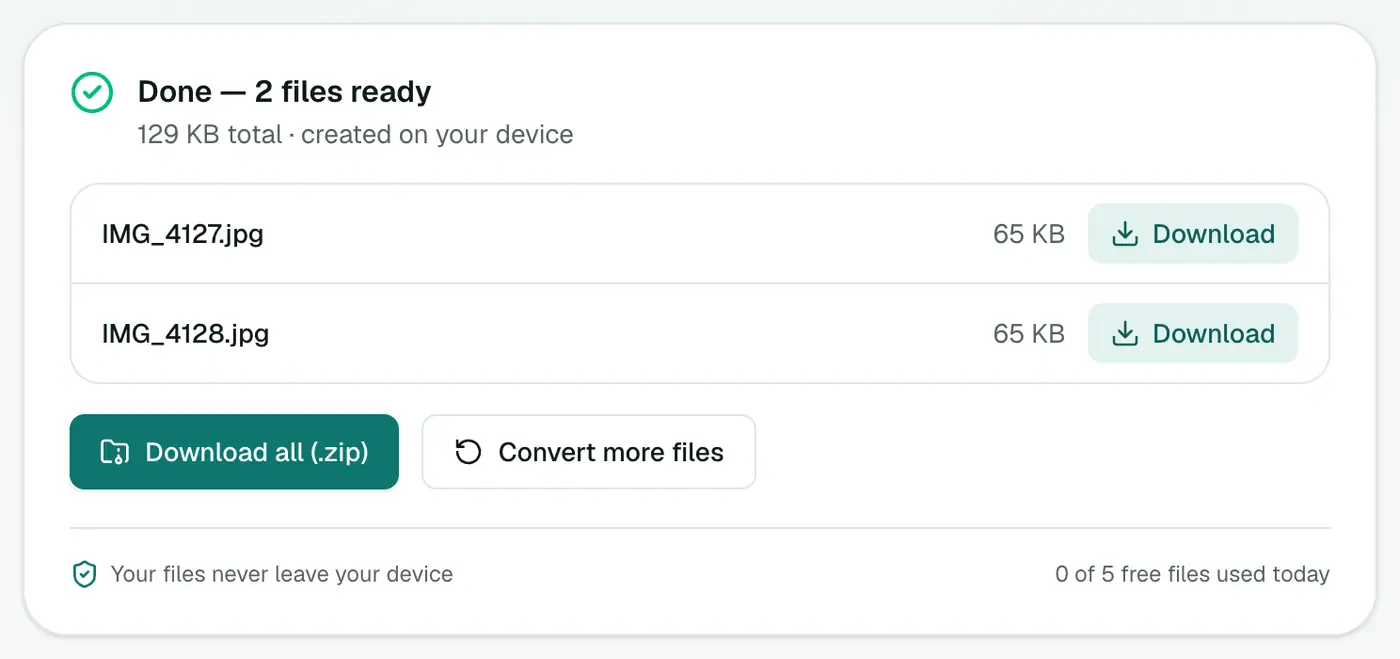
That's it. The JPGs have the same names as your originals, so IMG_4127.HEIC becomes IMG_4127.jpg.
Other ways to convert HEIC to JPG
You don't always need a website. Depending on your device, there may already be something built in.
On a Mac: Preview
Open the photo in Preview, go to File → Export, choose JPEG from the Format menu and save. For several photos, select them all in Finder, right-click and choose Quick Actions → Convert Image. That's available on macOS Monterey and later.
On Windows: the Photos app
Windows 10 and 11 can open HEIC once you install HEIF Image Extensions (free) and HEVC Video Extensions (a small fee) from the Microsoft Store. After that, open the photo in Photos, click the three dots and choose Save as, then pick JPG.
On the iPhone itself
Go to Settings → Photos and, under "Transfer to Mac or PC", choose Automatic. Your iPhone will then convert photos to JPG when you copy them over a cable. To stop new photos being HEIC at all, set Settings → Camera → Formats to Most Compatible.
Where the built-in options fall short
- The Windows route costs money and needs admin rights to install the extensions.
- Preview and Photos are fine for one or two photos, but tedious for fifty.
- Changing the camera format only helps with future photos, not the ones you already have.
If you're stuck on someone else's computer or have a big pile of photos, the browser converter is simply less hassle.
A few tips from experience
- Keep the HEIC originals. They're smaller and higher quality. Convert copies for sharing.
- Converting for a form? Many upload forms have a size limit (often 2 MB or 5 MB). Drop the quality to 80% or run the JPGs through the image compressor afterwards.
- Live Photos come across as a HEIC still plus a short video. The converter handles the still image; the motion part isn't included.
- Need a transparent or lossless copy for editing? Use HEIC to PNG instead.
- Just want to look at the photo? The HEIC viewer opens it in your browser without converting anything.
Which quality to pick
| Use | Quality |
|---|---|
| Printing, photo books | 95% or higher |
| Sharing, social media, email | 85–92% (default 92%) |
| Upload forms with a size limit | 75–80%, plus Compress Image if needed |
Wrapping up
HEIC is a good format stuck in a world that still runs on JPG. For one photo on a Mac, Preview does the job. For anything more, or on Windows, the HEIC to JPG converter is the fastest way through, and your photos stay on your device the whole time.
If you're putting several photos into one document for an application or a landlord, try HEIC to PDF. It skips the JPG step entirely.
FAQs
Does converting HEIC to JPG lose quality?
A little, because JPG is a lossy format, but at the default 92% quality you won't see the difference on a screen or in a normal print. If you plan to edit the photo heavily, convert to PNG instead.
Can I convert lots of HEIC photos at once?
Yes. Select or drag in a whole batch and download the results together as a ZIP. How many you can do in one go depends on your plan.
Are my photos uploaded to your server?
No. The conversion runs inside your browser tab. The photos never leave your device, which matters when they're family pictures or scans of documents.
Will the date and location from my iPhone be kept?
The converted JPG is a fresh image, so most EXIF details like GPS location aren't carried over. That's handy if you're posting photos publicly, but keep the originals if you rely on that information.
How do I stop my iPhone saving photos as HEIC in the first place?
Go to Settings, then Camera, then Formats, and pick Most Compatible. New photos will be saved as JPG. Photos you've already taken stay HEIC.
Can I convert HEIC on an Android phone?
Yes. Open the converter in Chrome, pick the HEIC files and download the JPGs.
Try the HEIC to JPG Converter
Free to start, no install, and your files never leave your device.