PDF5 min read
How to Convert PNG to PDF (Free, Without Losing Quality)
Turn one PNG or a folder of screenshots into a single PDF, online or with the tools built into Windows, Mac, iPhone and Android. No upload, no watermark.
By the ZapMorph team
On this page
Just want it done?
Open the PNG to PDF Converter — it runs in your browser and nothing is uploaded.
Screenshots are how a lot of work gets explained: bug reports, how-to instructions for a colleague, proof of a payment, a record of a chat. Sending fourteen loose PNGs is messy. They arrive out of order, some email apps squash them, and the person on the other end has to open each one. One PDF is much easier to read, forward and file.
This guide covers the quickest way to do it online, the built-in options on every major device, and the small settings that decide whether the PDF looks crisp or cramped.
PNG vs PDF: why bother converting?
A PNG is a single picture. A PDF is a document: it can hold many pages, has a fixed page size, and opens the same way on every phone, laptop and printer.
That difference matters when:
- A form or portal only accepts PDF. Visa applications, university submissions, insurance claims and HR systems often reject image files.
- Order matters. A PDF keeps step 1 before step 2. A pile of attachments doesn't.
- You want one attachment, not twenty. Easier to send, easier to find later.
- Someone will print it. A4 or Letter pages print predictably. Raw screenshots don't.
How to convert PNG to PDF with ZapMorph
1. Open the converter
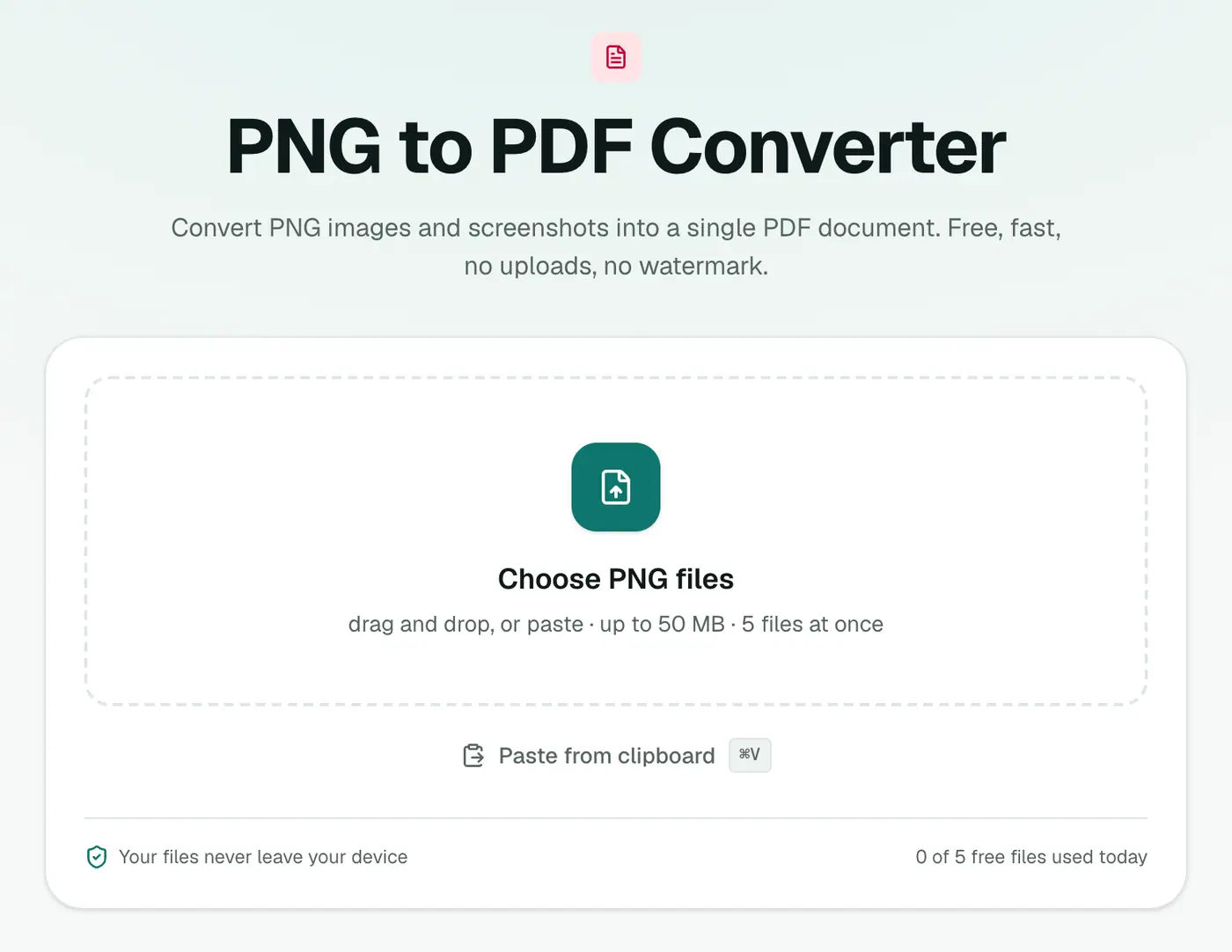
Go to the PNG to PDF converter. There's nothing to install and no account needed.
2. Add screenshots, order them, choose a layout
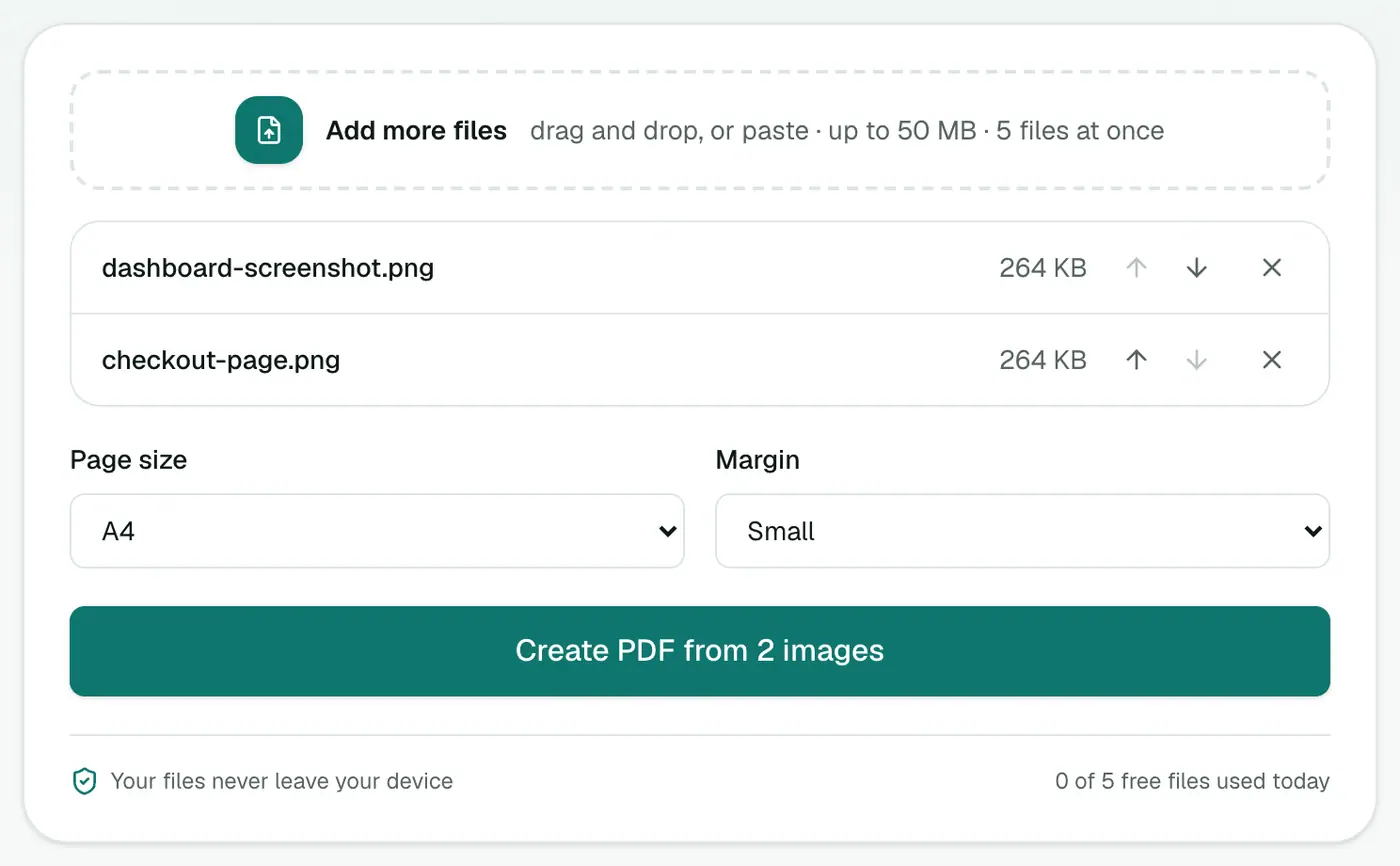
Add your PNGs, or paste a screenshot straight from the clipboard with Ctrl+V / Cmd+V. Use the arrows to set the order. The first image becomes page 1.
- Page size: Same as image suits screen captures best, with no awkward white borders. Choose A4 or US Letter if it'll be printed.
- Margin: Small gives a bit of breathing room around each image. No margin runs the image edge to edge; Large leaves room for notes or binding.
Wide images are put on landscape pages automatically, so a desktop screenshot isn't shrunk onto a tall portrait page.
3. Create the PDF
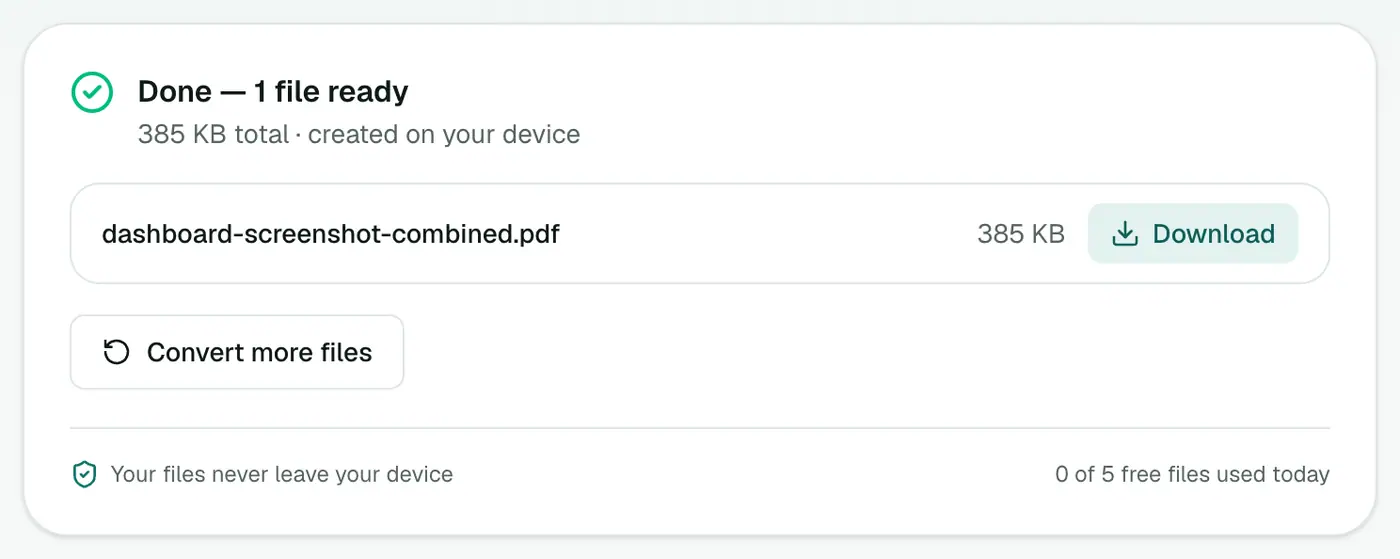
Click Create PDF and download. One PNG gives a PDF with the same name; several give one combined file.
Is it private?
Yes. The PDF is assembled in your browser. Your images never leave your device, so it's safe for screenshots of bank statements, ID cards, medical results or private messages.
Convert PNG to PDF without an online tool
Every major operating system can make a PDF on its own. These methods are fine for one or two images, but each has a catch, noted below.
Windows 10 and 11
- Open the PNG in the Photos app.
- Press Ctrl+P and choose Microsoft Print to PDF as the printer.
- Pick the paper size and orientation, click Print, then choose where to save.
For several images, select them in File Explorer, right-click and choose Print (on Windows 11 it's under Show more options). The Print Pictures window can put them all into one PDF.
The catch: the print driver may re-compress images, and the layout choices are limited to the paper sizes in the list.
Mac
- Select the PNGs in Finder.
- Right-click and choose Quick Actions → Create PDF.
That's it: a combined PDF appears in the same folder, in the order the files were sorted. To reorder first, open them all in Preview, drag the thumbnails in the sidebar, then use File → Export as PDF (for one image) or File → Print → Save as PDF (for all of them).
The catch: the page size follows each image, which is awkward if the PDF will be printed.
iPhone and iPad
- Save the screenshots to the Files app (from Photos, tap Share → Save to Files).
- In Files, tap Select, choose the images, then tap the ⋯ button and Create PDF.
You can also open the PNG to PDF converter in Safari and add photos directly from your library.
Android
- Open the image in Google Photos or your gallery app.
- Tap ⋮ → Print, then set the printer to Save as PDF.
The catch: most gallery apps print one image at a time. For a multi-page PDF, the browser converter is quicker.
Which method should you use?
| You need to… | Best option |
|---|---|
| Combine many PNGs into one PDF | PNG to PDF converter |
| Keep full image quality | PNG to PDF converter (lossless) |
| Mix PNG, JPG and HEIC in one file | Images to PDF |
| Convert one image, offline, on a Mac | Finder Quick Action |
| Convert one image on Windows | Microsoft Print to PDF |
Getting a sharp, readable PDF
Pick the right page size
- Screenshots and slides: use Same as image. Each page matches its screenshot, so nothing is shrunk.
- Anything to be printed or submitted to a form: use A4 (most countries) or US Letter (US and Canada). The image is scaled to fit and centred.
Keep text in screenshots legible
Crop screenshots to the part that matters before converting. A full 4K desktop shrunk onto an A4 page turns menu text into specks. A cropped window stays readable.
Watch the file size
PNG is lossless, which is why screenshots look crisp, but it also makes them large. Twenty Retina screenshots can easily make a 30 MB PDF. If an email or upload portal rejects it, run it through Compress PDF. The Balanced setting usually halves the size with no visible difference on screen.
Transparent PNGs
Logos and icons with transparent backgrounds land on a white page. If the logo is white itself, it will vanish, so add a coloured background to the image first.
Troubleshooting
The pages are in the wrong order. Files are added in the order you select them. Rename them 01, 02, 03… before adding, or fix the order with the arrows before you click Create PDF.
The image looks blurry in the PDF. The original was probably small, such as a thumbnail saved from a chat app. PDF can't add detail that isn't there. Use the original screenshot if you can.
There's a big white border. Switch the page size to Same as image, or the margin to No margin.
The portal says the file is too big. Compress PDF, or split it into parts with Split PDF.
Useful next steps
- Need page numbers for a long how-to? Run the result through Add Page Numbers.
- Mixing photos and screenshots? Images to PDF takes every common image format at once.
- Only need a smaller image, not a PDF? See how to convert PNG to JPG.
Done
Screenshots in, one tidy PDF out. The PNG to PDF converter keeps everything sharp, private and free of watermarks.
FAQs
How do I combine multiple PNG files into one PDF?
Add all of them to the PNG to PDF converter at once, put them in order with the arrows and click Create PDF. Each PNG becomes one page of a single PDF.
Does converting PNG to PDF reduce quality?
Not with this converter. The PNG is placed in the PDF losslessly, so every pixel stays the same. Quality only drops if a tool re-compresses the image as JPEG, which many print-to-PDF drivers do.
Are my images uploaded to a server?
No. The PDF is built in your browser, on your own device. Nothing is sent anywhere, which matters for screenshots of bank details, IDs or private chats.
Can I add WebP images too?
Yes. The PNG to PDF converter accepts PNG and WebP. For JPG, HEIC and other formats mixed together, use Images to PDF.
Do transparent areas show up black?
No. Transparent areas appear on the white page background.
Which page size is best for screenshots?
"Same as image" keeps every screenshot at its own size with no white borders. A4 or Letter is better if someone will print it.
Why is my PDF so large?
PNG is lossless, so high-resolution screenshots stay big inside the PDF. Run the result through Compress PDF to shrink it for email or upload limits.
Can I convert PNG to PDF on my phone?
Yes. The converter works in mobile browsers. iPhone also has Create PDF built into the Files app, and Android can save to PDF from the print menu.
Try the PNG to PDF Converter
Free to start, no install, and your files never leave your device.