PDF2 min read
How to Sign a PDF Online Without Printing or Scanning
Draw, type or upload your signature, add initials and the date, and place them anywhere on a PDF. The document stays on your device the whole time.
By the ZapMorph team
On this page
Just want it done?
Open the Sign PDF — it runs in your browser and nothing is uploaded.
The old routine: print the contract, sign it, scan it (or photograph it on the kitchen table), and email back a slightly crooked, grey-looking PDF. It still happens a lot, and there's no need for it.
You can sign a PDF directly in your browser in about a minute.
How to sign a PDF with ZapMorph
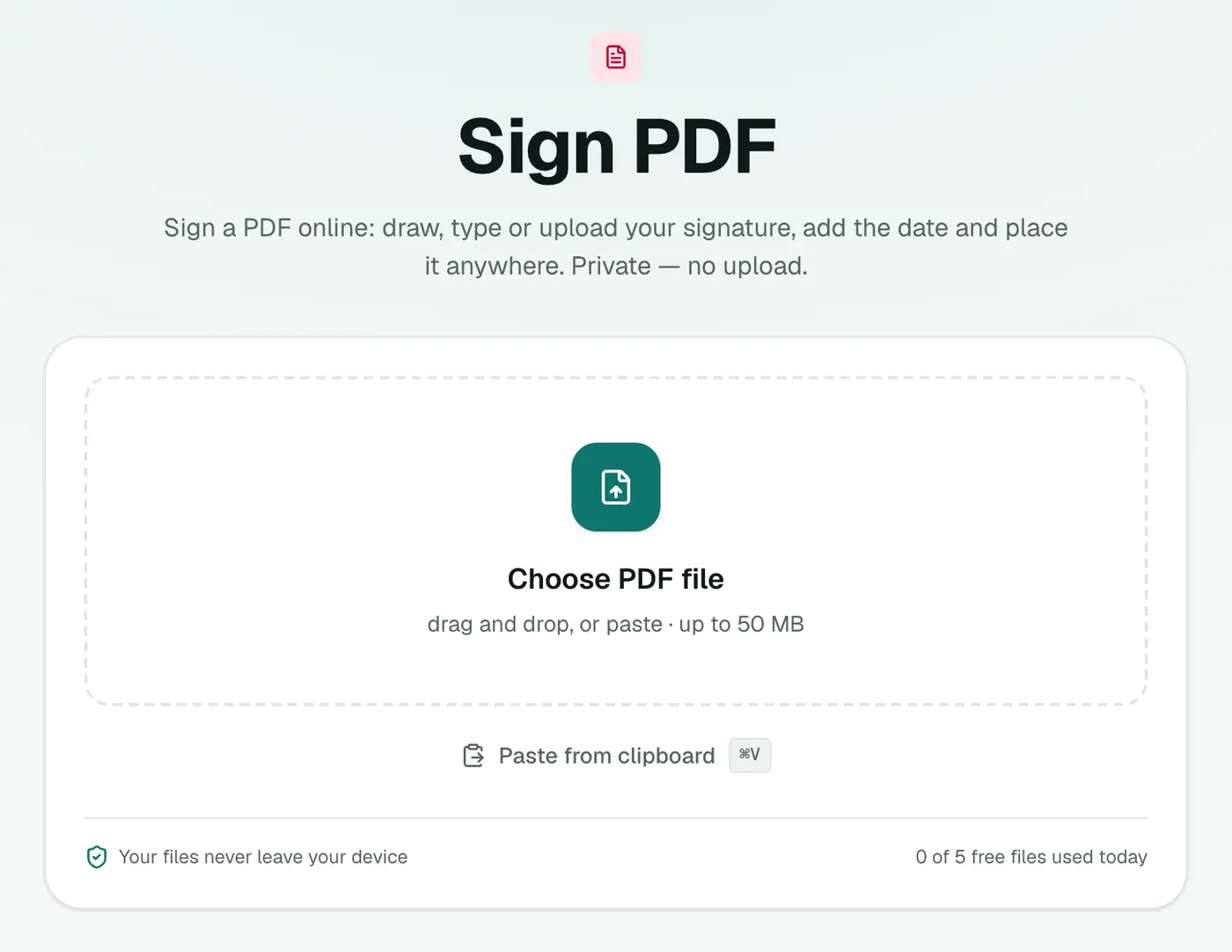
1. Open Sign PDF
Go to Sign PDF and add your document.
2. Create your signature and place it
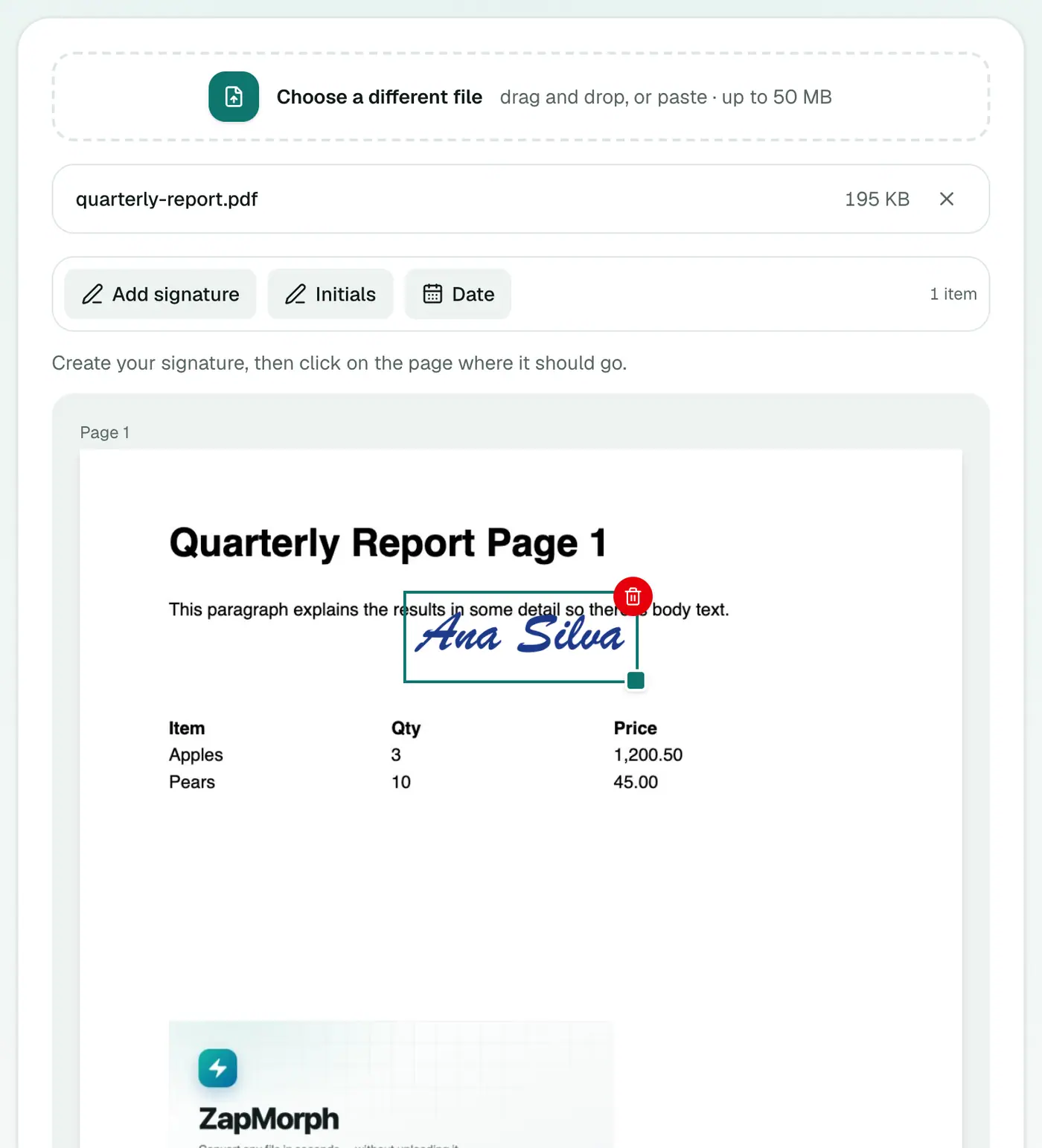
The PDF opens in the editor. Click Add signature and choose how to make it:
- Draw: with a mouse, trackpad, finger or stylus. On a phone this feels most natural.
- Type: your name in a handwriting-style font.
- Upload: a photo or scan of your signature.
You can pick an ink color too (blue is common for signed contracts). Then click on the page where it should go. Drag to move it and use the corner handle to resize. Add Initials and Date the same way.
3. Save and download
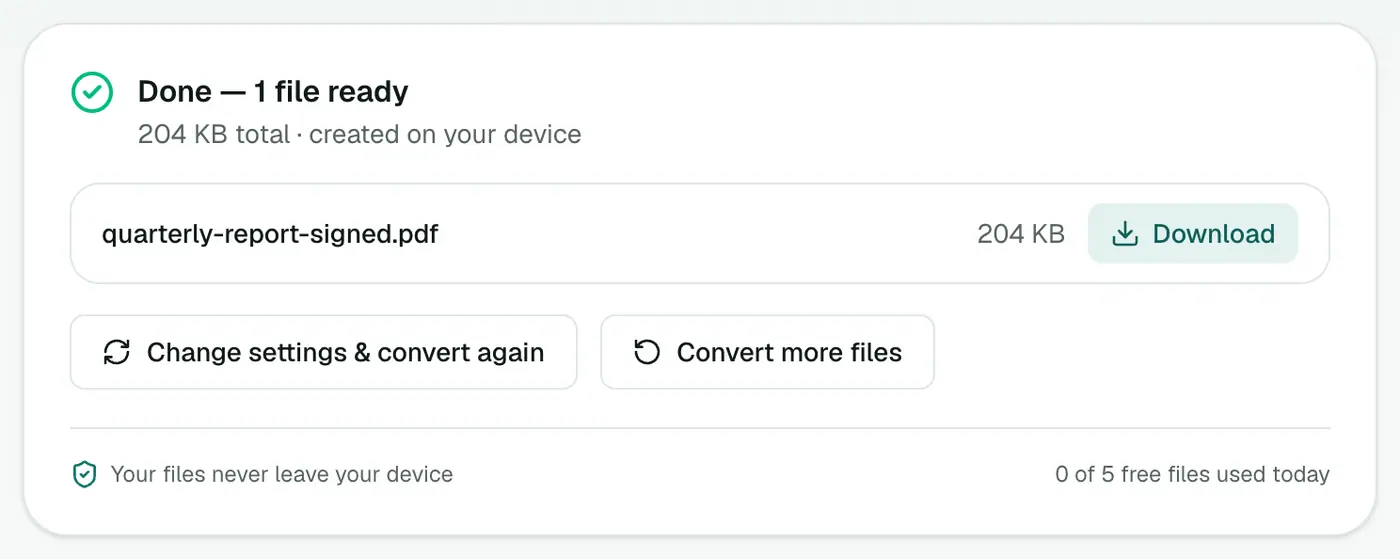
Save the PDF and download your signed copy.
Making it look right
- Size it like a real signature, about the height of two lines of text.
- Sit it on the line. Zoom in to line it up with the signature line.
- Initial every page if the document asks for it. Place initials once per page.
- For a realistic look, sign on white paper with a dark pen, photograph it in good light, and upload. Even better, remove the paper background first with the background remover.
Is it legally binding?
In the US (ESIGN Act), the EU (eIDAS) and the UK, India and many other countries, a simple electronic signature is generally valid for everyday agreements like employment offers, NDAs, leases and consent forms. Some documents need more, such as wills, certain property transfers or notarised documents. When in doubt, ask whoever sent you the document what they accept.
Other ways
- Mac Preview: Tools → Annotate → Signature lets you sign using your trackpad or camera.
- Adobe Acrobat Reader (free): Fill & Sign.
- iPhone: in Files or Mail, use Markup and the signature tool.
Related
- Need to fill in fields first? Edit PDF lets you type anywhere on the page.
- Sending it back securely? Protect PDF.
Signing checklist
- Read the whole document before signing.
- Sign every page that asks for initials.
- Add the date where required.
- Download and check that the signature sits on the right line.
- Keep a copy of exactly what you signed.
Sending it back
- Too big for email? Compress PDF.
- Need it locked? Protect PDF.
- Several documents? Merge PDF into one signed pack.
Summary
Draw, type or upload your signature, click to place it, add the date, download. Sign PDF skips the print-sign-scan routine, and your document never leaves your device.
FAQs
Is a signature added this way legally valid?
For most everyday documents, like offer letters, rental agreements and consent forms, an electronic signature like this is widely accepted. Some documents (certain property, court or notarised papers) have stricter rules, so check if you're unsure.
How do I sign with my real signature?
Draw it with a finger or stylus on a phone or tablet, or upload a photo of your signature on white paper. A PNG with a transparent background looks best.
Can I add the date and initials too?
Yes. There are buttons for Initials and Date. The date button adds today's date as text you can move.
Is this a digital (certificate) signature?
No. It places your signature image on the page, like signing on paper. Certificate-based digital signatures need specialised software.
Is my document uploaded?
No. Signing happens in your browser, and the signed PDF is created on your device.
Can I sign on my phone?
Yes. Draw your signature with your finger, place it on the page and download the signed PDF.
Try the Sign PDF
Free to start, no install, and your files never leave your device.