PDF2 min read
How to Merge PDF Files Into One (In the Right Order)
Combine several PDFs into a single document, arrange them in any order, and download. No upload, no watermark, works on any computer.
By the ZapMorph team
On this page
Just want it done?
Open the Merge PDF — it runs in your browser and nothing is uploaded.
Merging PDFs is one of those tasks that should be trivial and somehow isn't. Acrobat wants a subscription, Preview's drag-and-drop between sidebars is fiddly, and many websites want you to upload your tax return to a server you know nothing about.
Here's the quick, private way.
Common reasons to merge
- Applications: CV, cover letter and certificates as one PDF.
- Accounts: a month of invoices or receipts in one file.
- Reports: chapters written by different people.
- Scans: a document scanned in several goes.
How to merge PDFs with ZapMorph
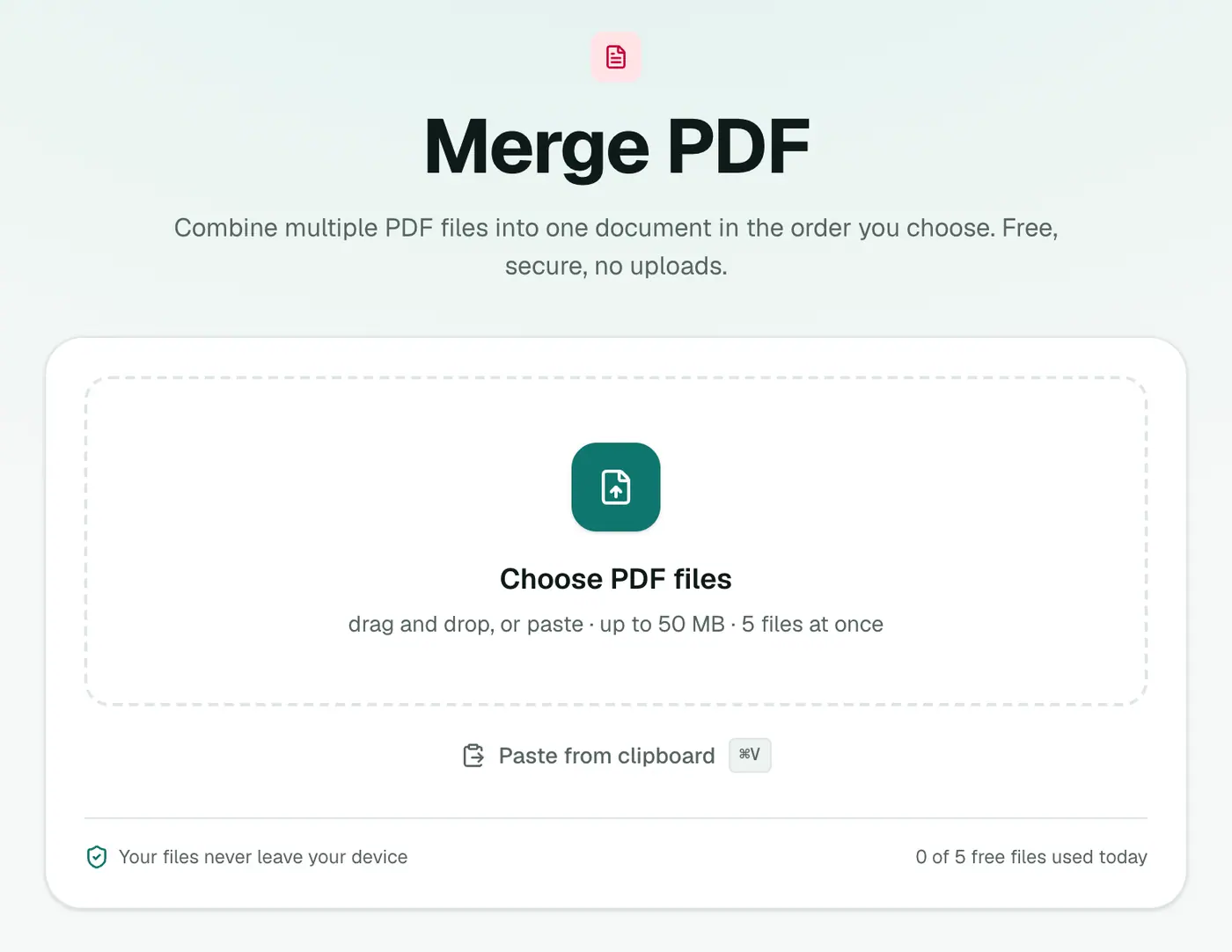
1. Open Merge PDF
Go to the Merge PDF tool.
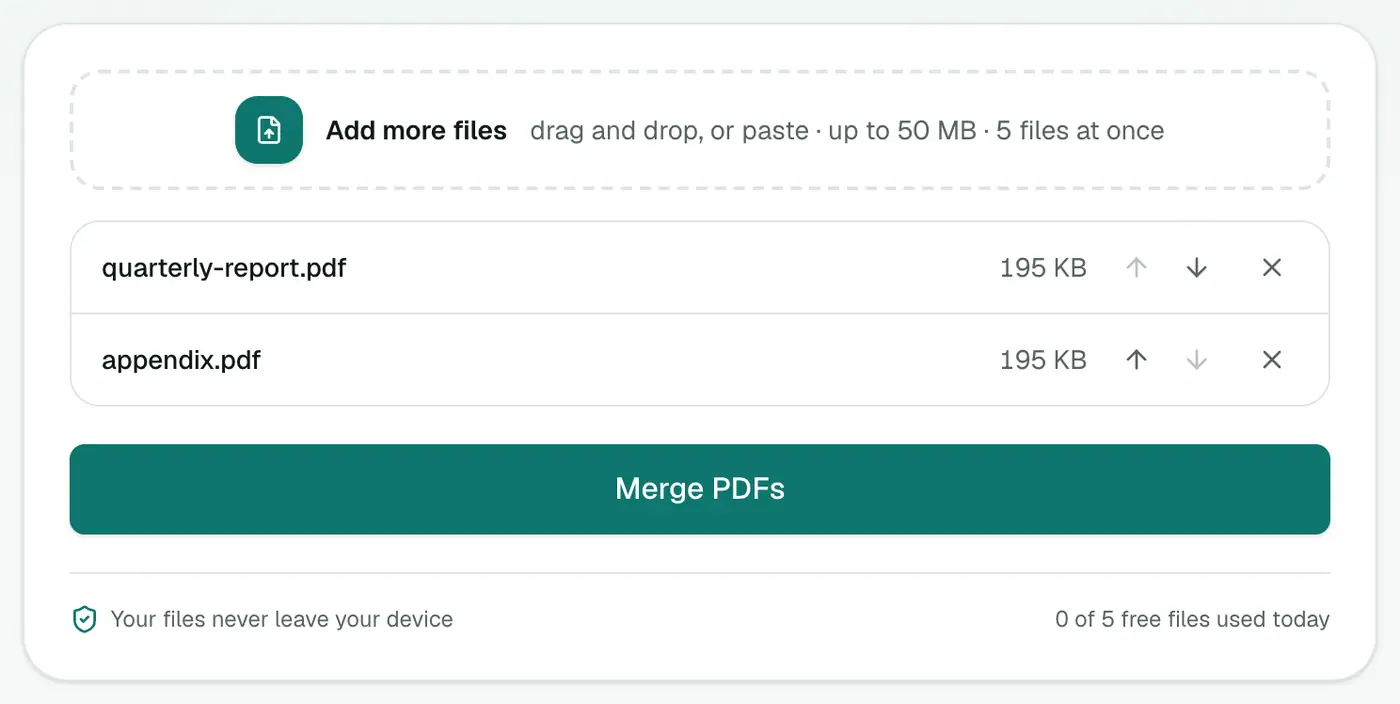
2. Add your PDFs and put them in order
Select all the PDFs you want to combine. Then use the arrows next to each file to set the order. The top file comes first in the merged document.
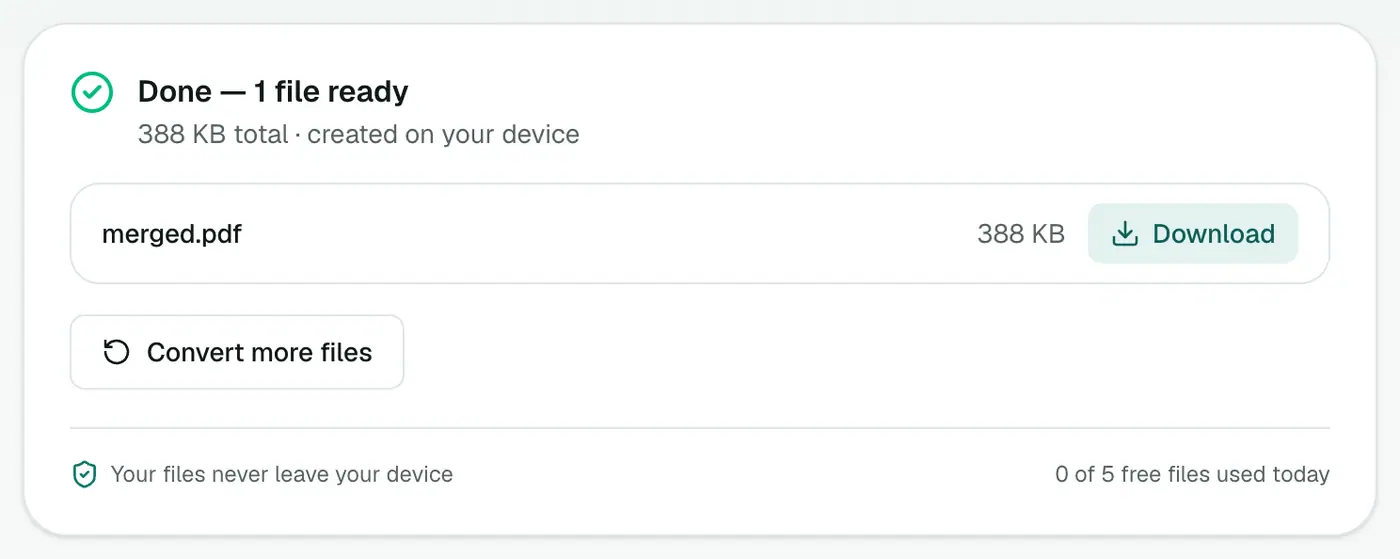
3. Merge and download
Click Merge PDFs and download your combined file.
Other ways
Mac Preview: open the first PDF, show thumbnails (View → Thumbnails), then drag the other PDFs into the sidebar where you want them. Save. It works well once you know the trick.
Windows: there's no built-in merge. Microsoft Print to PDF only prints one file at a time.
Adobe Acrobat: Tools → Combine Files. Very capable, but paid.
Tips
- Name files with numbers (01-cv.pdf, 02-cover-letter.pdf) to make ordering quicker.
- Merged file too big for email? Run it through Compress PDF.
- Need page numbers across the whole thing? Merge first, then use Add Page Numbers.
- Got images too? Turn them into a PDF with Images to PDF, then merge.
- Merging emails? EML Merge puts a whole thread into one PDF in date order.
Merge, then tidy up
| Next step | Tool |
|---|---|
| Wrong order inside the merged file | Reorder PDF Pages |
| Blank or duplicate pages | Remove PDF Pages |
| Sideways scans | Rotate PDF |
| Too big to email | Compress PDF |
| Needs page numbers | Add Page Numbers |
Merging other file types
- Images: Images to PDF first.
- Emails: EML Merge puts many emails into one PDF.
- Word documents: Word to PDF, then merge.
Summary
Add the files, arrange them, merge. The Merge PDF tool keeps quality intact, adds no watermark, and never uploads your documents.
FAQs
Can I change the order of the PDFs?
Yes. Use the up and down arrows next to each file. The PDFs are merged from top to bottom.
Does merging reduce quality?
No. Pages are copied into the new PDF exactly as they are.
Can I merge password-protected PDFs?
Remove the password first with Unlock PDF (you'll need to know it), then merge.
How do I merge only some pages?
Merge everything, then use Remove PDF Pages or Organize PDF to drop or rearrange pages.
Is there a watermark on the merged file?
No.
Is there a page limit?
No fixed page limit. The number of files per merge and their size depend on your plan.
Try the Merge PDF
Free to start, no install, and your files never leave your device.