PDF3 min read
How to Convert JPG to PDF (Combine Photos Into One PDF)
Turn photos of receipts, documents or artwork into a single PDF. Choose A4, Letter or original size, set margins and put the pages in the right order.
By the ZapMorph team
On this page
Just want it done?
Open the JPG to PDF Converter — it runs in your browser and nothing is uploaded.
A landlord wants your payslips as one PDF. An expenses system wants receipts as a PDF. A visa portal wants "a single PDF containing all supporting documents". And you've got eleven photos on your phone.
This is probably the most common PDF job there is, and it takes about a minute.
Before you start
Two things make the result look much more professional:
- Photograph documents flat, straight-on, in good light. Your phone's built-in document scanner (Notes on iPhone, Google Drive on Android) is great for this.
- Name the files in order (01, 02, 03…) if there are many. It makes sorting quicker.
How to convert JPG to PDF with ZapMorph
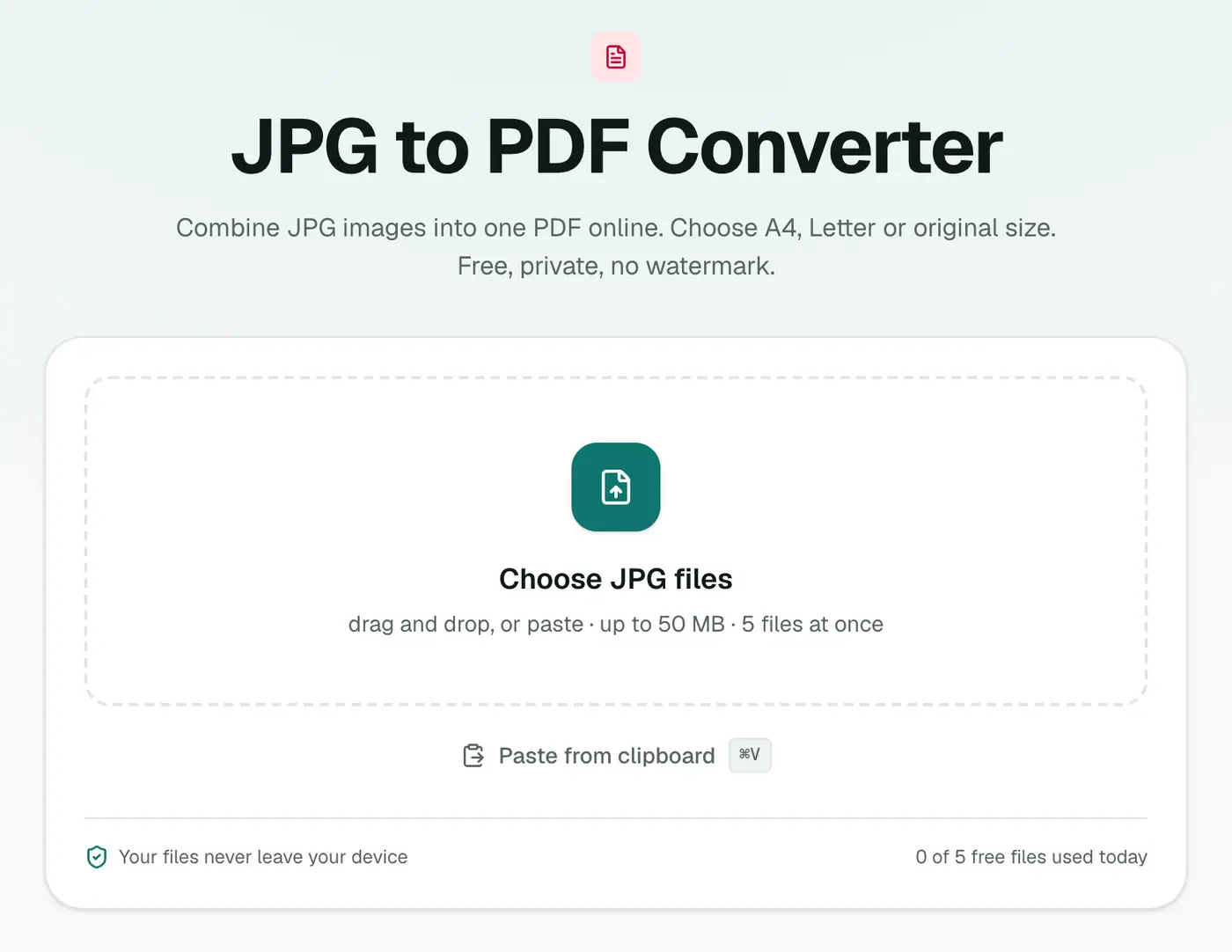
1. Open the converter
Go to the JPG to PDF converter.
2. Add your photos and set the layout
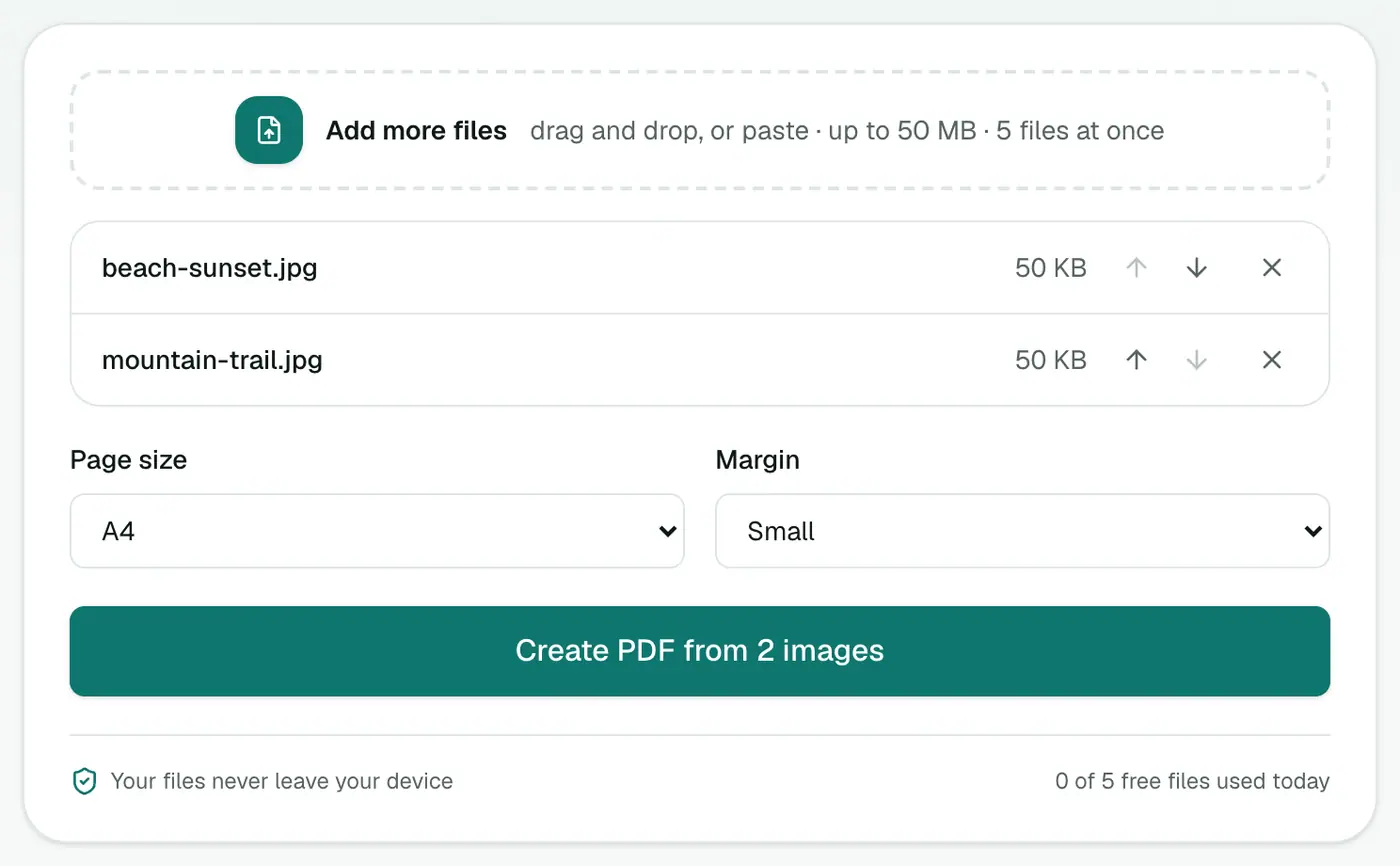
Select all your JPGs. Use the up and down arrows next to each file to put them in the right order. That's the page order in the PDF.
Then choose:
- Page size: A4 (most of the world) or US Letter (US and Canada) for forms and printing. Same as image makes every page match its photo.
- Margin: No margin for edge-to-edge, Small or Large for a printed-document look.
3. Create the PDF
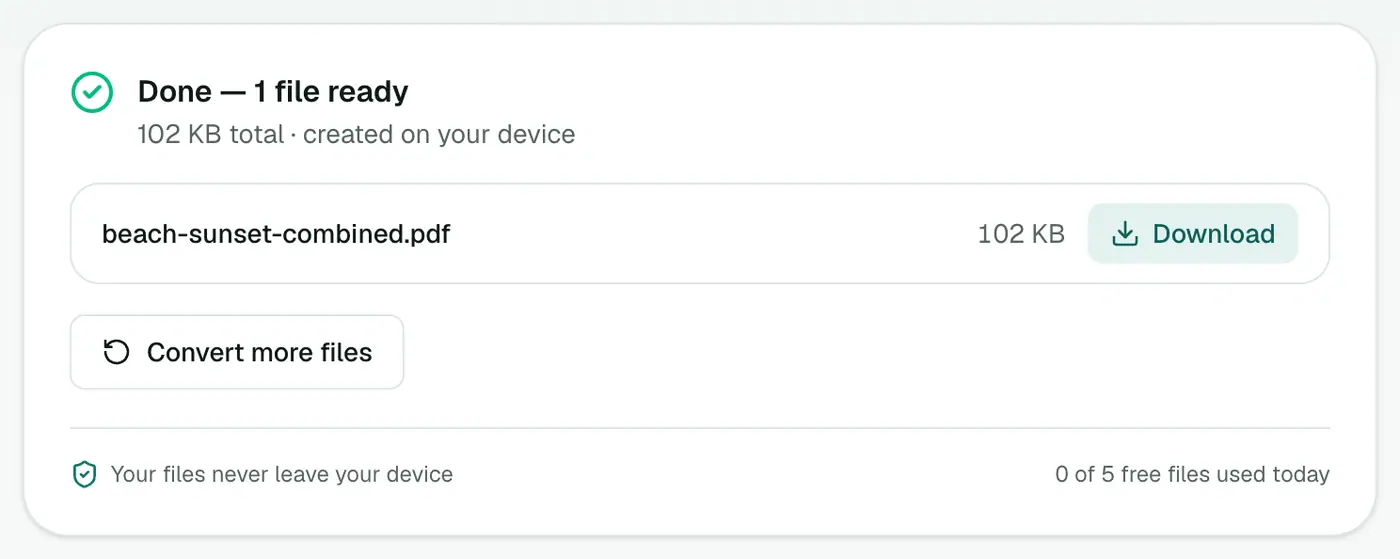
Click Create PDF and download your document.
Other ways
- iPhone: select photos in the Photos app, tap Share → Print, then pinch outwards on the preview. That opens a PDF you can share. It works, but it's fiddly and you can't choose margins.
- Windows: select the images in File Explorer, right-click, Print, and choose Microsoft Print to PDF. Watch out: the default "fit picture to frame" setting crops your images.
- Mac: select the images in Finder, right-click, Quick Actions → Create PDF.
All fine options. The converter's advantages are the page order controls, margins, and that it works the same on any computer.
Tips
- Too big to email? Phone photos make heavy PDFs. Run the result through Compress PDF, or compress the images first.
- Mixed formats? Use Images to PDF. It takes JPG, PNG, WebP and more in one go.
- iPhone photos? HEIC to PDF skips the conversion step.
- Need it in a different order later? Organize PDF rearranges pages without starting over.
Size limits on common forms
| Where | Typical limit |
|---|---|
| Job and university applications | 2–5 MB per file |
| Visa and government portals | Often 1–2 MB |
| 20–25 MB |
Too big? Run the PDF through Compress PDF, or reduce the photos with Compress Image before converting.
Make photos of documents look better
- Shoot from directly above, in daylight, without flash glare.
- Crop to the edges of the paper.
- Use your phone's document scanner (Notes on iPhone, Google Drive on Android) if you have it.
Summary
Add your photos, put them in order, pick A4 or Letter, and download. The JPG to PDF converter gives you a clean, watermark-free PDF without your documents leaving your device.
FAQs
Can I combine several JPGs into one PDF?
Yes. That's the main point of the tool. Add your photos, put them in order, and they're combined into one PDF with one image per page.
Which page size should I choose?
A4 or US Letter if the PDF will be printed or submitted to a form. "Same as image" if you want each page exactly the size of the photo, like a portfolio.
Is there a watermark?
No. The PDF contains only your images.
Will the photos lose quality?
No. The JPGs are placed into the PDF as they are, without being re-compressed.
Are my documents uploaded?
No. The PDF is built in your browser, which matters for IDs, bank documents and medical paperwork.
Can I add PNG or HEIC photos too?
JPG to PDF takes JPG files. For a mix of formats, use Images to PDF, or HEIC to PDF for iPhone photos.
Try the JPG to PDF Converter
Free to start, no install, and your files never leave your device.