PDF2 min read
How to Convert a PDF Bank Statement or Invoice to Excel
Stop retyping numbers. Extract tables from PDF statements, invoices and reports into an Excel spreadsheet you can sort, filter and total.
By the ZapMorph team
On this page
Just want it done?
Open the PDF to Excel Converter — it runs in your browser and nothing is uploaded.
Copying numbers out of a PDF bank statement by hand is slow and error-prone. Copy-paste from a PDF reader usually dumps everything into one column. Getting the table into Excel properly means you can sort transactions, total categories and build a budget in minutes.
Good candidates
- Bank and credit card statements (the text-based PDFs you download from online banking).
- Invoices and price lists.
- Reports with tables of figures.
- Exported reports from accounting or HR systems.
How to convert PDF to Excel with ZapMorph
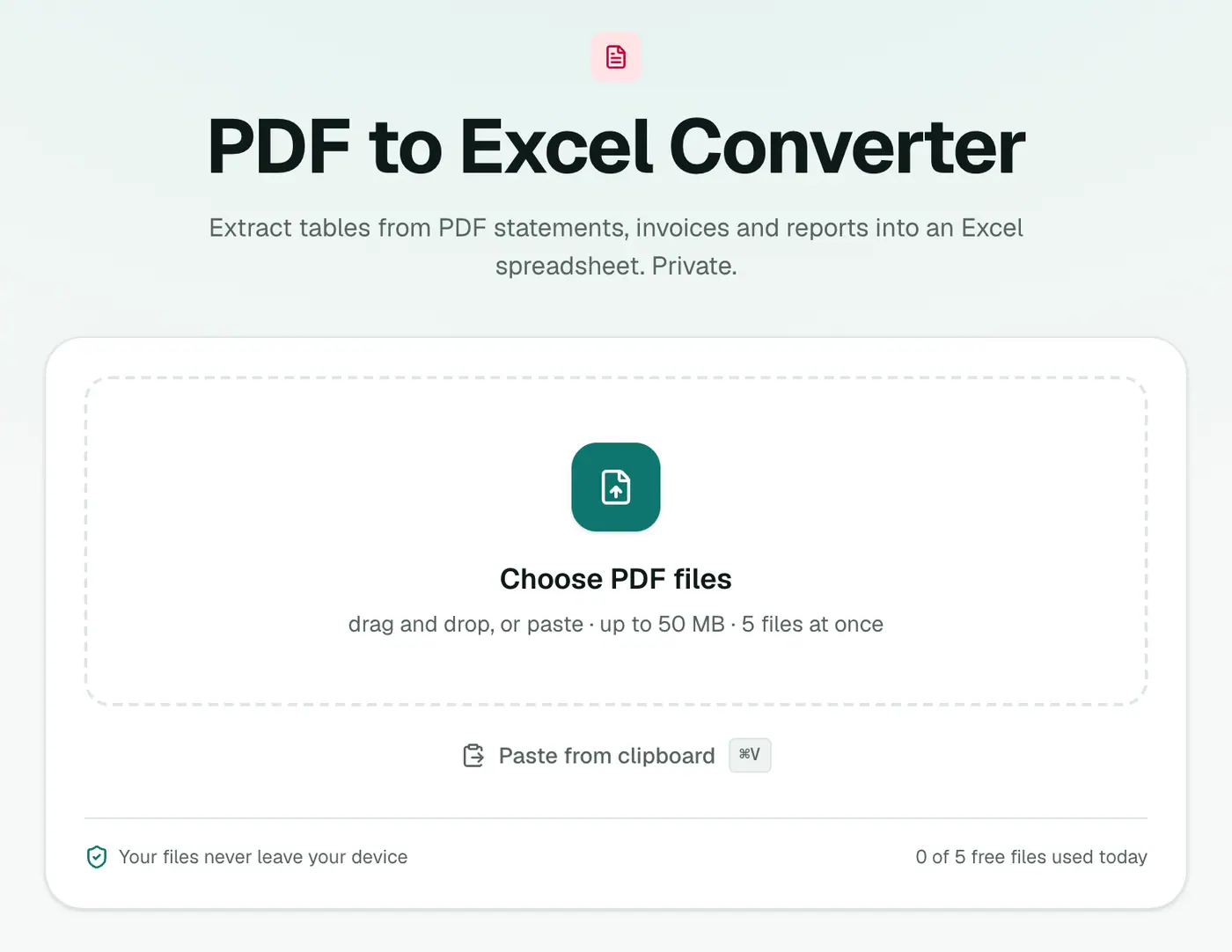
1. Open PDF to Excel
Go to the PDF to Excel converter.
2. Add your PDFs
Drop in one or more statements.
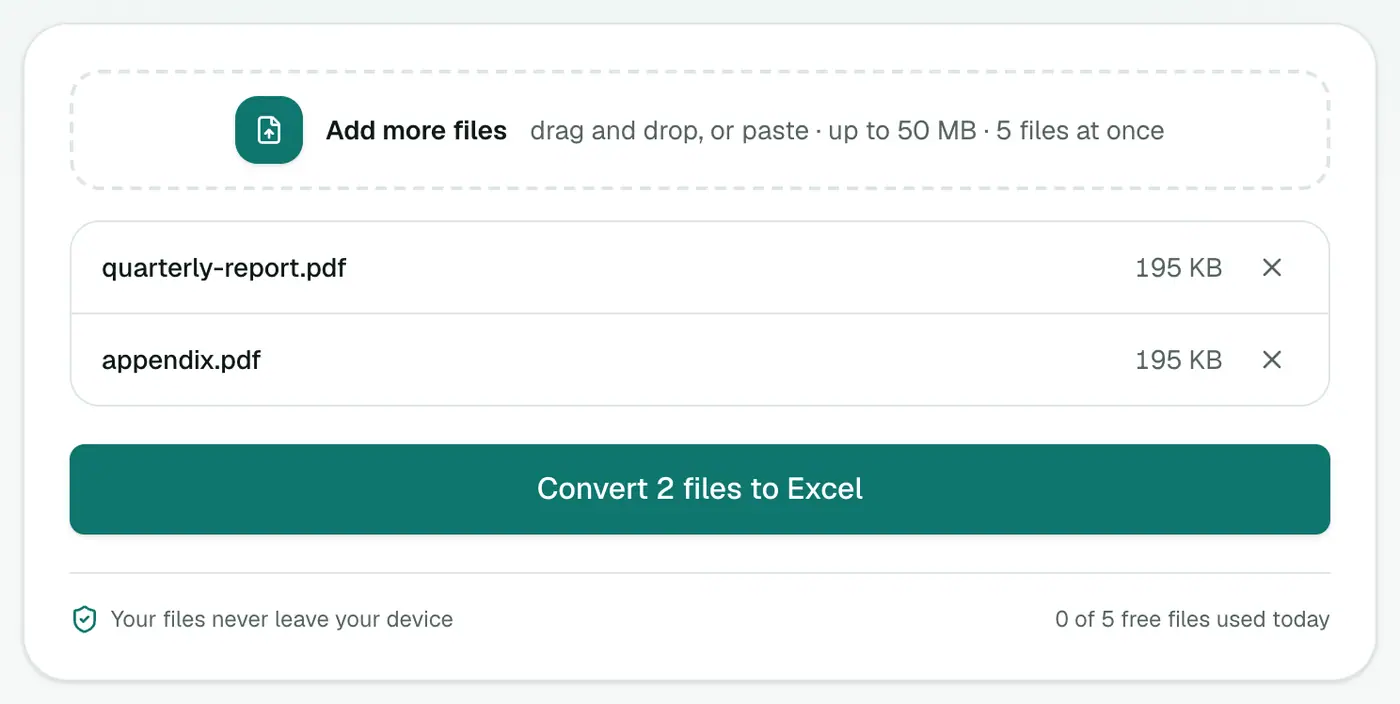
3. Convert and download
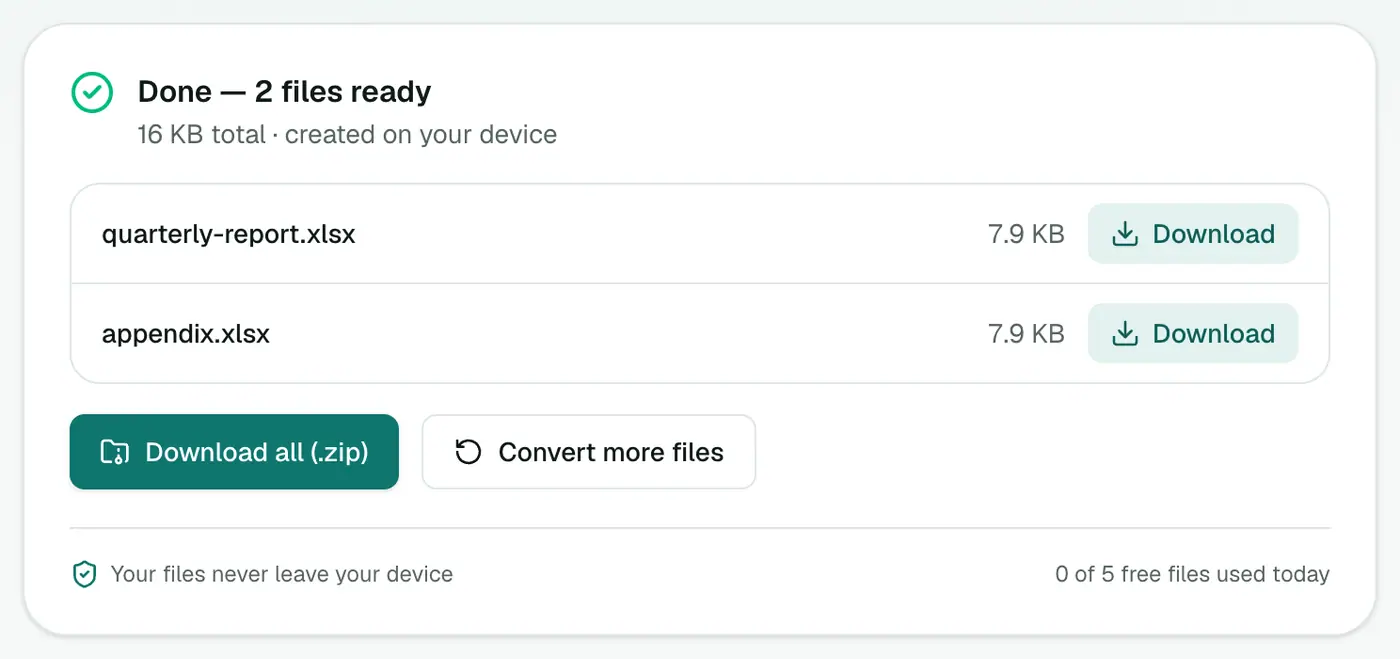
Click Convert to Excel. Open the XLSX. Each page of the PDF is a separate sheet.
Tidying up in Excel
A few minutes of clean-up makes the data much easier to work with:
- Combine sheets: copy the transaction rows from each page sheet into one sheet.
- Delete repeated headers and page totals.
- Fix numbers stored as text: select the column and use Data → Text to Columns → Finish, or multiply by 1.
- Turn it into a table (Ctrl+T) and filter by date, payee or amount.
Other ways
- Your bank may offer CSV or Excel exports directly in online banking. Look for "Export" or "Download transactions". That's always cleaner than converting a PDF.
- Excel's Power Query: Data → Get Data → From File → From PDF in Excel for Microsoft 365 on Windows. Good for regular, repeatable imports.
- Acrobat Pro: Export PDF → Spreadsheet.
Tips
- Scanned statement? Use Make PDF Searchable first.
- Just want the text? PDF to Text.
- Need a CSV for an accounting app? Convert to Excel, then use Excel to CSV.
Which PDFs convert well
| Result | |
|---|---|
| Bank and card statements exported as PDF | Good: clear rows and columns |
| Price lists and invoices from software | Good |
| Reports with simple tables | Good |
| Scanned statements | Needs OCR PDF first |
| Complex layouts with merged cells | Expect some tidying |
Quick clean-up in Excel
- Numbers stored as text? Select the column → Data → Text to Columns → Finish.
- Combine pages: copy each sheet's rows into one sheet, then remove repeated header rows with a filter.
- Totals check: sum a column and compare with the statement's own total.
Summary
Check whether your bank offers a CSV export first. If all you have is the PDF, the PDF to Excel converter gets the numbers into rows and columns, privately and in seconds.
FAQs
How are the columns worked out?
Text is grouped into rows and columns based on its position on the page. Each PDF page becomes its own worksheet.
Does it work with scanned statements?
No. Scans have no text layer. Run them through Make PDF Searchable first, then convert.
Do I need to tidy up the result?
Often a little, such as merging a header row or removing page totals. It's still much faster than retyping.
Is it safe for bank statements?
Yes. The PDF is processed in your browser and never uploaded.
Why does each page become its own sheet?
Page layouts can differ, so keeping one worksheet per page avoids mixing columns. Copy the sheets together in Excel once you've checked them.
Try the PDF to Excel Converter
Free to start, no install, and your files never leave your device.