Email2 min read
How to Export Outlook for Mac Emails to Excel (OLM to CSV)
Turn an Outlook for Mac .olm archive into a spreadsheet, one row per email with date, sender, recipients, subject, attachments and body. Opens in Excel.
By the ZapMorph team
On this page
Just want it done?
Open the OLM to CSV Converter — it runs in your browser and nothing is uploaded.
A spreadsheet is a great way to review an old Outlook for Mac archive: who wrote, when, about what, with filters and sorting instead of endless scrolling. It's also the format most auditors, accountants and lawyers ask for when they want "a list of all emails".
What the spreadsheet looks like
One row per email, seven columns:
| Date | From | To | Cc | Subject | Attachments | Body |
|---|---|---|---|---|---|---|
| 2021-03-12 09:14 | Priya Shah <priya@…> | Sam Lee <sam@…> | Revised quote | quote-v2.pdf | Hi Sam, attached is… |
Multiple recipients are separated by commas, and multiple attachments by semicolons.
How to convert OLM to CSV with ZapMorph
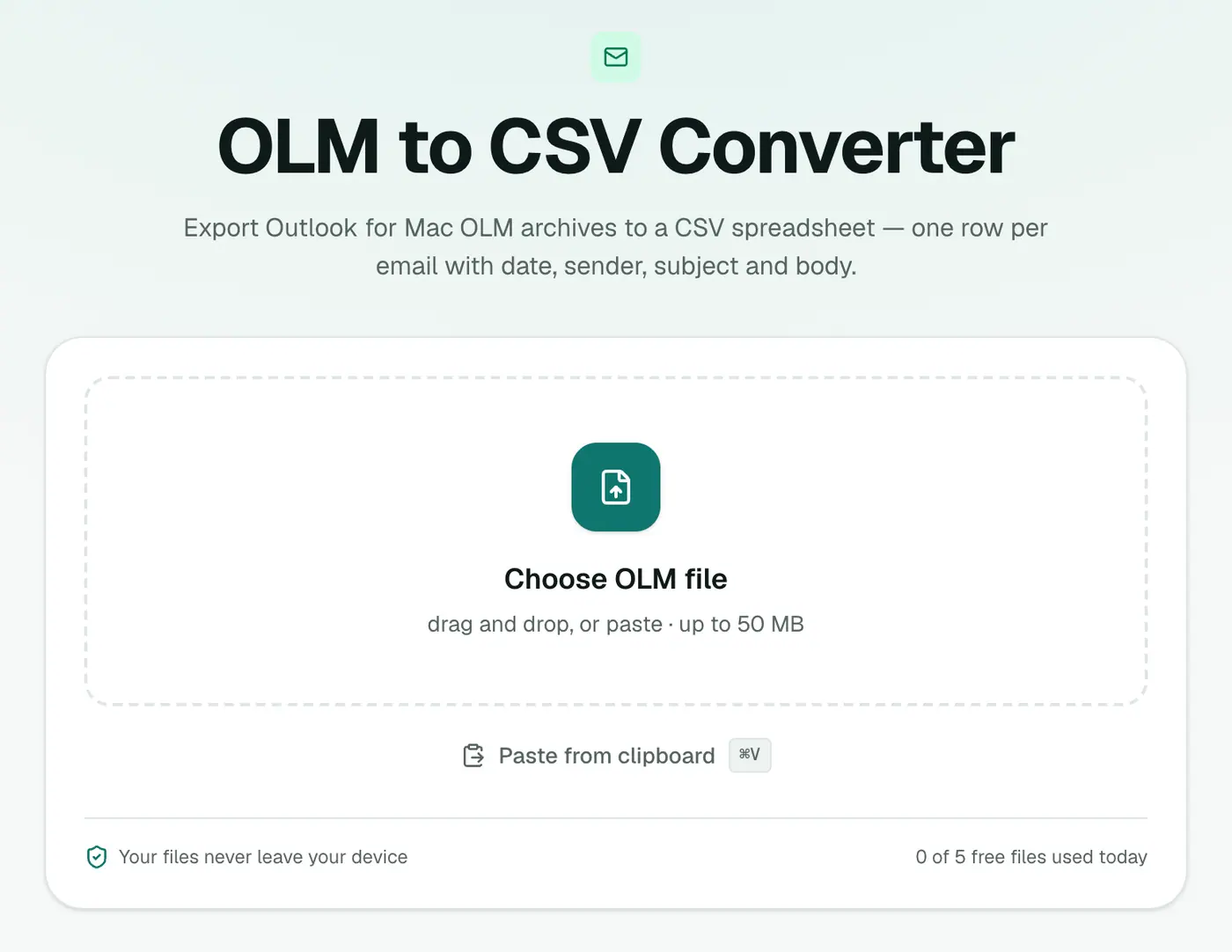
1. Open the converter
Go to the OLM to CSV converter.
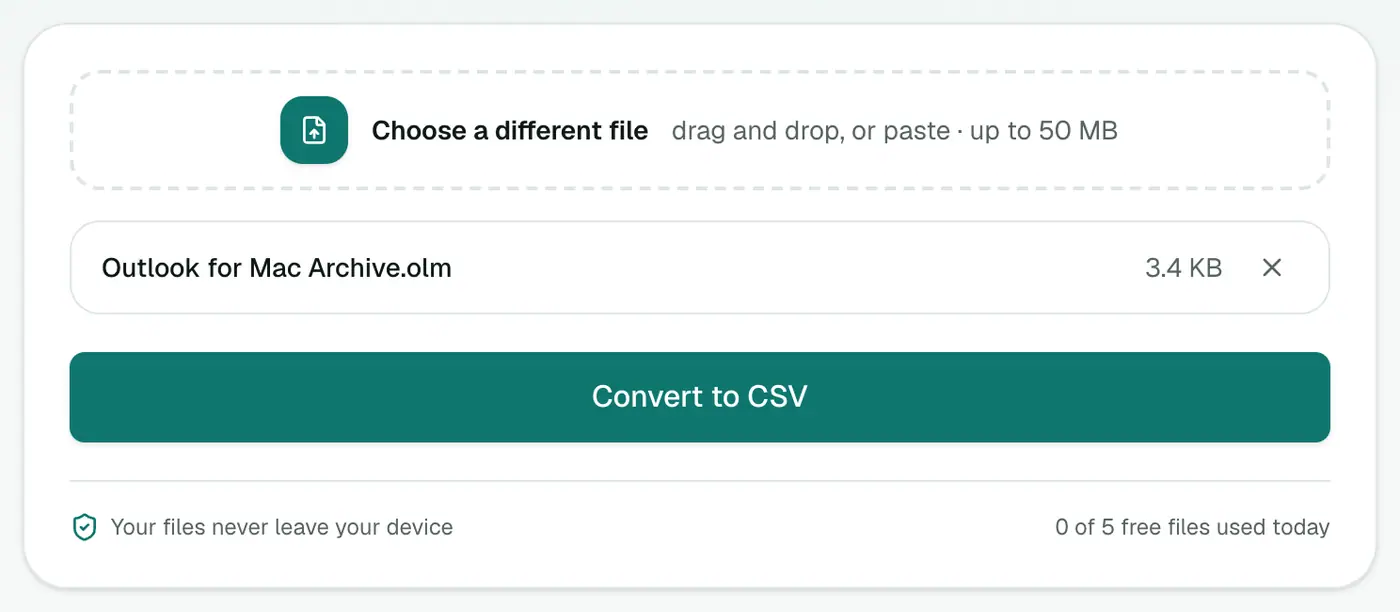
2. Add the OLM
Drop in the .olm file. It's read on your device, not uploaded.
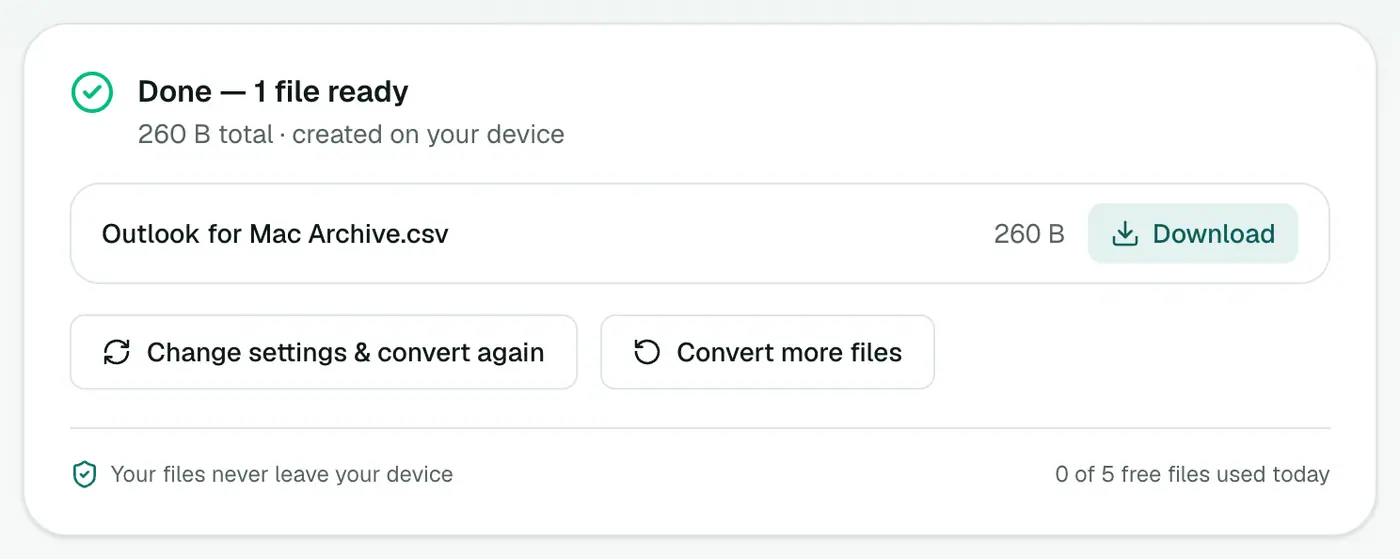
3. Convert and download
Click Convert to CSV.
Useful things to do in Excel
- Find every email from one person: turn on Data → Filter and filter the From column.
- Count emails per sender: insert a PivotTable with From in Rows and Subject in Values (Count).
- Emails in a date range: filter the Date column with Between.
- Only emails with attachments: filter Attachments to non-blanks.
- Search bodies: Ctrl+F / Cmd+F searches every cell, including the Body column.
Opening the CSV
- Excel (Windows and Mac): double-click the file. If characters look wrong in an older Excel, use Data → From Text/CSV and choose UTF-8.
- Numbers: open the CSV directly.
- Google Sheets: File → Import → Upload.
Want a proper .xlsx with formatting saved? Open the CSV and use File → Save As → Excel Workbook.
Tips
- Wrap text off. Long bodies make rows huge. Select the Body column and turn off Wrap Text to keep the sheet scannable.
- Need the full email text? Very long bodies are trimmed to fit Excel's cell limit. OLM to Text keeps everything.
- Need folders? CSV doesn't include the folder. OLM to JSON does.
Summary
The OLM to CSV converter turns an Outlook for Mac archive into a sortable, filterable spreadsheet, privately and in a couple of clicks.
FAQs
Which columns are included?
Date, From, To, Cc, Subject, Attachments and Body.
Does it work in Numbers or Google Sheets?
Yes. CSV opens in Excel, Numbers, Google Sheets and LibreOffice.
Will accents and non-English characters display correctly in Excel?
Yes. The file is UTF-8 with a marker Excel recognises, so names like José or Zoë come through intact.
Why are some long emails cut off?
An Excel cell holds at most 32,767 characters, so very long bodies are trimmed to 32,000. Use OLM to Text or OLM to PDF for the full text.
Can I sort by date?
Yes. Dates are written as YYYY-MM-DD HH:MM, which sorts correctly as text and is recognised as a date by Excel and Sheets.
Is the archive uploaded?
No. The CSV is built in your browser. Your emails never leave your computer.
Try the OLM to CSV Converter
Free to start, no install, and your files never leave your device.