Email2 min read
How to Import a CSV Contact List to Your Phone (CSV to vCard)
Turn a CSV spreadsheet of contacts into a VCF file you can import into iPhone, Android, Google Contacts or Outlook in one go. Columns detected automatically.
By the ZapMorph team
On this page
Just want it done?
Open the CSV to vCard Converter — it runs in your browser and nothing is uploaded.
A guest list, a client list, a team roster from HR: if it's in a spreadsheet and you want it in your phone, typing each contact in by hand is not the answer. A VCF file imports them all at once.
Prepare the CSV
Use a clear header row. These work well:
| First Name | Last Name | Mobile | Company | |
|---|---|---|---|---|
| Ana | Silva | +351 912 345 678 | ana@example.com | Globex |
Tips:
- Include the country code in phone numbers so they work from anywhere.
- One contact per row.
- Save as CSV UTF-8 in Excel so accented names survive.
Recognised column names
| Field | Header examples |
|---|---|
| Name | Name, Full Name, Display Name, Contact |
| First / last name | First Name, Given Name / Last Name, Surname, Family Name |
| Phones | Mobile, Cell, Work Phone, Home Phone, Phone, WhatsApp |
| Email, E-mail, Email Address | |
| Company / job | Company, Organisation, Employer / Title, Job Title, Role |
| Address | Address, Street, City, State, Postcode, Zip, Country |
| Other | Website, Birthday, DOB, Notes |
Capitals, spaces and punctuation in headers don't matter.
How to convert CSV to vCard with ZapMorph
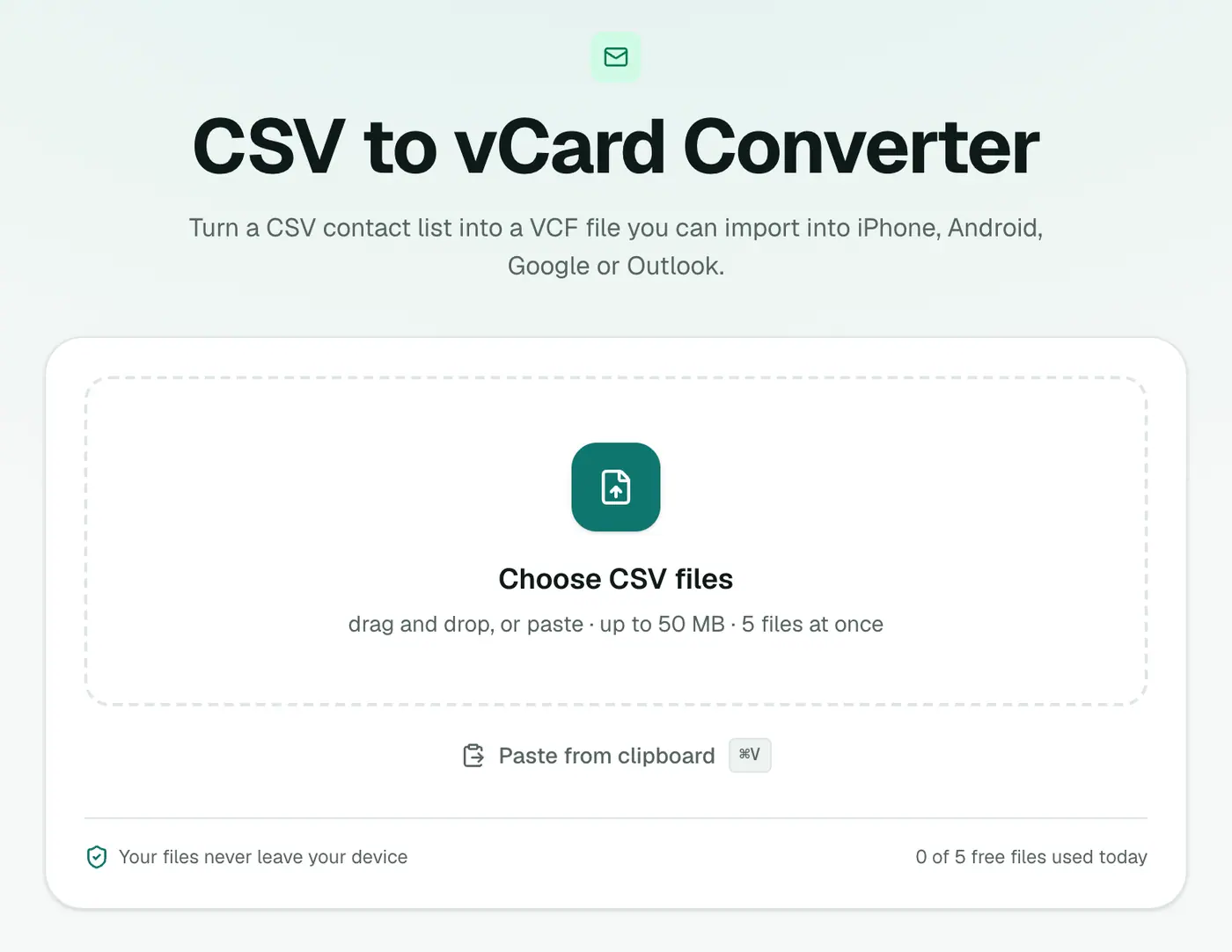
1. Open the converter
Go to the CSV to vCard converter.
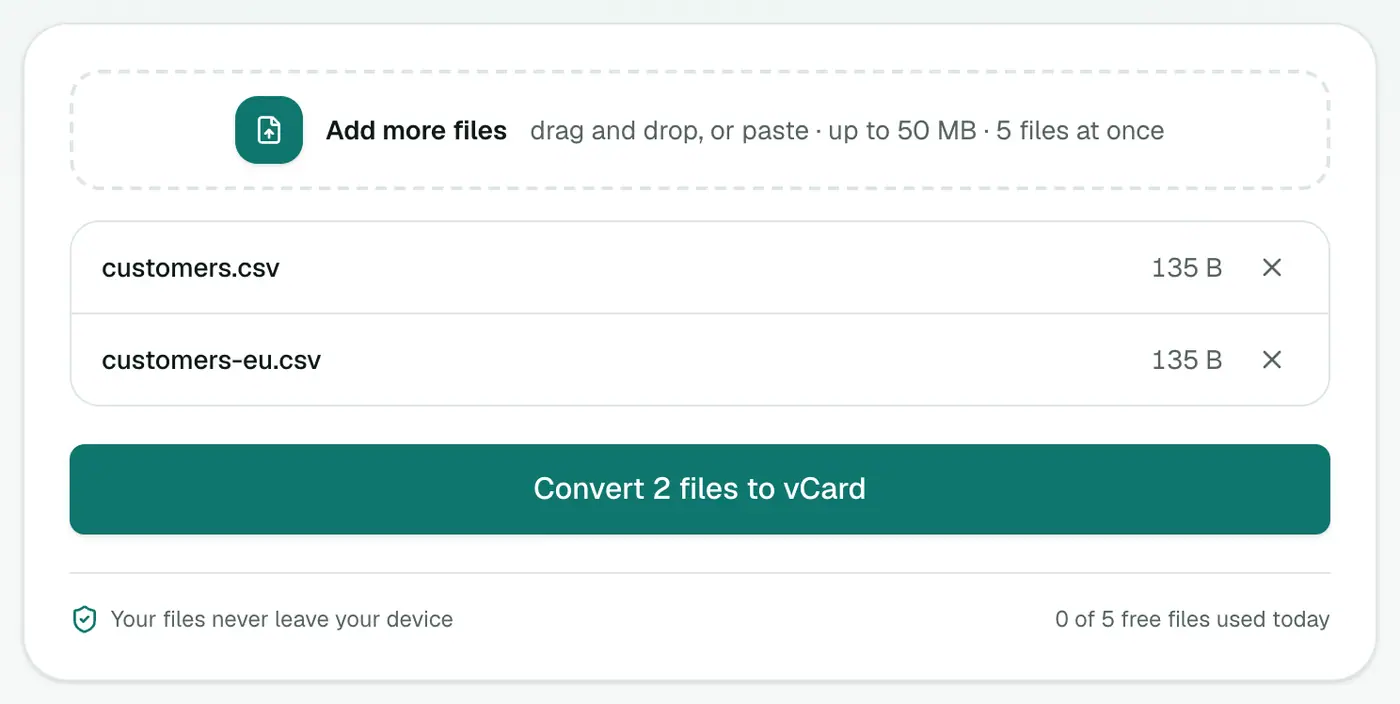
2. Add your CSV
Drop in the CSV file.
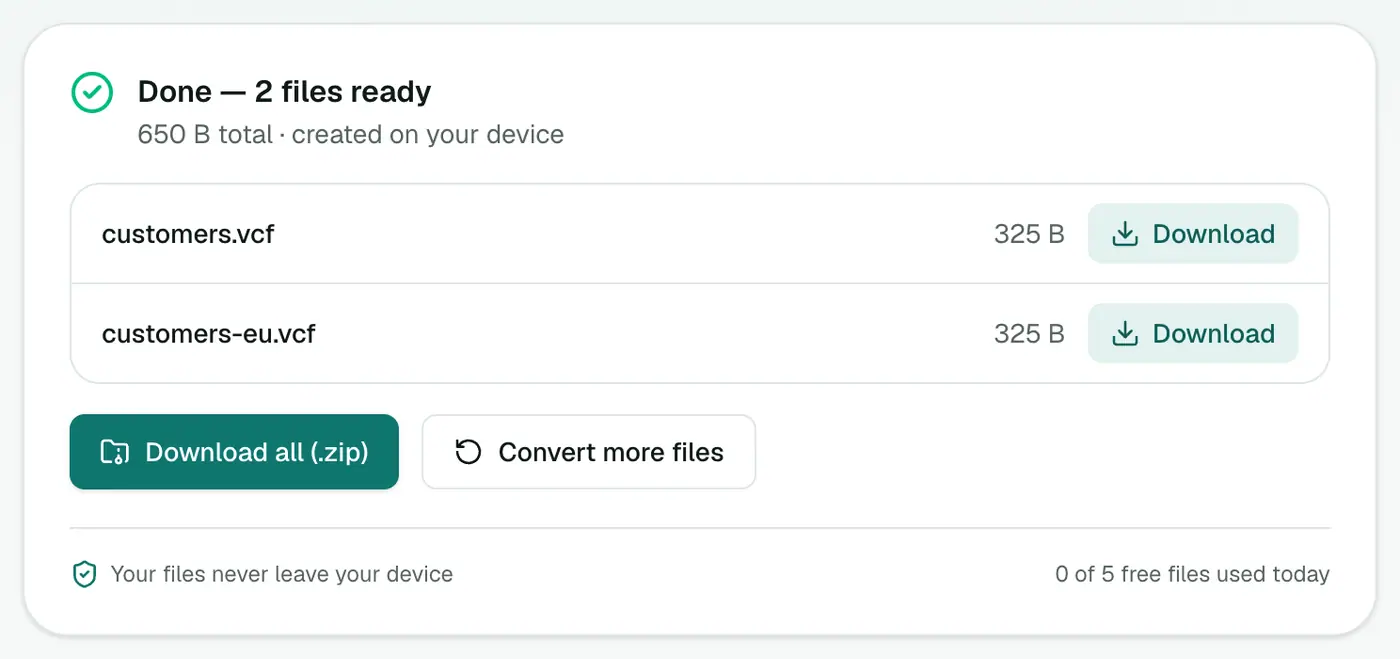
3. Convert and download
Click Convert to vCard.
Importing
- iPhone: open the VCF from Mail, Messages or Files and tap Add All Contacts.
- Android: Contacts → Settings → Import.
- Google Contacts: contacts.google.com → Import.
- Outlook.com: People → Manage → Import contacts.
Check a couple of contacts after importing before you delete your spreadsheet.
Troubleshooting
"Couldn't find name, phone or email columns." The first row must be headers. Rename them to something like Name, Phone and Email.
Phone numbers lost their leading 0 or +. Excel strips them when it thinks they're numbers. Format the column as Text before typing, or add the country code (+44 7700 900123).
Accented names look wrong. Re-save from Excel as CSV UTF-8 (Comma delimited).
Summary
The CSV to vCard converter turns a spreadsheet into contacts on your phone in one import. Starting from Excel? Use Excel to vCard.
FAQs
What column names are recognised?
Common ones like Name, Full Name, First Name, Last Name, Phone, Mobile, Work Phone, Home Phone, Email, Company, Job Title, Address, City, Postcode, Country, Website, Birthday and Notes are detected automatically.
How do I import the VCF on an iPhone?
AirDrop or email it to yourself and tap it, then Add All Contacts. Or import at icloud.com → Contacts → gear → Import vCard.
How do I import it on Android?
Open Contacts → Settings → Import, and choose the VCF file. Or import it at contacts.google.com.
Can a contact have more than one phone or email?
Yes. Use separate columns such as Mobile, Work Phone and Email, Email 2. Every recognised column is added.
What happens to rows without a name, phone or email?
They're skipped, so blank or junk rows don't create empty contacts.
Is my list uploaded?
No. The VCF is created in your browser.
Try the CSV to vCard Converter
Free to start, no install, and your files never leave your device.