Email2 min read
How to Convert an Outlook for Mac OLM Archive to PDF
Open an Outlook for Mac .olm export on any computer and save its emails as one PDF, each message on a new page with a clear header. No Outlook needed.
By the ZapMorph team
On this page
Just want it done?
Open the OLM to PDF Converter — it runs in your browser and nothing is uploaded.
Outlook for Mac exports to .olm, and only Outlook for Mac can open it. Switch to Windows, hand the file to a colleague on a PC, or simply stop paying for Office, and those emails are stranded.
PDF is the answer when the emails need to be read, printed or kept as a record. That covers legal disclosure, HR files, tax and accounting evidence, or simply preserving a former employee's correspondence.
Creating an OLM (if you still have Outlook for Mac)
In Outlook for Mac: Tools → Export (or File → Export in older versions), choose what to include (mail, contacts, calendar), and save the .olm file. If you're on the new Outlook and can't find Export, switch to Legacy Outlook from the Outlook menu first.
How to convert OLM to PDF with ZapMorph
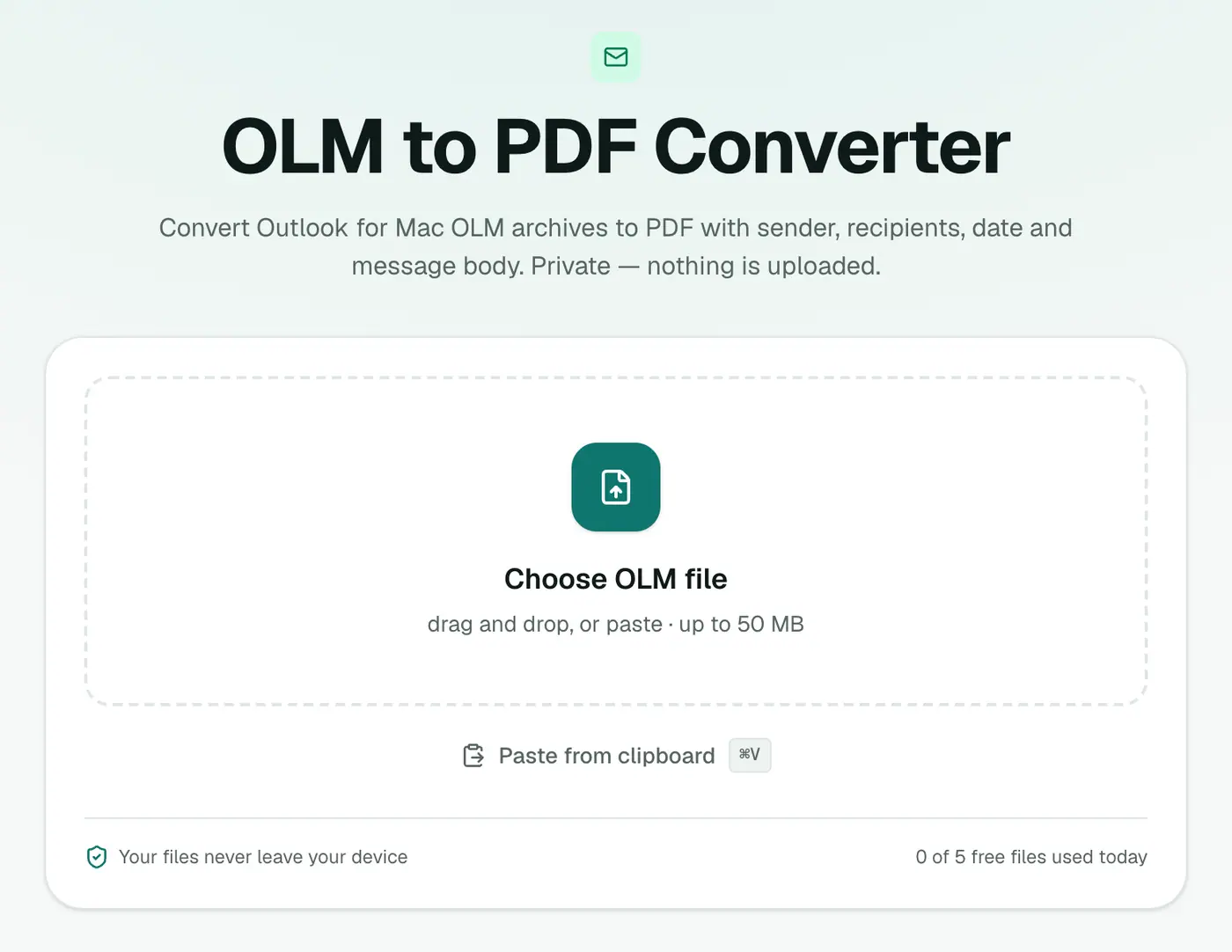
1. Open the converter
Go to the OLM to PDF converter.
2. Add the OLM and pick a paper size
Drop in the .olm and choose A4 (most of the world) or US Letter (US and Canada).
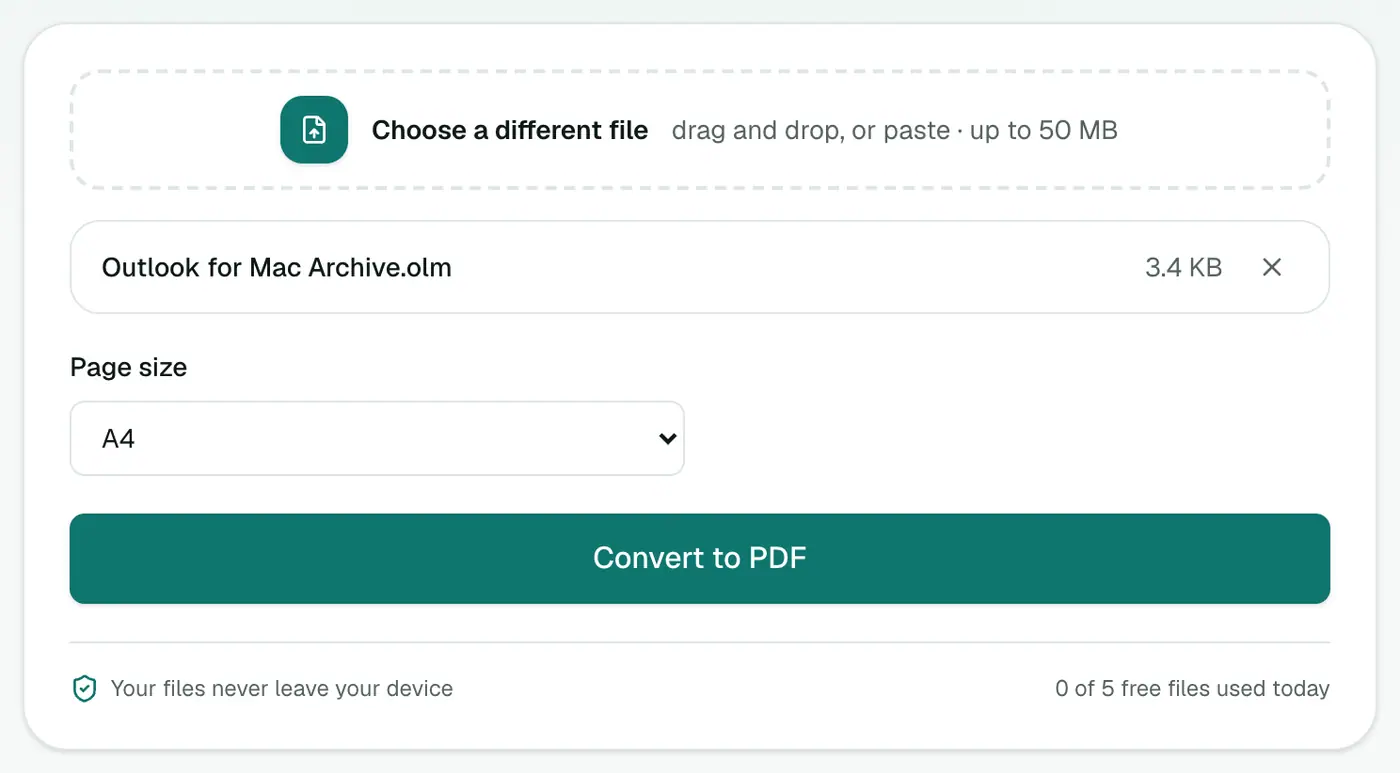
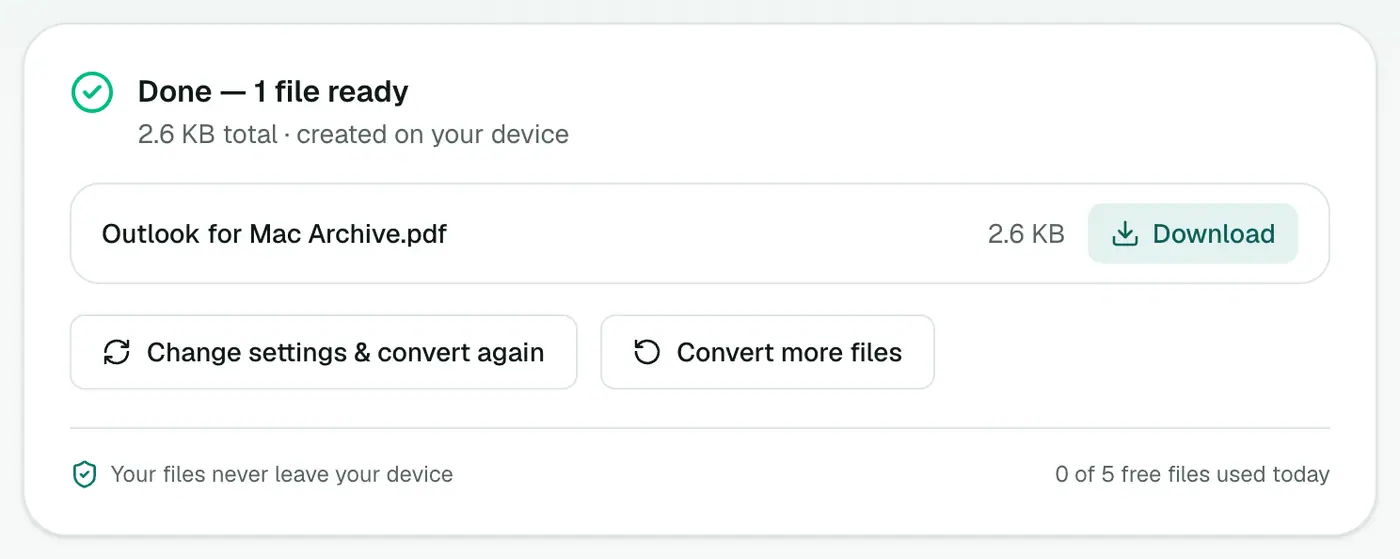
3. Convert and download
Click Convert to PDF.
What each page looks like
Every email starts on a fresh page:
- Subject as a heading.
- From, To, Cc, Date and Attachments (names and sizes).
- A divider, then the message body, with headings, lists and paragraphs kept.
The PDF is text-based, not a picture, so you can search it with Ctrl+F / Cmd+F and copy text out of it.
Making the PDF easier to use
- Add page numbers for court bundles or audits with Add Page Numbers.
- Only need some emails? Pull out a page range with Extract PDF Pages.
- Too big to email? Shrink it with Compress PDF.
- Hide personal data before sharing with Redact PDF.
Tips
- See what's inside first with the OLM viewer.
- Moving to Apple Mail or Thunderbird? OLM to MBOX.
- Need individual emails? OLM to EML.
Troubleshooting
"This isn't a valid Outlook for Mac archive." The file is incomplete or damaged. Copy it again from the original location.
"No emails were found." The export has no mail in it. Re-export with Mail ticked.
Some emails show "(This message has no text.)" Those emails contained only an attachment or an image. The header still records who sent what, and when.
Summary
The OLM to PDF converter opens up an Outlook for Mac archive on any computer and turns it into a readable, searchable PDF, without uploading a thing.
FAQs
What is an OLM file?
The archive format Outlook for Mac creates when you export mail, contacts and calendar (Tools → Export, or File → Export in older versions).
Can Outlook for Windows open OLM?
No. OLM is Mac-only, which is why converting is often the only way to read it on a PC.
What's in the PDF?
Every email, each starting on a new page with From, To, Cc, Date and attachment names, followed by the body.
Are attachments included in the PDF?
They're listed by name and size under each email, but not embedded. Use OLM to EML or the OLM viewer to save the files.
Can I make one PDF per email?
This converter makes one PDF for the whole archive. For single emails, convert to EML first and then use EML to PDF on the ones you need.
Is the archive uploaded?
No. The PDF is created in your browser. Your emails stay on your computer.
Try the OLM to PDF Converter
Free to start, no install, and your files never leave your device.