Viewers2 min read
How to View a Large JSON File as a Collapsible Tree
Explore JSON files and API responses as an expandable tree with types, array lengths and search. Find the field you need in seconds. Private, in your browser.
By the ZapMorph team
On this page
Just want it done?
Open the JSON Viewer — it runs in your browser and nothing is uploaded.
A 5 MB API response is unreadable as text, even pretty-printed. A tree view lets you collapse what you don't care about, see array lengths at a glance, and search for the key you're after.
How to view JSON with ZapMorph
1. Open the JSON viewer
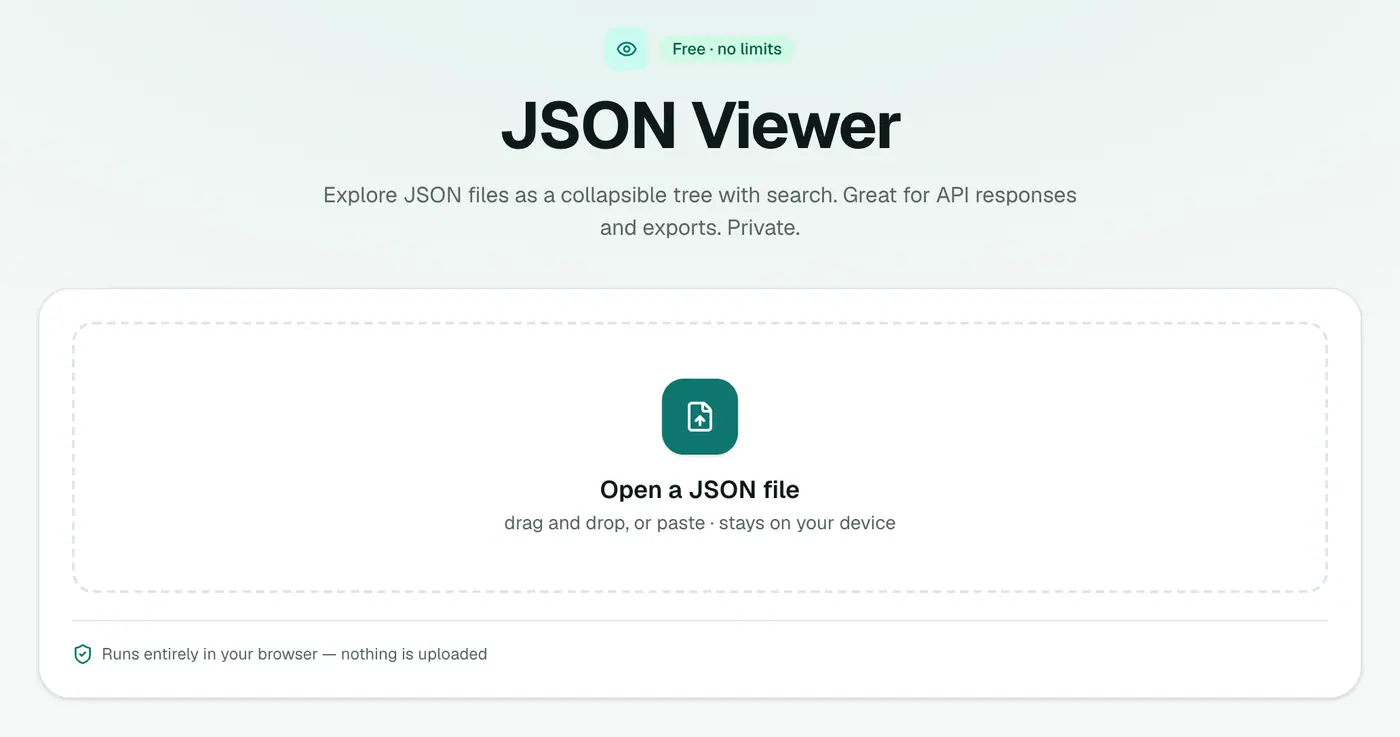
Go to the JSON viewer.
2. Drop in the file
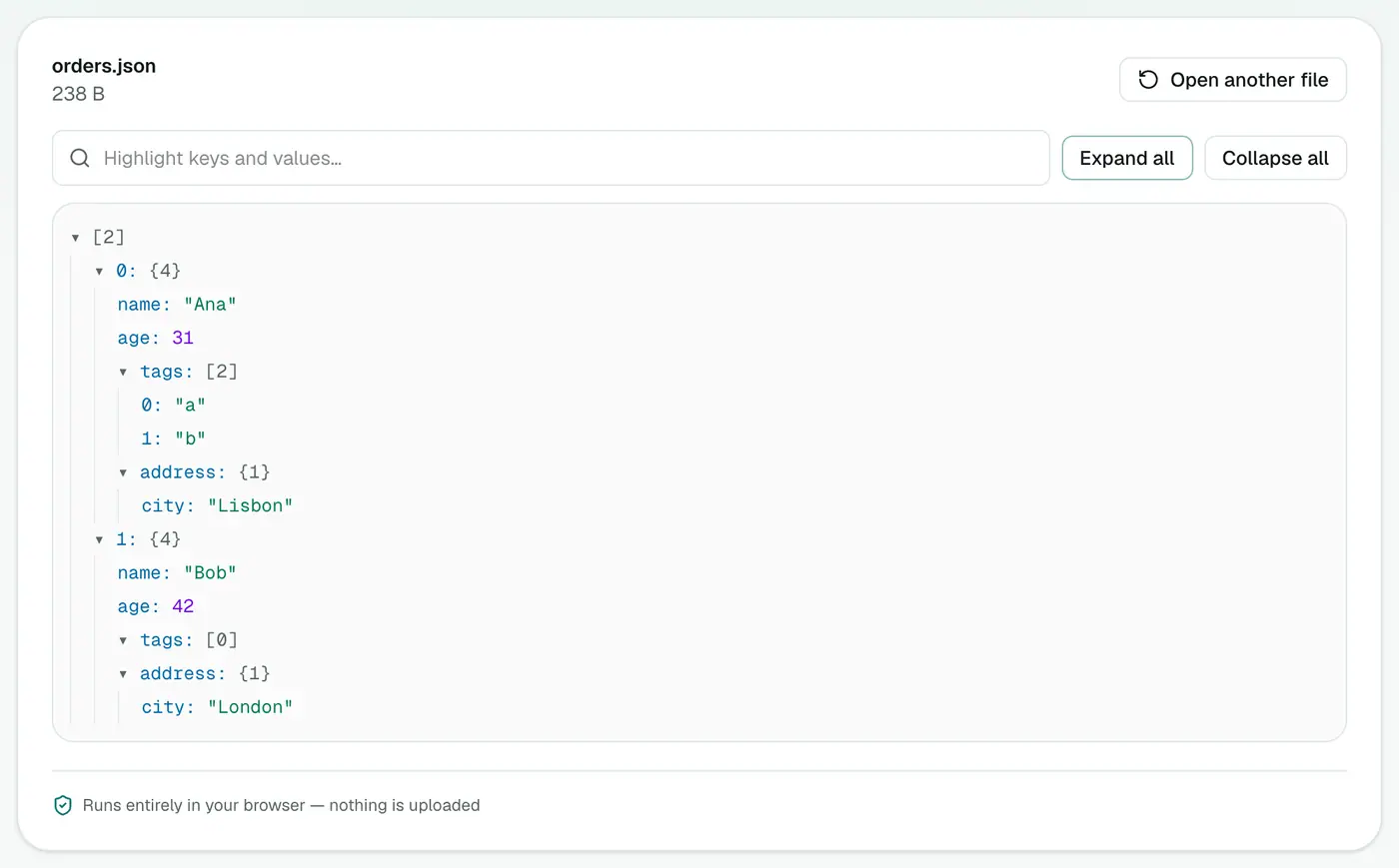
Drop the .json file on the box. It opens as an expandable tree with each value's type, array lengths and a search box.
Good for
- API responses you saved from the browser's network tab.
- Config and data exports from apps and databases.
- GeoJSON files.
- Data exports from services like Google Takeout, Instagram, Twitter/X and Spotify, which often come as JSON.
- Converted mailboxes from MBOX to JSON or PST to JSON.
Reading a JSON tree
| You see | It means |
|---|---|
{ } object | A set of named fields |
[ ] array with a count | A list, e.g. items [250] |
"text" | A string |
42, 3.14 | A number |
true / false | A yes/no value |
null | Empty or missing |
Tips
- Collapse everything, then drill down. Big files make sense when you open one level at a time.
- Search for a key name (like
emailorprice) to jump straight to it. - Check array lengths to confirm an export has the number of records you expected.
Saving JSON from your browser
- Open DevTools (F12 or Cmd+Option+I) → Network.
- Reload the page and click the request you're interested in.
- In Response, right-click → Copy response, paste into a text file and save as
.json. Or in Chrome, right-click the request → Save all as HAR for everything.
Related
- Validate or minify: JSON formatter.
- Spreadsheet: JSON to CSV or JSON to Excel.
- Other formats: JSON to YAML, JSON to XML.
Troubleshooting
"Unexpected token" errors. The file has a trailing comma, single quotes, or comments, which strict JSON doesn't allow. The JSON formatter shows exactly where.
The page is slow with a huge file. Close other tabs, and expand only the branches you need.
Summary
The JSON viewer turns walls of JSON into a tree you can actually navigate, privately in your browser.
FAQs
How is this different from the JSON formatter?
The formatter pretty-prints and validates text. The viewer shows the structure as a collapsible tree that's easier to explore.
Can it handle big files?
Yes. Large files open fine, limited only by your device's memory.
Is the data uploaded?
No. It's parsed in your browser.
Does it open GeoJSON?
Yes. .geojson files are JSON, so they open as a tree like any other.
What if my JSON is invalid?
The viewer can't build a tree from broken JSON. Paste it into the JSON formatter, which points to the line with the error.
Can I open JSON Lines (.jsonl) files?
JSON Lines has one JSON object per line rather than a single document. Wrap the lines in [ ] with commas between them, or open one line at a time.
Try the JSON Viewer
Free to start, no install, and your files never leave your device.