Viewers2 min read
How to Open and Read Your Gmail Takeout Export
Open your Google Takeout Gmail export, the .mbox or the whole .zip, then browse, search and download emails and attachments in your browser.
By the ZapMorph team
On this page
Just want it done?
Open the Gmail Takeout Viewer — it runs in your browser and nothing is uploaded.
You downloaded your Gmail with Google Takeout as a backup, before closing an account, or for a records request. You now have a ZIP with a giant MBOX file inside, and no obvious way to read it. Importing gigabytes of email into Thunderbird isn't how you want to spend your afternoon.
Step 1: Export your Gmail
- Go to takeout.google.com.
- Deselect all, then tick Mail.
- Optional: All Mail data included lets you pick specific labels.
- Next step → Create export. Google emails you when it's ready (it can take hours for big mailboxes).
File size tip: on the export settings page, choose a ZIP size. Smaller parts are easier to download and open.
Step 2: Open it with ZapMorph
1. Open the Gmail Takeout viewer
Go to the Gmail Takeout viewer.
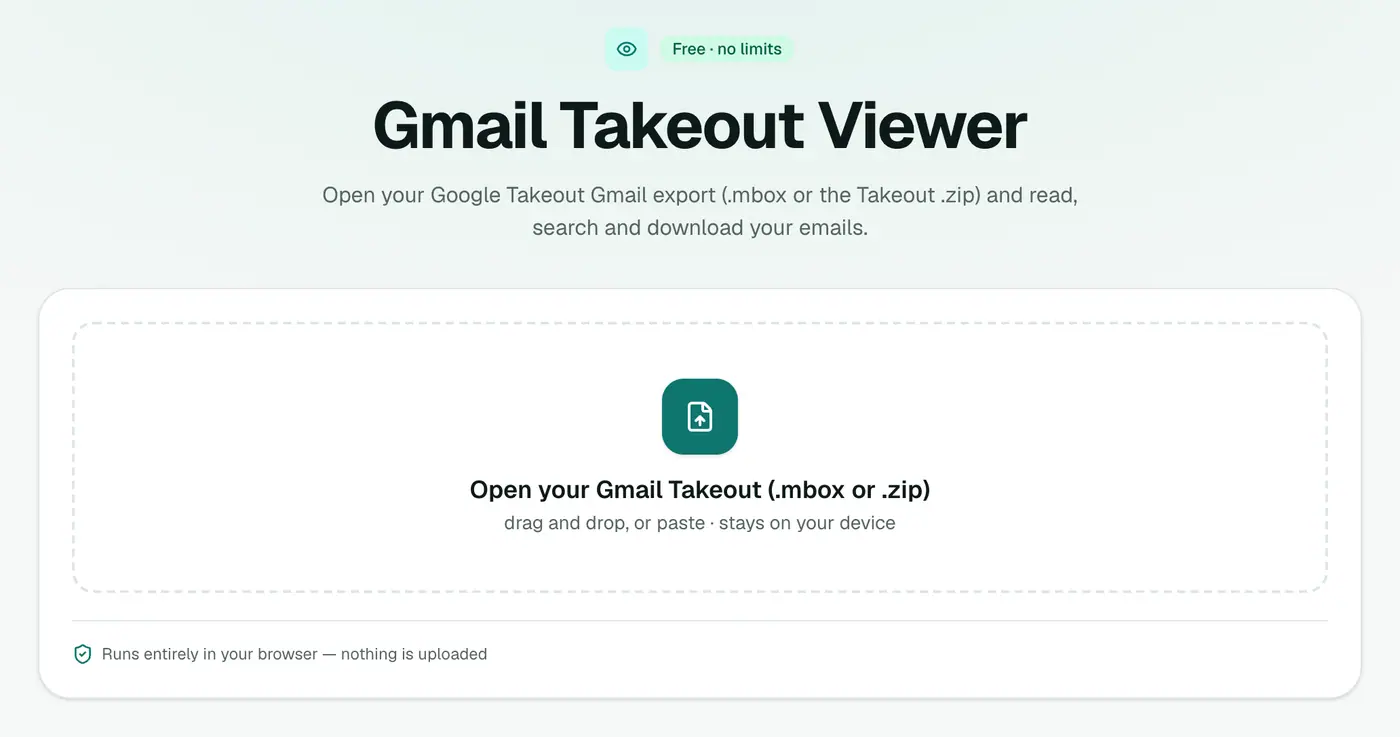
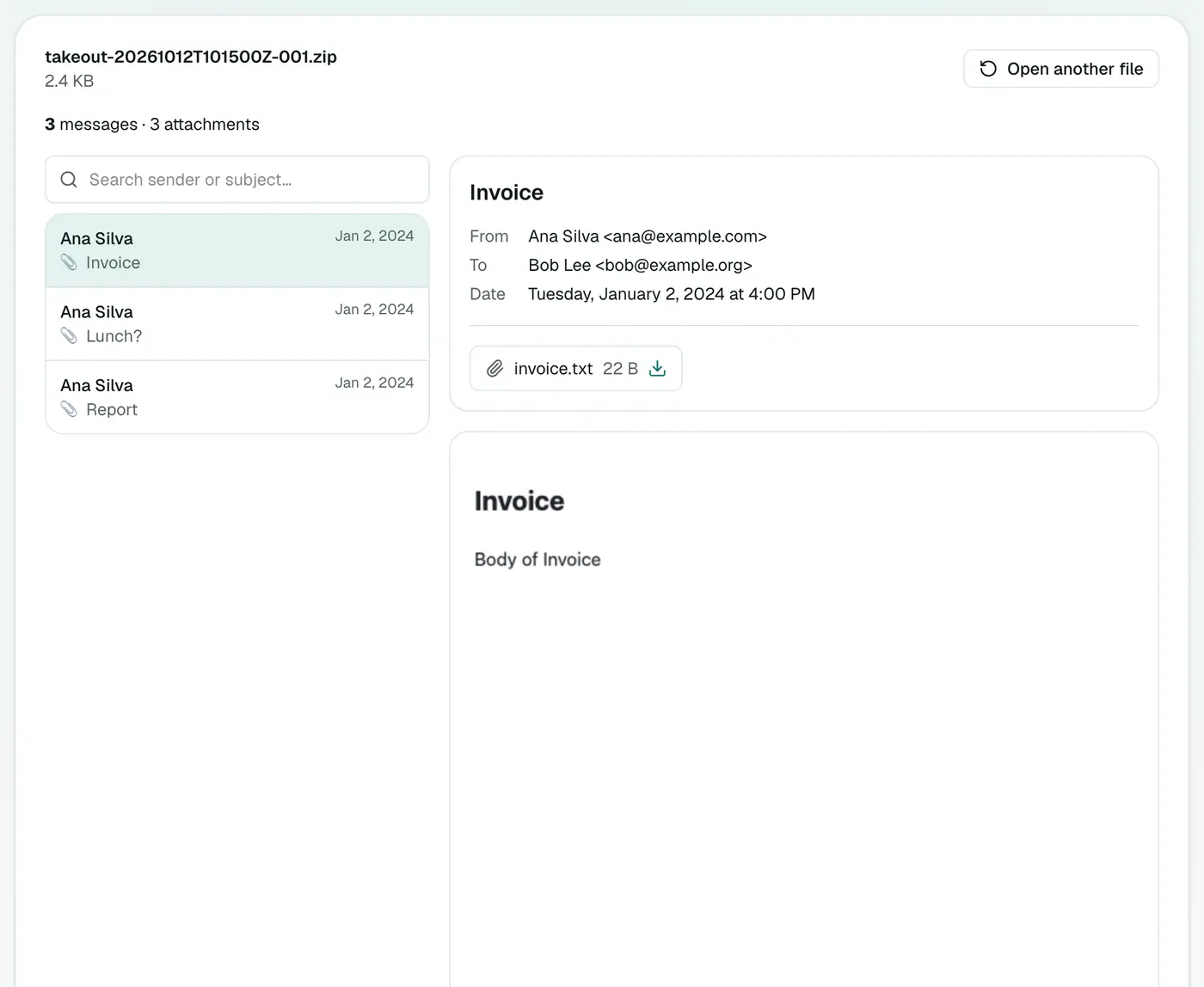
2. Drop in the export
Drop the Takeout .zip or the .mbox from inside it. Browse and search your emails and download attachments.
What's in a Takeout mail export?
All mail Including Spam and Trash.mbox: every message, including Sent, Drafts, Spam and Trash.- One
.mboxper label if you picked specific labels. User Settings: filters, signatures and forwarding rules (not emails).
Common reasons to open a Takeout
- Closing a Google account but keeping the emails readable.
- School or work account ending (graduation, leaving a job).
- Running out of Google storage and wanting an offline copy before deleting.
- Legal or data requests where you need to find specific messages.
After you've looked
| Next step | Tool |
|---|---|
| Count messages and see years | MBOX counter |
| Keep a printable copy | MBOX to PDF |
| A spreadsheet of every email | MBOX to CSV |
| Individual emails to forward | MBOX to EML |
Troubleshooting
"No Gmail mailbox (.mbox) was found." The ZIP holds other Google data (Drive, Photos) but no mail. Check the other parts of your export.
It's slow or runs out of memory. Large Takeouts are big. Export individual labels, or pick a smaller ZIP size when creating the export.
Only 1,000 emails listed. That's the display limit. Search by sender or subject to find the rest.
Summary
The Gmail Takeout viewer lets you read your Gmail export without importing it anywhere.
FAQs
Do I need to unzip the Takeout file?
No. You can open the Takeout .zip directly, or the .mbox inside it.
How do I request a Gmail Takeout?
Go to takeout.google.com, click Deselect all, tick Mail, choose labels if you like, then Next step → Create export.
Is my email uploaded anywhere?
No. The export is read in your browser on your own device.
My ZIP contains several mailboxes. Which one opens?
The 'All mail' mailbox if there is one, otherwise the first .mbox found. To read a specific label's mailbox, unzip and open that .mbox directly.
Are Gmail labels shown?
No. Emails are listed by date with sender and subject. Export one label at a time from Takeout if you want them separate.
How long does Takeout take?
Minutes for small mailboxes, up to a day or more for very large ones. Google emails you when the download is ready.
Try the Gmail Takeout Viewer
Free to start, no install, and your files never leave your device.