PDF2 min read
How to Split a PDF Into Separate Pages or Smaller Files
Break a large PDF into single pages or chunks of 2, 5 or 10 pages, and download them all as a ZIP. Useful for upload limits and sharing only what's needed.
By the ZapMorph team
On this page
Just want it done?
Open the Split PDF — it runs in your browser and nothing is uploaded.
Large PDFs cause small problems. A portal rejects anything over 5 MB. Your accountant only needs the bank statements, not the whole 80-page bundle. Or you've scanned a pile of separate letters as one long PDF.
Splitting turns one big PDF into several smaller ones.
Split vs extract
- Split PDF cuts the whole document into equal chunks: every page, every 2, 5 or 10 pages.
- Extract PDF Pages pulls out the specific pages you name, like "1, 4, 9-12", into one new PDF.
If you know exactly which pages you need, extract. If you want to break the whole thing up, split.
How to split a PDF with ZapMorph
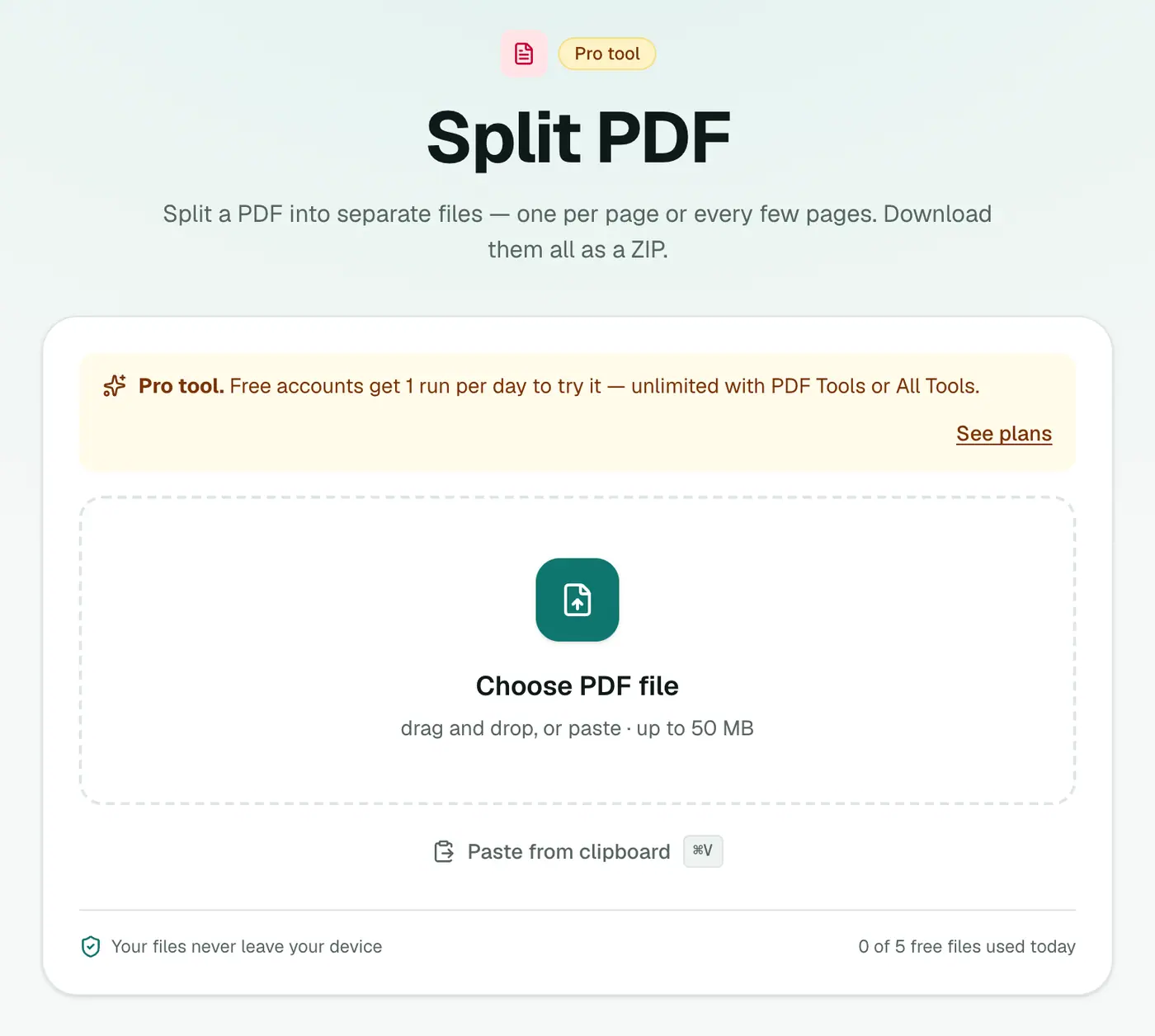
1. Open Split PDF
Go to the Split PDF tool. It's a Pro tool, and free accounts can try it once a day.
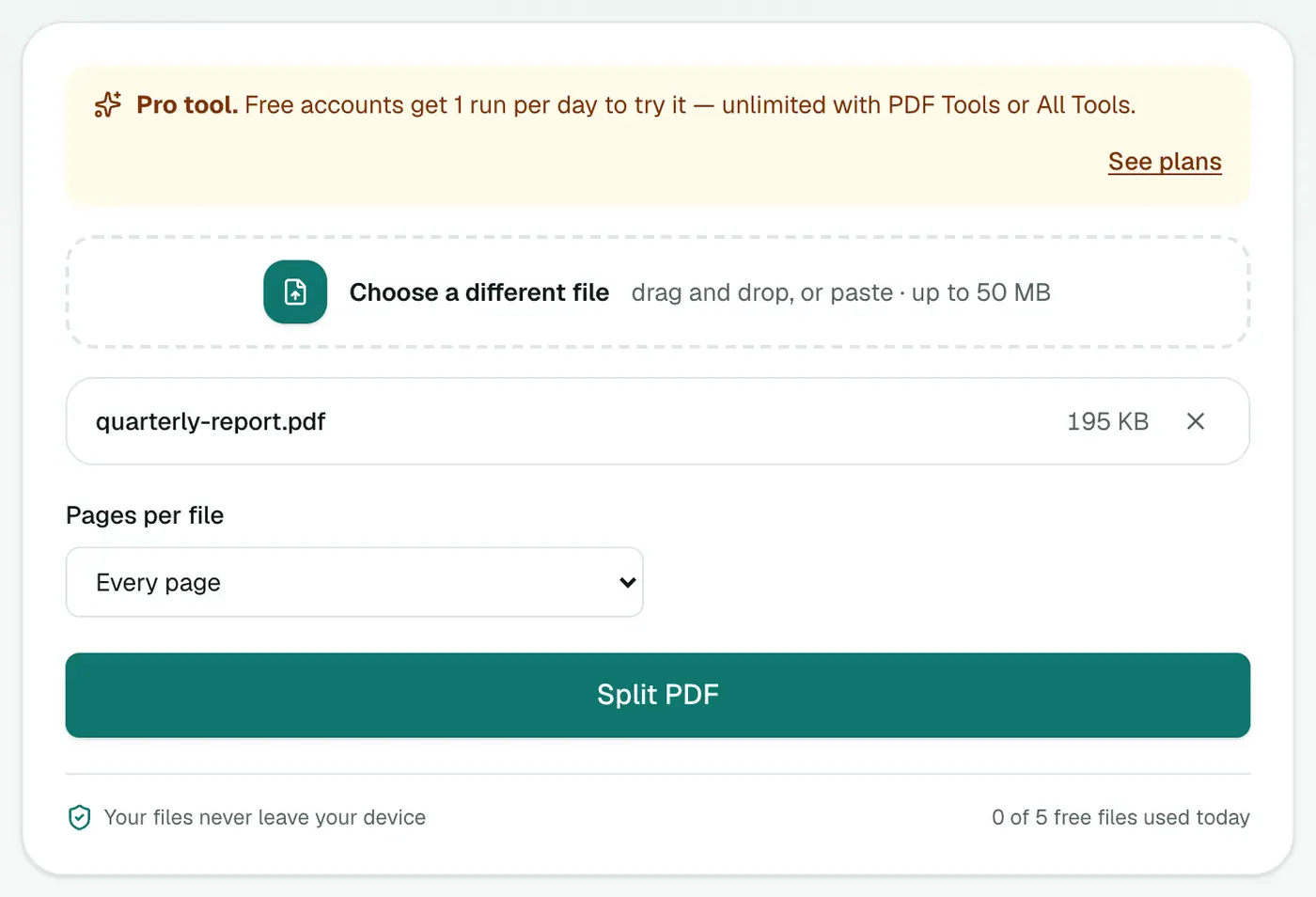
2. Add your PDF and choose the chunk size
Drop in the PDF and choose Pages per file: Every page, Every 2 pages, Every 5 pages or Every 10 pages.
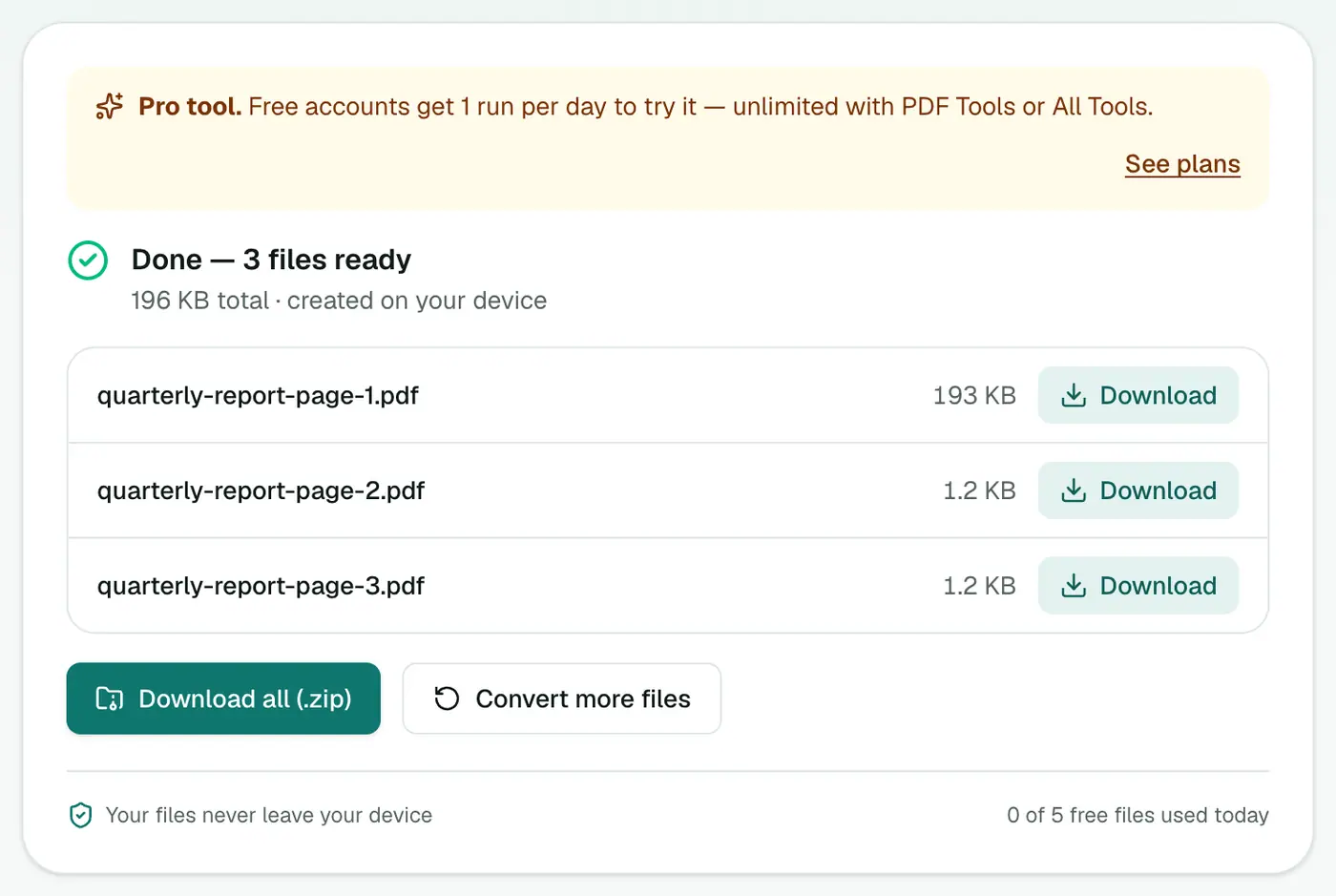
3. Split and download
Click Split PDF. You'll get several PDFs, numbered in order. Download all gives you a ZIP.
Practical examples
- A scan of 20 one-page letters → Every page → 20 separate letters.
- A double-sided form scanned as one file → Every 2 pages → one PDF per form.
- Upload limit of 5 MB on a 30 MB PDF → Every 10 pages, and compress each piece if needed.
Other ways
- Mac Preview: drag a page thumbnail from the sidebar onto the desktop to create a one-page PDF. Fine for a few pages.
- Print to PDF with a page range on Windows or Mac also works for one chunk at a time.
Tips
- Rename the pieces after downloading so you know what's what.
- Remove blanks first with Remove PDF Pages if your scanner added empty backs.
- Need to put pieces back together in a different order? Merge PDF.
Split, extract or remove?
| You want… | Tool |
|---|---|
| Several separate files | Split PDF |
| One file with only some pages | Extract PDF Pages |
| The same file minus a few pages | Remove PDF Pages |
| Pages in a new order | Reorder PDF Pages |
Upload limits
Many portals cap uploads at 2–10 MB. Splitting a big scan into sections, then compressing each part, usually gets under the limit without losing readability.
Summary
For breaking a big PDF into regular chunks, Split PDF is the fastest route. For hand-picked pages, use Extract PDF Pages.
FAQs
Can I split every page into its own PDF?
Yes. Choose "Every page" and each page becomes a separate PDF.
How do I split out specific pages, like 3 to 7?
Use Extract PDF Pages instead. It lets you type exact page numbers and ranges.
Is quality affected?
No. Pages are copied without changes.
Is Split PDF free?
It's a Pro tool. Free accounts can use it once a day.
Is my PDF uploaded?
No. It's split in your browser.
Try the Split PDF
Free to start, no install, and your files never leave your device.