PDF3 min read
How to Compress a PDF to Fit Email and Upload Limits
Make a PDF smaller for email or an upload form. Which compression level to choose, why scans shrink the most, and what to do if the file won't get smaller.
By the ZapMorph team
On this page
Just want it done?
Open the Compress PDF — it runs in your browser and nothing is uploaded.
"The attachment is too large." "Maximum file size: 2 MB." PDFs full of scans or photos hit these limits all the time, and the fix is usually compression.
The important thing to understand is what makes your PDF big, because that decides which setting to use.
What makes a PDF heavy
- Scans and phone photos. A scanned page is a full-page image. Twenty of them at high resolution can easily be 30 MB.
- Embedded photos in brochures, portfolios and reports.
- Fonts add a little. Usually not the problem.
- Plain text is tiny. A 100-page text-only PDF might be under 1 MB.
So if your PDF is big, it's almost always images. That's where compression helps.
The three levels
- Lossless, keeps text selectable. Repacks the file without touching its content. Safe, modest savings. Best for text documents.
- Balanced, good quality, much smaller. Re-renders each page as an optimised image. Big savings on scans and photo-heavy PDFs.
- Strong, smallest file. Same approach as Balanced, pushed harder. For strict limits.
Balanced and Strong make the text unselectable, since each page becomes an image. For scans that doesn't matter (they were images anyway). For a contract someone needs to copy from, use Lossless.
How to compress a PDF with ZapMorph
1. Open Compress PDF
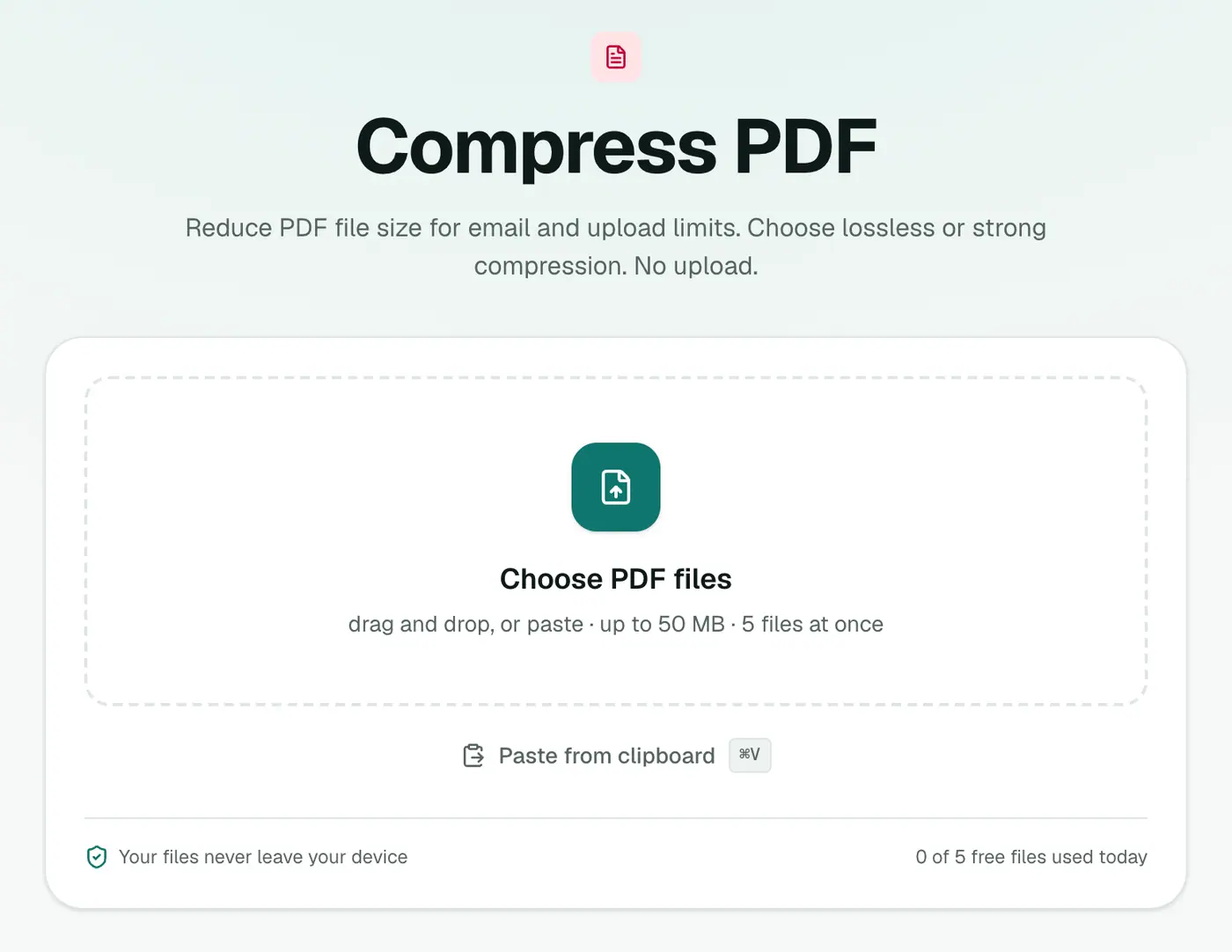
Go to the Compress PDF tool.
2. Add the PDF and choose a level
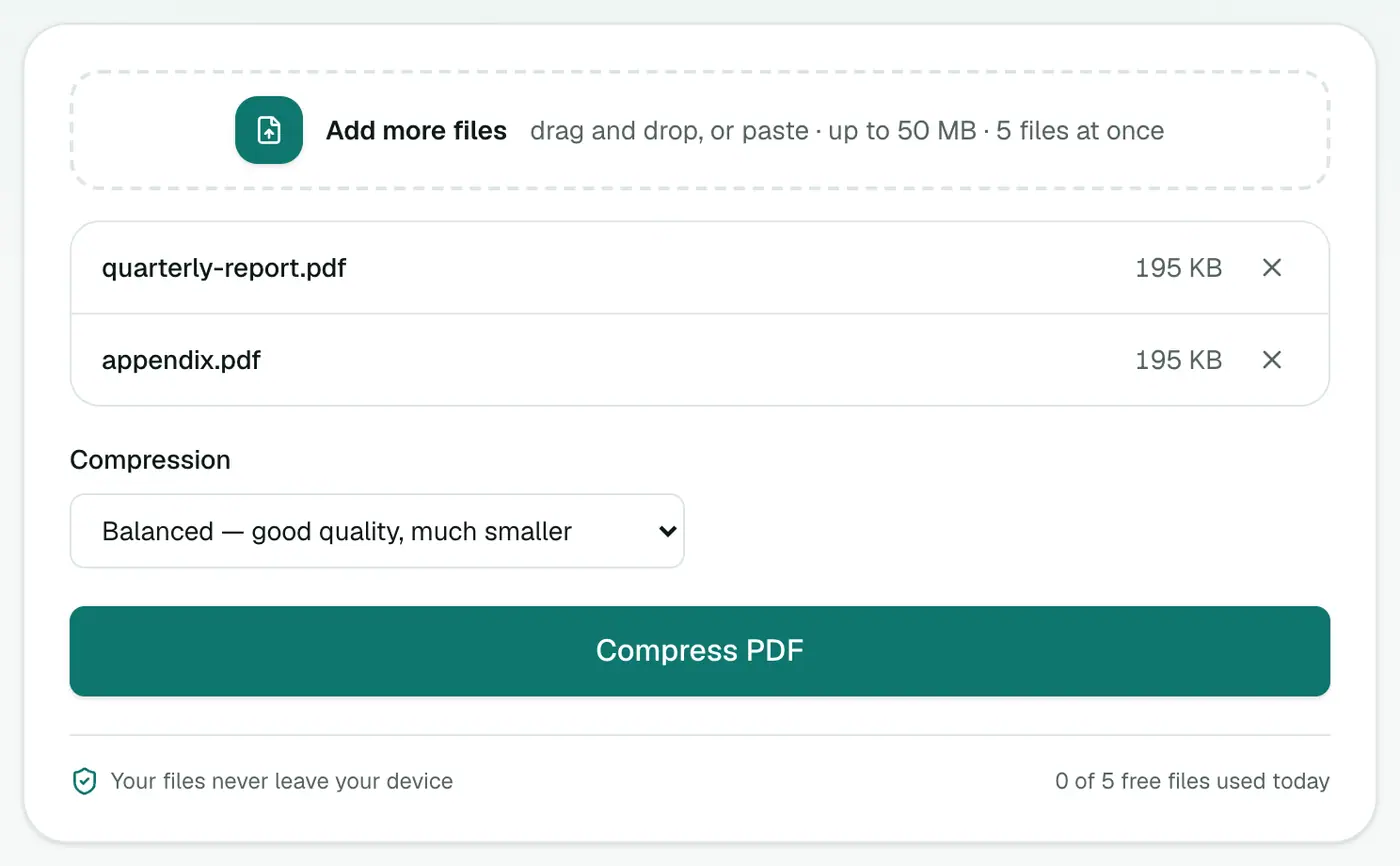
Drop in your PDF and pick Compression. Start with Balanced.
3. Compress and download
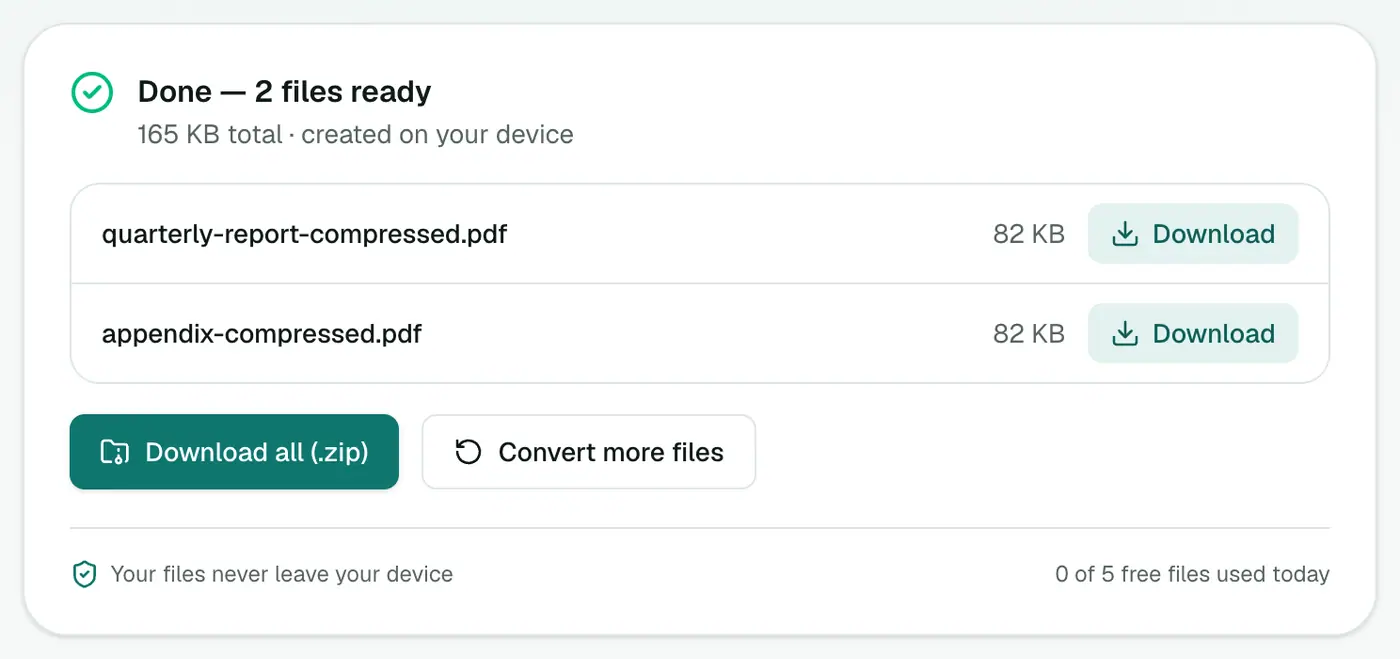
Click Compress PDF. The result shows the new size. If it isn't smaller than the original, you get the original back, so you'll never end up with a bigger file.
Still too big?
- Try Strong.
- Split it: send it in two parts with Split PDF or Extract PDF Pages.
- Remove pages nobody needs (blank backs, cover sheets) with Remove PDF Pages.
- Go grayscale. Color scans are heavier. Grayscale PDF can help when color doesn't matter.
- Re-scan at a lower DPI. 150–200 DPI is plenty for documents. 600 DPI is overkill.
Other ways
- Mac Preview: File → Export, Quartz Filter Reduce File Size. It's aggressive and can make scans very blurry.
- Adobe Acrobat: Reduce File Size or Optimize PDF. Excellent control, paid.
- Word/PowerPoint exports: choose "Minimum size" or compress pictures before exporting to PDF.
Which level for which PDF
| Level | |
|---|---|
| Text documents from Word | Lossless (text stays selectable) |
| Scans for email | Balanced |
| Scans for strict upload limits | Strong |
| Contracts you'll search later | Lossless, or run OCR PDF after compressing |
If it's still too big
- Split it with Split PDF and send parts.
- Remove pages you don't need with Remove PDF Pages.
- Grayscale it: colour scans are bigger. Black and white can help.
Summary
Big PDFs are big because of images. Start with Balanced in Compress PDF, keep Lossless for text documents that need to stay selectable, and reach for Strong only when you must.
FAQs
Which compression level should I choose?
Try Balanced first. It shrinks scanned and photo-heavy PDFs a lot with good quality. Use Lossless for text documents where text must stay selectable, and Strong when you need the smallest file possible.
Why can't I select text after compressing?
Balanced and Strong re-render each page as an optimised image, which is what makes them so effective. Use Lossless if you need selectable text.
My PDF barely got smaller. Why?
Text-only PDFs are already compact. Most of a PDF's size comes from images. If there's little to compress, you get the original back rather than a bigger file.
How small can I get a PDF?
It depends on the content. Scanned documents often shrink by 70–90% on Balanced or Strong.
Is my PDF uploaded?
No. Compression runs in your browser.
Can I compress several PDFs at once?
Yes. Add several files; each is compressed separately.
Try the Compress PDF
Free to start, no install, and your files never leave your device.