Image3 min read
How to Resize Images to Exact Pixel Dimensions or a Percentage
Resize photos to an exact width and height, a percentage, or a fit-inside box, for profile pictures, product listings and upload forms. A plain-English guide.
By the ZapMorph team
On this page
Just want it done?
Open the Image Resizer — it runs in your browser and nothing is uploaded.
Every platform seems to want a different size. Passport photo portals want 600×600. Your shop wants 1200×1200 product photos. LinkedIn banners are 1584×396. And your phone shoots 4032×3024.
Here's how to get images to exactly the size you need, without squashing anyone's face.
The three resize modes, explained
When you set both a width and a height, the image probably won't have the same proportions as your box. You need to decide what happens:
- Fit inside, keep proportions: the image shrinks until it fits inside the box. Nothing is cut off, but one side may come out smaller than you asked for.
- Stretch to exact size: the image is forced to the exact dimensions. Proportions change, so faces get wide or thin. Rarely what you want.
- Fill and crop to exact size: the image fills the whole box at the exact dimensions, and whatever spills over is trimmed from the edges. Best for profile pictures and product grids.
If you only set one side (say, width 1200) and leave the other blank, proportions are kept automatically. That's the simplest option for most cases.
How to resize images with ZapMorph
1. Open the image resizer
Go to the image resizer.
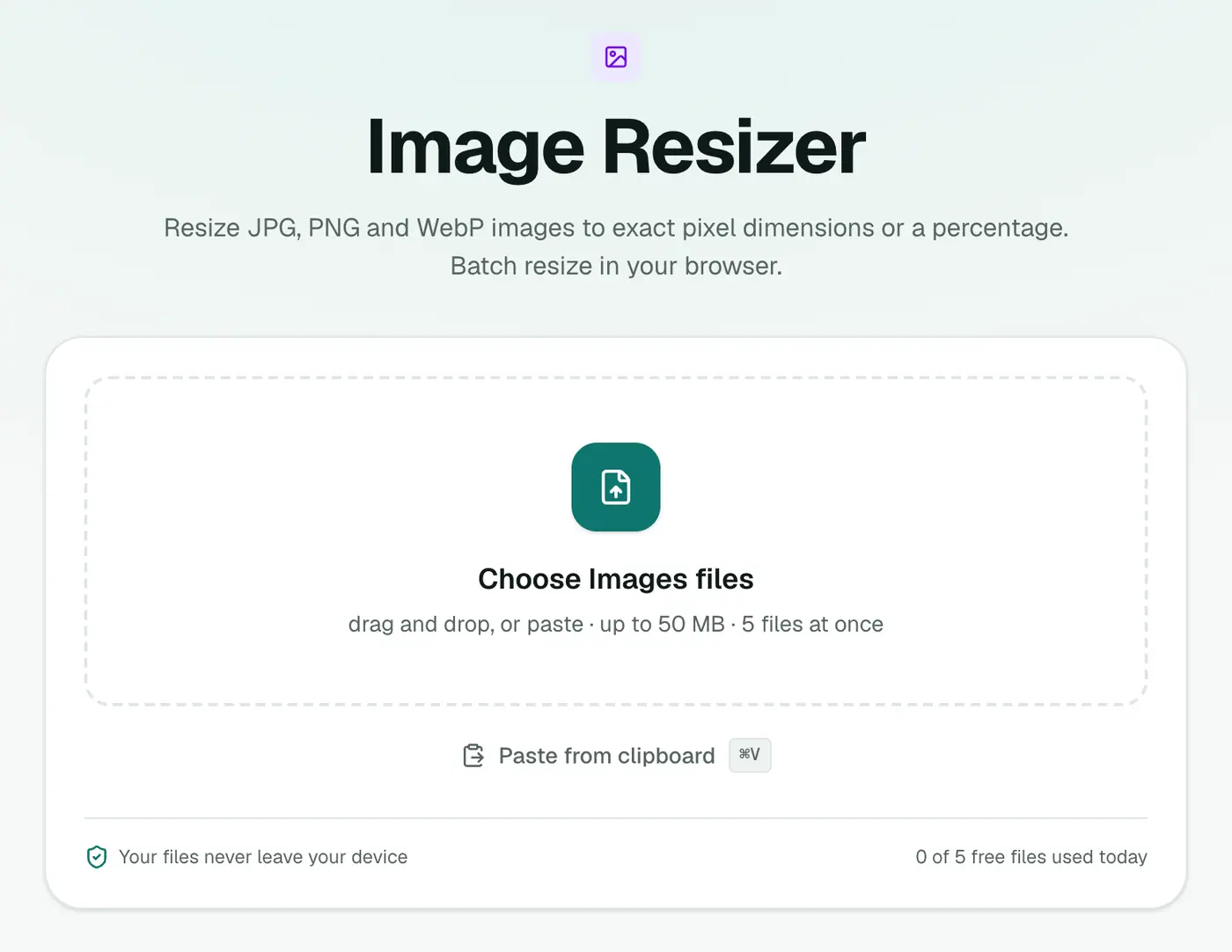
2. Add images and choose a size
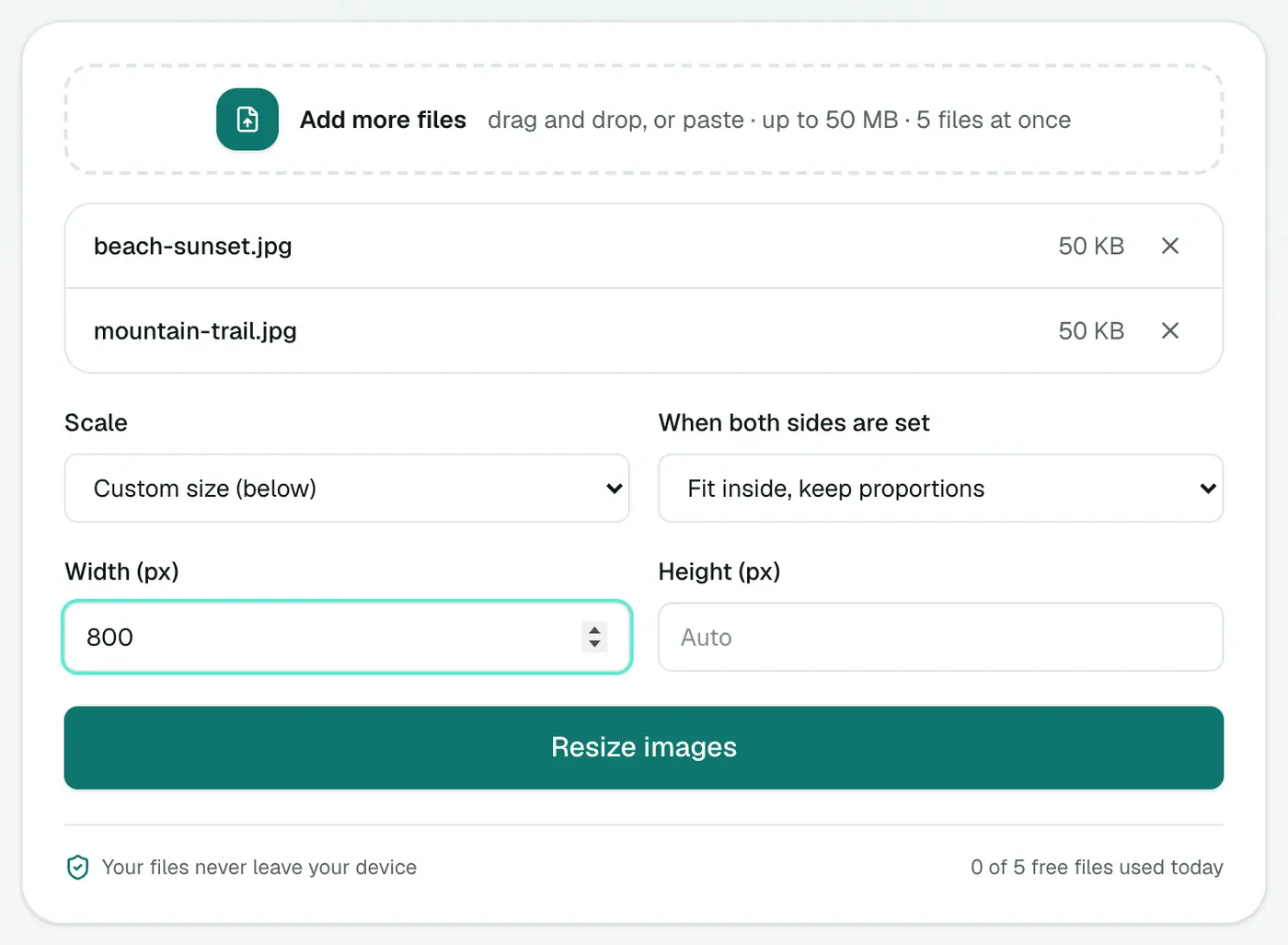
Drag in one or more images, then either:
- choose a Scale like 75%, 50%, 25% or 200%, or
- leave Scale on Custom size and type a Width and/or Height in pixels.
If you fill in both, pick what should happen in When both sides are set.
3. Resize and download
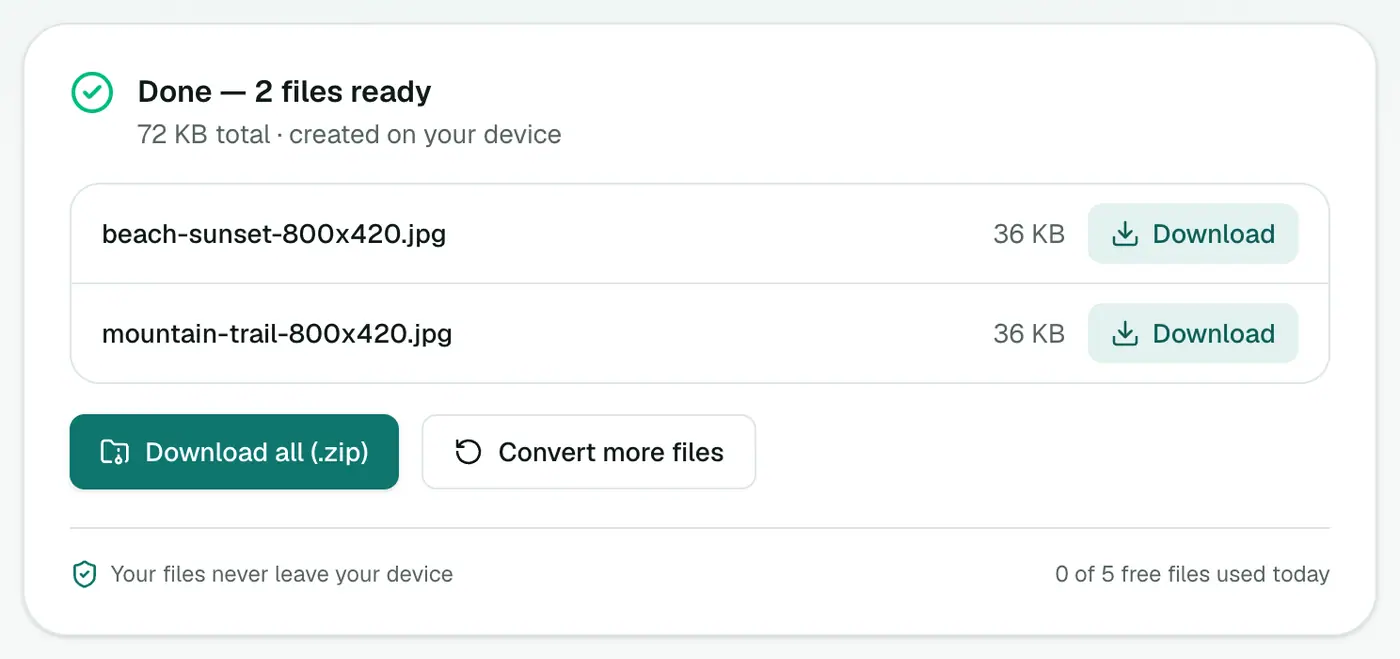
Click Resize images and download the results.
Common sizes worth knowing
| Use | Size (px) | Mode |
|---|---|---|
| Profile picture (most sites) | 400×400 | Fill and crop |
| Square product photo | 1200×1200 | Fill and crop or Fit inside |
| Blog or website image | 1600 wide | Width only |
| Email-friendly photo | 1280 wide | Width only |
| Instagram portrait | 1080×1350 | Fill and crop |
Platform requirements change now and then, so check the current guidelines before a big batch.
Tips
- Resize down, not up. Enlarging always looks softer. Start from the largest original you have.
- Fill and crop trims evenly from both edges. If your subject is off-centre, crop it manually first.
- Need a smaller file, not just smaller dimensions? The image compressor does both and can switch format too.
- Need a square icon? The favicon generator makes all the standard icon sizes.
Resize, crop or compress?
| You want to… | Use |
|---|---|
| Change pixel dimensions | Resize (this tool) |
| Hit an exact size like 1080×1080 | Resize with Fill and crop |
| Make the file smaller (KB/MB) | Compress Image, optionally with a max size |
| Change format too | PNG to JPG, JPG to WebP |
Resizing for print
Print size depends on pixels per inch. At 300 ppi (photo quality):
| Print size | Pixels needed |
|---|---|
| 10 × 15 cm (4 × 6 in) | 1200 × 1800 |
| A4 (21 × 29.7 cm) | 2480 × 3508 |
| A3 | 3508 × 4961 |
Scaling a small image up to these sizes won't add real detail. Start from the original photo where you can.
Bottom line
Set one side for a proportional resize, or both plus the right mode for exact dimensions. The image resizer handles a whole batch in one go, without uploading your photos.
FAQs
How do I keep the proportions?
Fill in only the width or only the height and leave the other blank. The other side is calculated automatically.
What's the difference between fit, stretch and fill?
Fit inside keeps the whole image within the box and keeps proportions. Stretch forces exact dimensions and can distort the image. Fill and crop covers the whole box at the exact size and trims what spills over.
Can I make an image bigger?
Yes, with 200% or a larger width, but enlarging can't add detail. It will look softer.
Which formats can I resize?
JPG, PNG and WebP, among others. The output keeps the original format.
Does resizing reduce file size?
Yes. Halving the width and height leaves a quarter of the pixels, so the file usually shrinks a lot. For more savings, use Compress Image afterwards.
Are my images uploaded?
No. Resizing happens in your browser.
Try the Image Resizer
Free to start, no install, and your files never leave your device.