Image3 min read
How to Extract Text From an Image (OCR) Without Retyping
Copy the text out of a screenshot, scanned page or photo of a document using OCR that runs in your browser. Tips for getting accurate results.
By the ZapMorph team
On this page
Just want it done?
Open the Image to Text (OCR) — it runs in your browser and nothing is uploaded.
You've got a screenshot of an error message, a photo of a printed letter, or a scanned receipt, and you need the words in it. Retyping is slow and you'll make typos. OCR (optical character recognition) reads the text for you.
What works well, and what doesn't
Works well:
- Screenshots of websites, apps and error messages.
- Flat scans of printed documents.
- Clear phone photos of printed pages taken straight-on in good light.
Struggles with:
- Handwriting.
- Text on curved surfaces (bottles, the inner margin of a thick book).
- Low-light or blurry photos.
- Decorative or very small fonts.
How to extract text from an image with ZapMorph
1. Open Image to Text
Go to the Image to Text (OCR) tool. It's a Pro tool, but a free account gets a daily run to try it.
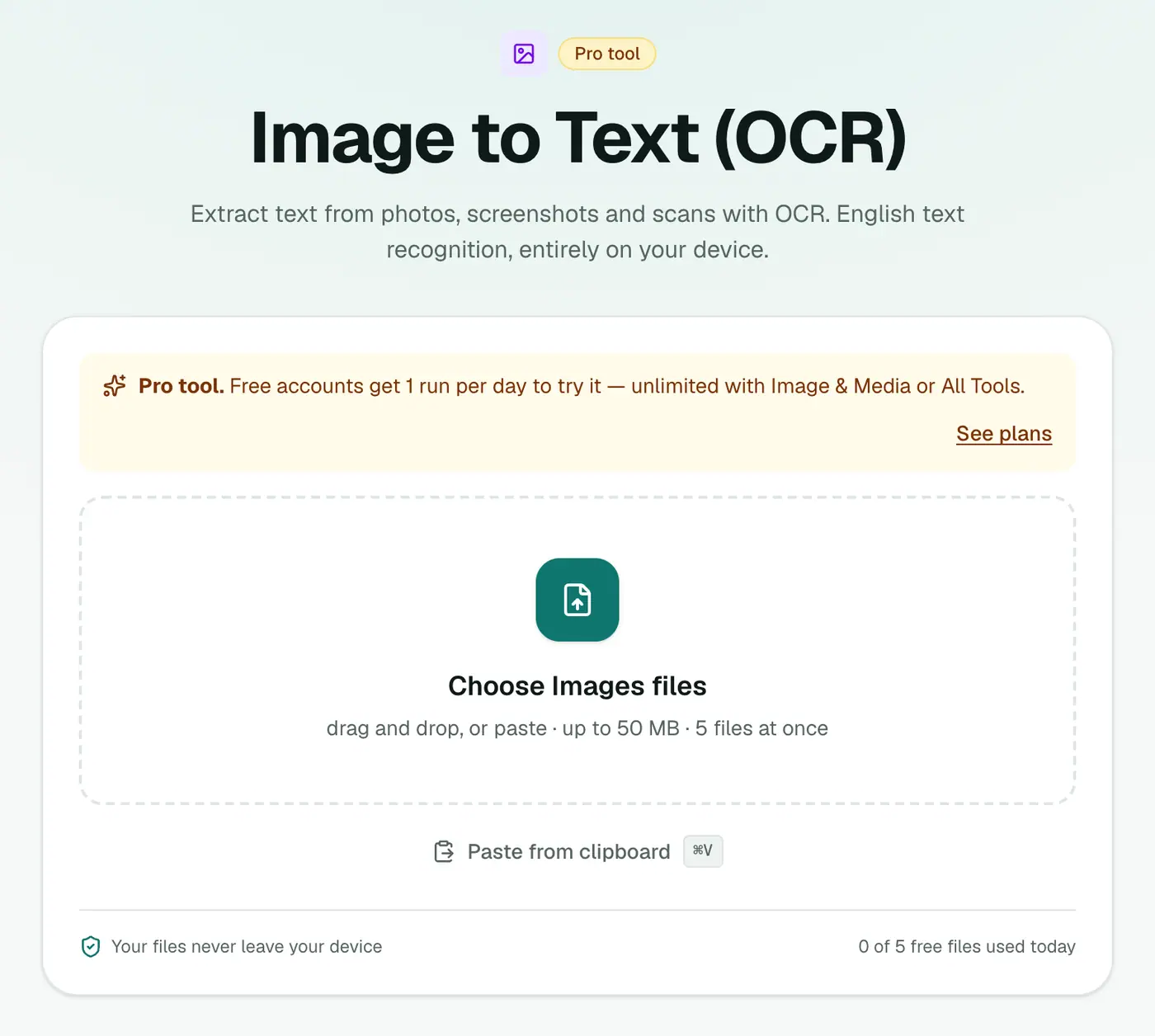
2. Add your image
Drop in a PNG, JPG or WebP. You can also paste a screenshot straight from your clipboard with Ctrl+V (Cmd+V).
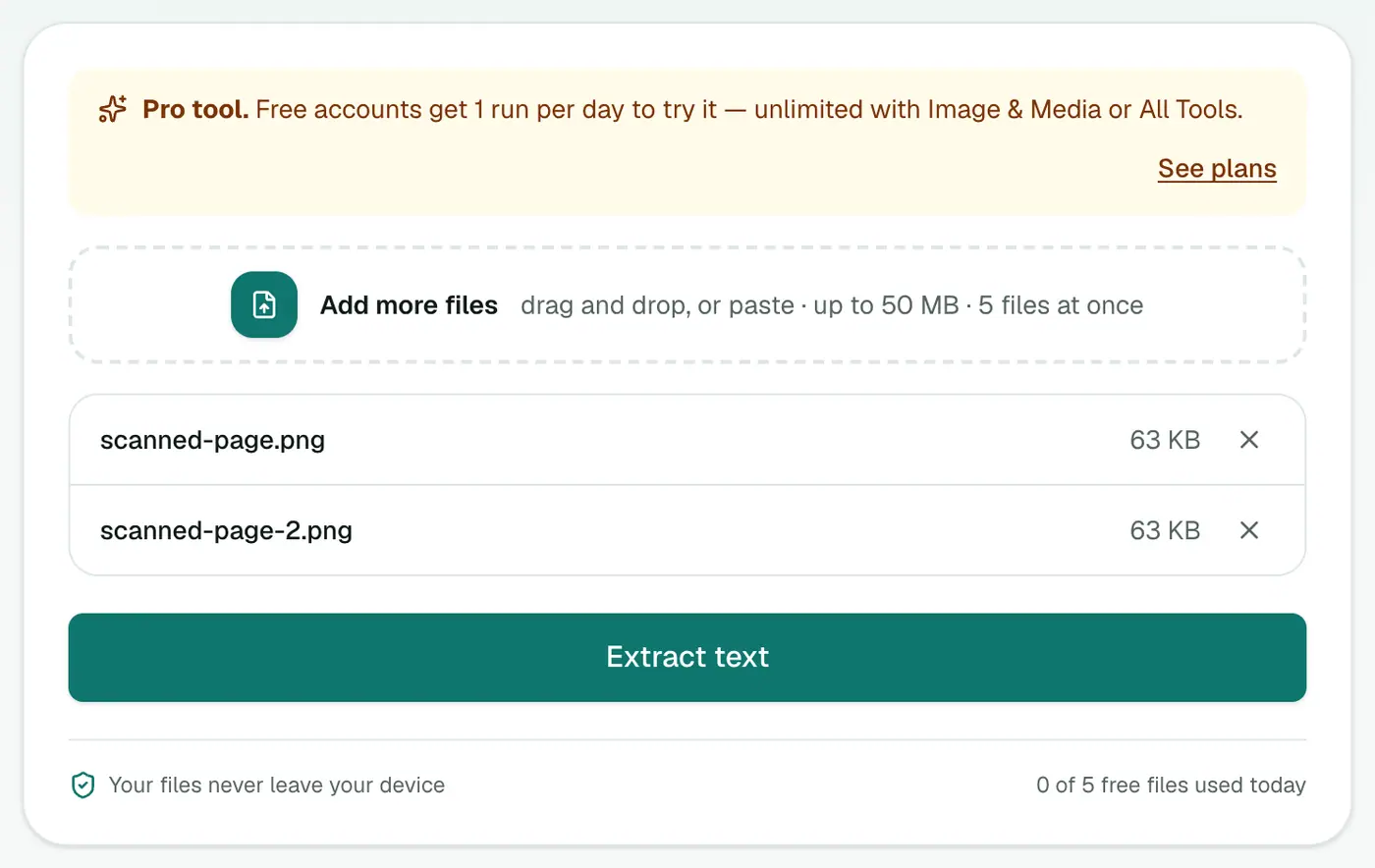
3. Extract the text
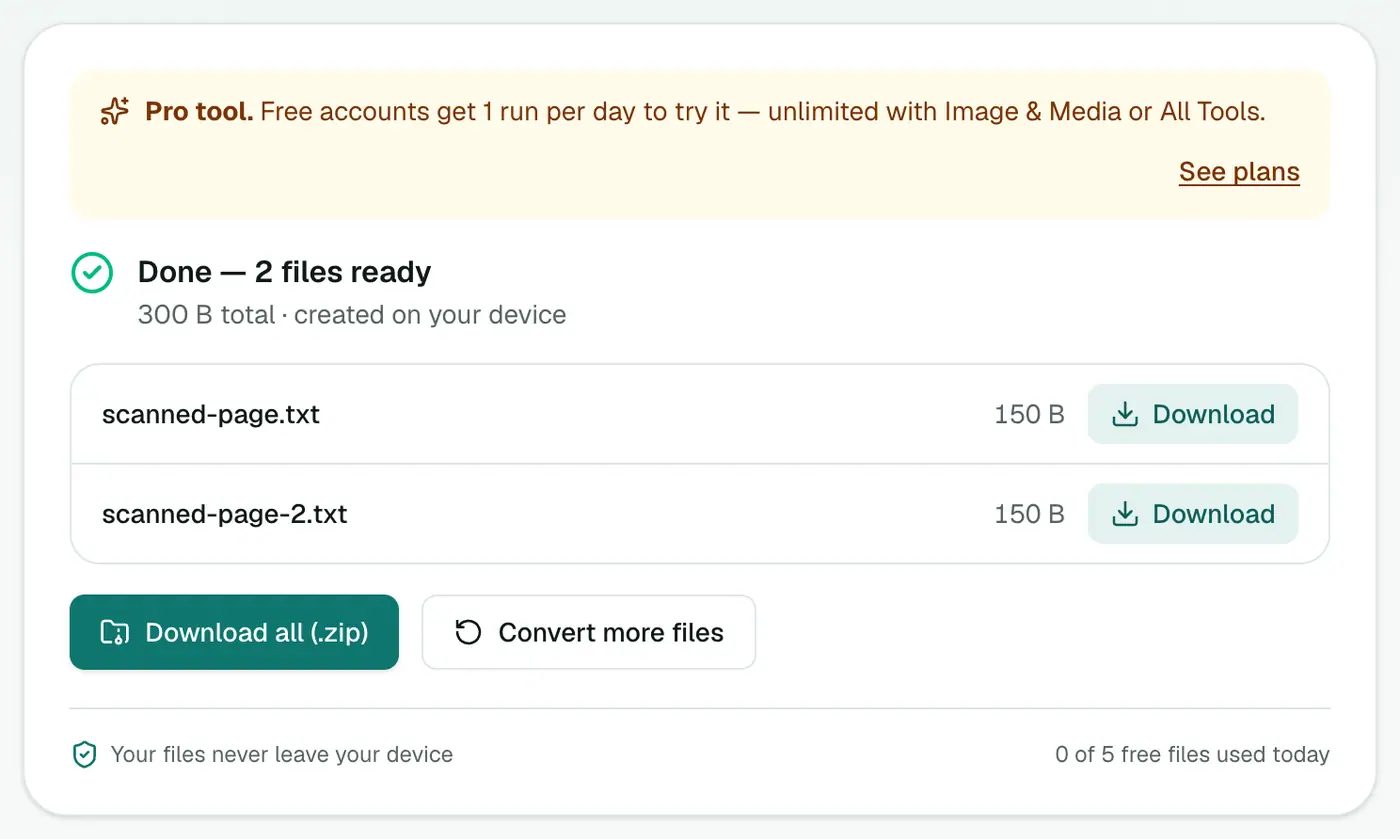
Click Extract text. The first time, your browser downloads the recognition engine, so it takes a little longer. After that it's quick. You get a .txt file with the recognised text.
Getting better results
- Crop to the text. Remove the desk, your thumb and the background.
- Shoot straight-on. Angled photos skew the lines.
- Use good light and avoid shadows across the page.
- Bigger is better. Zoom in before taking a screenshot of small text.
- Proofread numbers. OCR occasionally confuses 0/O, 1/l and 5/S, which matters for invoices and codes.
Other ways
- iPhone (Live Text) and Android (Google Lens) can copy text straight from the camera or a photo. For a single photo on your phone, that's often quickest.
- Windows Snipping Tool has a "Text actions" button that copies text from a screenshot.
- Google Drive: open an image with Google Docs and it OCRs it, but that means uploading it to Google.
The browser tool is the private option for documents you'd rather not upload, and it's handy on a computer without these features.
Have a whole PDF of scans?
Use OCR PDF to Text to extract text from every page, or Make PDF Searchable to keep the PDF looking the same while making its text selectable.
Built-in alternatives on your devices
| Device | Built-in option |
|---|---|
| iPhone / iPad | Live Text: touch and hold text in a photo |
| Mac | Live Text in Preview and Photos |
| Windows 11 | Snipping Tool → Text actions |
| Android | Google Lens in the camera or Photos app |
These are great for a line or two. For longer text, batches, or when you'd rather the image never touches a cloud service, extracting it here keeps everything on your device.
After extracting
- Check numbers and names carefully. OCR can confuse 0 and O, 1 and l.
- Fix line breaks: text from columns may need tidying.
- Translate the clean text with your preferred translator.
- Compare with another version using the text diff checker.
Summary
For clean screenshots and scans, the Image to Text tool saves a lot of retyping. Crop tightly, use good light, and give the numbers a quick check afterwards.
FAQs
Which languages does it recognise?
English. Other languages using the Latin alphabet may partly work, but accents and special characters won't be reliable.
Does it read handwriting?
Not well. OCR is designed for printed text. Neat block capitals sometimes work; joined-up handwriting usually doesn't.
How accurate is it?
For a clear screenshot or a flat, well-lit scan, very accurate. Blurry phone photos, curved pages and fancy fonts reduce accuracy, so always proofread.
Are my images uploaded?
No. The recognition engine runs in your browser. The first run downloads the engine, then everything happens on your device.
Is this a Pro feature?
Yes. Free accounts can try it once a day, and Pro plans include unlimited use.
Can I copy text from a screenshot?
Yes. Screenshots usually give excellent results because the text is sharp and evenly lit.
What image formats are accepted?
JPG, PNG, WebP, BMP and GIF.
Try the Image to Text (OCR)
Free to start, no install, and your files never leave your device.