PDF2 min read
How to Reorder, Duplicate or Drop Pages in a PDF
Rearrange PDF pages by typing the order you want, like "3, 1, 2, 4-10". Move an appendix to the front, repeat a cover page or remove pages in one step.
By the ZapMorph team
On this page
Just want it done?
Open the Organize PDF Pages — it runs in your browser and nothing is uploaded.
Sometimes the pages are all there, just in the wrong order. A scan where the pile got shuffled, an appendix that should be at the front, or a merged PDF where one document landed in the wrong spot.
Organize PDF lets you type the order you want and get a new PDF back.
How the page order works
You type a list of page numbers. The new PDF follows that list exactly:
3, 1, 2→ page 3, then 1, then 2.1, 5-10, 2-4→ page 1, then 5 to 10, then 2 to 4.10-1isn't needed. Just list them:10, 9, 8, …1, 2, 1→ page 1 appears twice.- Anything you don't list is dropped.
That last point makes it a reorder-and-trim tool in one.
How to reorder PDF pages with ZapMorph
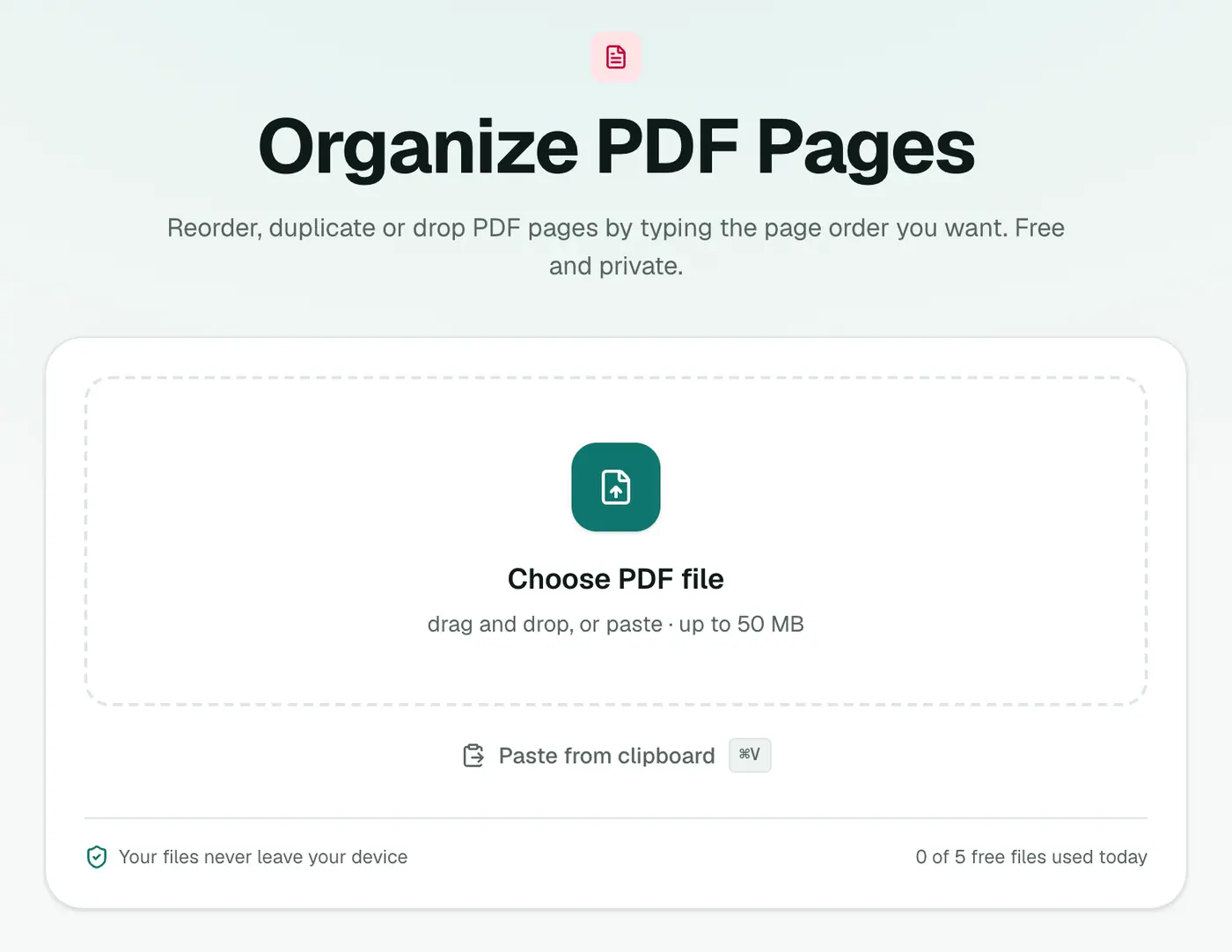
1. Open Organize PDF
Go to Organize PDF Pages.
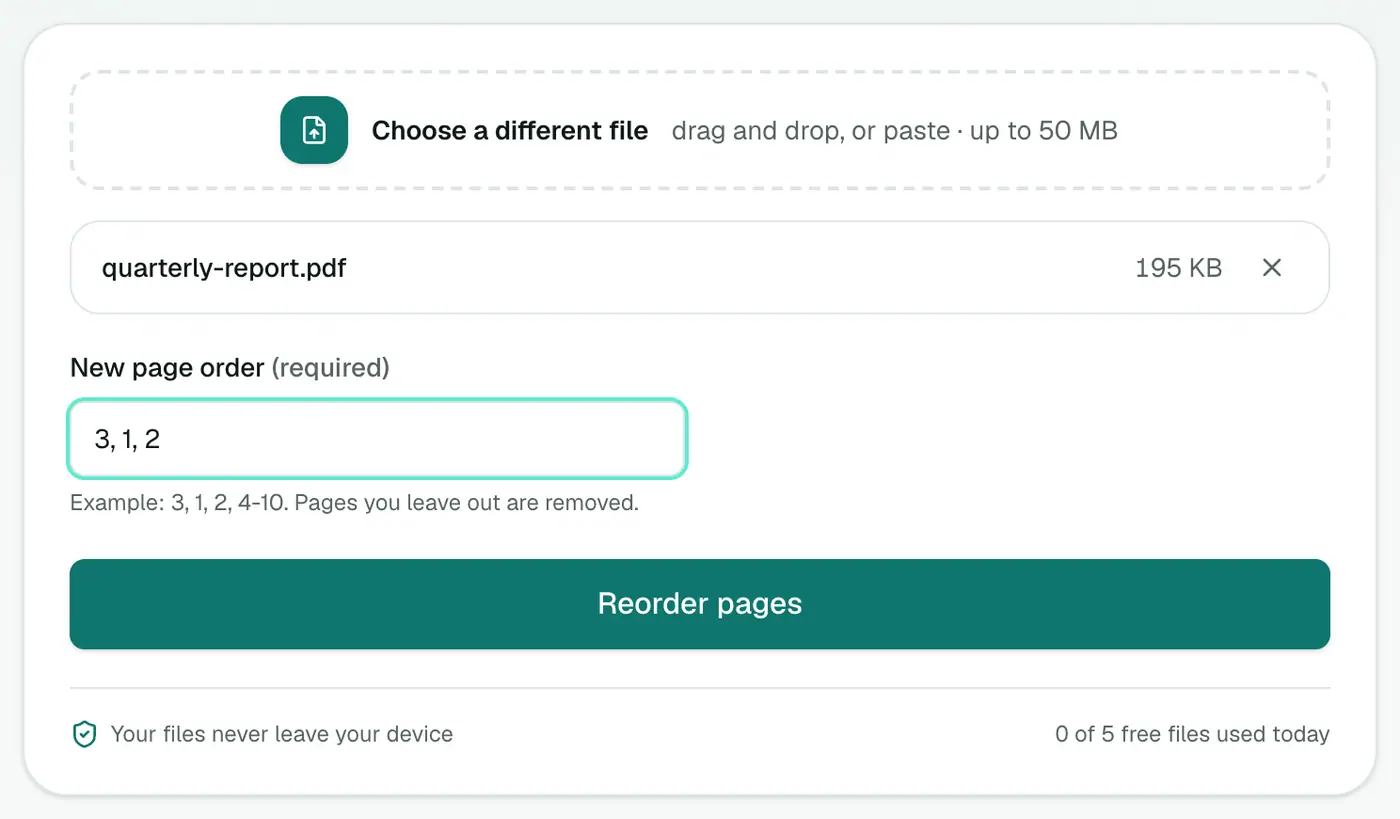
2. Add your PDF and type the new order
Drop in the PDF and enter the New page order, e.g. 3, 1, 2.
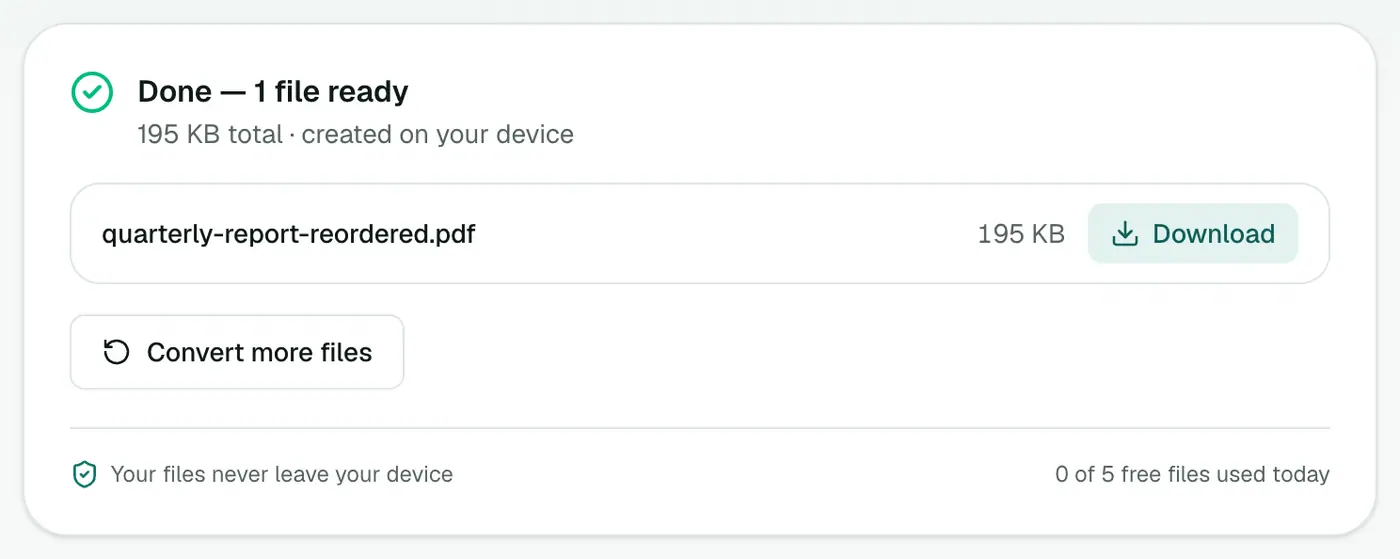
3. Reorder and download
Click Reorder pages and download.
Tips
- Check page numbers in your PDF reader first. Use the physical page number (1, 2, 3…), not any number printed on the page.
- Reversing a whole document (scanner fed the pile backwards) is just the numbers listed from last to first.
- Only want to remove pages? Remove PDF Pages is simpler.
- Only want a few pages? Extract PDF Pages creates a new PDF with just those.
Other ways
Mac Preview lets you drag thumbnails around in the sidebar, which is nice and visual for short documents. On Windows, there's no built-in way. Acrobat Pro has an "Organize Pages" view.
Order examples
| You type | Result |
|---|---|
3, 1, 2, 4-10 | Page 3 moves to the front |
10-1 | Pages 10 down to 1 (reversed) |
5- | Page 5 to the last page |
1, 5-10 | Pages 2–4 are removed |
1, 1, 2-6 | Cover page appears twice |
Any page you leave out is removed, so double-check the list before converting.
Tips
- Check page numbers in the PDF viewer first.
- Reversing a scan stack? Type a backwards range, e.g.
6-1.
Summary
Type the order, get the PDF. Organize PDF Pages reorders, repeats and trims in one step, with no loss of quality.
FAQs
How do I write the page order?
List page numbers separated by commas, with ranges using a hyphen. "3, 1, 2, 4-10" puts page 3 first, then 1 and 2, then 4 to 10.
What happens to pages I leave out?
They're removed from the new PDF. That makes it handy for reordering and trimming at once.
Can I repeat a page?
Yes. List it more than once, for example "1, 2, 1, 3".
Does it change quality?
No. Pages are copied exactly as they are.
Try the Organize PDF Pages
Free to start, no install, and your files never leave your device.