PDF2 min read
How to Remove a DRAFT or CONFIDENTIAL Watermark From Your PDF
Remove watermarks added as annotations, stamps or watermark layers by PDF editors like Acrobat. What can be removed, what can't, and when it's OK to do it.
By the ZapMorph team
On this page
Just want it done?
Open the PDF Watermark Remover — it runs in your browser and nothing is uploaded.
You stamped your report "DRAFT" while it was being reviewed. Now it's final, and the original Word file is on a laptop you no longer have. Or a colleague added "CONFIDENTIAL" to every page of a document that's since been cleared for publication.
Removing an editor-added watermark from your own document is a legitimate and common need.
Can your watermark be removed?
Usually yes, if it was added by a PDF editor (Acrobat, Foxit, many online tools), because those add watermarks as a separate layer, annotation or stamp.
Usually no, if:
- The PDF is a scan and the watermark was on the paper.
- The watermark was flattened into the page (merged with the content).
- It was part of the original design, like an image background.
How to remove a PDF watermark with ZapMorph
1. Open the watermark remover
Go to the PDF Watermark Remover.
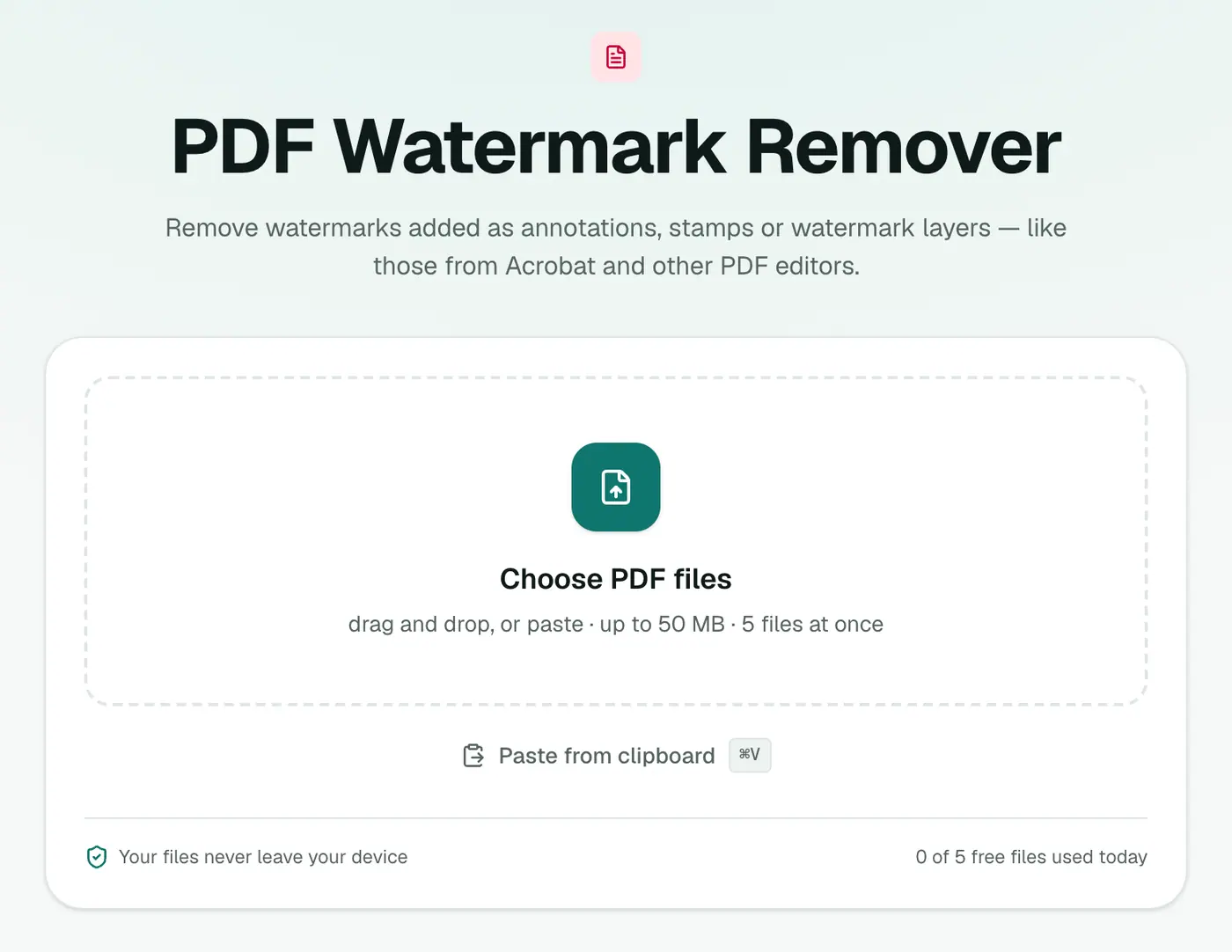
2. Add your PDF
Drop it in. Optionally type the watermark text (e.g. DRAFT) to help target it.
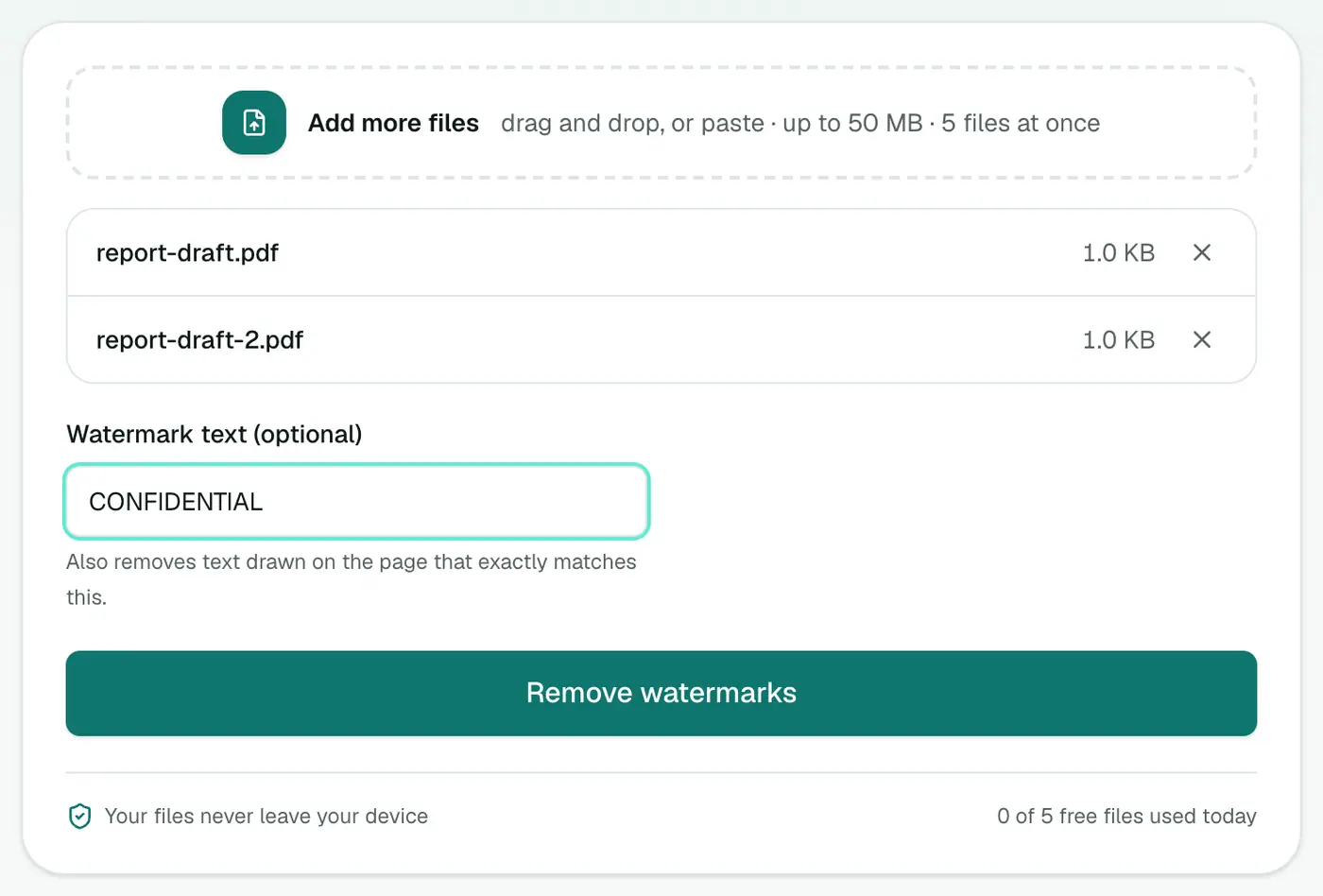
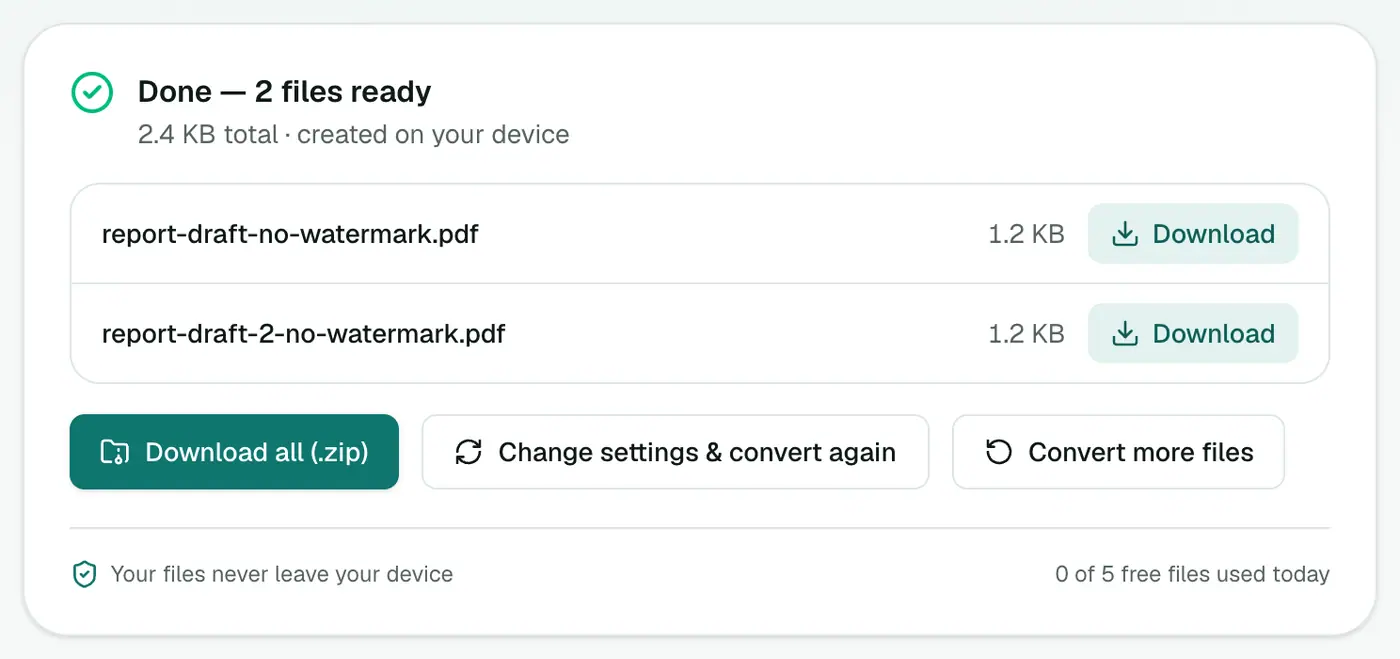
3. Remove and download
Run the tool and download the result. Check every page. The rest of the page content stays untouched.
If it didn't work
- The watermark is probably flattened or part of a scan. The best fix is to go back to the original source file and export again without it.
- For a few pages, you could cover the mark with Edit PDF's white-out, but that only works on plain white areas.
A note on fair use
Watermarks often protect someone's work: stock photos, paid reports, exam papers. Removing those without permission isn't OK. This tool is for your own documents and documents you're authorised to change.
Related
- Adding a watermark instead? Watermark PDF.
- Want to mark the final version clearly? Add page numbers with Add Page Numbers.
How to tell what kind of watermark you have
| Test | Likely type |
|---|---|
| You can click or select the watermark in a PDF viewer | Annotation or stamp: usually removable |
| It's on a scanned page and part of the picture | Part of the image: can't be removed |
| It appears in light grey text you can select | Page text or an artifact: sometimes removable |
Better alternatives
- Ask for a clean copy from whoever added it.
- Re-export from the original document if it's yours.
Summary
Editor-added watermarks on your own documents can usually be removed in seconds with the PDF Watermark Remover. Scanned-in or flattened ones can't. For those, go back to the source.
FAQs
Which watermarks can be removed?
Watermarks added by PDF editors as annotations, stamps or marked watermark layers, like the ones Acrobat's Watermark feature creates.
Which can't?
Watermarks that are part of a scanned image or flattened into the page content. There's nothing separate to remove.
What is the optional watermark text for?
If you type the watermark's text, the tool can target text-based watermarks that match it more precisely.
Can I remove watermarks from documents I don't own?
No. Only use this on your own documents or ones you have the right to modify. Removing watermarks from someone else's work can breach copyright or an agreement.
Is my PDF uploaded?
No. It's processed in your browser.
Try the PDF Watermark Remover
Free to start, no install, and your files never leave your device.