Data & docs2 min read
How to Remove a Forgotten VBA Project Password in Excel or Word
Locked out of the macros in your own workbook? Unlock the VBA project so you can open the editor and set a new password. Data and macros stay unchanged.
By the ZapMorph team
On this page
Just want it done?
Open the VBA Password Remover — it runs in your browser and nothing is uploaded.
It happens more than you'd think. Someone built a useful macro years ago, protected the VBA project with a password, and then left the company or forgot the password. Now the workbook needs a fix and nobody can open the code.
The VBA project password only protects the code view. It isn't encryption, and it can be disabled so you can get back in.
Two different passwords, don't mix them up
- VBA project password: stops people viewing or editing the macros in the VBA editor (Alt+F11). This tool removes it.
- File-open password: encrypts the whole file, so you can't open it at all without the password. This tool can't remove that.
How to remove a VBA password with ZapMorph
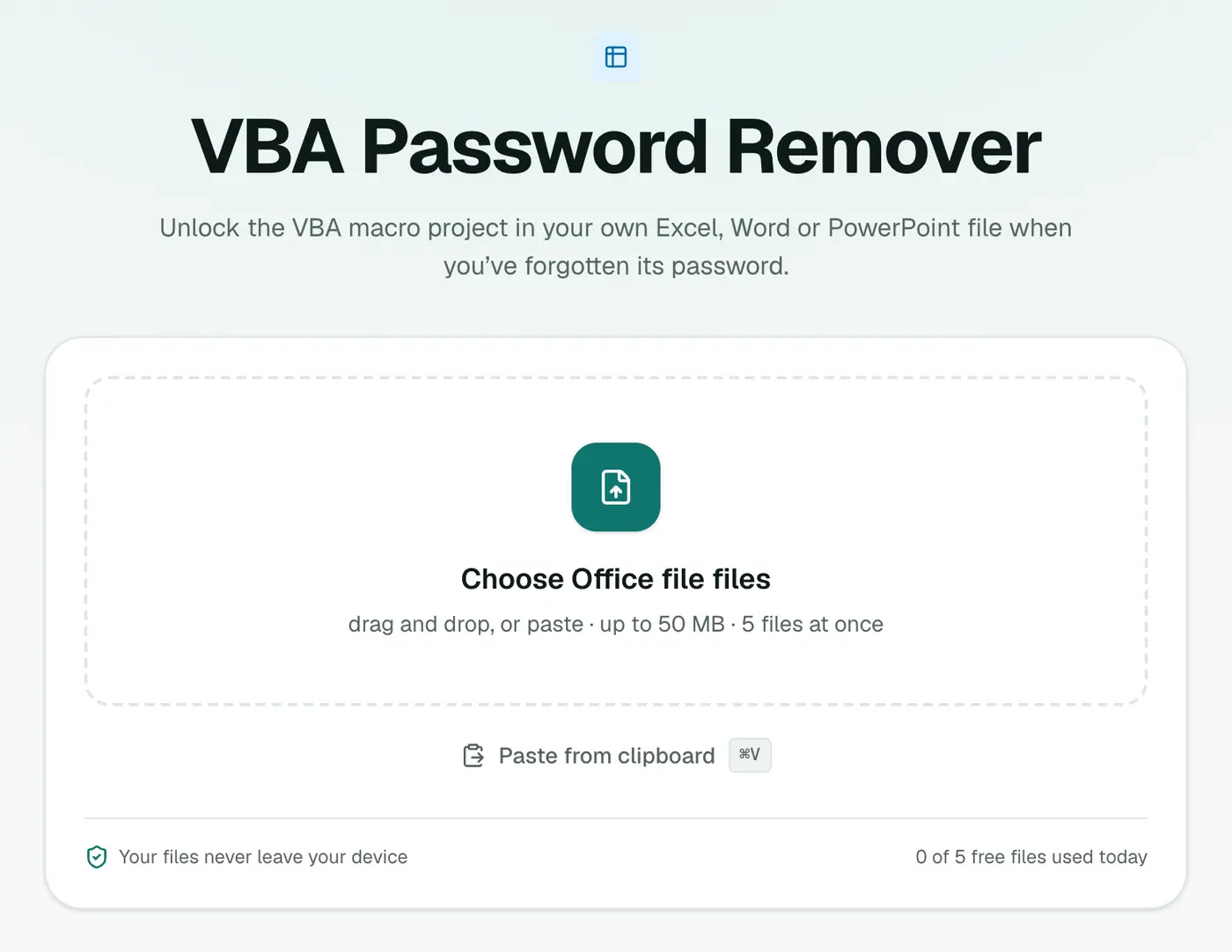
1. Open the VBA Password Remover
Go to the VBA Password Remover.
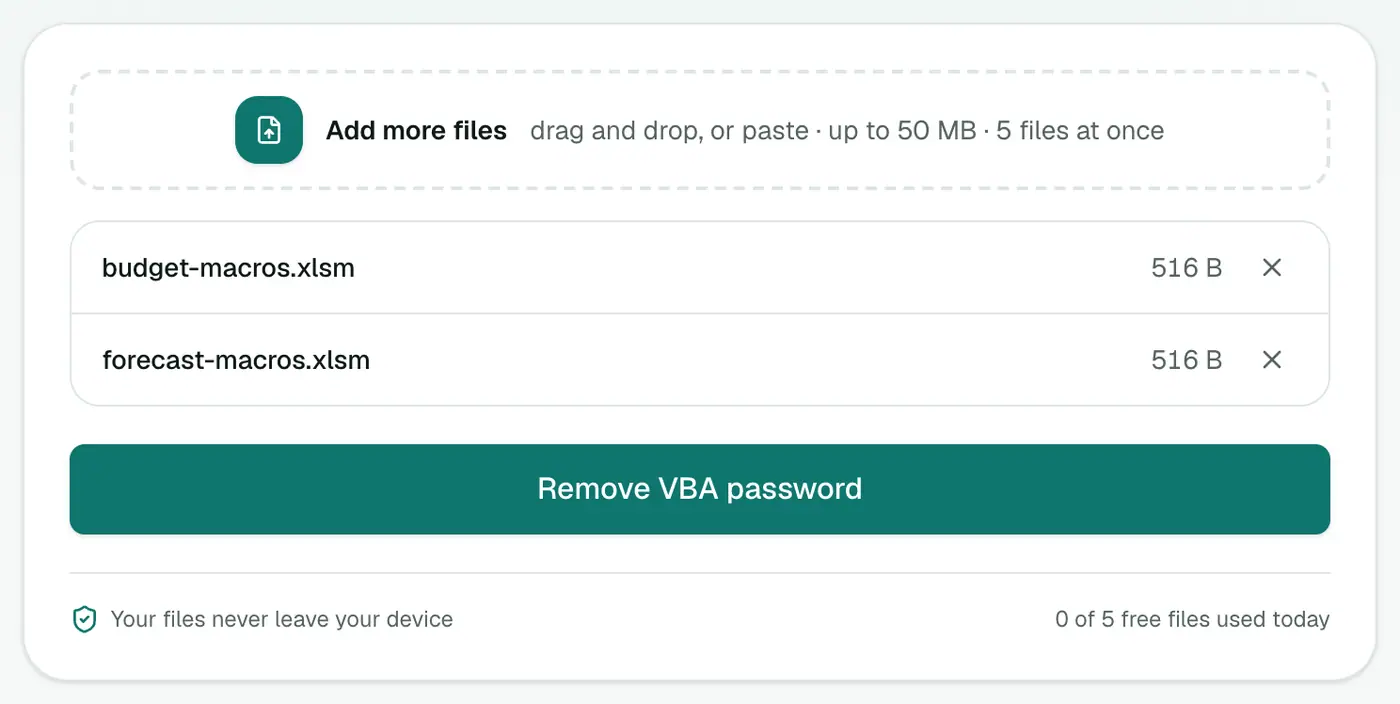
2. Add your file
Drop in the .xlsm, .xlsb, .xls, .docm, .doc, .pptm or .ppt file.
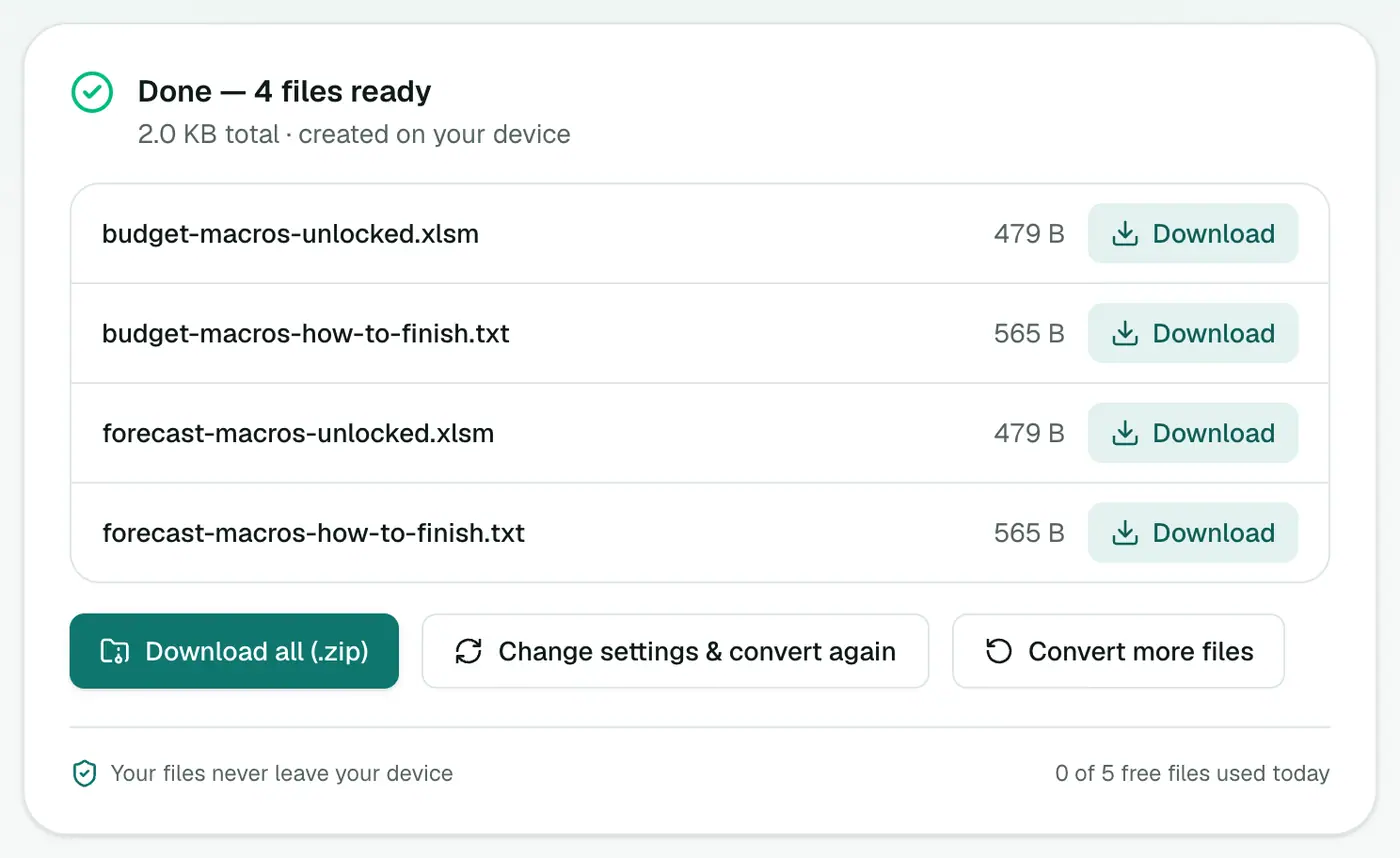
3. Unlock and download
Run the tool and download the unlocked copy.
Afterwards
- Open the file and press Alt+F11 to open the VBA editor. The project opens without a password prompt.
- To protect it again, go to Tools → VBAProject Properties → Protection, tick Lock project for viewing and set a new password.
- Write the new password down somewhere safe, like a password manager or a shared team vault.
Be responsible
Only unlock files you own or have permission to change. If a vendor locked code in a product you licensed, check your agreement first.
Supported files
| App | Formats |
|---|---|
| Excel | XLSM, XLSB, XLS |
| Word | DOCM, DOC |
| PowerPoint | PPTM, PPT |
After unlocking
- Open the file and press Alt+F11 to open the VBA editor.
- Go to Tools → VBAProject Properties → Protection.
- Set a new password, or untick Lock project for viewing.
- Save the file.
Use it responsibly
Only unlock files you own or have permission to change: your own old workbooks, or files your organisation is responsible for. Keep a backup of the original before making changes.
Summary
For your own macro files with a forgotten project password, the VBA Password Remover gets you back into the code without touching your data. It won't help with file-open passwords.
FAQs
Which files are supported?
XLSM, XLSB, XLS, DOCM, DOC, PPTM and PPT.
Does it remove the password to open the file?
No. It only removes the VBA project lock. File-open passwords (encryption) can't be removed this way.
Will my macros or data change?
No. Only the project lock is disabled. Afterwards, open the VBA editor and set a new password if you want one.
Is it legal?
Use it only on files you own or are authorised to modify, such as your own or your company's workbooks.
Is my file uploaded?
No. It's processed in your browser.
Does it work on files that need a password to open?
No. It removes the VBA project lock only, not file-open passwords.
Try the VBA Password Remover
Free to start, no install, and your files never leave your device.