PDF2 min read
How to Remove a Password From a PDF You Can Open
Tired of typing a password every time you open your own bank statement, or blocked from printing a form? Save an unlocked copy in a few seconds.
By the ZapMorph team
On this page
Just want it done?
Open the Unlock PDF — it runs in your browser and nothing is uploaded.
Banks, phone companies and payroll systems love password-protected PDFs. Usually the password is your date of birth or part of your ID number, and you need to type it every single time you open the file. Or the form you need to fill in won't let you print it.
If you're entitled to the document, saving an unlocked copy saves a lot of hassle.
Two kinds of PDF passwords
- Open password (user password): you can't see the document at all without it. To unlock, you need to know it.
- Permissions password (owner password): the document opens fine, but printing, copying or editing is blocked. These usually unlock without a password.
How to unlock a PDF with ZapMorph
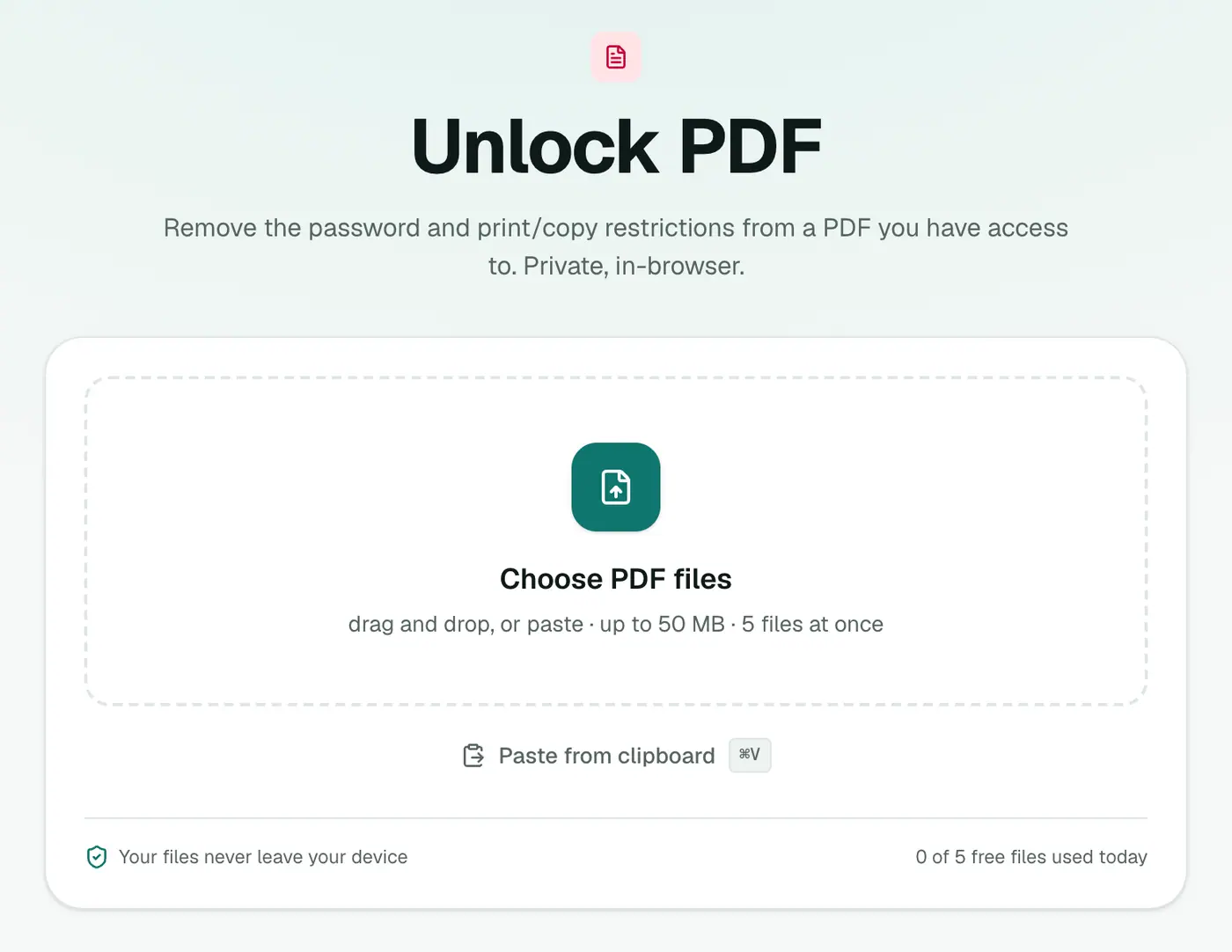
1. Open Unlock PDF
Go to Unlock PDF.
2. Add the PDF and enter the password
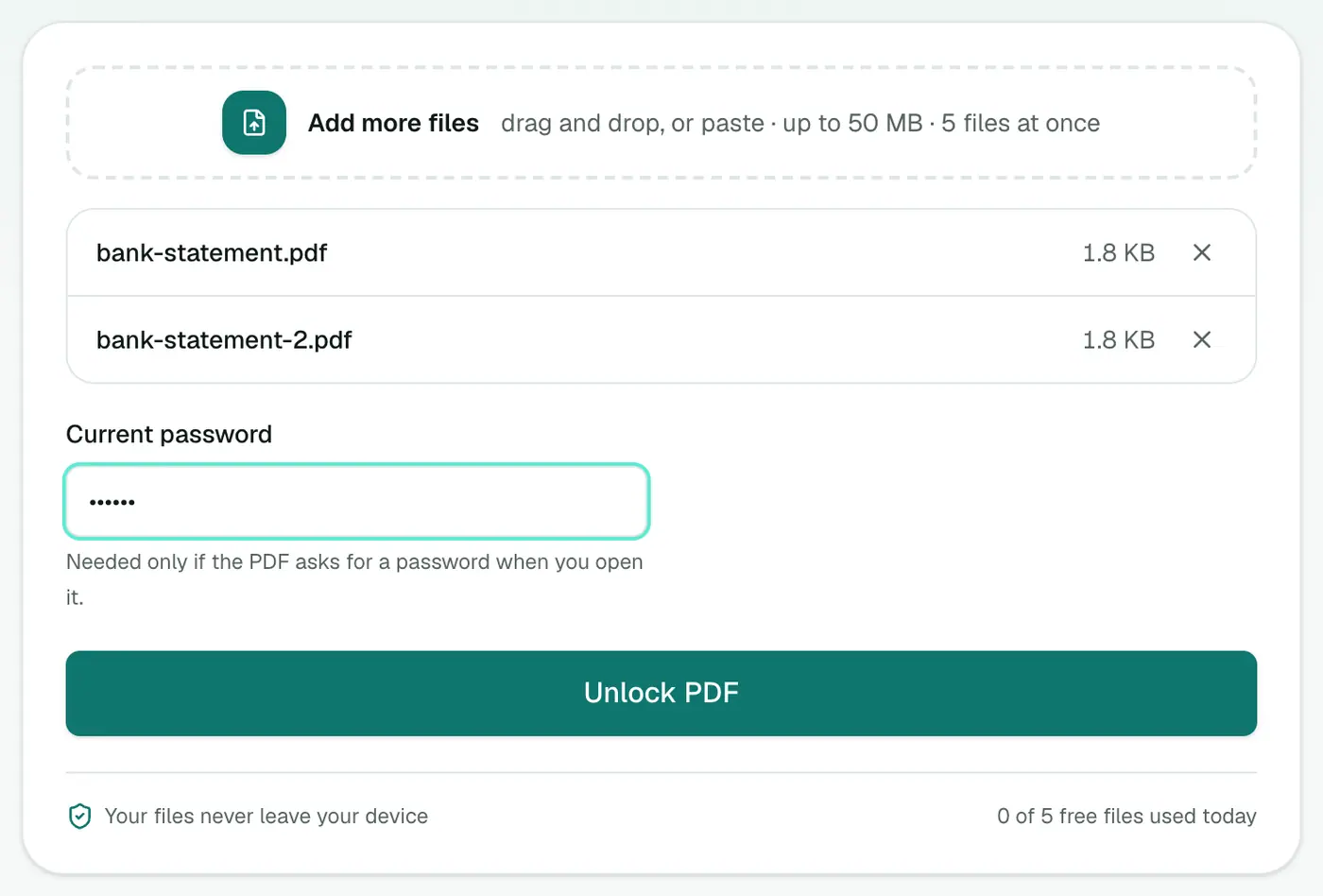
Type the Current password. Leave it blank if the PDF opens without one and you just want to remove print or copy restrictions.
3. Unlock and download
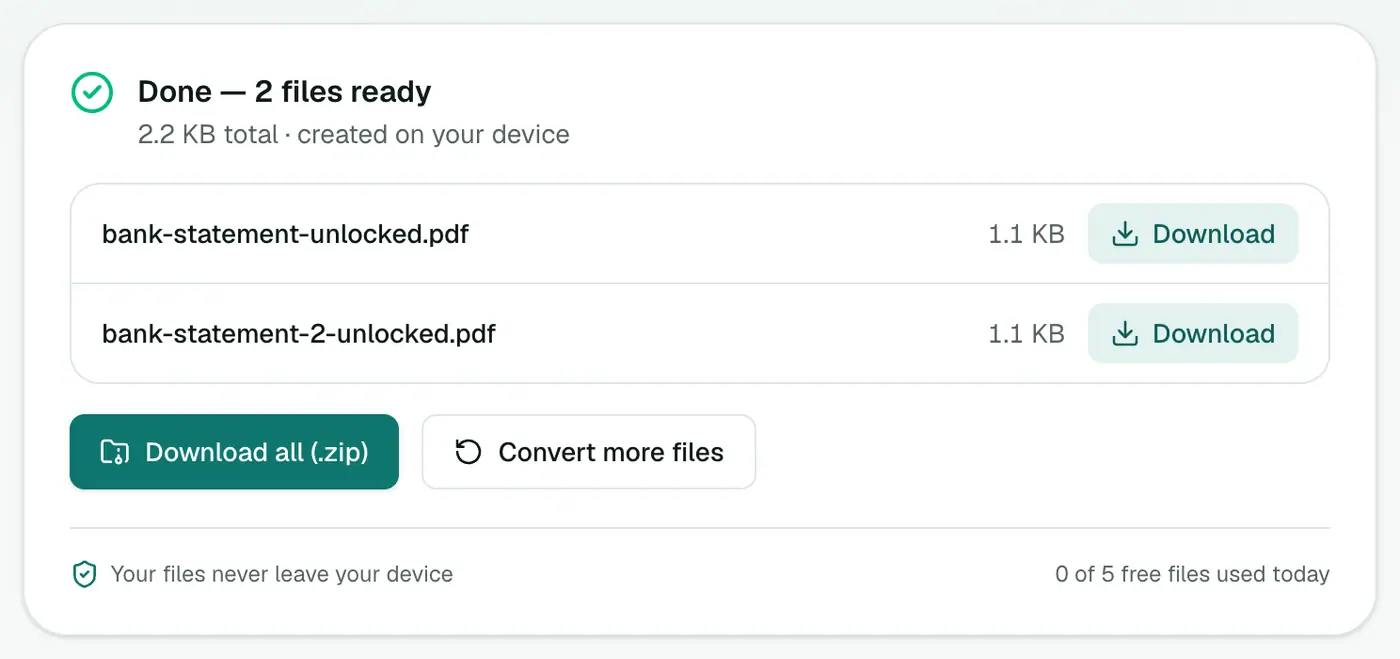
Click Unlock PDF. The copy you download opens without a password, and printing and copying work.
Be sensible with unlocked copies
The password was there for a reason. Once it's removed:
- Store the copy somewhere secure, like an encrypted drive or password manager vault. Avoid a shared Downloads folder.
- Don't email unlocked statements around casually. If you need to share them, protect them again with a password of your choosing.
Other ways
- Print to PDF: open the PDF with its password, then print to "Microsoft Print to PDF" or "Save as PDF". The new file has no password. This doesn't work if printing is restricted.
- Acrobat Pro: Protect → Remove Security.
Common cases
| Document | Usual password |
|---|---|
| Bank and card statements | Often a mix of name, birth date or account digits, as explained in the bank's email |
| Payslips | Often employee ID or date of birth |
| Tax and utility documents | Set by the issuer, usually in the covering letter |
Check the email or letter that came with the document. Unlocking still needs the correct password.
After unlocking
- Store it safely: an unlocked statement is readable by anyone who gets the file.
- Re-lock with your own password using Protect PDF if you'll keep it in cloud storage.
Summary
Enter the password you already know (or none, for print/copy locks), and Unlock PDF saves a copy that just opens. Use it only on documents you have the right to access.
FAQs
Can it unlock a PDF if I don't know the password?
No. If a PDF needs a password to open, you have to enter it. The tool removes the password so you don't have to type it again; it doesn't crack it.
What about PDFs that open fine but won't let me print or copy?
Those only have owner restrictions. They usually unlock without any password. Leave the password field blank.
Is this legal?
Removing a password from a document you're entitled to open, like your own statements, is fine. Don't use it on documents you don't have the right to access or modify.
Is my password sent anywhere?
No. The PDF and the password stay in your browser.
Will the unlocked copy look different?
No. Only the encryption is removed. Pages, text and quality stay the same.
Try the Unlock PDF
Free to start, no install, and your files never leave your device.