Dev tools2 min read
How to Record Your Screen for Free (No Install, No Watermark)
Record your whole screen, one window or a browser tab, with audio, straight from your browser. Save it as a video file. Nothing is uploaded, no watermark.
By the ZapMorph team
On this page
Just want it done?
Open the Screen Recorder — it runs in your browser and nothing is uploaded.
Bug reports are ten times clearer with a 30-second video. So are how-tos for colleagues, a walkthrough for a client, or showing a family member where that setting is. You don't need to install screen recording software for any of that.
How to record your screen with ZapMorph
1. Open the screen recorder
Go to the screen recorder in Chrome, Edge or Firefox on a computer.
2. Choose what to share
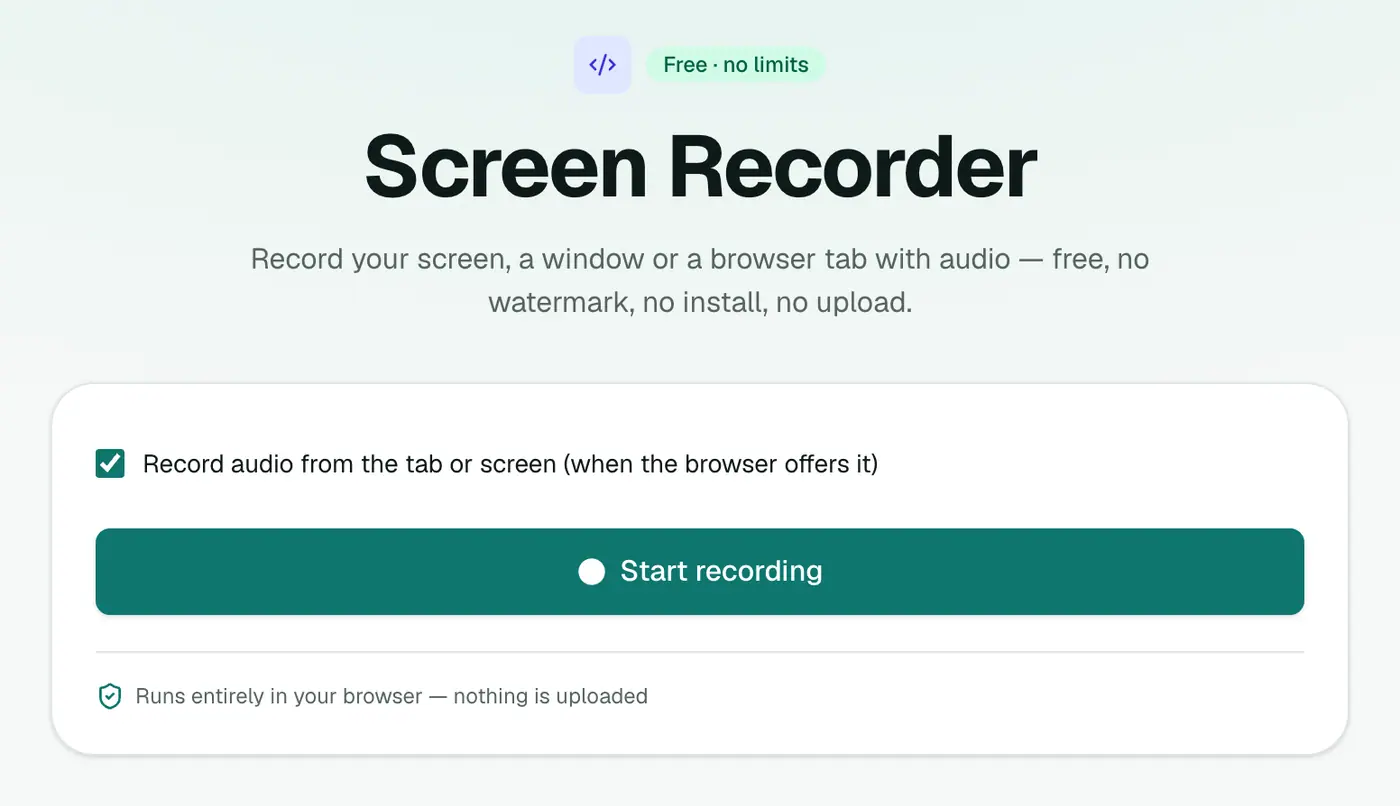
Click Start recording and choose what to share: the whole screen, one window or a browser tab. Tick "share audio" if you want sound.
3. Stop and save
Stop from the page or from the browser's sharing bar. Download the video. It's saved on your device and never uploaded.
Which option to share?
| Share | Best for | Sound |
|---|---|---|
| Browser tab | Web app demos, bug reports | Tab sound works well in Chrome and Edge |
| Window | A single desktop app | Depends on browser and OS |
| Entire screen | Moving between apps | Windows: often supported; macOS: limited |
Tips for useful recordings
- Record a single window rather than the whole screen, so notifications and other tabs stay private.
- Close what you don't need and turn on Do Not Disturb.
- Keep it short. Under two minutes is ideal for bug reports.
- Zoom in (Ctrl/Cmd and +) so text is readable on smaller screens.
- Need MP4? If you got a WebM, convert with WebM to MP4.
- Need a looping GIF for a ticket or README? Use Video to GIF.
- Want captions? Run the recording through the subtitle generator.
Narration
The recorder captures screen or tab audio, not your microphone. To add your voice, record a voice memo at the same time and combine the two in a video editor, or use a tool built for narrated recordings.
Built-in alternatives
- Windows 11: Snipping Tool has a video mode (Win+Shift+S, then choose record).
- Mac: press Cmd+Shift+5.
- Xbox Game Bar (Windows): Win+G records a single app.
Troubleshooting
The browser won't let me share. On macOS, allow screen recording for your browser in System Settings → Privacy & Security → Screen Recording, then restart the browser.
No sound in the recording. Tab audio is the most reliable. Share a tab and tick Share tab audio.
Summary
The screen recorder captures your screen, a window or a tab with audio, free, without watermarks, and without uploading anything.
FAQs
Does it work on a phone?
No. Mobile browsers don't allow screen capture. Use a desktop browser such as Chrome, Edge or Firefox on Windows, macOS or Linux.
Can I record audio?
Yes, the sound from a tab or your screen. When sharing, tick the option to share audio. Support varies by browser and operating system. Your microphone isn't recorded.
Is there a watermark or time limit?
No watermark. Length is limited only by your device's memory.
What format is the video?
MP4 where your browser can record it, otherwise WebM. Convert a WebM with WebM to MP4 if you need to.
What quality is it?
Up to 30 frames per second at about 5 Mbps, sharp enough for text and code on screen.
Is the recording uploaded?
No. It's created and saved on your device.
Try the Screen Recorder
Free to start, no install, and your files never leave your device.