Viewers2 min read
How to Read Your Exported Skype Chat History
Open Skype's chat export (.tar), browse every conversation with names and dates, search across chats and save any conversation as text. Private.
By the ZapMorph team
On this page
Just want it done?
Open the Skype Chat Viewer — it runs in your browser and nothing is uploaded.
Years of conversations, from family calls to old work chats, can be sitting in a Skype export. Skype gives it to you as a .tar archive containing JSON, which isn't exactly readable. The Skype viewer turns it back into conversations.
Why this matters now
Microsoft retired Skype in May 2025. Users could move to Teams Free or download their data before the deadline. If you downloaded an export, it's likely the only remaining copy of those conversations, so it's worth making it readable and backing it up properly.
What's in a Skype export
messages.json: every conversation and message, with names and timestamps.endpoints.jsonand other small files with account details.media/folder, only if you also exported files.
The .tar is just a bundle of these. It's not encrypted, just hard to read without a tool.
How to read Skype chats with ZapMorph
1. Open the Skype viewer
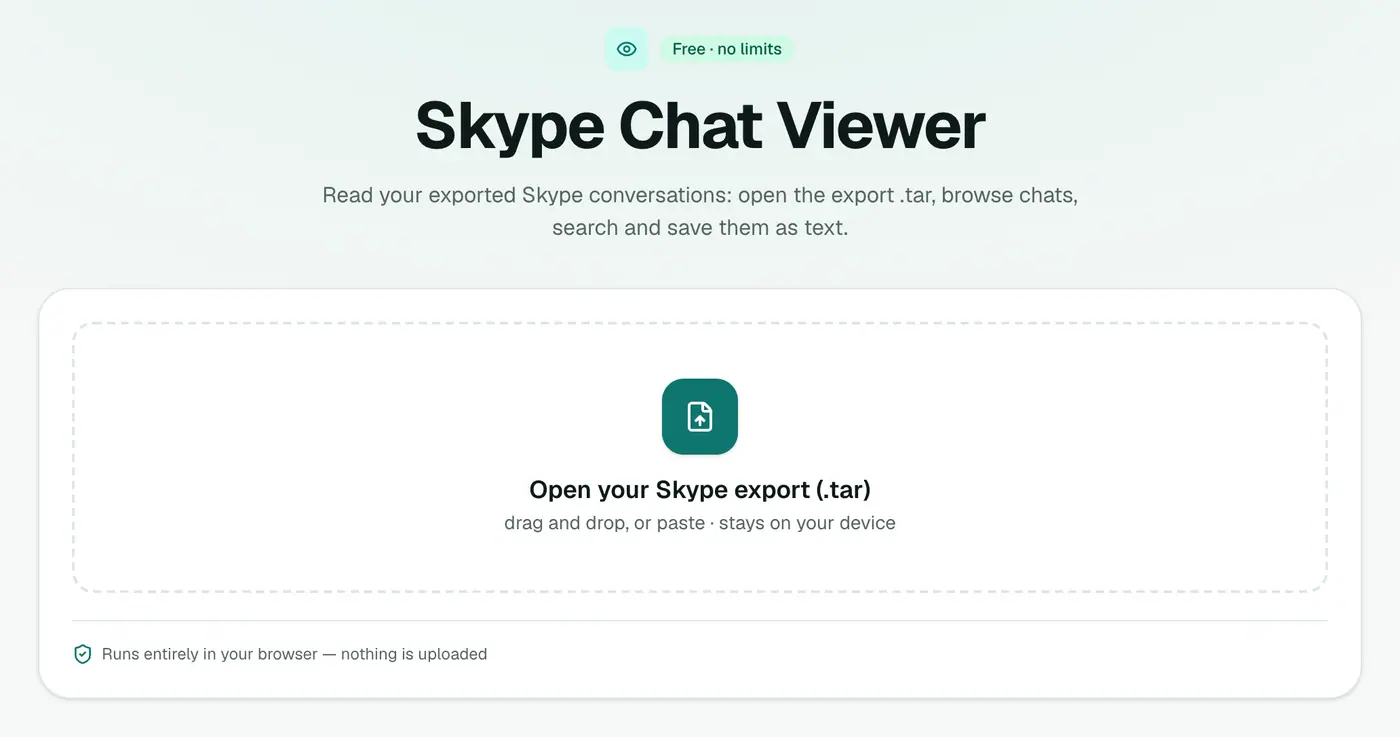
Go to the Skype viewer.
2. Open your export
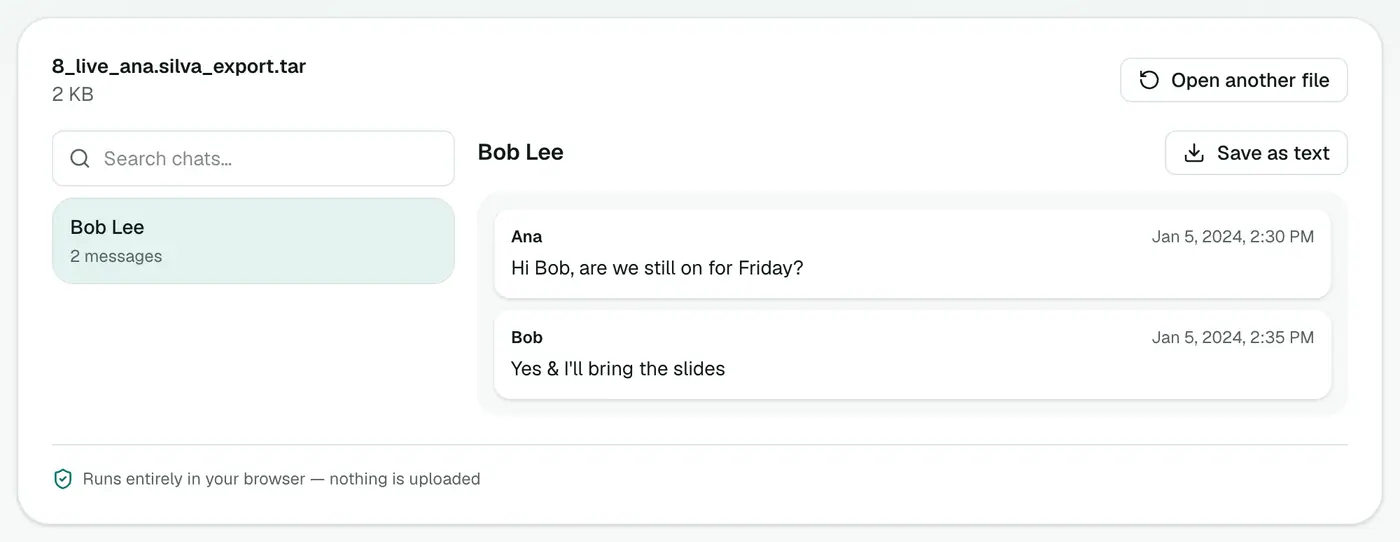
Drop in the .tar file (or the messages.json from inside it). Pick a conversation to read it with names and dates, or search across all chats.
3. Save what matters
Use Save as text on any conversation to keep a plain-text copy.
Keeping your history safe
- Save important conversations as text files and keep them with your other backups.
- Keep the original
.tartoo. It's the complete record. - Turning a conversation into a PDF? Save it as text, then use TXT to PDF.
- Make two copies in different places, such as an external drive and cloud storage.
Tips
- Find a specific chat fast: search for a word you remember, or the person's name.
- Group chats appear as their own conversations with every participant's name.
- Long histories can take a few seconds to open. Everything is processed on your device.
Troubleshooting
"No messages.json was found." Make sure you chose Conversations when exporting. A files-only export has no messages. Also check that you're opening the .tar, not a partial download.
Strange characters or tags in messages. Skype stored some formatting (quotes, emoticons, links) as markup. The text content is all there.
Summary
The Skype viewer turns a raw Skype export back into readable, searchable conversations, privately on your device.
FAQs
How do I export my Skype chats?
Skype offered a data export from your Microsoft account's Skype export page. Skype closed in May 2025 and Microsoft's export deadline has passed, so an export you already downloaded may be your only copy.
Can I open the .tar file directly?
Yes. Drop the .tar into the viewer. The messages.json inside it also works.
Can I save a conversation?
Yes, any conversation can be saved as a text file.
Are my chats uploaded?
No. The export is read in your browser.
Are photos and files from chats shown?
The viewer shows the messages. Shared files were part of a separate 'Files' export from Skype, if you requested it.
Did my Skype history move to Teams?
If you signed in to Teams Free before the deadline, your chats were carried over there. Otherwise, the export file is the way to read them.
Try the Skype Chat Viewer
Free to start, no install, and your files never leave your device.