PDF3 min read
How to Print Multiple PDF Pages on One Sheet (2, 4, 6 or 16 Up)
Save paper by fitting several PDF pages on each A4 sheet, ideal for slides and notes. Choose the layout, order and margins, and skip pages you don't need.
By the ZapMorph team
On this page
Just want it done?
Open the Print Multiple Pages Per Sheet — it runs in your browser and nothing is uploaded.
If you've ever printed a semester of lecture slides one-per-page, you know how fast a 300-page stack piles up. Printing 4, 6 or even 9 slides per sheet is the classic student trick, and it saves real money at the campus print shop.
Your printer dialog can do this, but results vary wildly between printers and apps. Making the "n-up" PDF yourself means it looks the same everywhere, and you can see it before you print.
How to put multiple pages on one sheet with ZapMorph
1. Open the tool
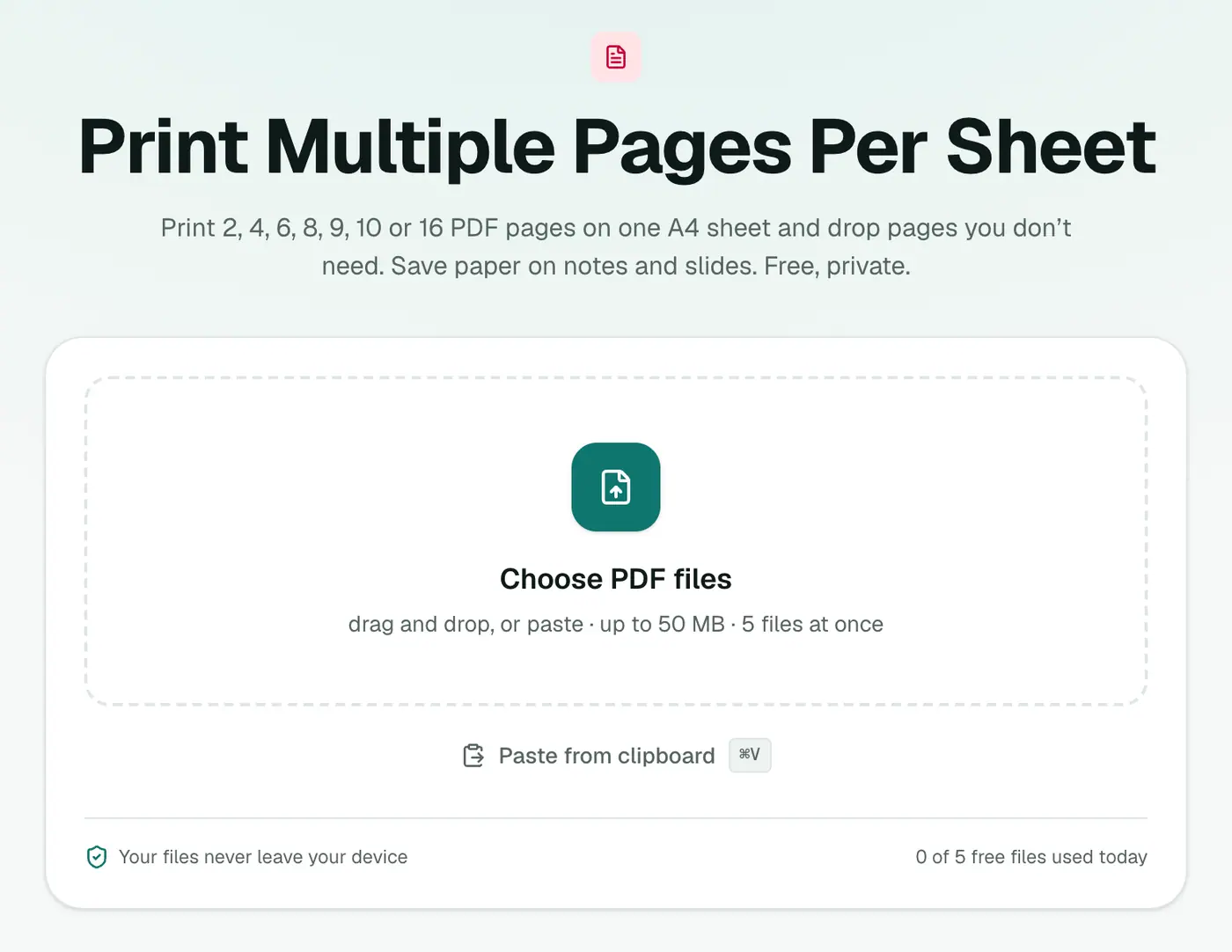
Go to Print Multiple Pages Per Sheet.
2. Add your PDF and choose a layout
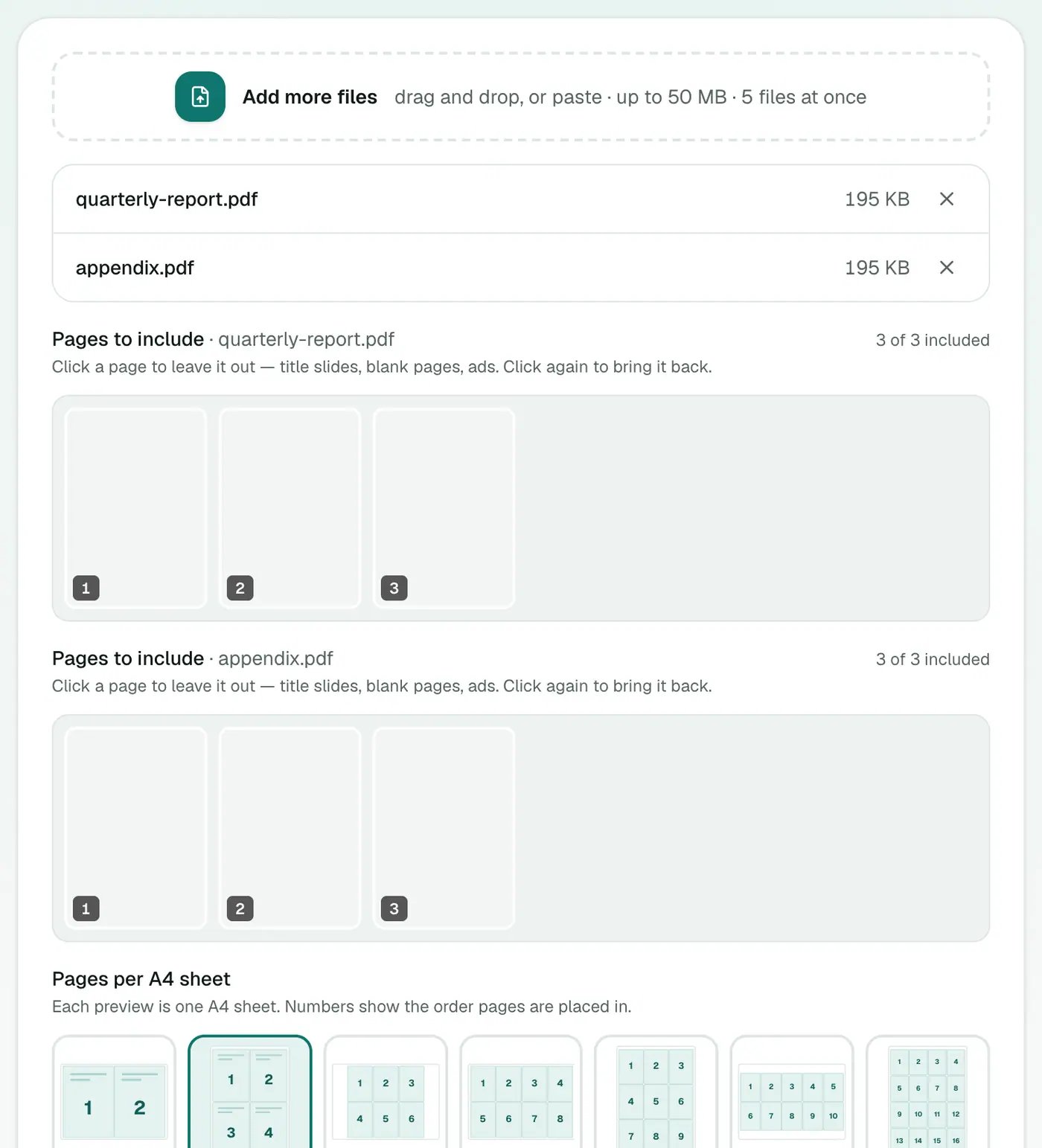
Drop in your PDF and choose:
- Pages per A4 sheet: 2, 4, 6, 8, 9, 10 or 16.
- Background: keep the original, or lighten dark slide backgrounds to save ink.
- Sheet orientation: Automatic picks whatever keeps the pages largest. You can force portrait or landscape.
- Page order: across then down (like reading), or down then across.
- Margin and Page borders: a thin border helps separate slides once printed.
You can click individual pages in the preview to drop them: title slides, "Any questions?" slides, blanks.
3. Create and download
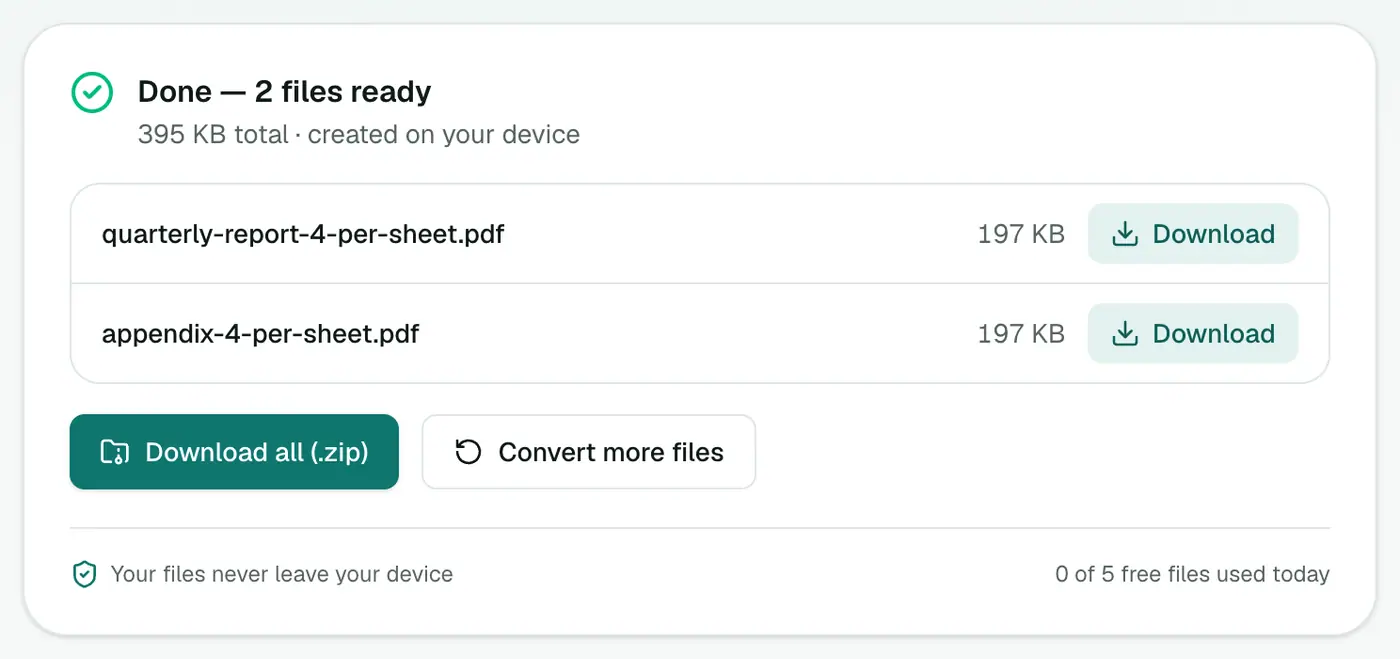
Click the convert button. You'll get a new PDF with the pages arranged on A4 sheets, ready to print normally (1 page per sheet in the print dialog).
Which layout for what
| Content | Pages per sheet | Notes |
|---|---|---|
| Lecture slides (16:9) | 4 or 6 | 6 is the classic choice |
| Slides with big text | 9 | Still readable for most people |
| Book or article pages | 2 | Landscape, side by side |
| Proofs and thumbnails | 16 | For an overview, not reading |
Ink-saving tips
- Dark slide themes burn through toner. Set Background to White and dark slides are flipped to light ones: white text turns black, while colors keep their hue. There are also soft paper tints (cream, light grey, light blue, mint) if bright white is hard on your eyes.
- Print in grayscale if you don't need color. Your print dialog has the option, or use Grayscale PDF first.
- Double-sided halves the paper again.
Why not just use the printer dialog?
You can. Most print dialogs have a "Pages per sheet" or "Layout" option. But:
- Not every printer driver supports it, and options vary on Mac, Windows and print shop machines.
- You can't skip individual pages.
- You can't hand someone else (or a print shop) a file that's already laid out.
Paper saved
| Pages in the PDF | 2 per sheet | 4 per sheet | 6 per sheet |
|---|---|---|---|
| 24 | 12 sheets | 6 sheets | 4 sheets |
| 60 | 30 sheets | 15 sheets | 10 sheets |
| 120 | 60 sheets | 30 sheets | 20 sheets |
Print double-sided and you halve it again.
Before printing
- Remove pages you don't need with Remove PDF Pages.
- Add page numbers first with Add Page Numbers, so slides stay in order.
Summary
For notes and slides you'll actually read on paper, 4 or 6 per sheet is the sweet spot. Print Multiple Pages Per Sheet makes a ready-to-print PDF that looks the same on any printer, and you choose exactly which pages make the cut.
FAQs
How many pages per sheet should I use for lecture slides?
6 per sheet is a popular balance. Slides stay readable and you use a sixth of the paper. 4 is easier on the eyes, 9 is fine for slides with big text.
Will text become blurry at 9 or 16 per sheet?
No. Pages are placed as sharp vector graphics, not screenshots, so text stays crisp. It just gets smaller.
Can I leave out some pages?
Yes. Click any page in the preview to leave it out, such as title slides, blank pages or ads.
Can I print slides with a white background to save ink?
Yes. The Background option can replace dark slide backgrounds so you're not printing pages of solid color.
How many sheets will I need?
Divide the page count by the pages per sheet and round up. A 24-page PDF at 4 per sheet is 6 sheets.
Is my PDF uploaded?
No. The new layout is created in your browser.
Try the Print Multiple Pages Per Sheet
Free to start, no install, and your files never leave your device.