PDF2 min read
How to Password Protect a PDF (AES-256) Before You Email It
Encrypt a PDF so only people with the password can open it, and optionally block printing and copying. Done in your browser, so the file stays private.
By the ZapMorph team
On this page
Just want it done?
Open the Password Protect PDF — it runs in your browser and nothing is uploaded.
Email isn't a vault. Attachments get forwarded, sit in inboxes for years, and end up on shared computers. If you're sending a bank statement, a contract, a payslip or medical records, putting a password on the PDF is a simple extra layer.
How to password protect a PDF with ZapMorph
1. Open Protect PDF
Go to Password Protect PDF.
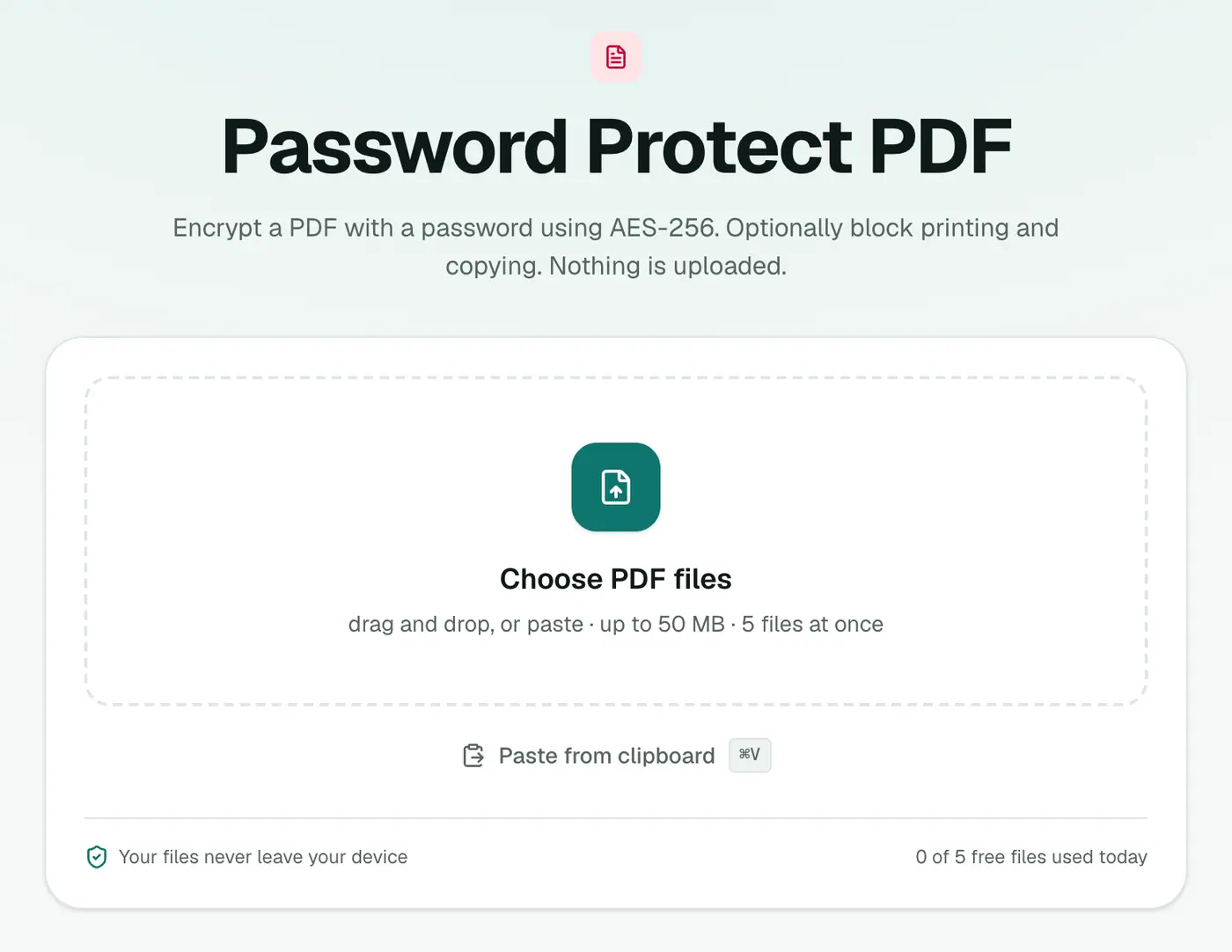
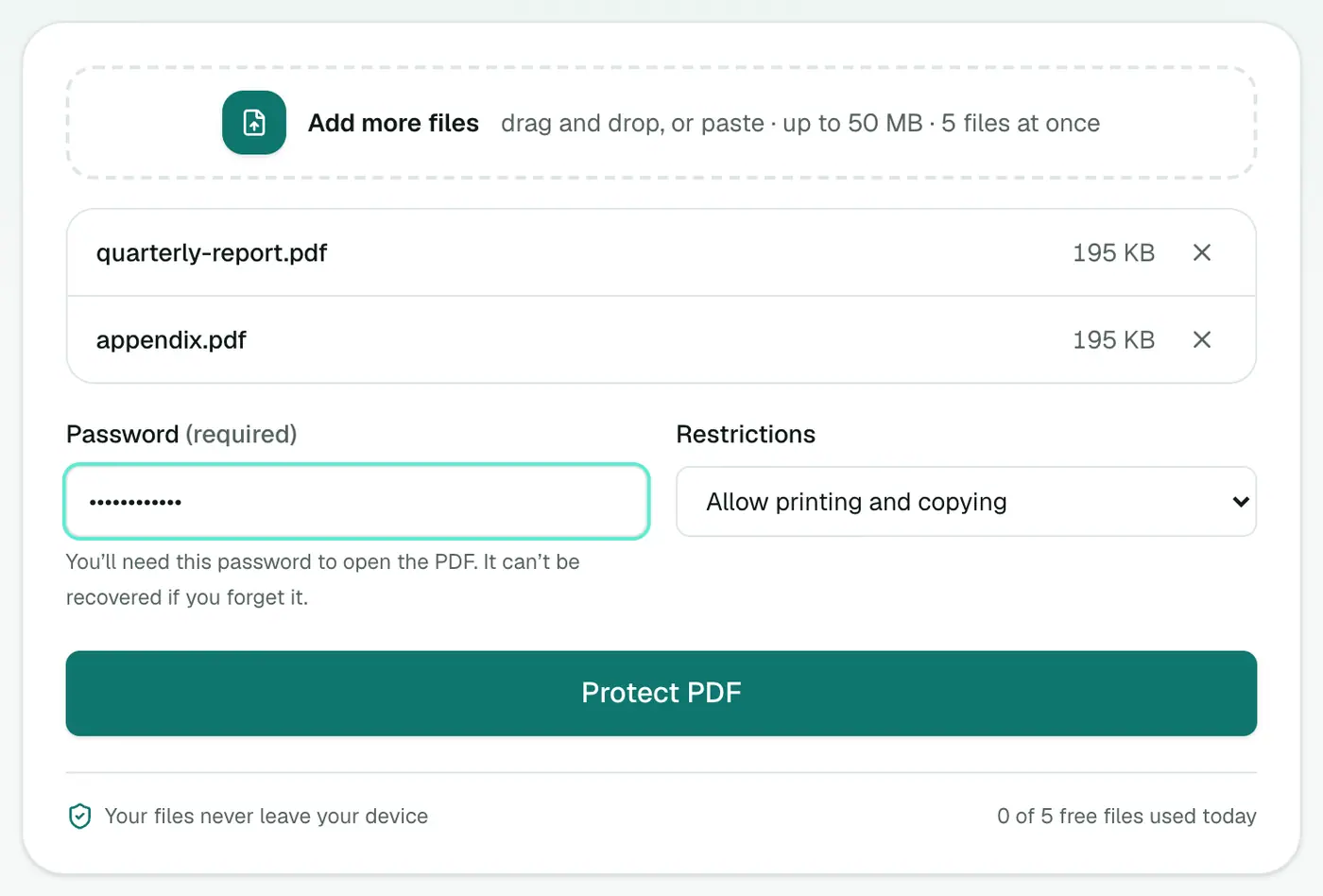
2. Add the PDF, set a password and restrictions
- Password: what the recipient will need to open the file.
- Restrictions: Allow printing and copying, Block copying text, or Block printing and copying.
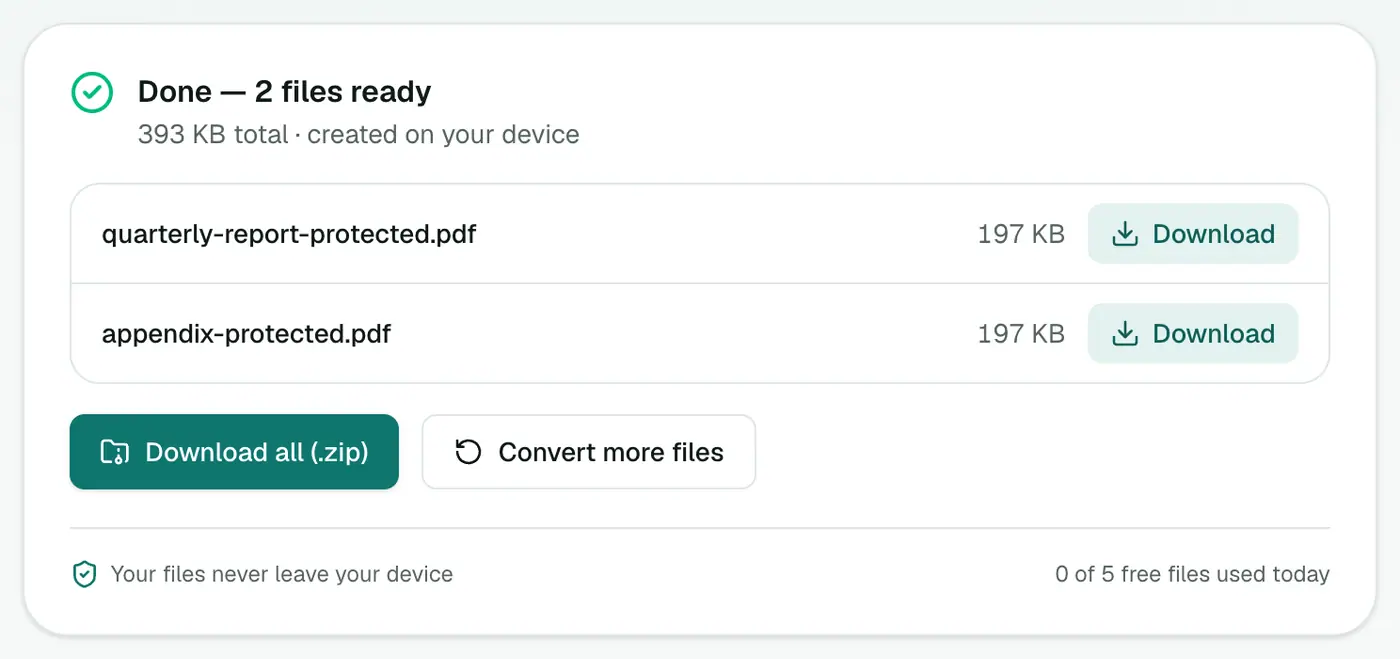
3. Protect and download
Click Protect PDF. The encrypted PDF asks for the password when opened.
Choosing a good password
- Length beats complexity. Four random words (
maple-orbit-tunnel-fresh) is stronger and easier to type thanP@ss1!. - Don't reuse an account password.
- Never put the password in the same email as the PDF. Text it, or say it on a call.
- Need a strong one quickly? The password generator runs privately in your browser too.
Restrictions, honestly explained
The open password is real encryption: without it, the file is unreadable. Print and copy restrictions are different. They're instructions that well-behaved PDF readers follow. Most people won't get around them, but they aren't a guarantee. Use them to discourage casual copying, not as your main protection.
Other ways
- Mac Preview: File → Export, tick Encrypt and set a password.
- Word: File → Save As → PDF → Options → Encrypt the document with a password.
- Acrobat Pro: Protect → Encrypt with Password.
Related
- Need to remove a password from your own PDF? Unlock PDF.
- Want to visibly mark it as confidential too? Add a watermark.
- Hiding specific details instead? Redact PDF.
Who can open it?
| App | Opens AES-256 protected PDFs |
|---|---|
| Adobe Acrobat Reader | ✓ |
| Chrome, Edge, Firefox | ✓ |
| Mac Preview, iPhone Files | ✓ |
| Very old PDF readers | May not |
Protect vs redact
- Protect locks the whole file, so anyone with the password sees everything.
- Redact permanently removes specific details, so you can share the rest freely.
For sensitive documents, redact first, then protect.
Summary
A strong password plus a separate way of sharing it goes a long way. Protect PDF adds AES-256 encryption without your document or password ever leaving your device.
FAQs
How strong is the encryption?
AES-256, the strongest standard PDF encryption. With a good password it's practically impossible to brute-force.
What if I forget the password?
There's no way to recover it, not even for us, since the password never leaves your browser. Keep the unprotected original somewhere safe.
What do the restrictions do?
They ask PDF readers to block printing and/or copying text. Most readers respect them, but they're less strong than the open password itself.
How should I share the password?
Use a different channel than the PDF. If you email the file, send the password by text message or tell them on the phone.
Is my password sent anywhere?
No. The file is encrypted in your browser, so neither the password nor the document reaches a server.
Try the Password Protect PDF
Free to start, no install, and your files never leave your device.