Viewers2 min read
How to Open an OST File Without the Original Outlook Account
Read an Outlook offline mailbox (.ost) from an old or disconnected Exchange or Microsoft 365 account. Browse folders, search and save emails and attachments.
By the ZapMorph team
On this page
Just want it done?
Open the OST Viewer — it runs in your browser and nothing is uploaded.
An OST is Outlook's local copy of an online mailbox. When the account is deleted, the profile corrupted or the employee long gone, Outlook refuses to open it. The OST viewer reads the file directly.
What is an OST file?
When Outlook is connected to Exchange, Microsoft 365 or Outlook.com, it keeps a copy of the mailbox on the computer so you can work offline. That copy is the OST (Offline Storage Table). It's a cache, so Outlook only uses it alongside the account it came from.
That's why an OST becomes unreadable when:
- The user account was deleted after someone left the company.
- The Outlook profile was removed or Windows was reinstalled.
- The password changed and the account can no longer be signed in to.
- The OST was copied to another computer.
How to open an OST with ZapMorph
1. Open the OST viewer
Go to the OST viewer.
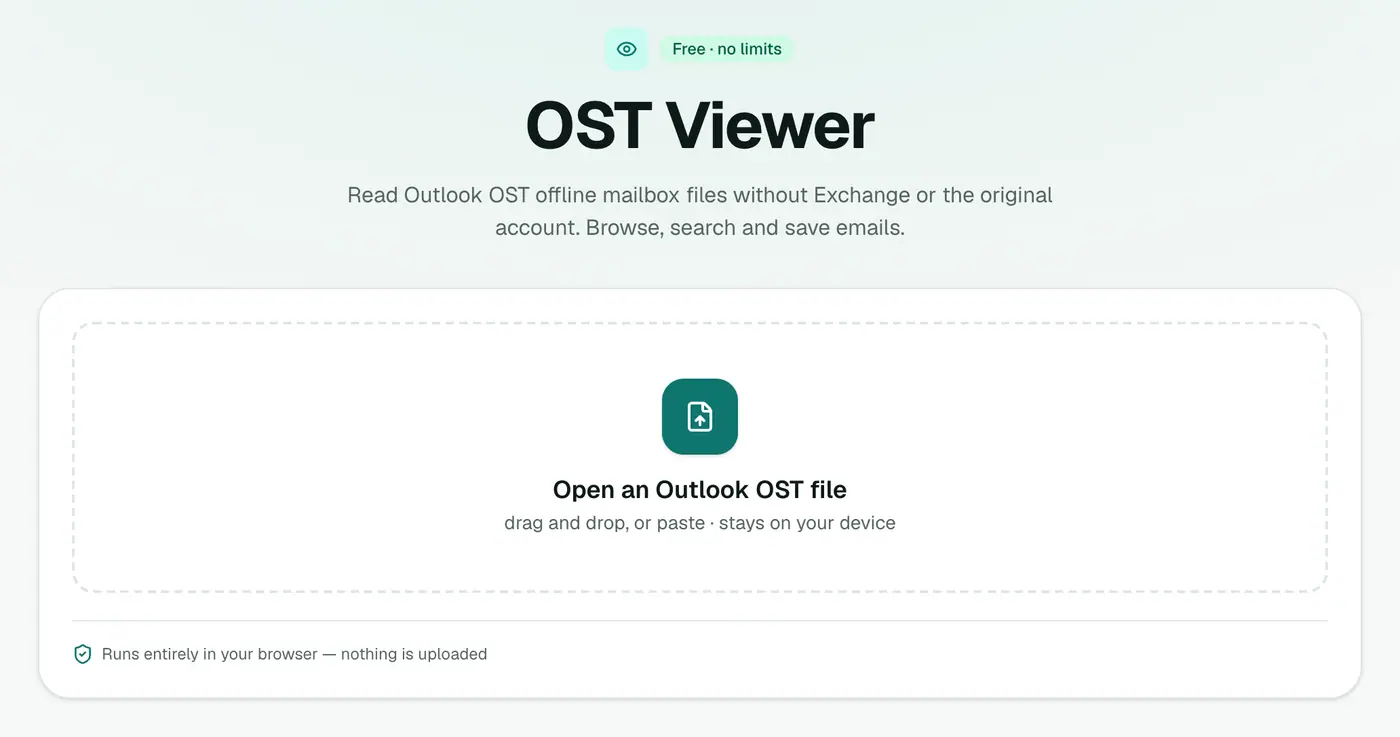
2. Open your OST
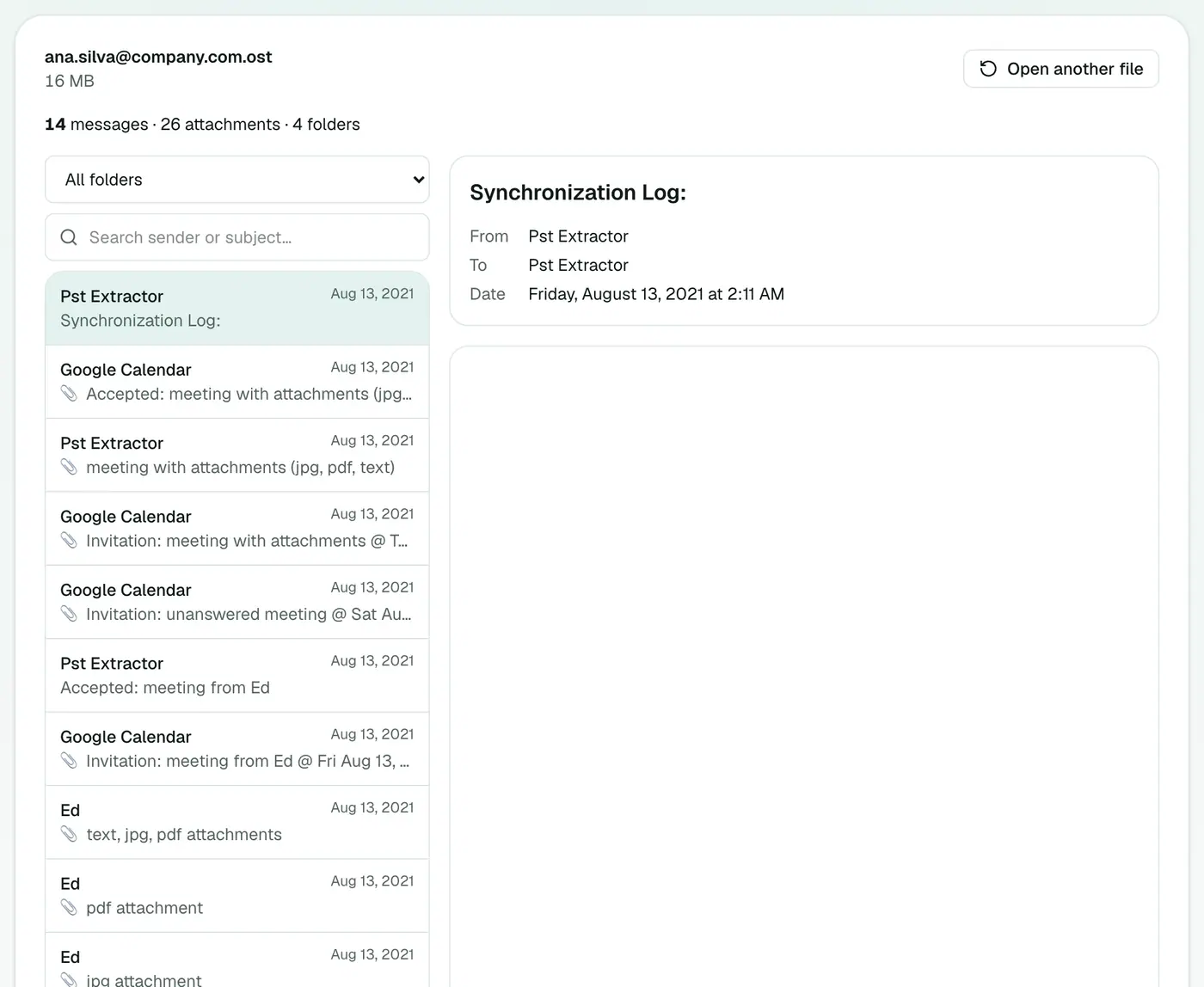
Drop the .ost file on the box and browse its folders and messages.
- Folder list: Inbox, Sent Items, Deleted Items and every subfolder.
- Search: by sender, recipient or subject.
- 📎 icon: emails with attachments.
- Click an email to read it in full and download its attachments.
Finding the OST
On Windows it's usually in C:\Users\<name>\AppData\Local\Microsoft\Outlook\, named after the email address. Quick route: press **Win+R**, type %localappdata%\Microsoft\Outlook and press Enter.
Close Outlook first if it's running, because it locks the OST while open.
After you've found what you need
| Goal | Tool |
|---|---|
| Keep a record or print | OST to PDF |
| Recover individual emails with attachments | OST to EML |
| Move the mailbox into Thunderbird or Apple Mail | OST to MBOX |
| List every email in Excel | OST to CSV |
| See counts by folder, year and sender | PST Analyzer |
Troubleshooting
"Isn't a readable Outlook data file." The file may be damaged, or it's an OST in a newer internal format used by some Outlook 2013+ setups that can't be read here. If the account can be restored (Microsoft 365 admins can usually restore deleted users for 30 days), that's the most reliable route.
"Password-protected." The OST uses encryption that can't be read outside Outlook. If the account still exists, export from Outlook or webmail instead.
Only the first 1,000 emails are listed. Use the folder list or search to narrow it down.
Summary
The OST viewer gets you into an Outlook offline mailbox when the account behind it is gone, privately in your browser.
FAQs
Why won't Outlook open my OST?
An OST is tied to the Outlook profile and account that created it. Without that account, Outlook can't open it.
Can I save emails from it?
Yes. Read messages and download attachments in the viewer, or convert with OST to EML or OST to PDF.
Is the OST uploaded?
No. It's read in your browser.
Can I open an OST on a Mac?
Yes. The viewer runs in any browser, so it works on a Mac, Linux or a Chromebook as well as Windows.
What's the difference between OST and PST?
A PST is a standalone Outlook data file you can open anywhere. An OST is a cache that only works with its original account. Both are read by this viewer.
Why is my OST so big when the account had little mail?
OST files don't shrink when mail is deleted. Outlook reuses the space instead, so an OST can be much larger than the mail inside it.
Try the OST Viewer
Free to start, no install, and your files never leave your device.