PDF2 min read
How to Get Text Out of a Scanned PDF With OCR
Scanned contracts and old letters are just pictures of text. Use OCR to recognise the words on every page and save them as a text file, all on your device.
By the ZapMorph team
On this page
Just want it done?
Open the OCR PDF to Text — it runs in your browser and nothing is uploaded.
A scanned PDF looks like a document, but to your computer it's a stack of photos. You can't search it, can't copy a sentence from it, and PDF to Word gives you nothing. OCR (optical character recognition) reads the text in those images.
How to tell if a PDF is scanned
Open it and try to select a single word.
- Text highlights word by word → it already has text. Use PDF to Text instead. It's faster and exact.
- Nothing selects, or the whole page turns blue → it's a scan. Read on.
How to OCR a PDF with ZapMorph
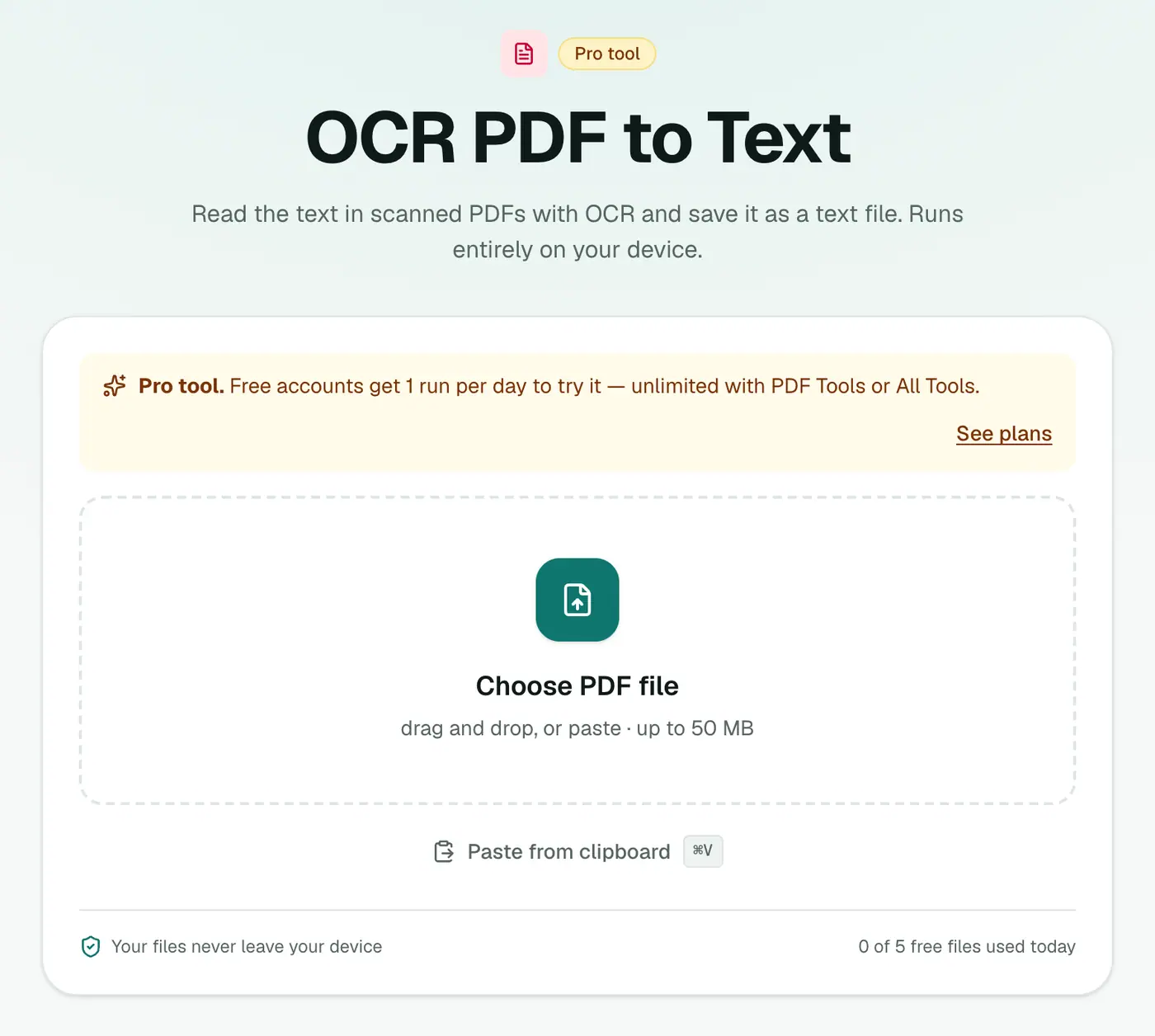
1. Open OCR PDF to Text
Go to OCR PDF to Text. It's a Pro tool, and free accounts can try it once a day.
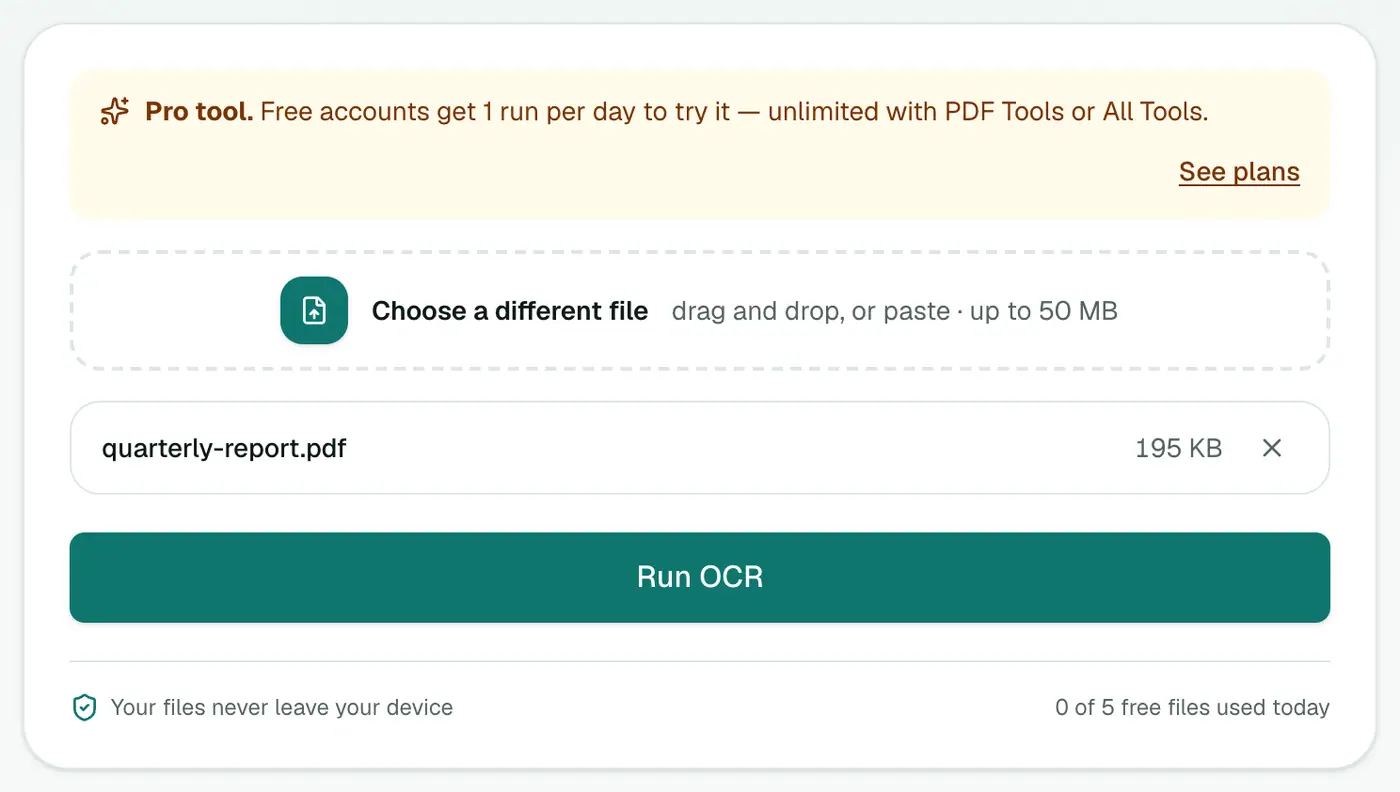
2. Add your scanned PDF
Drop it in.
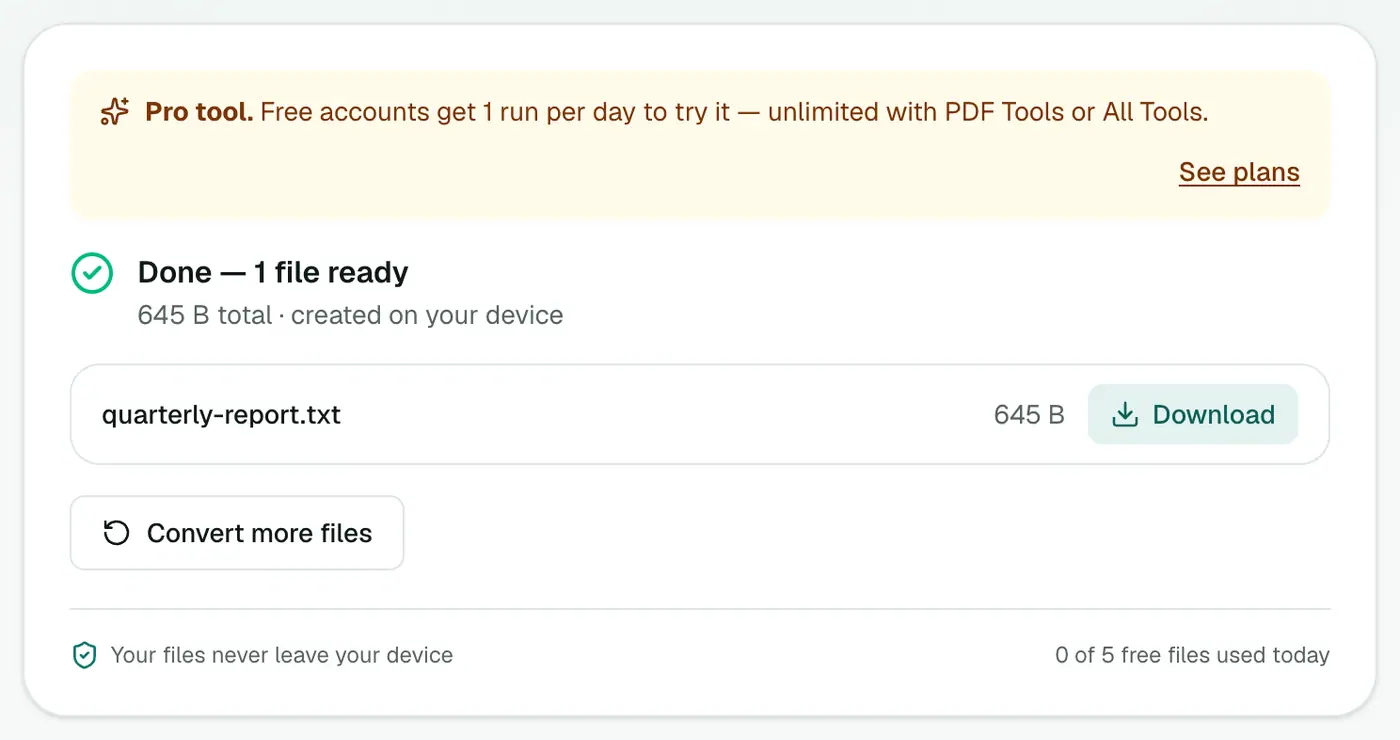
3. Run OCR and download
Click Run OCR. The first run downloads the recognition engine, then each page is read in turn. You get a text file with every page's words.
Getting the best accuracy
OCR quality depends mostly on the scan:
- 300 DPI is ideal for documents. Lower resolutions lose small text.
- Straight pages. Skewed scans reduce accuracy. Use Rotate PDF for sideways pages.
- Clean contrast. Dark text on a white background works best. Faded photocopies are hard.
- Printed text. Handwriting isn't reliably recognised.
Always proofread names, numbers and dates. That's where small OCR errors matter most.
Text file or searchable PDF?
- OCR PDF to Text (this tool): you want the words to edit, quote, translate or analyse.
- Make PDF Searchable: you want to keep the PDF looking exactly the same, but be able to search it and select text.
Other ways
- Google Drive: open a PDF with Google Docs and it runs OCR, but the file is uploaded to Google.
- Acrobat Pro: Scan & OCR. Very good, but paid.
- Phone apps: iPhone Live Text and Google Lens work page by page.
Expected accuracy
| Source | Typical result |
|---|---|
| Clean office scan, 300 dpi | Very accurate |
| Phone photo in good light | Good, check numbers |
| Faxes and low-resolution scans | Usable, needs proofreading |
| Handwriting | Poor |
After OCR
- Edit the text: paste into Word, or use PDF to Word on the searchable PDF.
- Summarise or translate the extracted text.
- Archive it as a searchable PDF so you can find it later.
Summary
If you can't select the text, it's a scan. OCR PDF to Text reads every page on your own device. For a PDF you can search but that looks unchanged, use Make PDF Searchable.
FAQs
How do I know if my PDF needs OCR?
Try selecting a word in your PDF reader. If you can't, or the whole page highlights as one block, it's a scan and needs OCR.
Which languages are supported?
English.
Do I get a text file or a PDF?
A text file with the recognised words. To keep the PDF looking the same but make it searchable, use Make PDF Searchable instead.
Why does the first run take longer?
The recognition engine downloads to your browser the first time. After that it's cached.
Is OCR free?
It's a Pro tool. Free accounts can try it once a day.
Is my document uploaded?
No. OCR runs in your browser, which matters for contracts, medical letters and IDs.
Try the OCR PDF to Text
Free to start, no install, and your files never leave your device.