PDF2 min read
How to Make a Scanned PDF Searchable (Without Changing How It Looks)
Add an invisible OCR text layer to scanned PDFs so you can search, select and copy the text while the pages look exactly the same.
By the ZapMorph team
On this page
Just want it done?
Open the Make PDF Searchable (OCR) — it runs in your browser and nothing is uploaded.
You scanned your important documents years ago: insurance policies, the house purchase, old payslips. Now you need to find "the one that mentions the excess", and Ctrl+F finds nothing, because scans are just pictures.
Making them searchable fixes that without changing how they look.
How a searchable PDF works
OCR reads the words on each page and adds them as an invisible text layer behind the scanned image. You still see the original scan, stamps and signatures included, but now:
- Ctrl+F / Cmd+F finds words.
- You can select and copy text.
- Windows Search, Spotlight and Google Drive can index the content.
- PDF to Word and PDF to Text work on it.
How to make a PDF searchable with ZapMorph
1. Open Make PDF Searchable
Go to Make PDF Searchable. It's a Pro tool, and free accounts can try it once a day.
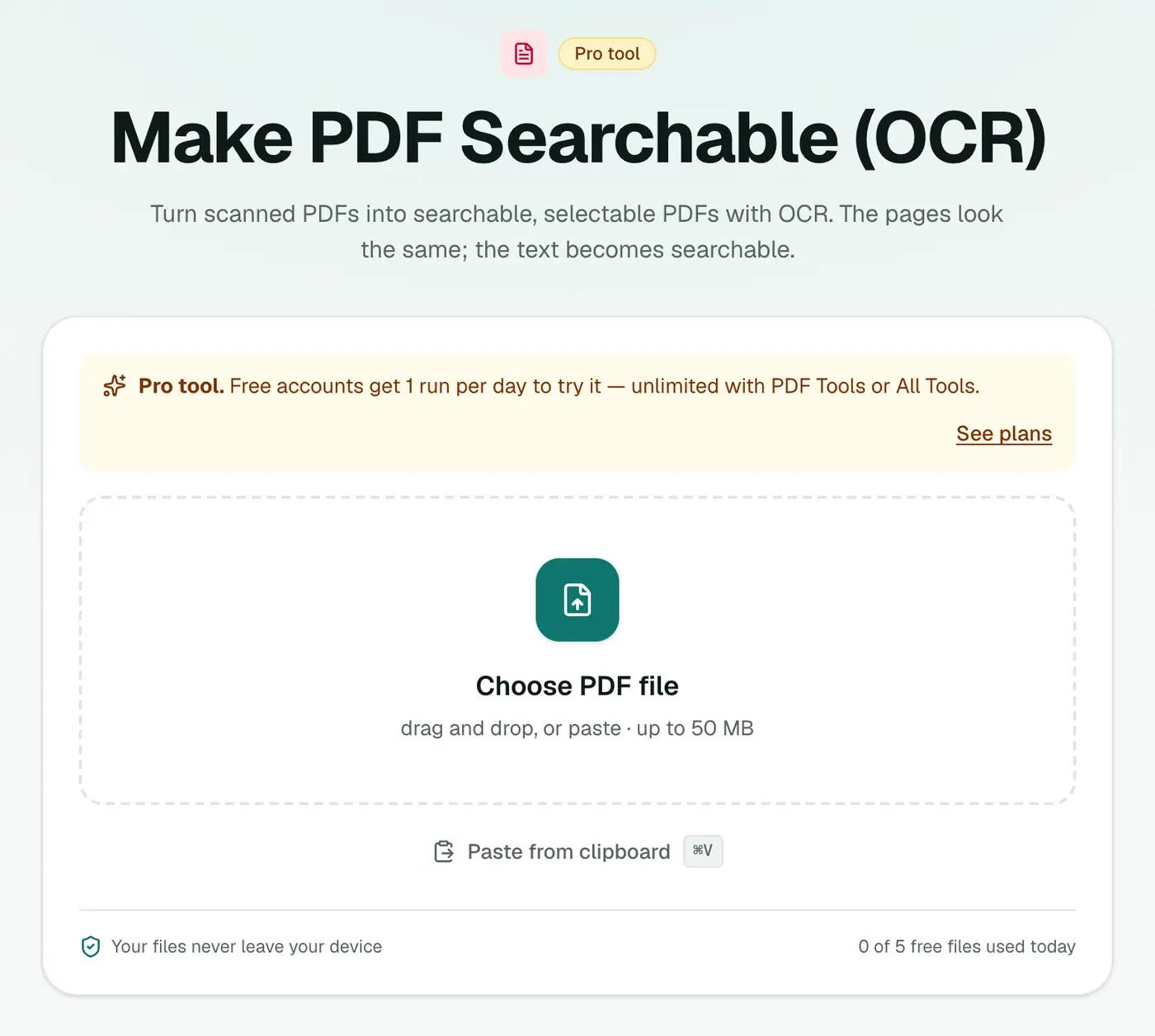
2. Add your scanned PDF
Drop it in.
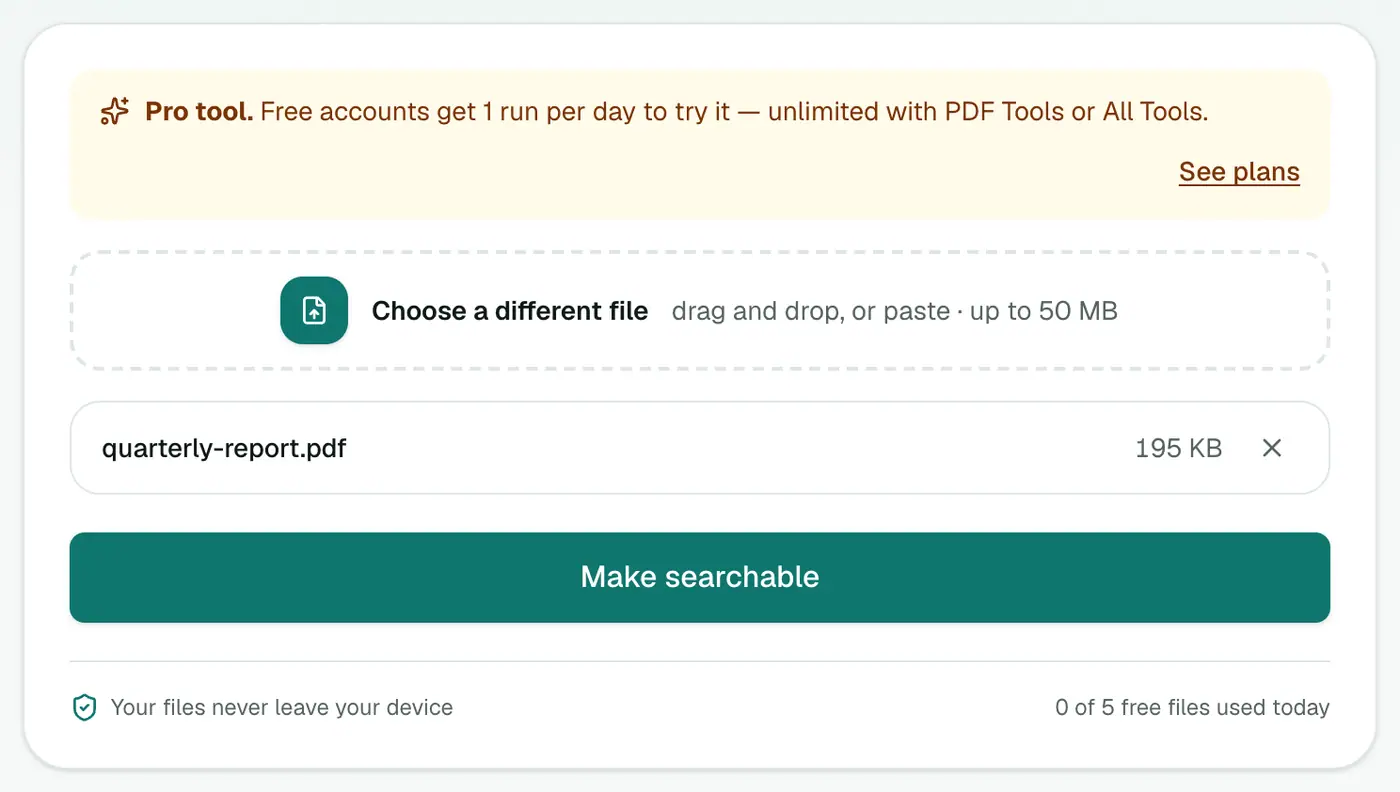
3. Run OCR and download
Start the conversion. The first run downloads the recognition engine. Each page is then read in turn. Download the searchable PDF.
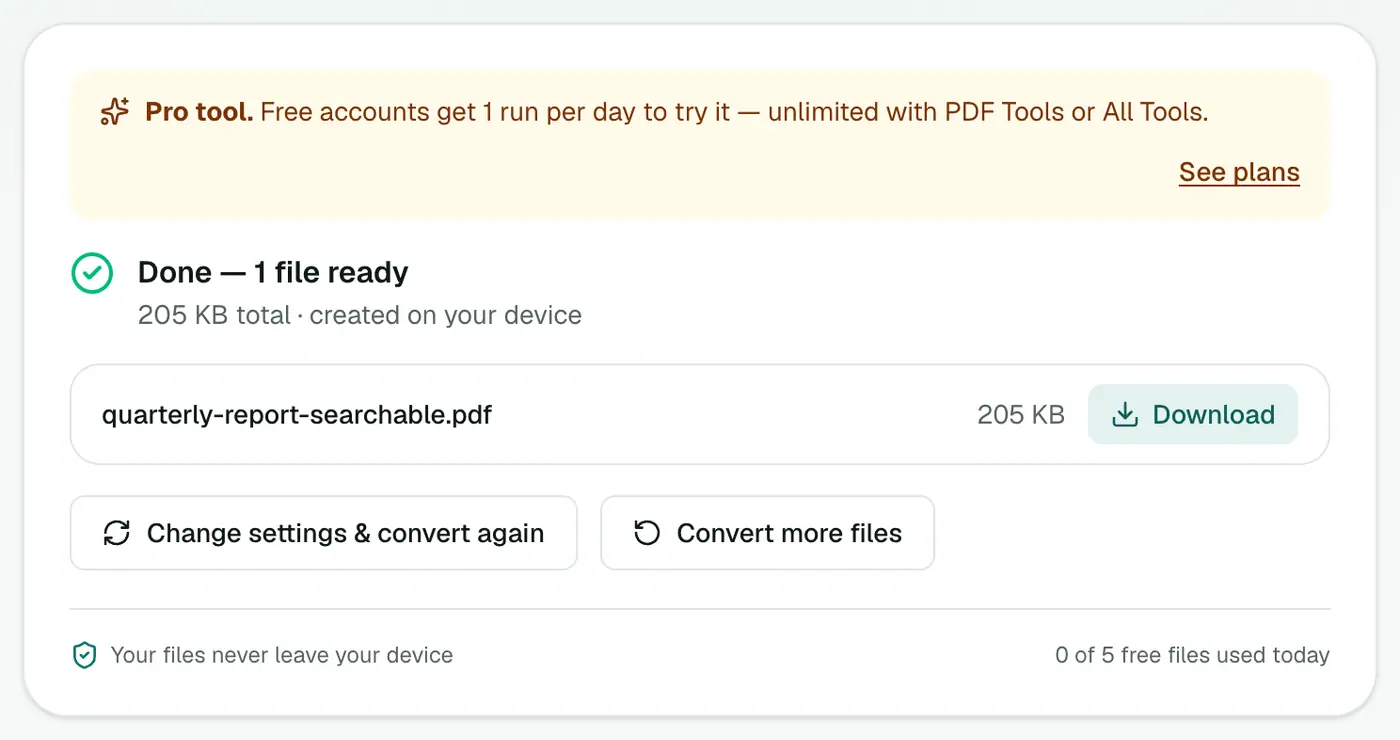
Tips for good results
- Scan at 300 DPI in black-and-white or grayscale for text documents.
- Rotate sideways pages first with Rotate PDF. OCR reads upright text best.
- Proofread copied numbers. OCR isn't perfect, so double-check figures you copy out.
Build a searchable archive
- Scan your paperwork (or use a phone scanning app).
- Run each PDF through Make PDF Searchable.
- Name files sensibly:
2026-03 Home insurance policy.pdf. - Store them in a synced folder. Your computer's search will now find words inside them.
Other ways
- Acrobat Pro: Scan & OCR → Recognize Text.
- Many scanner apps (ScanSnap, Adobe Scan, Microsoft Lens) can OCR as they scan. Switch it on if yours can.
- Google Drive indexes scanned PDFs for search, but that means uploading them.
What a searchable PDF lets you do
| Before OCR | After OCR |
|---|---|
| Ctrl+F finds nothing | Find any word |
| Can't select or copy text | Select and copy |
| Not indexed by Windows Search or Spotlight | Indexed |
| Screen readers can't read it | Readable aloud |
Scanning tips for better recognition
- 300 dpi is the sweet spot for text.
- Straight, flat pages: fix skewed or sideways pages with Rotate PDF first.
- Good contrast: black text on white paper works best.
- One language: English text is recognised; other languages may come out wrong.
Summary
Same pages, now searchable. Make PDF Searchable adds an OCR text layer privately in your browser. If you just want the words in a text file, use OCR PDF to Text.
FAQs
Will the PDF look different afterwards?
No. The page images stay exactly the same. An invisible text layer is added behind them.
What's the difference from OCR PDF to Text?
OCR PDF to Text gives you a separate text file. Make PDF Searchable keeps the PDF and makes its text selectable and searchable.
Which languages are supported?
English.
Is it free?
It's a Pro tool. Free accounts can try it once a day.
Is my scan uploaded?
No. OCR runs in your browser, so confidential scans stay on your device.
Try the Make PDF Searchable (OCR)
Free to start, no install, and your files never leave your device.