Audio & video2 min read
How to Make a GIF From a Video (Without the Huge File Size)
Turn an MP4, MOV or WebM clip into an animated GIF. Choose the frame rate, width and length to get a smooth GIF that's still small enough to share. Private.
By the ZapMorph team
On this page
Just want it done?
Open the Video to GIF Converter — it runs in your browser and nothing is uploaded.
GIFs are perfect for showing a quick product interaction in a README, a bug in a Slack message, or a reaction in a group chat. They autoplay and loop everywhere. The catch: GIF is a 1987 format, and a careless conversion makes a 40 MB file that Slack and GitHub won't preview.
The trick is three settings.
The three settings that matter
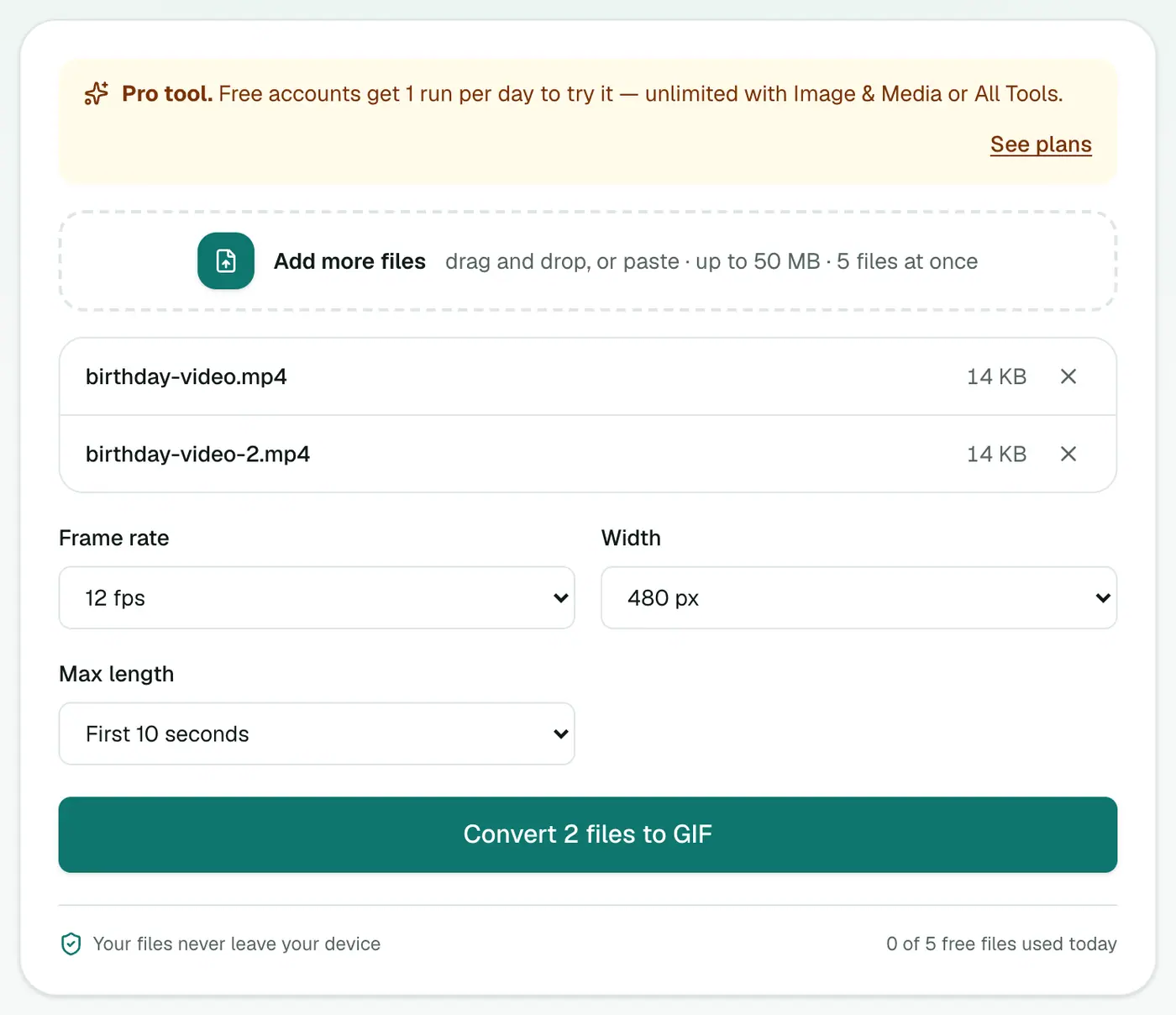
- Width: 320, 480, 640 or 800 px. Halving the width cuts the file to roughly a quarter.
- Frame rate: 8 fps (smallest) to 24 fps (smoothest). 12–15 fps looks smooth enough for UI demos.
- Max length: first 5, 10, 30 or 60 seconds. Shorter is dramatically smaller.
How to make a GIF with ZapMorph
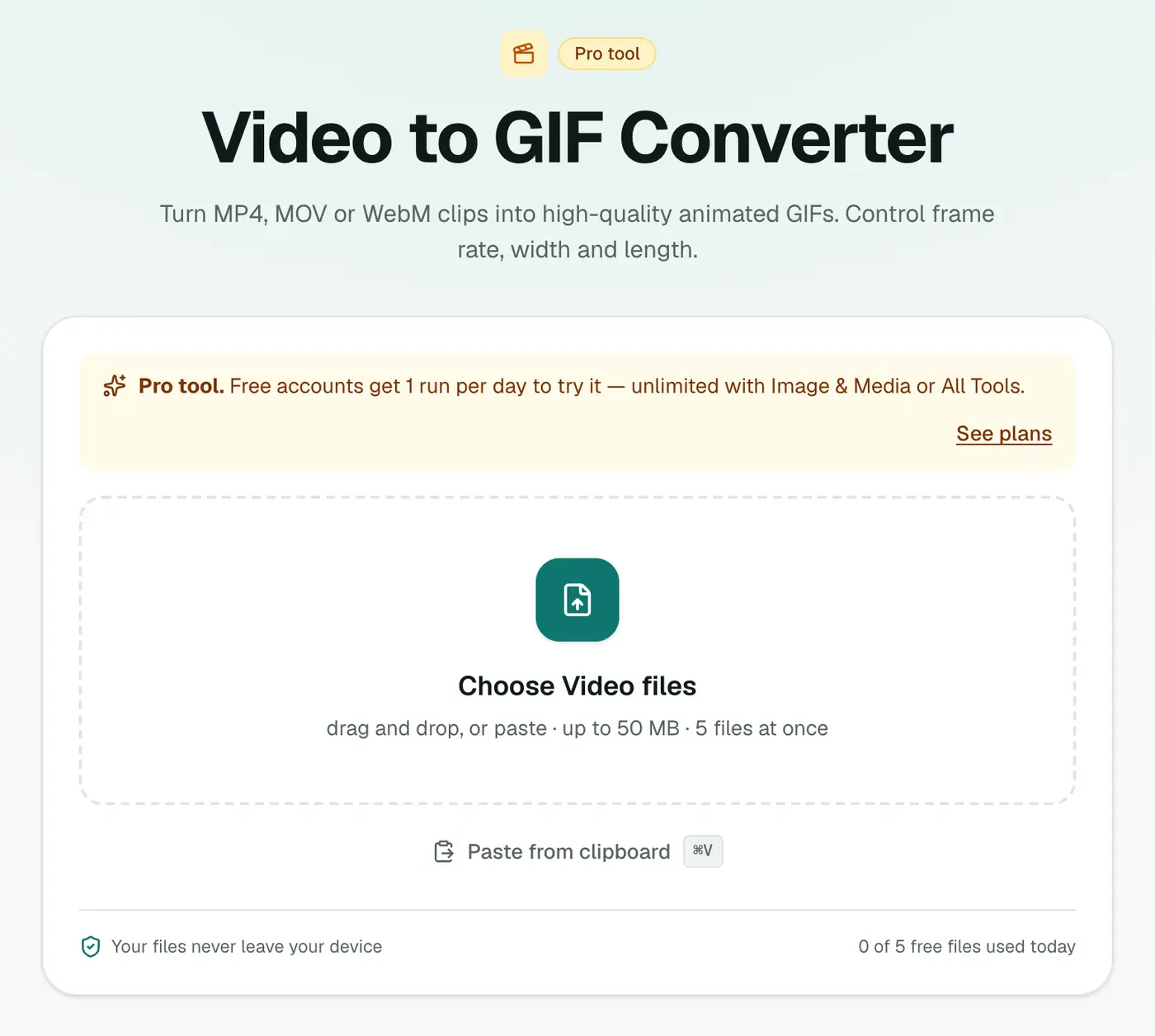
1. Open the converter
Go to Video to GIF.
2. Add a video and choose settings
Drop in an MP4, MOV, WebM or M4V clip and set the frame rate, width and maximum length.
3. Convert and download
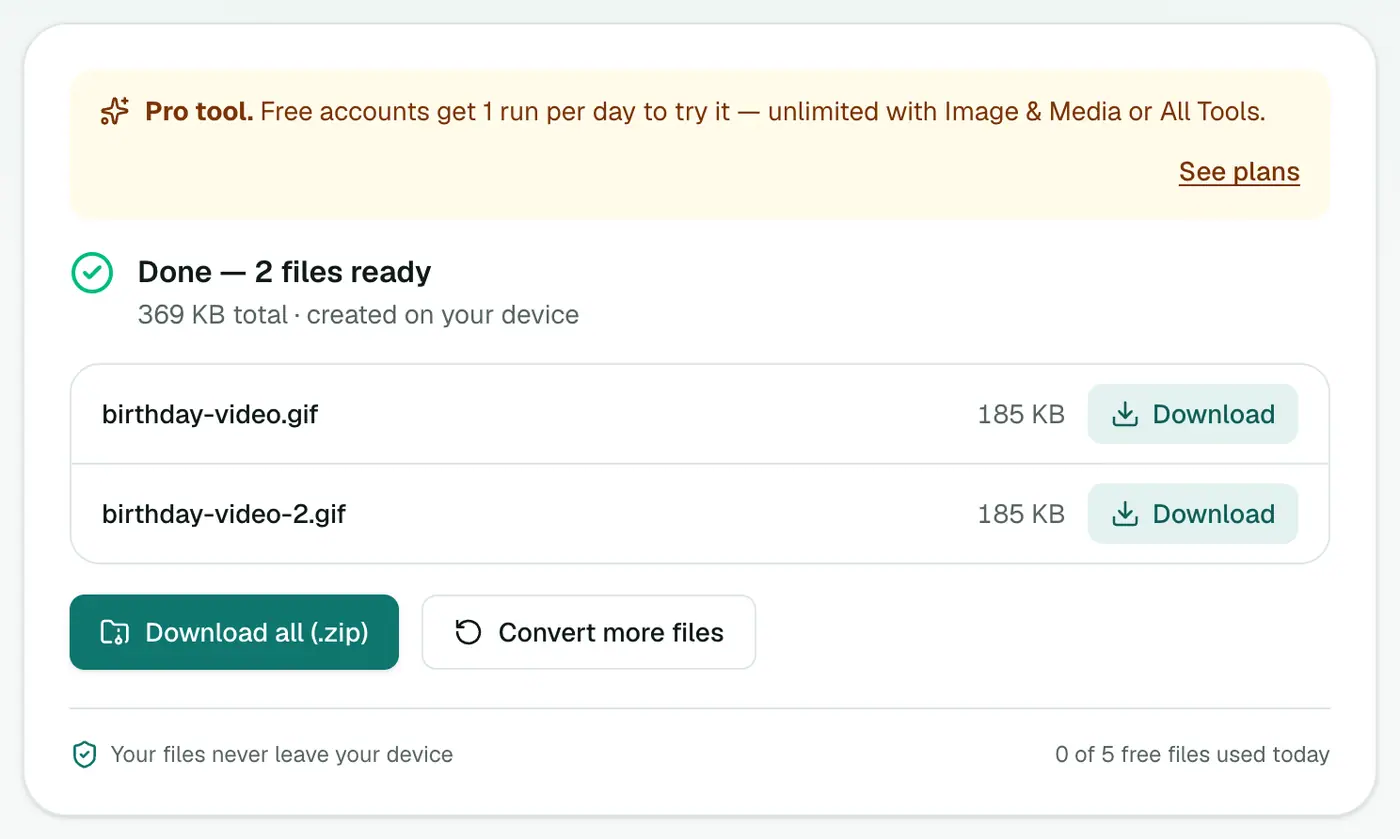
Click Convert to GIF.
Recipes
| Use | Width | Frame rate | Length |
|---|---|---|---|
| Chat reaction | 320 px | 8–12 fps | 5 s |
| UI demo in a README or ticket | 640 px | 12–15 fps | 10 s |
| Social post | 480 px | 15 fps | 5–10 s |
Size limits worth knowing
| Where | Practical limit |
|---|---|
| GitHub README / issues | Images up to 10 MB |
| Slack | Large GIFs may not autoplay in previews |
| Email newsletters | Aim under 1 MB, as some clients block big images |
Check each platform's current limits, as they change.
Why it looks good
Each GIF gets its own optimised 256-colour palette built from the clip, with light dithering. That keeps gradients and UI colours far cleaner than a generic palette.
Tips
- Trim first. Cut the clip to just the moment you need before converting.
- Screen recordings make great GIFs. Record with the screen recorder, then convert.
- Where video is allowed, use video. Twitter/X, Slack and most sites play short MP4s, which are often 10× smaller than GIF. GIF to MP4 goes the other way.
- Need it smaller still? Lower the frame rate before the width. Viewers notice blur more than choppiness.
Summary
Small width, modest frame rate, short clip. Get those right and the Video to GIF converter produces GIFs people can actually load.
FAQs
Why are GIFs so big?
GIF is an old format with weak compression and only 256 colors per frame. Every extra pixel, frame and second adds a lot of size.
What settings make a small GIF?
480 px wide, 12 fps, and the first 5 seconds is a good balance. For chat reactions, 320 px and 8 fps is often enough.
Can I start the GIF from the middle of a video?
The converter takes the first 5, 10, 30 or 60 seconds. Trim your clip first (the Photos app on iPhone or Windows can do this) to start where you want.
Is it free?
Yes, once a day: one file up to 25 MB with no account. A free account gets one Pro tool run a day, and paid plans are unlimited.
Does the GIF loop?
Yes. GIFs are set to loop forever, which is what chat apps and READMEs expect.
Is my video uploaded?
No. The GIF is made in your browser.
Try the Video to GIF Converter
Free to start, no install, and your files never leave your device.