Audio & video2 min read
How to Convert Any Video Format (MP4, MOV, MKV, AVI, WebM, WMV)
One converter for every video: turn MOV, MKV, AVI, WebM, WMV, FLV or 3GP into MP4, WebM, MOV, MKV, an animated GIF, or just the MP3 soundtrack. Private.
By the ZapMorph team
On this page
Just want it done?
Open the Video Converter — it runs in your browser and nothing is uploaded.
Video formats are a mess. Phones shoot MOV, OBS records MKV, old cameras made AVI, browsers record WebM, and that one clip from a 2010 Nokia is 3GP. Rather than hunting for the right single-purpose converter, this one takes anything and gives you what you need.
Output formats at a glance
| Output | Use it for |
|---|---|
| MP4 (H.264) | The safe default: phones, TVs, websites, social, editors |
| WebM (VP8) | HTML5 video on websites |
| MOV (QuickTime) | Apple editing apps like iMovie and Final Cut |
| MKV | Archiving |
| GIF (first 10 s) | Short looping clips for chats and tickets |
| MP3 (audio only) | Just the soundtrack |
How to convert video with ZapMorph
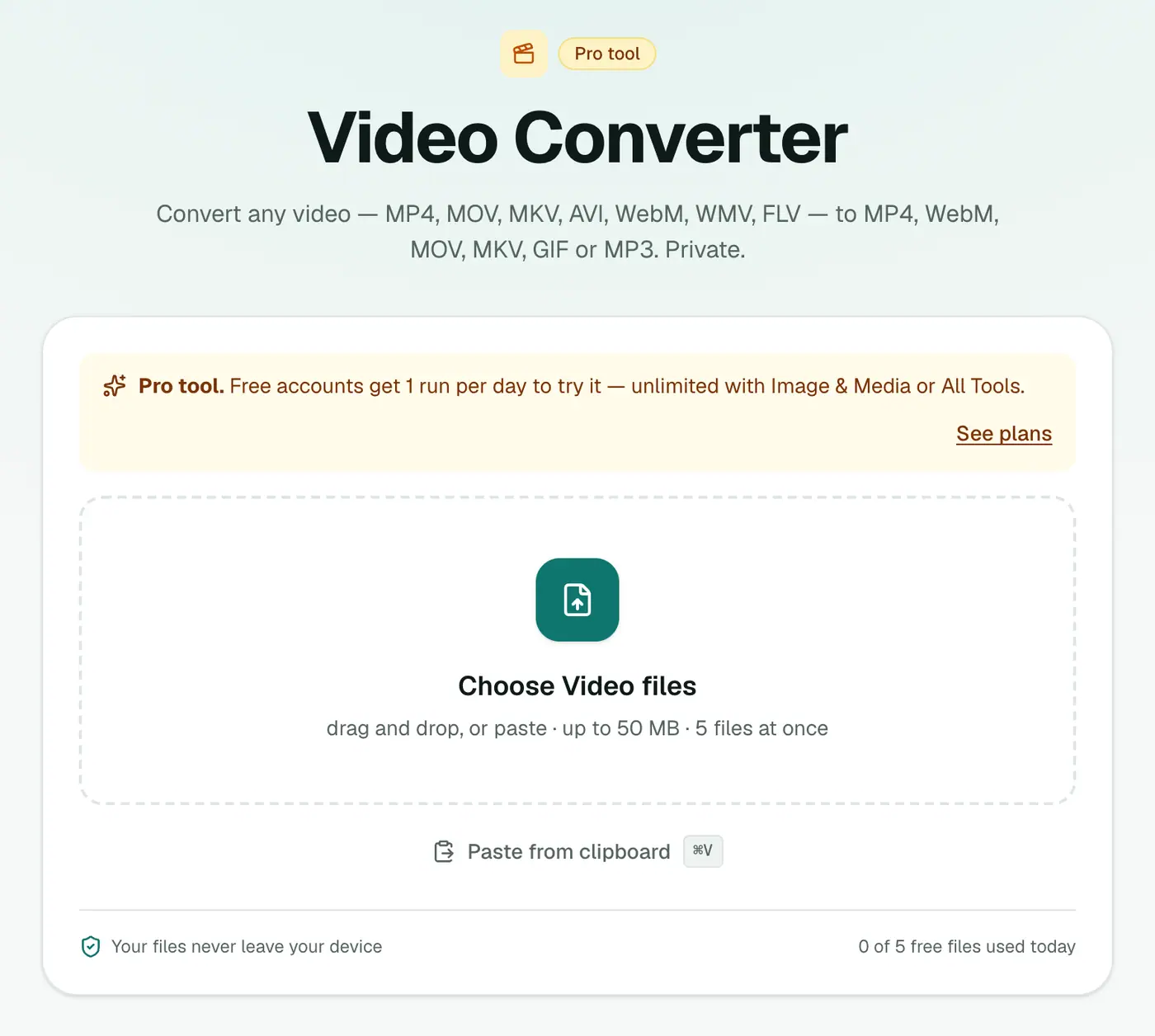
1. Open the video converter
Go to the video converter.
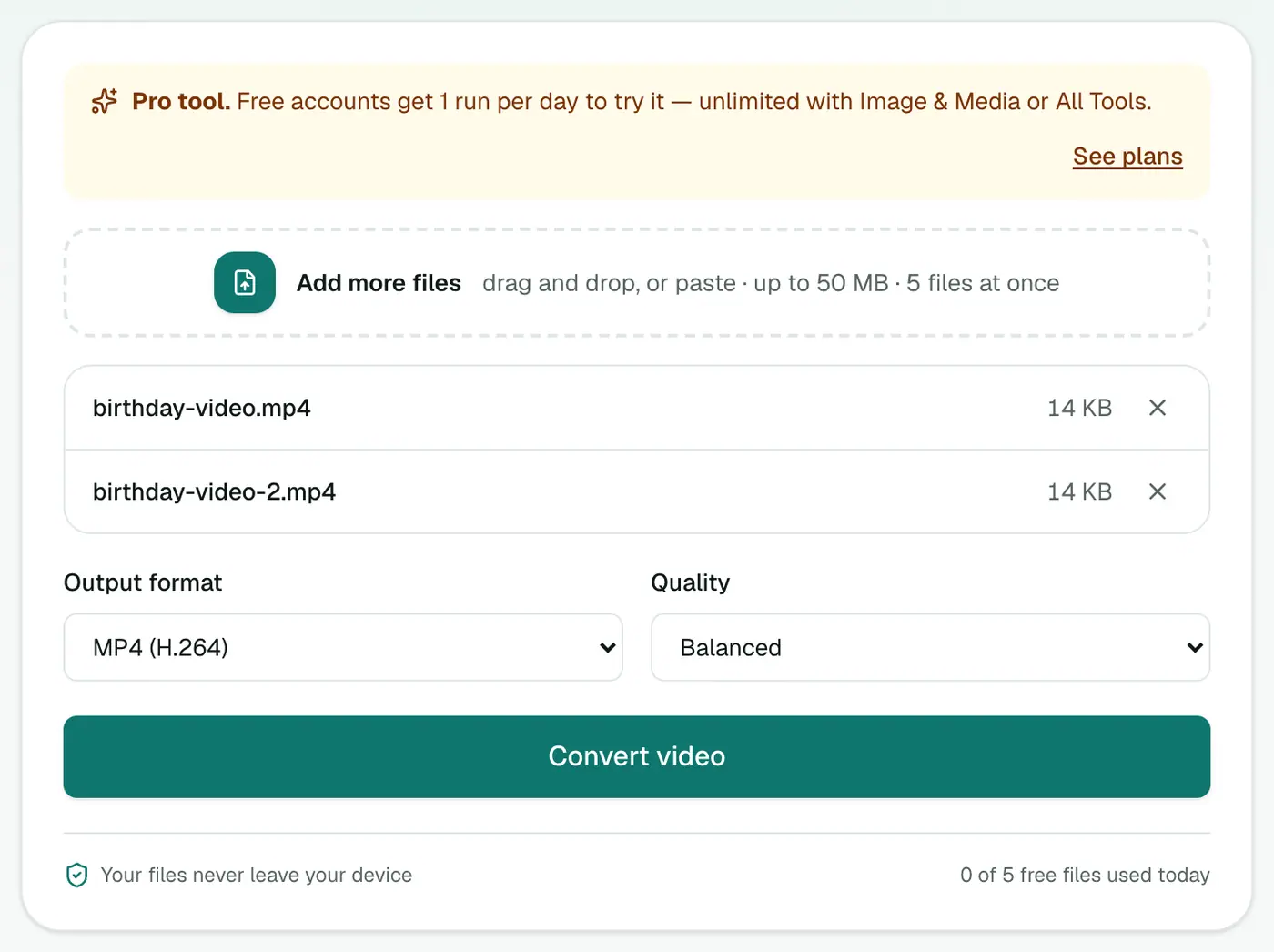
2. Add videos, choose a format and quality
Drop in your videos and pick an output format and quality.
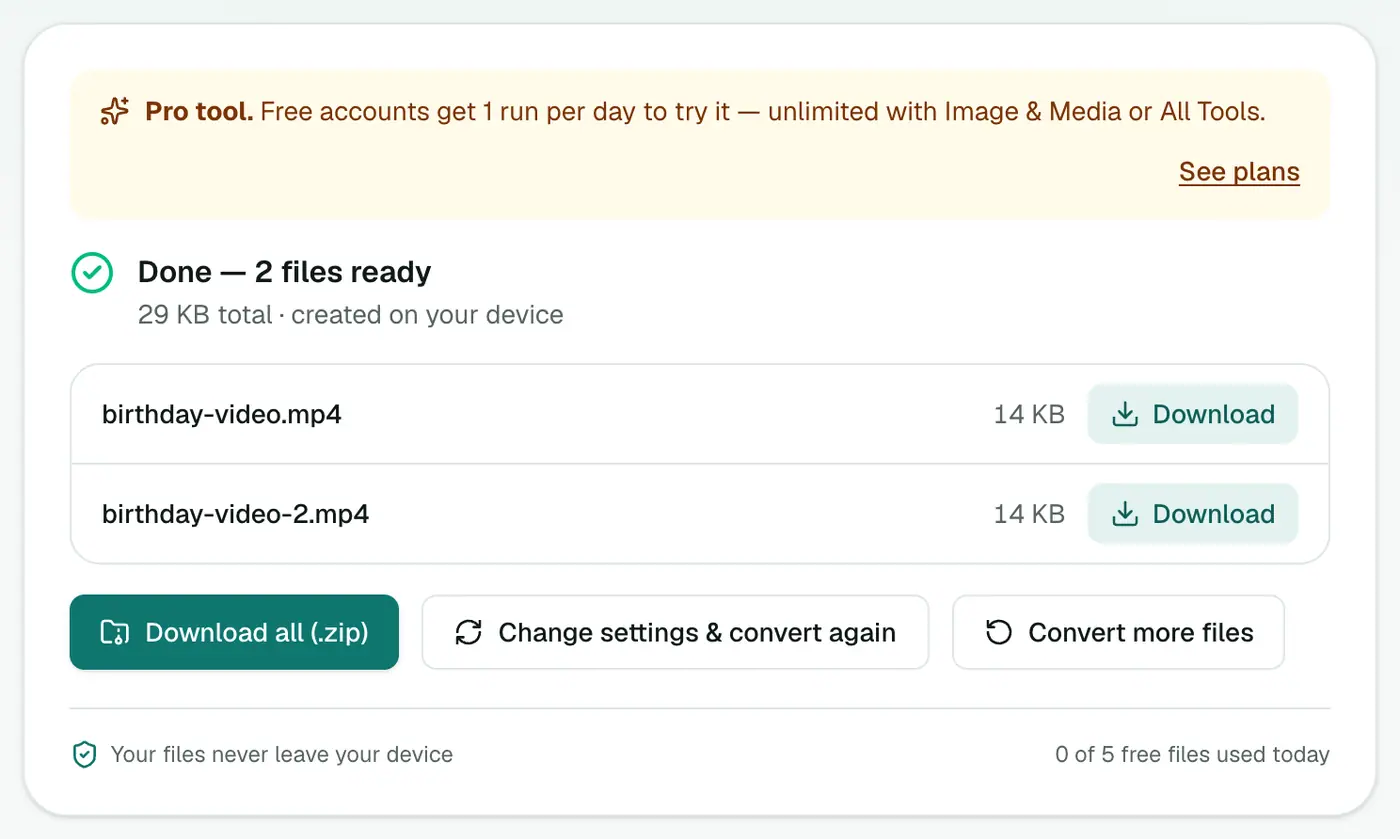
3. Convert and download
Click Convert video. Everything happens in your browser.
Quality settings in plain English
- High (larger file): close to the original. For editing and keeping.
- Balanced: good-looking, reasonable size. The best default.
- Small file: noticeably smaller, still watchable. For email, chat and slow connections.
Where your videos come from
| Input | Typical source |
|---|---|
| MOV | iPhone, Mac screen recordings, cameras |
| MKV | OBS recordings, archived video |
| AVI | Old digital cameras, dashcams |
| WebM | Browser screen recorders, web downloads |
| WMV | Old Windows Movie Maker and Windows-era videos |
| FLV | Old Flash-era web video |
| 3GP | Early 2000s phones |
Fast conversions
If a video already uses H.264 with AAC or MP3 audio (common for OBS, many cameras and iPhone "Most Compatible" mode), converting to MP4, MOV or MKV just changes the container. It takes seconds and loses nothing.
Related single-purpose tools
If you do one conversion often, the dedicated pages are quicker: MOV to MP4, MKV to MP4, WebM to MP4, AVI to MP4, Video to GIF (more GIF options), MP4 to MP3.
Troubleshooting
"Couldn't be converted." The file may be damaged or use a rare codec. Try playing it in VLC to check it isn't corrupted.
Slow on long videos. Encoding runs on your device. Trim the video first or choose Small file.
Summary
Whatever the input, the video converter gets it into the format you need, privately on your own device.
FAQs
Which output should I pick?
MP4 (H.264) for almost everything: phones, TVs, websites, editors. WebM for HTML5 web players, MOV for Apple editing apps, MKV for archiving, GIF for short loops, MP3 for audio only.
Which input formats work?
MP4, M4V, MOV, MKV, AVI, WebM, WMV, FLV and 3GP.
How long does conversion take?
It runs on your own device, so speed depends on your computer and the video length. Videos that are already H.264 with AAC or MP3 audio are repackaged to MP4, MOV or MKV in seconds.
Is it free?
Yes, once a day: one file up to 25 MB with no account. A free account gets one Pro tool run a day, and paid plans are unlimited.
Are subtitles and extra audio tracks kept?
No. The main video and first audio track are converted. Embedded subtitles and additional audio tracks are left out.
Is my video uploaded?
No. Conversion happens in your browser.
Try the Video Converter
Free to start, no install, and your files never leave your device.