Audio & video2 min read
How to Generate Subtitles (SRT and VTT) for Any Video Automatically
Create timed captions for lectures, interviews, reels and meetings with speech recognition that runs on your own device. Get both SRT and VTT files.
By the ZapMorph team
On this page
Just want it done?
Open the Subtitle Generator — Auto Captions — it runs in your browser and nothing is uploaded.
Captions make video accessible to deaf and hard-of-hearing viewers, help the many people who watch with the sound off, and give search engines text to index. Typing them by hand takes hours. Automatic transcription gets you most of the way in minutes.
This one runs on your device, so private meetings, interviews and unreleased videos never get uploaded to a transcription service.
How to generate subtitles with ZapMorph
1. Open the subtitle generator
Go to the subtitle generator.
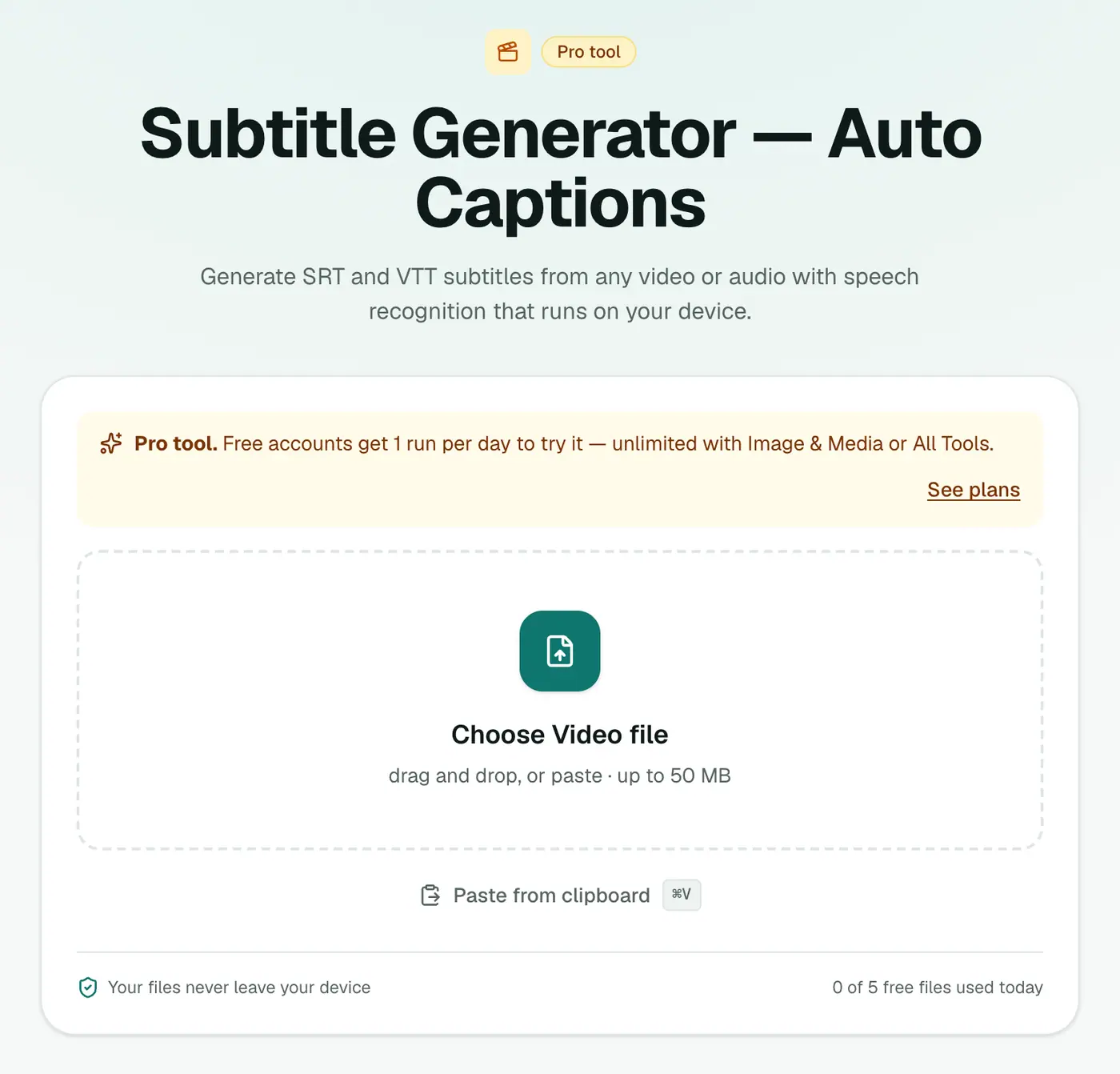
2. Add your video or audio
Drop in a video (MP4, MOV, MKV, WebM) or an audio file.
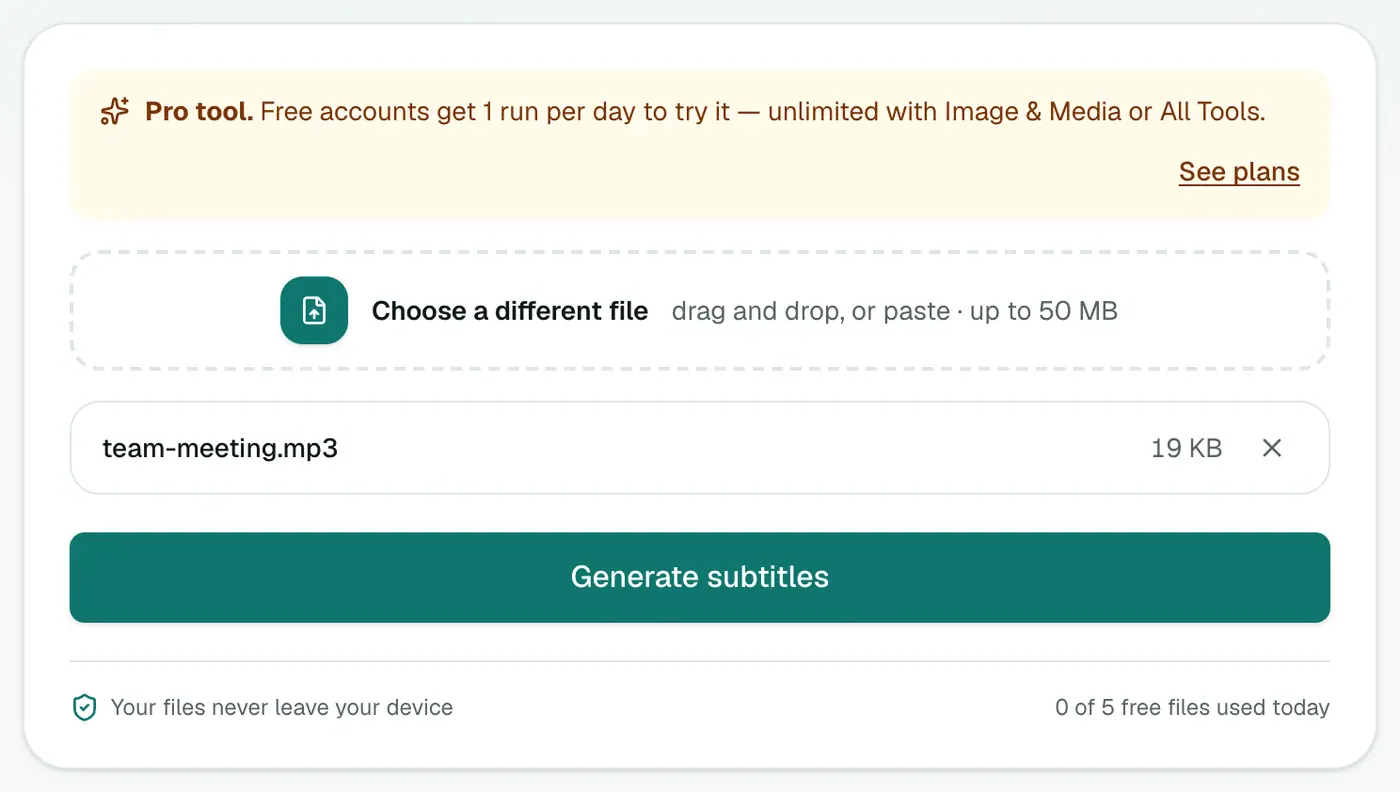
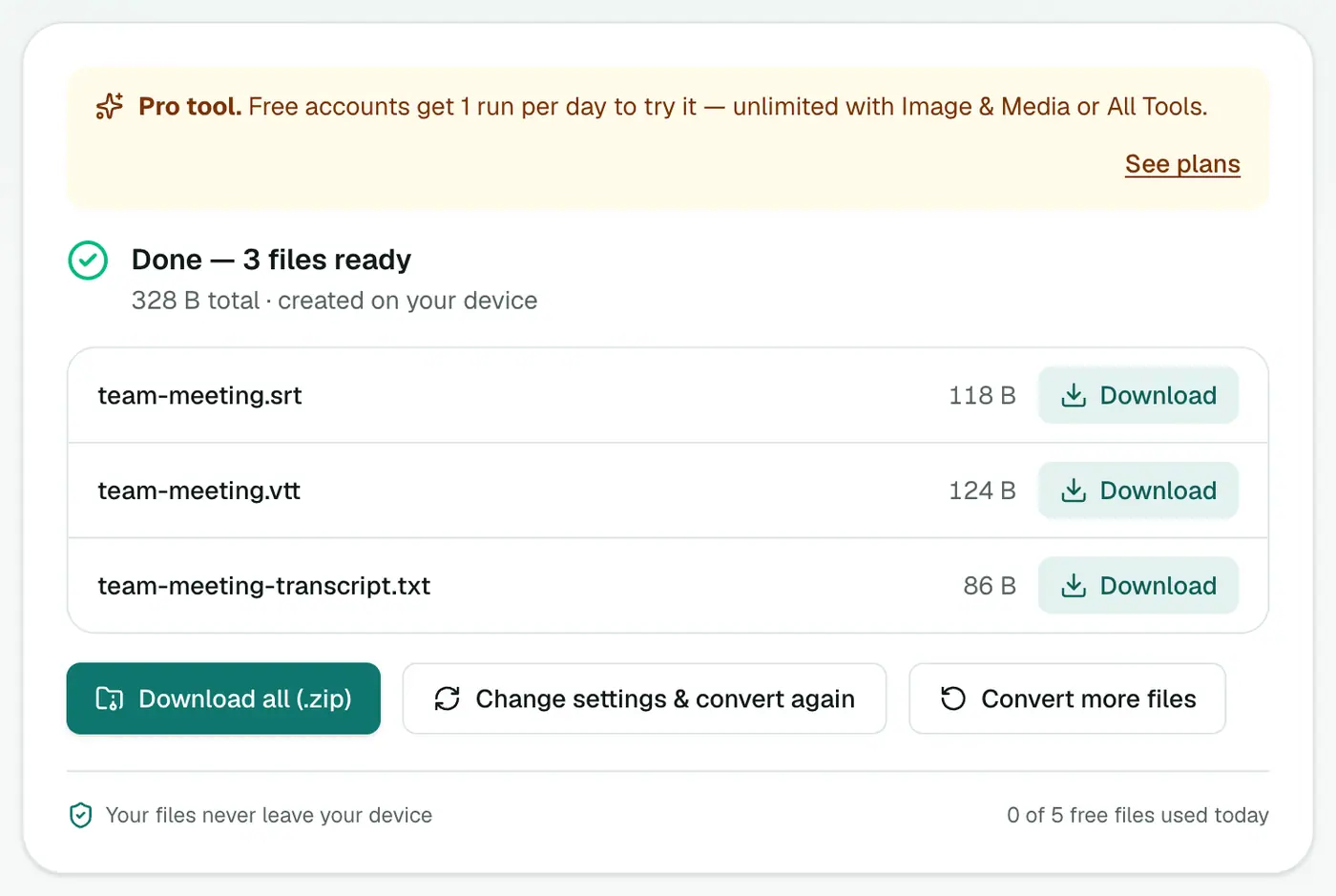
3. Generate and download
Start it and wait. The first run downloads the speech model (about 40 MB), and then the audio is transcribed with timestamps. Download the SRT and VTT files.
What an SRT looks like
1
00:00:01,200 --> 00:00:04,800
Welcome to the quarterly update.

2
00:00:05,100 --> 00:00:08,900
Let's start with the numbers from March.
It's plain text, so you can fix any word in Notepad or TextEdit.
Using the subtitles
- YouTube: YouTube Studio → Subtitles → Add → Upload file → choose the SRT.
- Video editors: Premiere Pro, DaVinci Resolve and Final Cut all import SRT.
- VLC: put the SRT next to the video with the same name, and it loads automatically.
- Websites:
<track kind="captions" src="captions.vtt" srclang="en">inside your<video>. - Social media: LinkedIn and Facebook accept SRT uploads for captions.
Tips for accuracy
- Clean audio matters most. A lapel mic beats a laptop mic across the room.
- Proofread names and jargon. Open the SRT in any text editor. It's plain text.
- Long recordings take a while on slower computers. Leave the tab open.
- Reduce background music in an editor first if the speech is hard to hear.
Beyond captions
- Meeting notes: copy the text out of the SRT and paste it into an AI assistant to summarise.
- Blog posts from videos: turn a talk into a written article.
- Searchable archives: keep transcripts alongside recordings.
Summary
The subtitle generator gives you SRT and VTT captions from any recording, privately on your own device.
FAQs
Which languages are supported?
English speech.
What's the difference between SRT and VTT?
SRT is the classic format for YouTube, video editors and media players. VTT (WebVTT) is for web video players and HTML5 <track> elements. You get both.
Why does the first run take longer?
The speech recognition model (about 40 MB) downloads to your browser the first time. After that it's cached.
Is my video uploaded?
No. Transcription runs entirely in your browser, which matters for private meetings and interviews.
How accurate is it?
Clear speech with little background noise transcribes well. Always review names, jargon and numbers before publishing.
Can I use audio files too?
Yes. MP3, WAV, M4A, OGG and other audio files work, as well as videos.
Is it free?
It's a Pro tool. Free accounts can try it once a day.
Try the Subtitle Generator — Auto Captions
Free to start, no install, and your files never leave your device.