PDF2 min read
How to Extract Pages From a PDF Into a New File
Save just the pages you need, like a signature page, one invoice or a chapter, as a separate PDF. Type page numbers and ranges such as 1, 3, 5-8.
By the ZapMorph team
On this page
Just want it done?
Open the Extract PDF Pages — it runs in your browser and nothing is uploaded.
The bank sends a 30-page statement and your landlord needs the summary page. HR asks for "just the signed page" of a contract. A colleague wants chapter 4 of a report, not all 200 pages.
Extracting gives you a new PDF with only those pages, ready to send.
How to extract pages from a PDF with ZapMorph
1. Open Extract PDF Pages
Go to Extract PDF Pages.
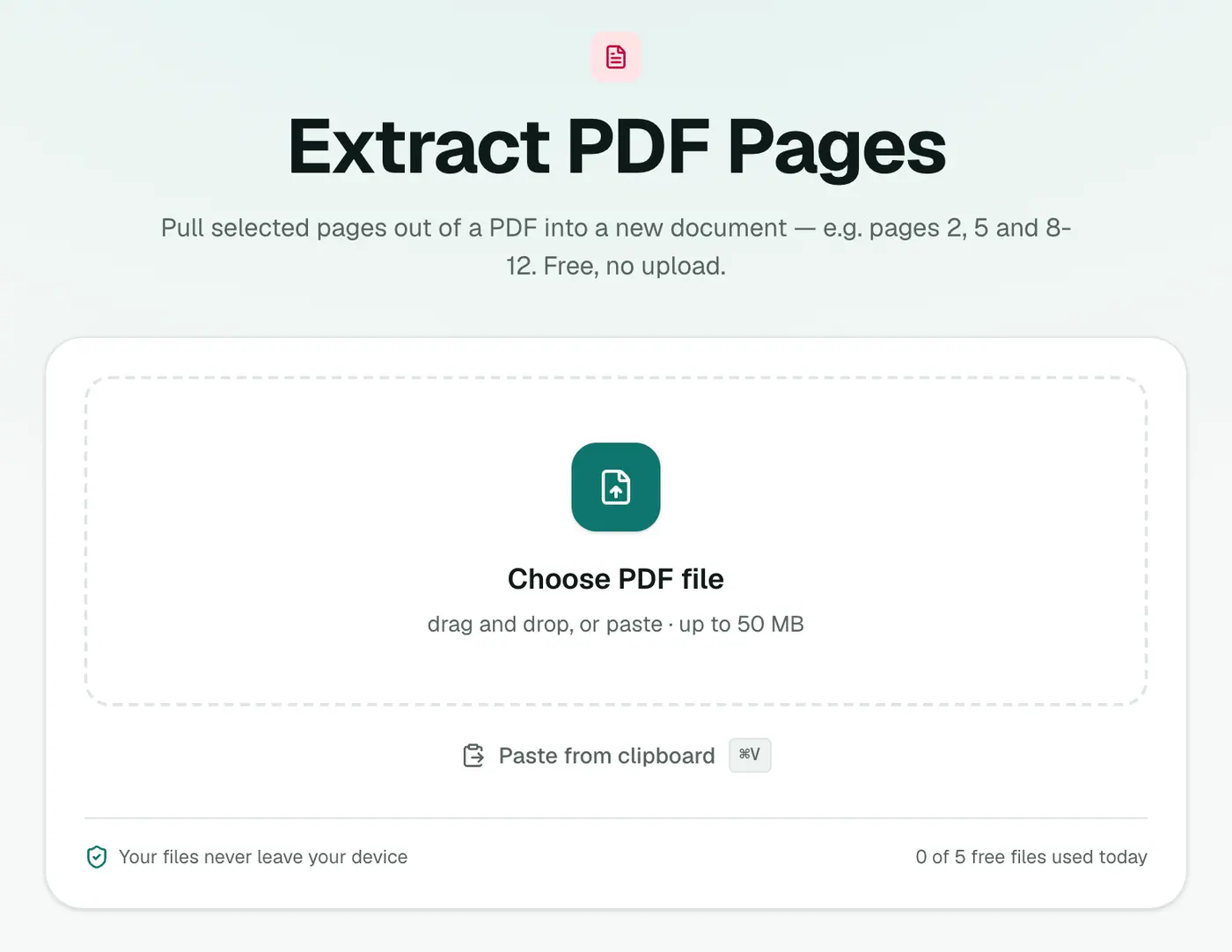
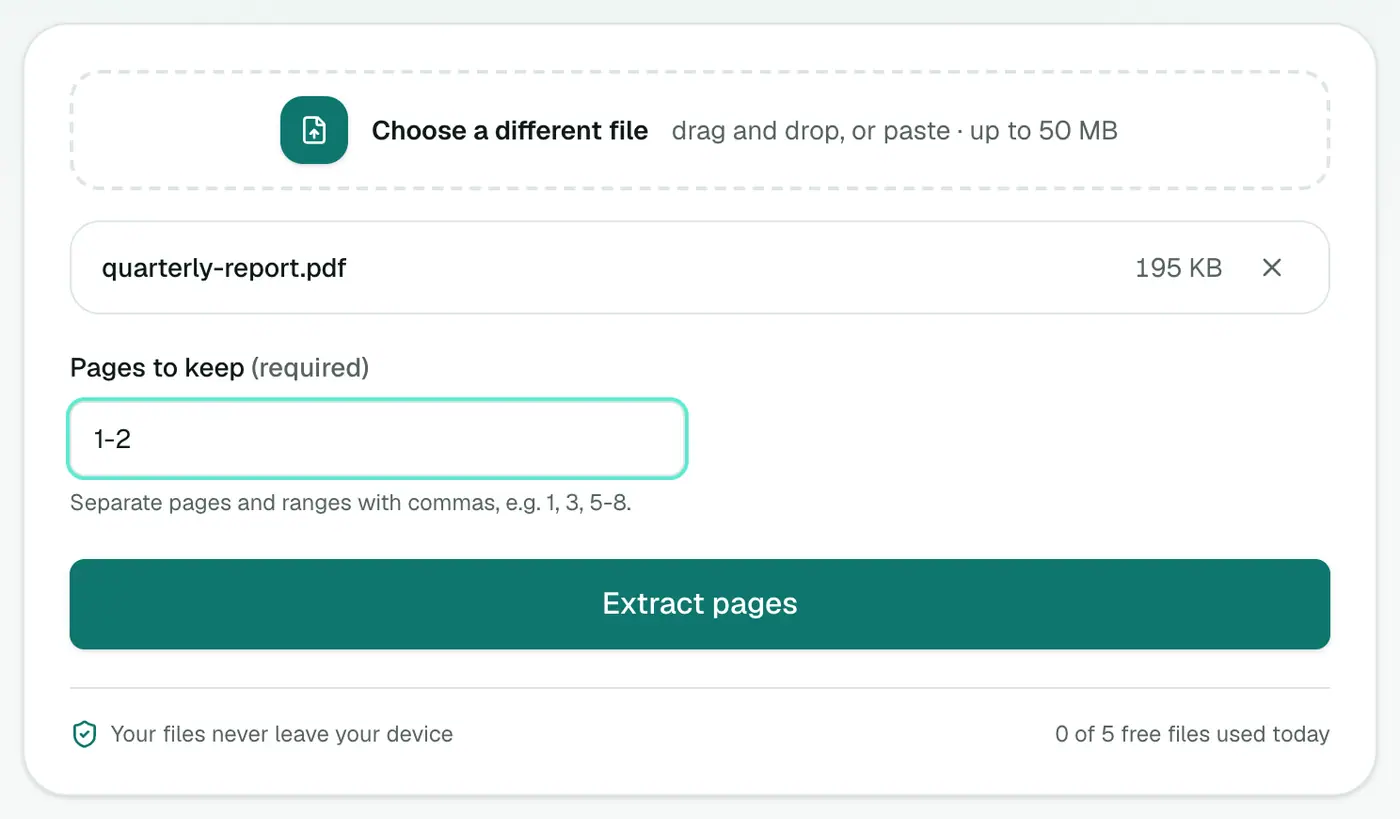
2. Add your PDF and list the pages
Drop in the PDF and type the Pages to keep, for example 1-2 or 2, 5, 8-12.
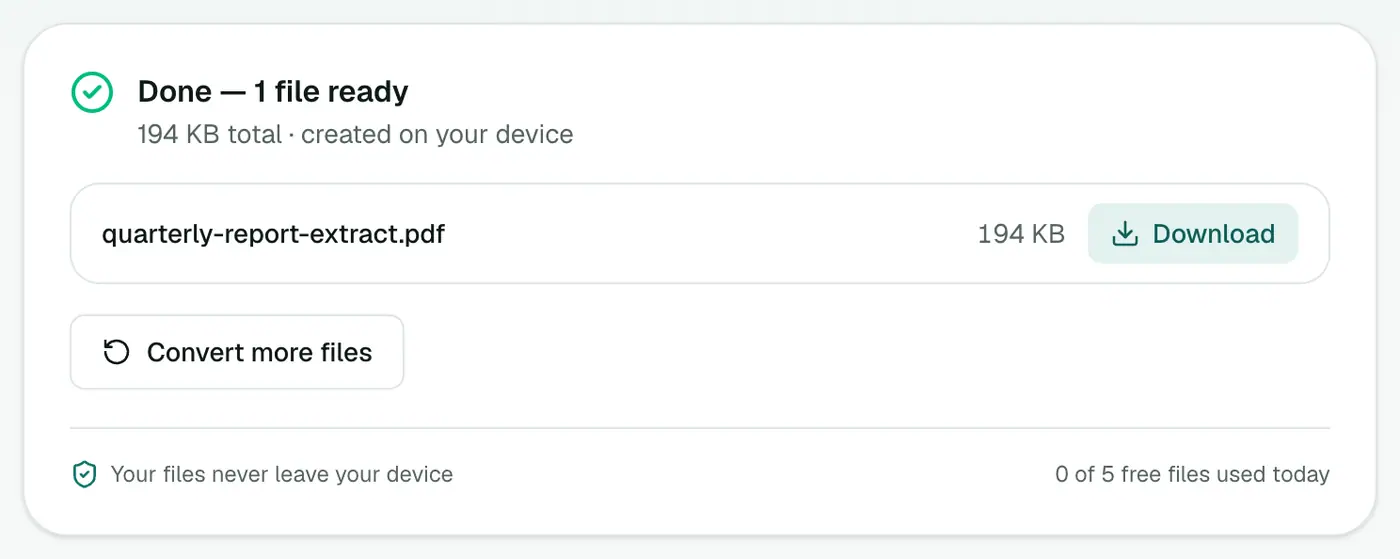
3. Extract and download
Click Extract pages and download your smaller PDF.
Extract, split or remove?
- Extract: keep specific pages, drop the rest. Best when you need a few pages.
- Remove PDF Pages: drop specific pages, keep the rest. Best when only a few pages need to go.
- Split PDF: chop the whole document into equal chunks.
Tips
- Share less. When you send only the relevant pages, you're not handing out account numbers or personal details from the rest of the document. If something on the kept page is still sensitive, Redact PDF can black it out properly.
- Reorder while extracting. The pages come out in the order you type them.
- Need an image of the page instead? Extract it, then use PDF to JPG.
Other ways
- Print to PDF with a page range in any PDF reader (on Windows choose "Microsoft Print to PDF", on Mac "Save as PDF").
- Mac Preview: drag thumbnails onto the desktop.
Writing page ranges
| You type | Keeps |
|---|---|
1 | Page 1 only |
1, 3, 5-8 | Pages 1, 3, 5, 6, 7, 8 |
10-20 | Pages 10 to 20 |
15- | Page 15 to the end |
Extract vs split
- Extract makes one new PDF with the pages you choose.
- Split cuts a PDF into several files.
Common jobs
- The signed page of a contract.
- One invoice from a monthly statement.
- A chapter from a textbook or report.
- Relevant pages from a long evidence bundle.
Pages are copied exactly, so text stays selectable and quality doesn't change.
Summary
Type the pages, download the file. Extract PDF Pages is the quickest way to share just the bit of a PDF someone needs.
FAQs
How do I choose the pages?
Type page numbers and ranges separated by commas, like 1, 3, 5-8. They're copied into a new PDF in that order.
Does the original PDF change?
No. You get a new PDF with only the pages you chose. The original stays as it was.
Is quality affected?
No. Pages are copied without changes.
Is my PDF uploaded?
No. Pages are copied in your browser.
Can I extract pages in a different order?
Yes. Pages appear in the order you list them, so 5, 1 puts page 5 first. Repeated page numbers are only included once; to repeat a page, use Reorder PDF Pages.
Try the Extract PDF Pages
Free to start, no install, and your files never leave your device.