PDF2 min read
How to Edit or Remove PDF Metadata (Title, Author and Hidden Info)
Change a PDF's title, author, subject and keywords, or strip hidden details like the software used and creation dates before you publish or share it.
By the ZapMorph team
On this page
Just want it done?
Open the PDF Metadata Editor — it runs in your browser and nothing is uploaded.
Open a PDF in a browser and look at the tab. Sometimes it says something sensible like "Annual Report 2026". Often it says "Microsoft Word - final_v7_JS_edits.docx". That's metadata, and it travels with the file.
Metadata can also reveal who wrote a document, what software they used and when. Usually harmless, sometimes embarrassing, occasionally a real privacy issue.
What you can change
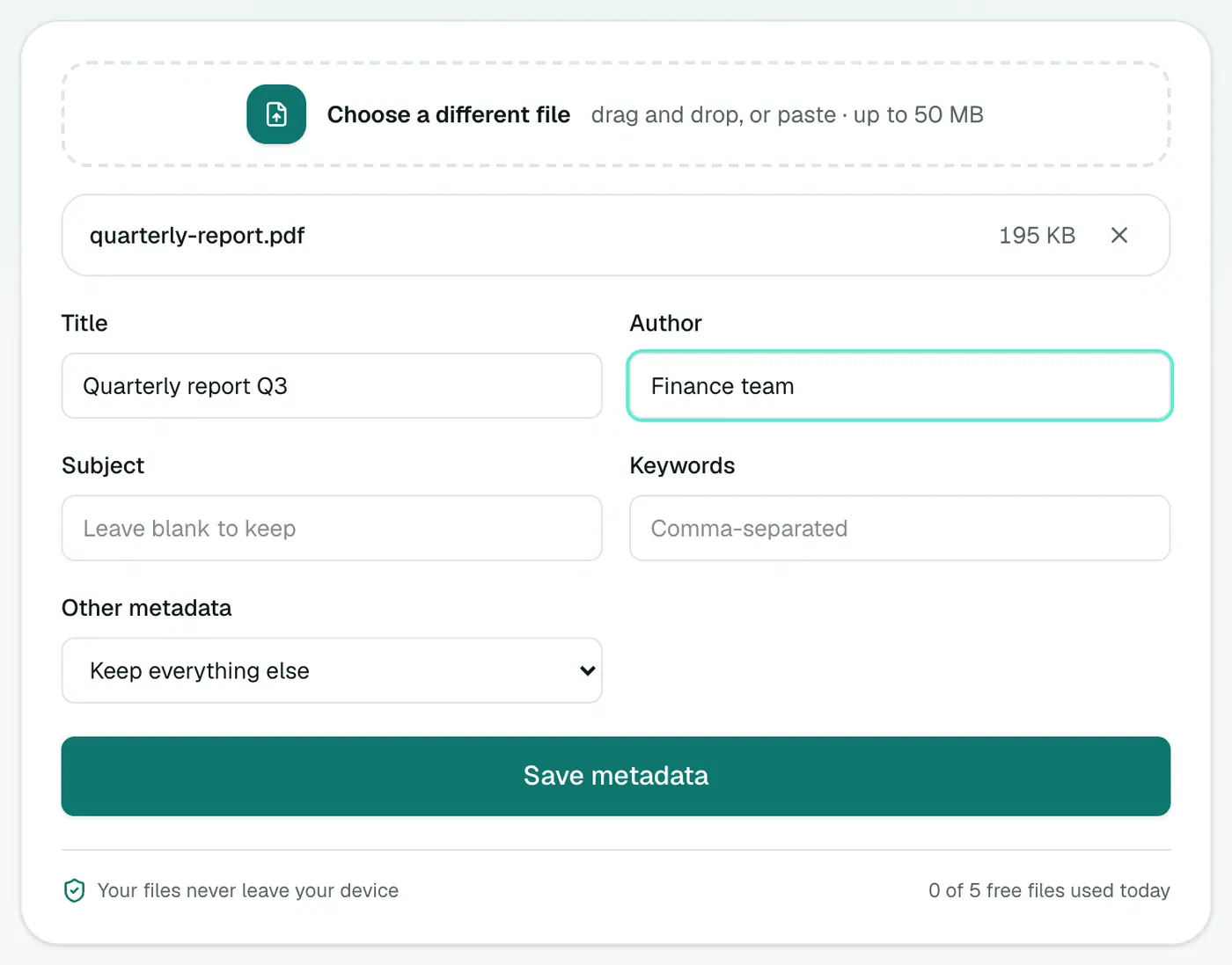
- Title: shown in browser tabs and search results.
- Author: often your Windows or Office username by default.
- Subject and Keywords: used by document managers and some search tools.
- Everything else: creator app, producer, creation and modification dates. Keep it, or wipe it.
How to edit PDF metadata with ZapMorph
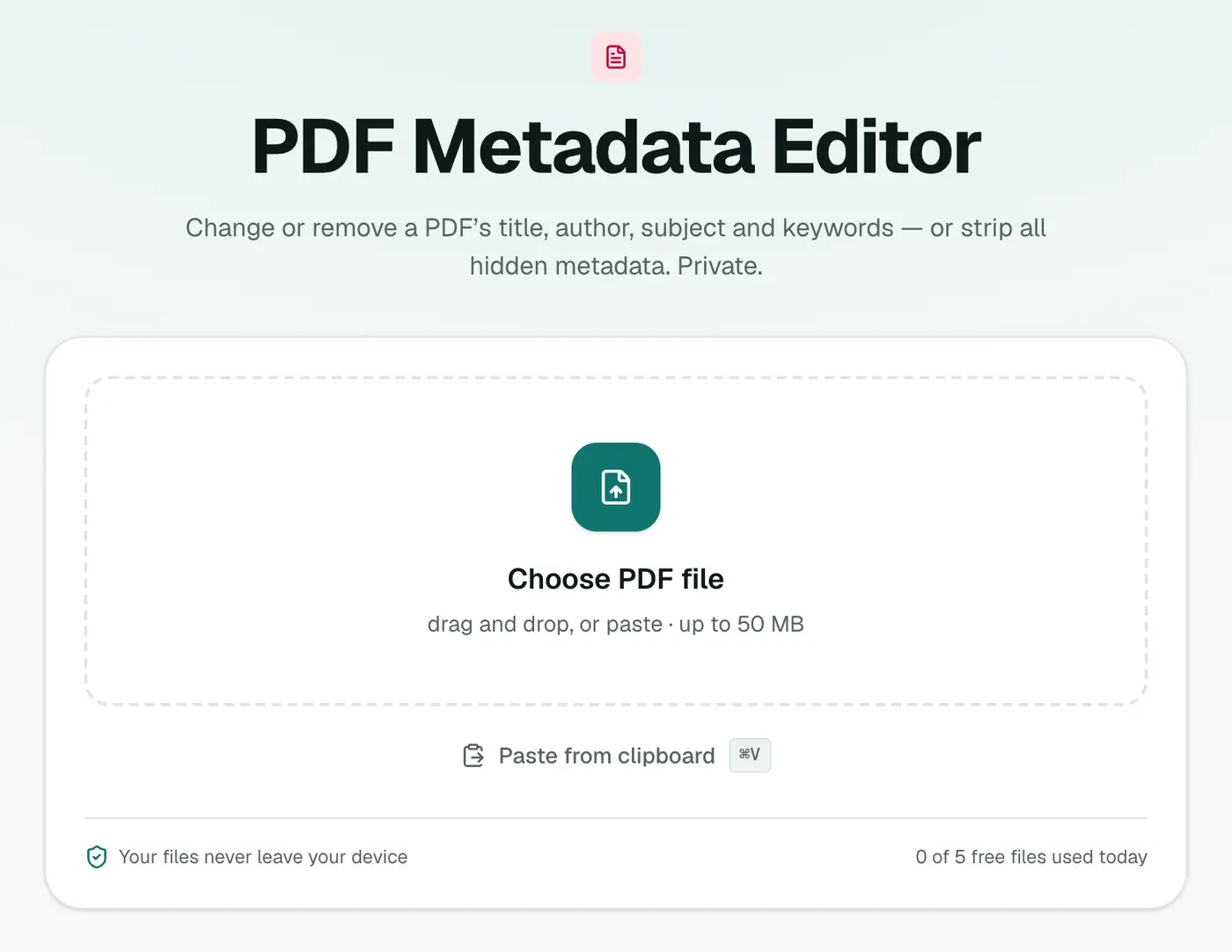
1. Open the metadata editor
Go to the PDF Metadata Editor.
2. Add the PDF and fill in the fields
Fill in Title, Author, Subject and Keywords as needed. Fields you leave blank stay as they are. Under Other metadata, choose Keep everything else or Remove everything else (creator, producer, dates).
3. Save and download
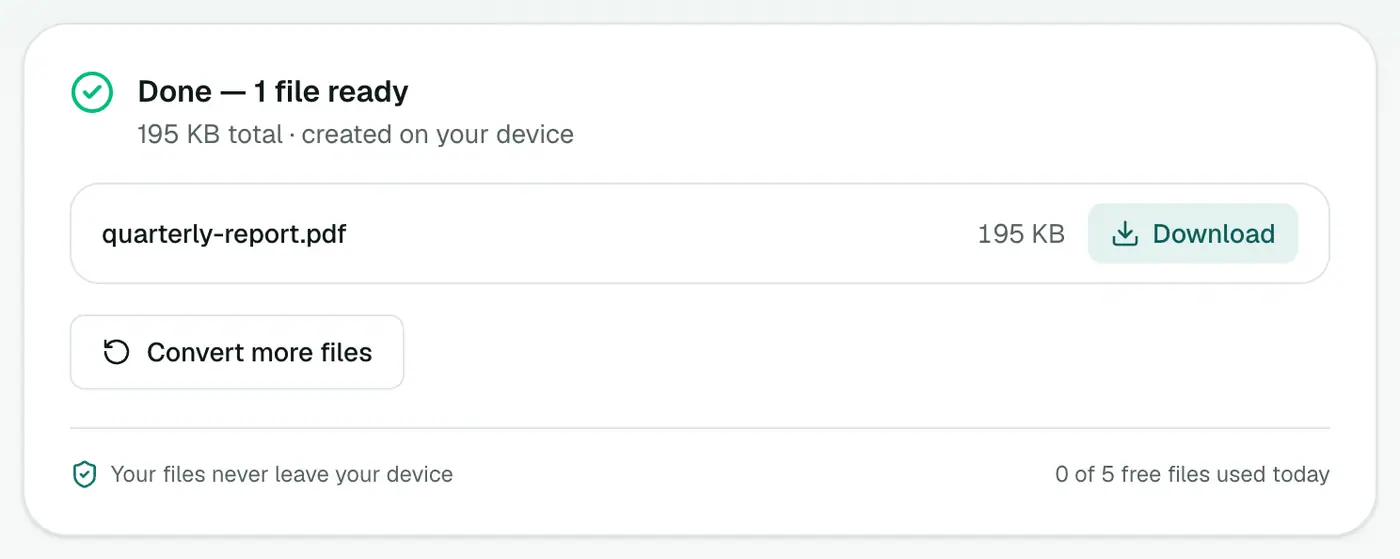
Click Save metadata and download the updated PDF.
When it's worth doing
- Publishing a PDF on your website: set a proper title so search results and browser tabs look right.
- Sending a document externally: remove internal author names and software details.
- Archiving: consistent titles and keywords make files easier to find.
Check what's there now
- Acrobat Reader: File → Properties.
- Mac Preview: Tools → Show Inspector.
- Chrome/Edge: the tab title shows the PDF title.
Tips
- Fix it at the source too. In Word, File → Info → Properties sets the title before export. File → Info → Check for Issues → Inspect Document removes personal info.
- Metadata isn't the only hidden thing. Comments, form data and text under images can also leak information. For truly sensitive content, use Redact PDF.
Fields worth checking before publishing
| Field | Why |
|---|---|
| Title | Shown in browser tabs and search results |
| Author | May contain a personal name or username |
| Creator / Producer | Reveals the software used |
| Dates | Show when the document was really made |
| Subject and keywords | Help document management systems |
Check it yourself
- Acrobat Reader: File → Properties.
- Mac Preview: Tools → Show Inspector.
- Chrome: open the PDF, then ⋮ → Document properties.
Summary
A clean title and no stray author names make a PDF look professional and protect your privacy. The PDF Metadata Editor handles both in one step.
FAQs
What is PDF metadata?
Hidden document properties like title, author, subject, keywords, the app that created it, and creation and modification dates.
Why does the title matter?
Browsers show the PDF title in the tab, and search engines and document managers often display it. An empty or wrong title looks sloppy.
What does "Remove everything else" do?
It clears the remaining metadata, including creator, producer and dates, and keeps only the fields you filled in.
Does this remove hidden comments or tracked changes?
No, it handles document properties only. Content on the pages isn't changed.
Is my PDF uploaded?
No. Metadata is changed in your browser.
Try the PDF Metadata Editor
Free to start, no install, and your files never leave your device.