PDF3 min read
How to Edit a PDF for Free: Add Text, Fix Typos, Highlight
Fill in a form with no fields, cover a typo and type over it, highlight key lines or add a logo. A free PDF editor that runs in your browser.
By the ZapMorph team
On this page
Just want it done?
Open the Edit PDF — it runs in your browser and nothing is uploaded.
"Can you just change the date on this PDF?" is a deceptively hard request. PDFs aren't designed to be edited. But most real-world edits are small: fill in a blank form, fix one wrong number, highlight a paragraph, stick a logo on a cover. You don't need Acrobat for those.
What you can do
- Text: click anywhere on a page and type. Change the size and color.
- White-out: draw a white box to hide something (a typo, an old date, a field).
- Highlight: draw a highlight over important lines.
- Image: add a logo, a stamp or a photo.
How to edit a PDF with ZapMorph
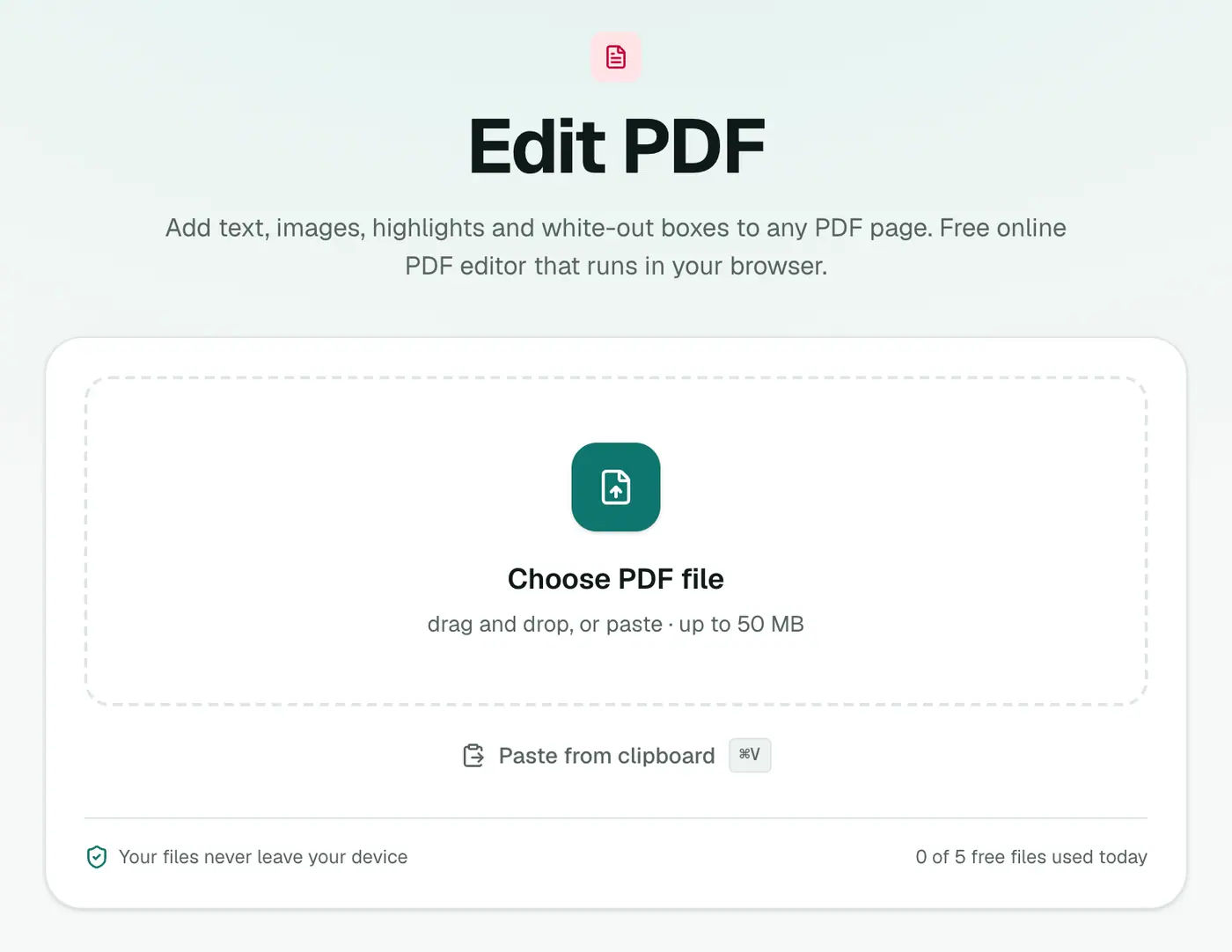
1. Open Edit PDF
Go to Edit PDF and add your document.
2. Make your changes
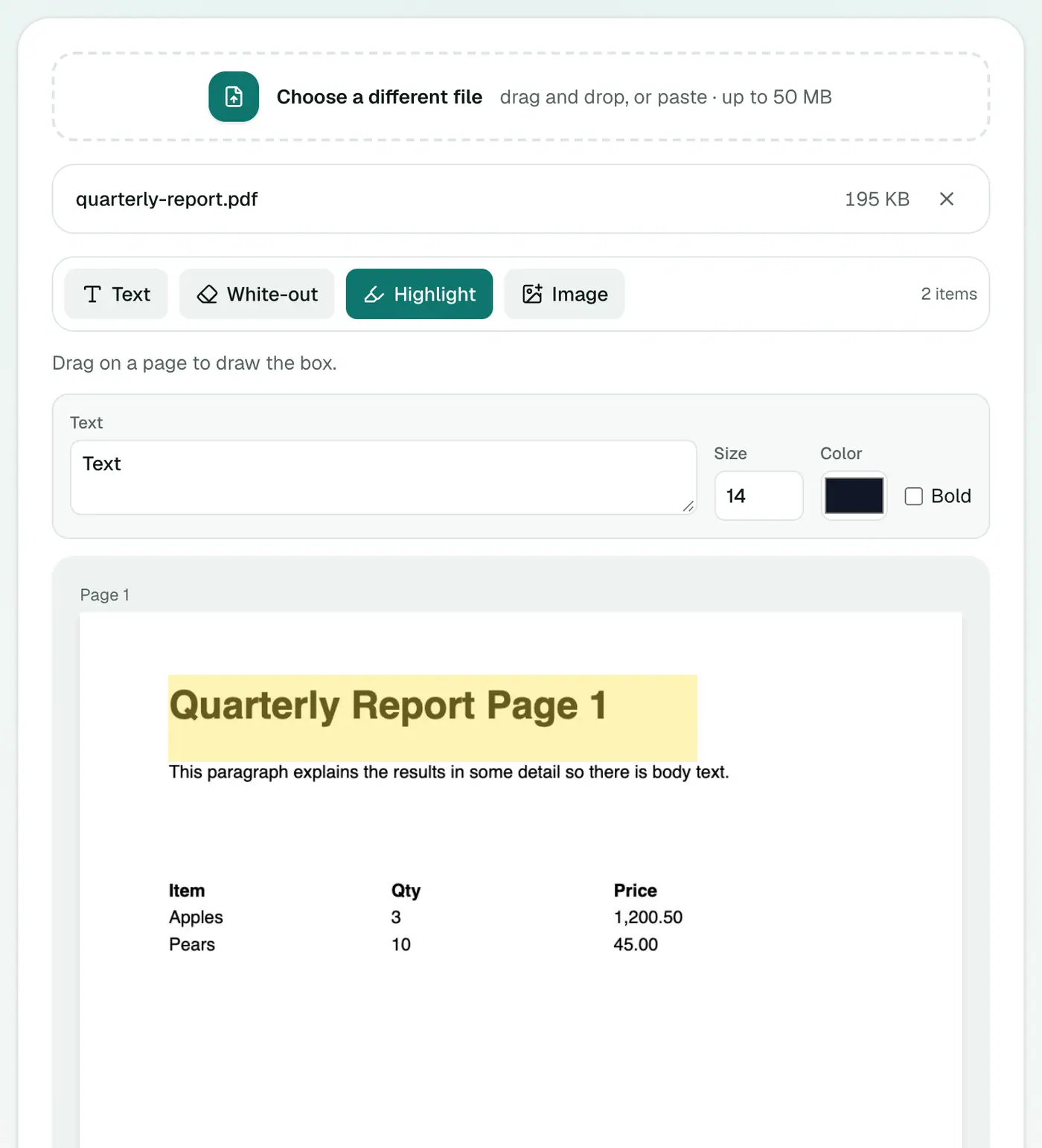
The PDF opens in the editor with a toolbar:
- With Text selected, click anywhere on a page to add text. Select it to change the words, size or color.
- Choose White-out or Highlight and drag on the page to draw a box.
- Choose Image to pick a picture, then click to place it.
Everything can be dragged around and resized afterwards.
3. Save and download
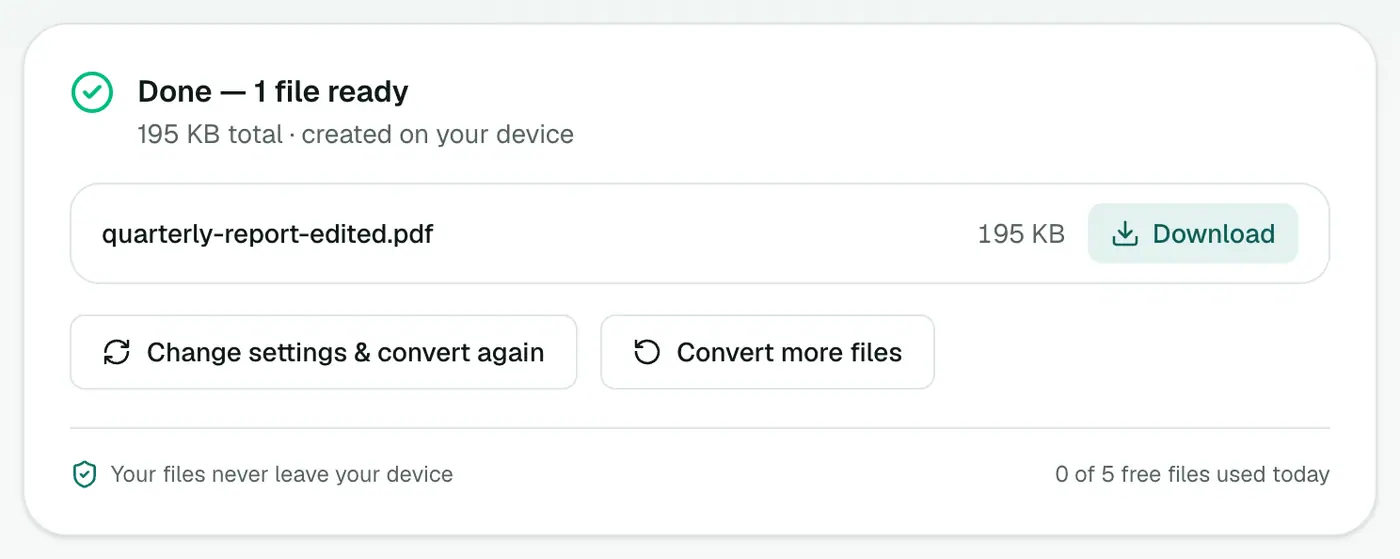
Save and download your edited PDF.
Fixing a typo the clean way
- Choose White-out and drag a box over the wrong word.
- Choose Text, click on the box and type the correct word.
- Match the size to the surrounding text. Zoom in to line it up.
It won't be perfectly identical if the document uses an unusual font, but for numbers, dates and short words it's usually invisible.
Other tools for related jobs
- Signing? Sign PDF has draw, type and upload signatures plus a date stamp.
- Big rewrites? Convert to Word with PDF to Word, edit there, then export back to PDF.
- Page numbers or a watermark? Add Page Numbers and Watermark PDF do those across every page.
Other ways
- Mac Preview: Tools → Annotate has text boxes, shapes and highlights.
- Acrobat Reader (free) Fill & Sign adds text. Acrobat Pro can edit existing text.
- Microsoft Edge's built-in PDF viewer can add text and highlights.
Common edits, step by step
| Job | How |
|---|---|
| Fill a form with no fields | Click where each answer goes and type |
| Correct a typo | Cover it with a white box, then type the fix on top |
| Add a logo | Insert an image and drag it into place |
| Highlight a clause | Use the highlight tool |
| Sign it | Use Sign PDF |
Covering is not removing
A white box hides text visually, but the original text is still in the file. For personal or confidential information, use Redact PDF, which removes it permanently.
Summary
For small edits, like filling a form, fixing a number or highlighting a line, Edit PDF does the job in your browser, free and without uploading your document.
FAQs
Can I change the existing text in a PDF?
Not directly, because PDFs don't store text like a word processor. The usual trick is to cover the old text with a white-out box and type the new text on top.
Can I fill in a form that has no fillable fields?
Yes. Click where you want to type and add text, then move it into place.
Can I add a logo or a photo?
Yes. Use the Image button, then click on a page to place it, drag to move and resize from the corner.
Is there a watermark?
No. Your edited PDF has only what you added.
Is my PDF uploaded?
No. Editing happens in your browser.
Try the Edit PDF
Free to start, no install, and your files never leave your device.