PDF2 min read
How to Crop PDF Margins for Easier Reading on a Phone or Tablet
Trim wide white margins from academic papers, e-books and scans so the content fills your screen. Text stays sharp and selectable.
By the ZapMorph team
Just want it done?
Open the Crop PDF — it runs in your browser and nothing is uploaded.
Reading a PDF on a phone or a small tablet often means pinching, zooming and scrolling sideways, because a third of every page is white margin. Academic papers and print-formatted e-books are the worst for it.
Cropping trims those margins so the text fills the screen.
How to crop a PDF with ZapMorph
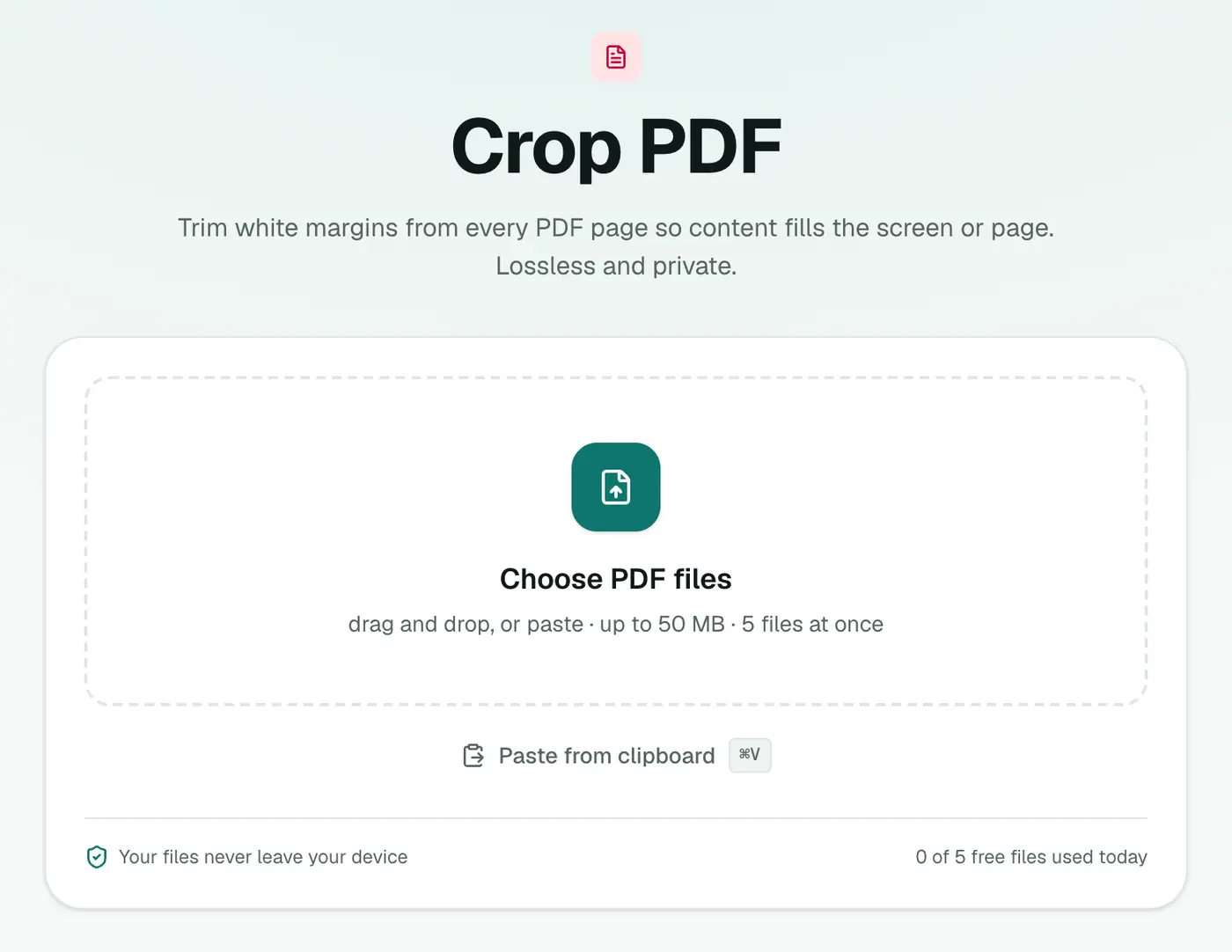
1. Open Crop PDF
Go to Crop PDF.
2. Add the PDF and choose how much to trim
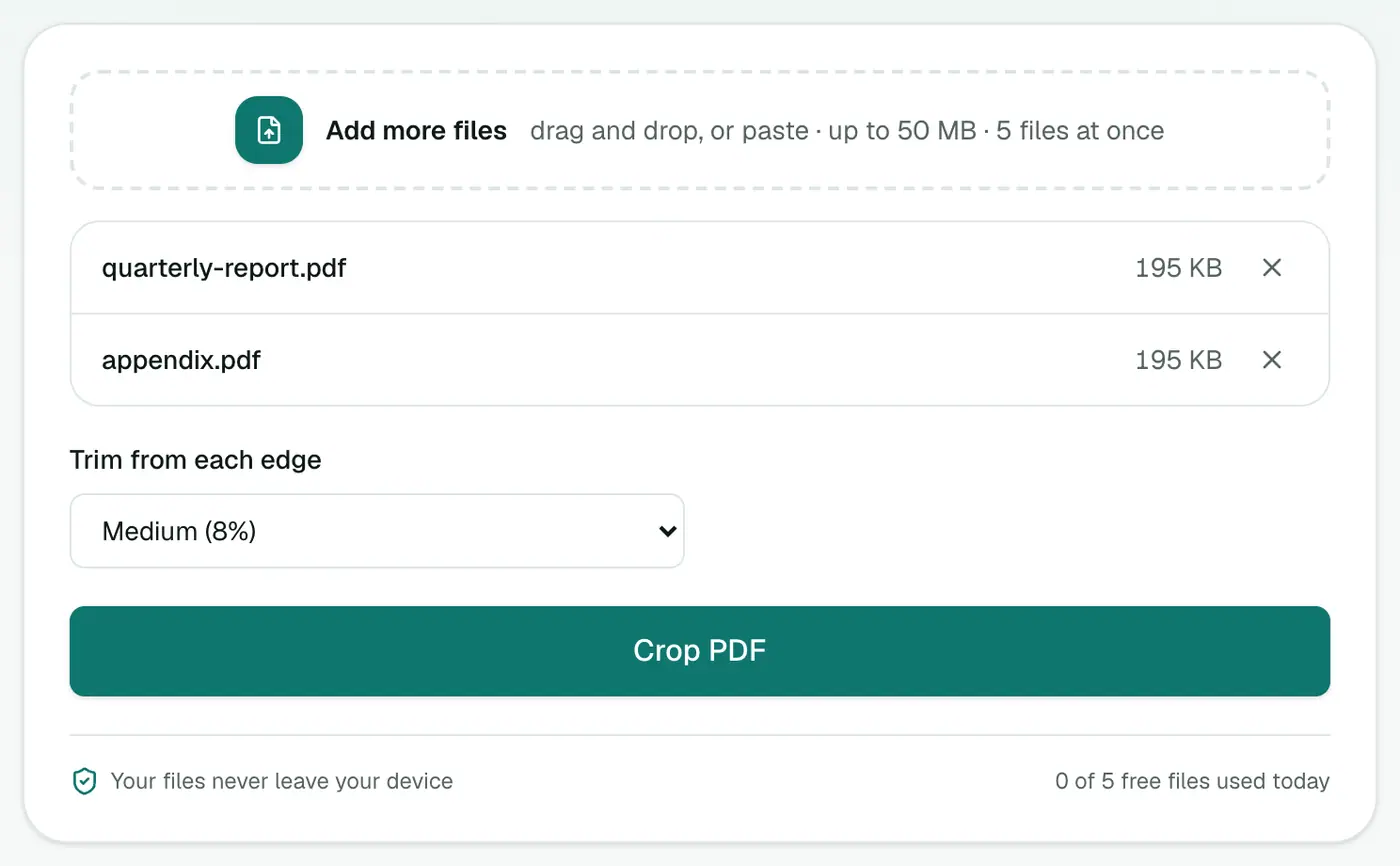
Trim from each edge:
- A little (4%): safe for almost anything.
- Medium (8%): a good default.
- A lot (12%): wide-margin academic papers.
- Maximum (18%): very generous margins or scanner borders.
3. Crop and download
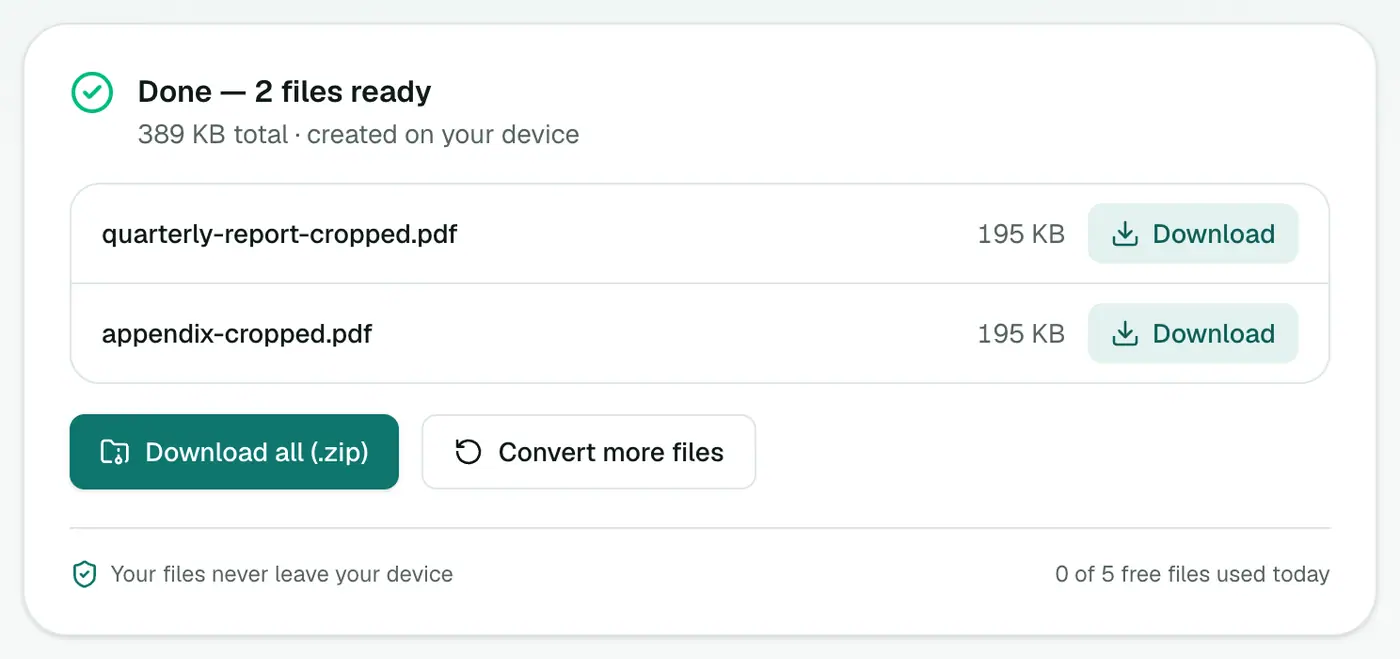
Click Crop PDF and open the result on your device.
Tips
- Check the first few pages for cut-off page numbers or headers, then adjust if needed.
- Scanned documents often have dark scanner borders. Medium or A lot usually removes them.
- Cropped content is hidden, not deleted. Never use cropping to hide confidential info. Redact PDF removes it properly.
- E-readers: Kindle and Kobo handle cropped PDFs much better than full-margin ones.
Other ways
- Mac Preview: Tools → Rectangular Selection, drag a box, then Tools → Crop. It applies to one page unless you select all pages first.
- Acrobat Pro: Edit PDF → Crop Pages, with precise controls.
- Some readers (like Moon+ Reader or GoodReader) have an auto-crop view mode.
Crop vs redact
| Crop | Redact | |
|---|---|---|
| Changes what you see | ✓ | ✓ |
| Removes the content from the file | ✗ | ✓ |
| Use for | Margins, scanner borders | Personal or confidential data |
Good uses
- Academic papers with wide margins on a tablet.
- E-books and manuals on an e-reader.
- Scanner borders and black edges.
- Slides exported with large white frames.
Tips
- Text stays sharp and selectable, since only the visible area changes.
- Printing afterwards? Check the page size in the print dialog, as cropped pages may print at a different scale.
Summary
For comfortable reading on small screens, Crop PDF trims every page's margins evenly while keeping text sharp and selectable.
FAQs
How much should I trim?
Start with Medium (8%). Academic papers with wide margins often look best at A lot (12%). Check that page numbers and edge text aren't cut off.
Does cropping lower the quality?
No. Cropping changes only the visible area of each page. Text stays sharp and selectable.
Is the cropped content deleted?
It's hidden rather than removed. Don't rely on cropping to hide sensitive information. Use Redact PDF for that.
Is my PDF uploaded?
No. Cropping happens in your browser.
Is the cropped content deleted?
No. Cropping hides the area outside the box. The content is still in the file, so don't use cropping to hide confidential information; use Redact PDF instead.
Try the Crop PDF
Free to start, no install, and your files never leave your device.