Data & docs2 min read
How to Convert an XML Feed to CSV for Excel
Open product feeds, exports and API responses in a spreadsheet. Repeating elements become rows and nested fields become columns.
By the ZapMorph team
On this page
Just want it done?
Open the XML to CSV Converter — it runs in your browser and nothing is uploaded.
Google Shopping feeds, supplier price lists, WooCommerce exports, accounting system dumps: lots of business data still comes as XML. Reading it raw is painful. In a spreadsheet you can sort, filter and spot problems in seconds.
Example
<feed>
  <item sku="A1">
    <title>Ceramic mug</title>
    <shipping><price>4.95</price></shipping>
  </item>
  <item sku="A2">
    <title>Linen towel</title>
    <shipping><price>0</price></shipping>
  </item>
</feed>
becomes:
| @sku | title | shipping.price |
|---|---|---|
| A1 | Ceramic mug | 4.95 |
| A2 | Linen towel | 0 |
How to convert XML to CSV with ZapMorph
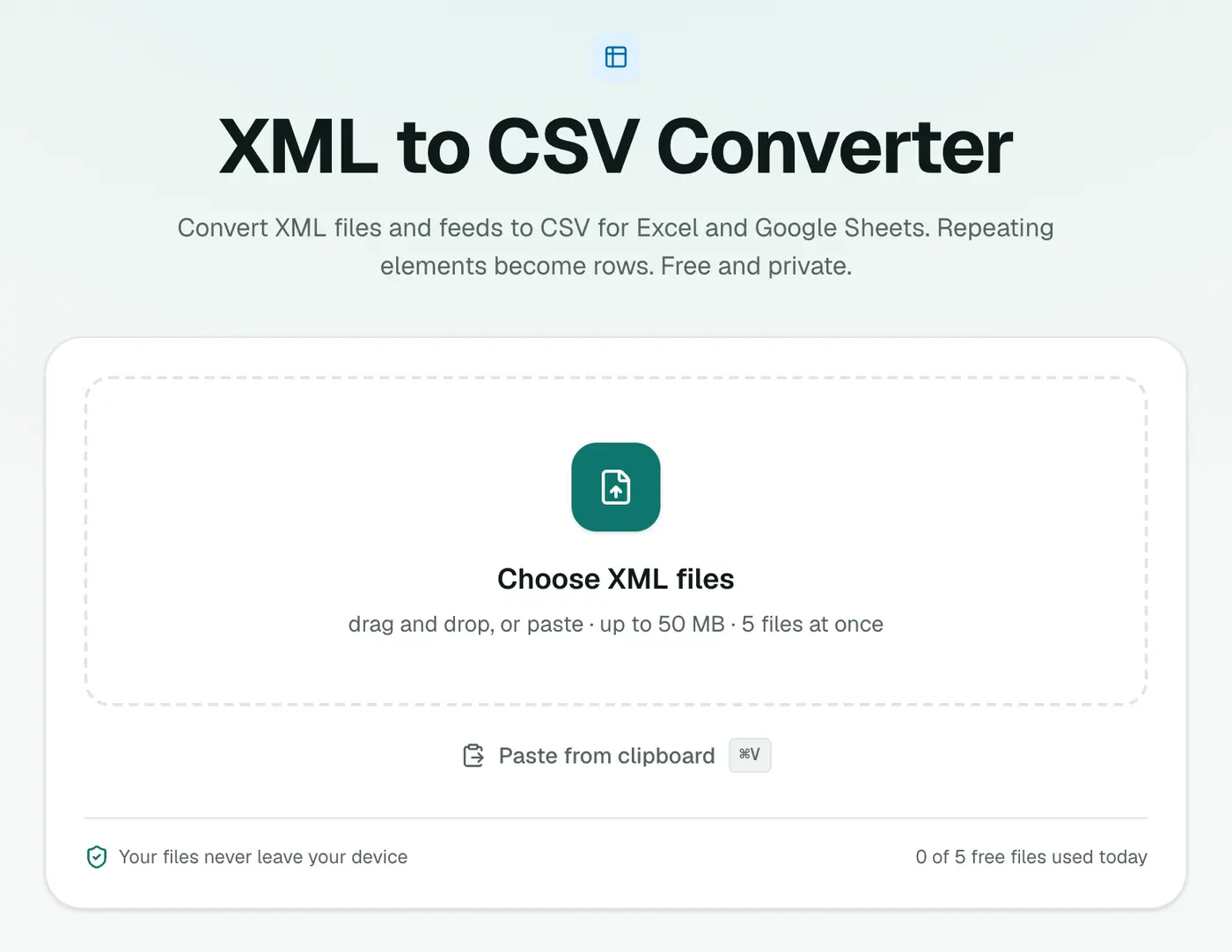
1. Open the converter
Go to the XML to CSV converter.
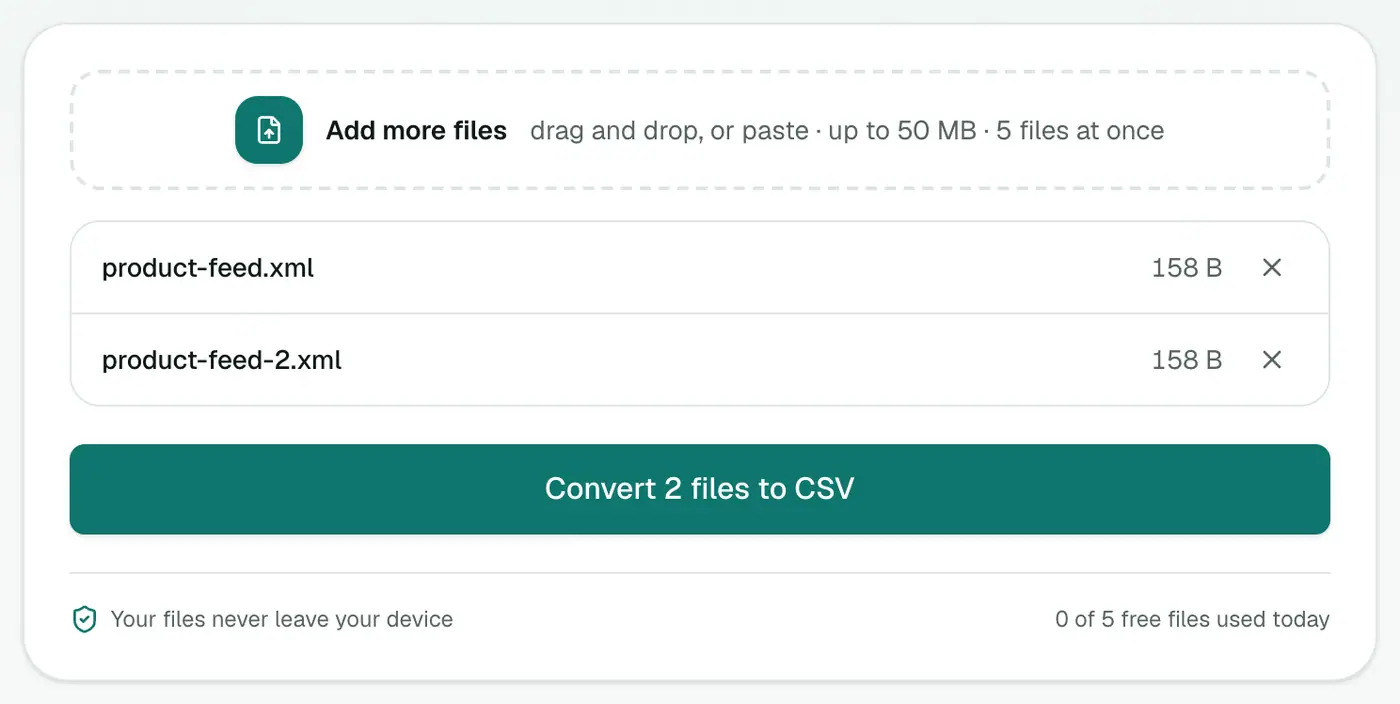
2. Add your XML
Drop in the .xml file.
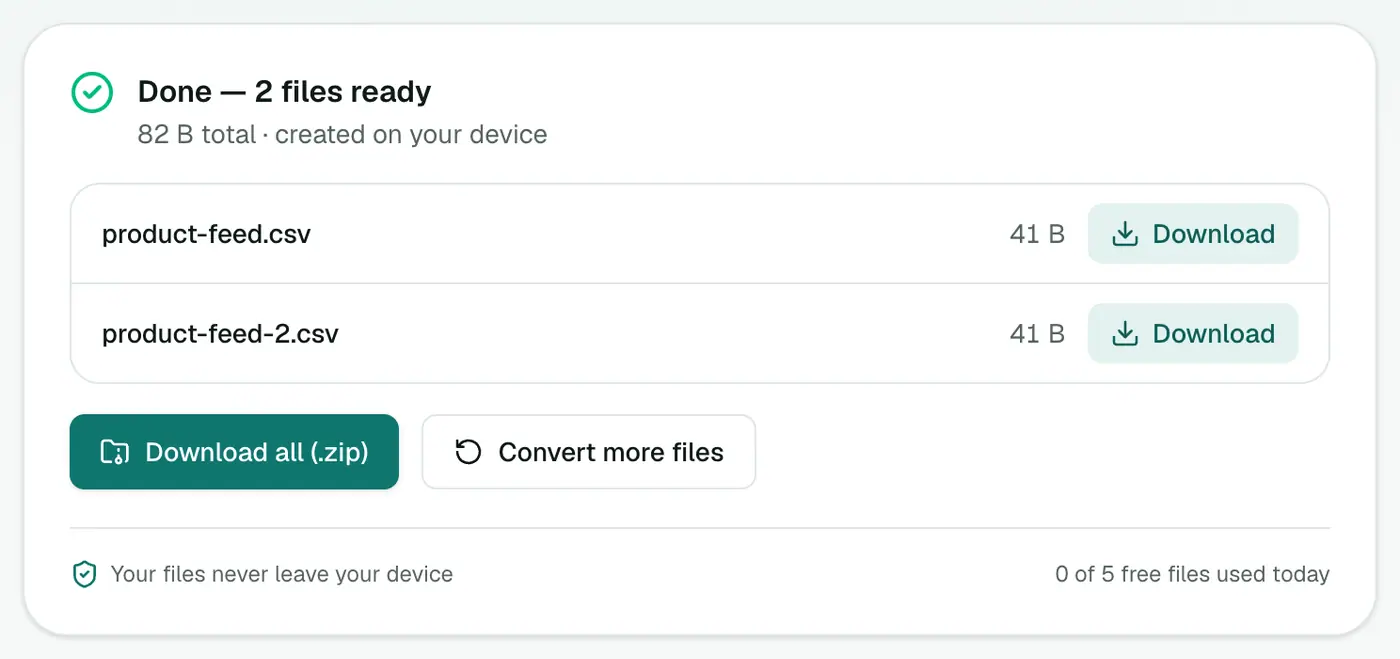
3. Convert and download
Click Convert to CSV and open it in your spreadsheet app.
Tips
- Product feed checks: sort by price or title to find missing values before Google Merchant Center rejects them.
- Characters look odd in Excel? Import via Data → From Text/CSV and choose UTF-8.
- Need JSON instead? XML to JSON.
- Going back to XML after editing? CSV to XML.
Example
<items>
  <item id="1"><name>Mug</name><price currency="EUR">9.50</price></item>
</items>
becomes columns such as @id, name and price, with nested fields flattened into dot-separated names.
Common sources of XML
- Product feeds (Google Shopping, marketplaces).
- E-invoices and accounting exports.
- Sitemaps (
sitemap.xml) for SEO audits. - API responses from older SOAP services.
Tips
- Open in Excel safely via Data → From Text/CSV to stop codes losing leading zeros.
- Very nested XML makes wide spreadsheets. XML to JSON may suit code better.
- Check the structure first in the XML viewer to see which element repeats.
Summary
The XML to CSV converter turns feeds and exports into a tidy table, one row per record, ready for Excel or Sheets.
FAQs
How does it decide what a row is?
The repeating element, like <item>, <product> or <record>, becomes one row each.
What happens to nested fields and attributes?
Nested fields become dot-separated columns (shipping.price), and attributes are kept with an @ prefix.
Can I open the result in Google Sheets?
Yes. CSV opens in Excel, Google Sheets, Numbers and LibreOffice.
Is my file uploaded?
No. The conversion runs in your browser.
How are attributes handled?
Attributes are kept as their own columns with an @ prefix, like @id.
Try the XML to CSV Converter
Free to start, no install, and your files never leave your device.