PDF2 min read
How to Convert Word to PDF Without Microsoft Office
Turn a DOCX into a PDF that looks the same on every device, even on a computer without Word. What's kept, what's simplified, and when to use Word's own export.
By the ZapMorph team
On this page
Just want it done?
Open the Word to PDF Converter — it runs in your browser and nothing is uploaded.
Sending a Word document is a gamble. Fonts change, line breaks shift, and the recipient might accidentally edit it. A PDF looks the same everywhere and can't be changed by accident.
If you have Word, its built-in export is great. This converter is for when you don't: a Chromebook, a borrowed laptop, a phone, or an office PC without a licence.
How to convert Word to PDF with ZapMorph
1. Open Word to PDF
Go to the Word to PDF converter.
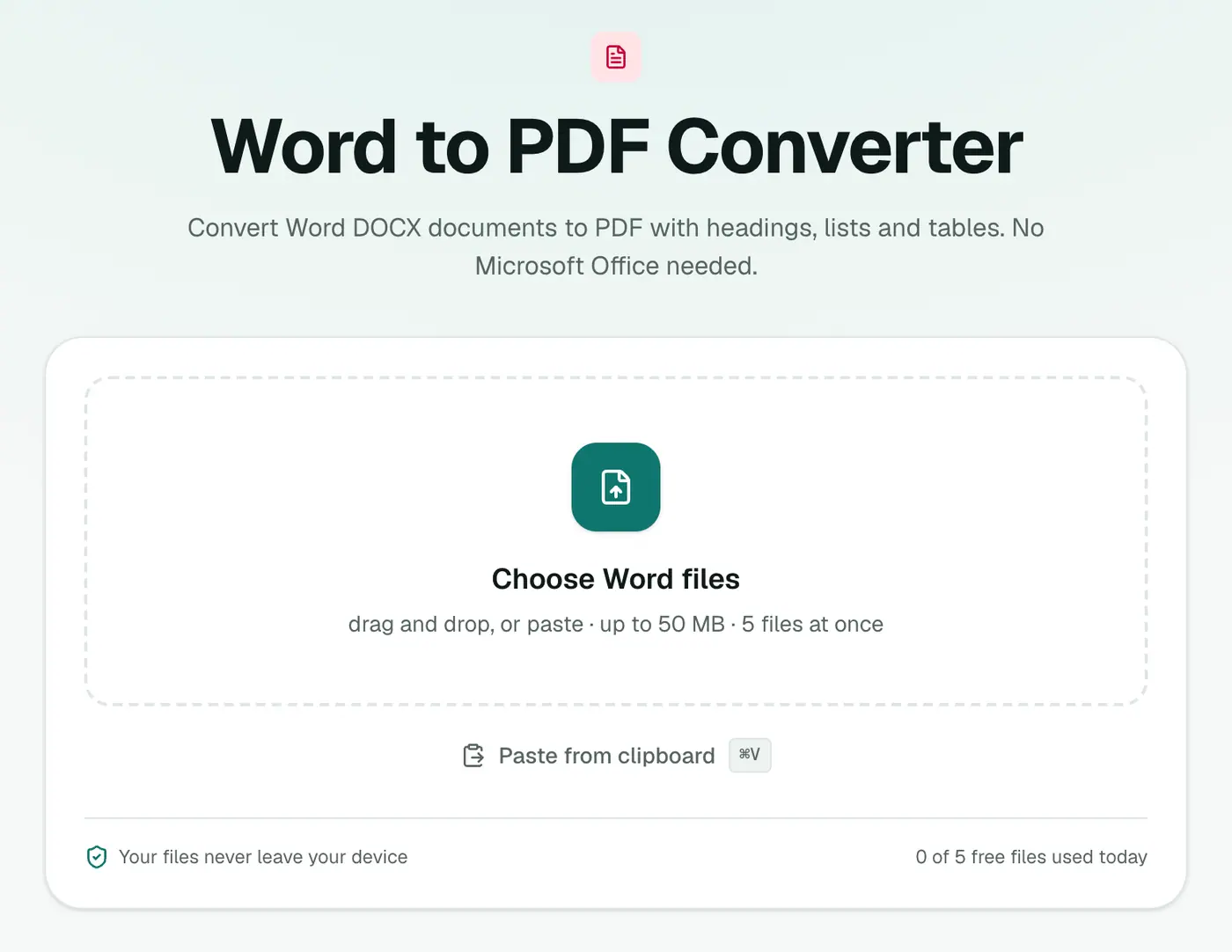
2. Add your DOCX and choose the paper size
Drop in one or more .docx files and pick Page size: A4 or US Letter.
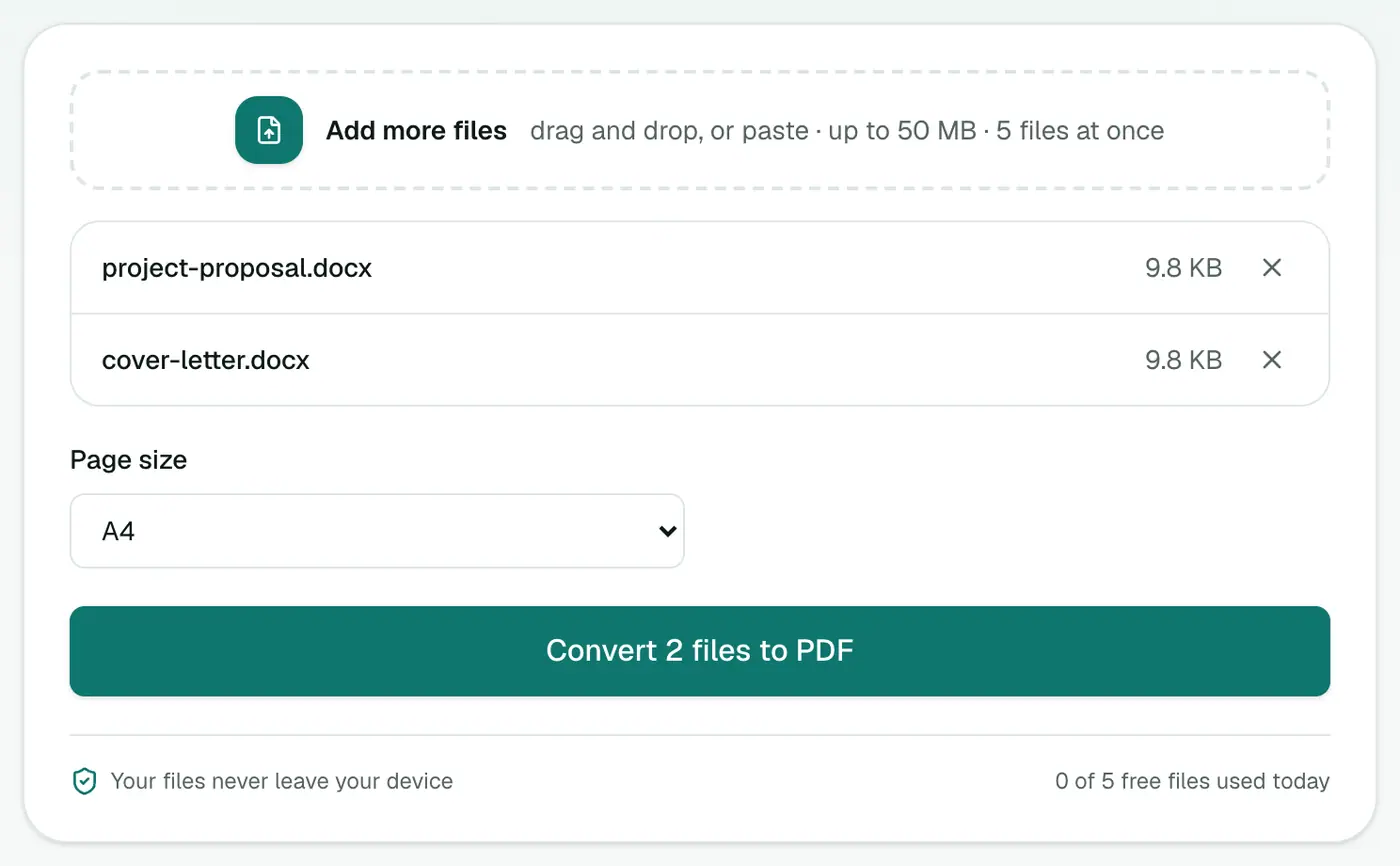
3. Convert and download
Click Convert to PDF and download.
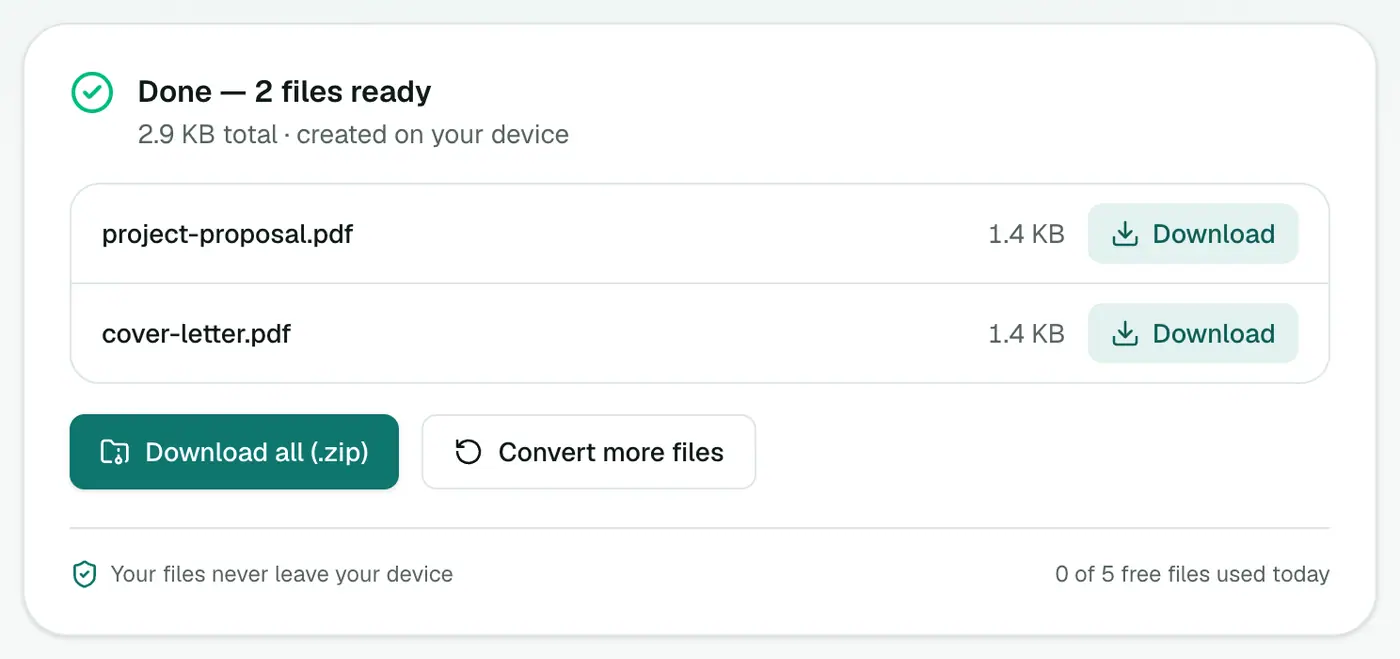
What to expect
The converter rebuilds your document's structure: headings, paragraphs, bold and italic, lists and tables. That's perfect for letters, essays, reports and CVs with a straightforward layout.
It simplifies complex design: text boxes, floating images, unusual fonts and multi-column layouts. For a heavily designed brochure, use Word's own export.
Using Word's built-in export
If you have Word:
- Windows: File → Save As → PDF, or File → Export → Create PDF/XPS.
- Mac: File → Save As, choose PDF as the format.
- Word on the web (free with a Microsoft account): File → Download → Download as PDF.
- Google Docs: File → Download → PDF Document.
Tips
- Before converting: accept tracked changes and delete comments, or they may appear in the PDF.
- Need page numbers? Add them in Word, or afterwards with Add Page Numbers.
- Sending something sensitive? Add a password with Protect PDF.
- Changed your mind? PDF to Word goes back the other way.
When to use this vs Word's own export
| Word to PDF here | Word's Save as PDF | |
|---|---|---|
| Needs Word | ✗ | ✓ |
| Works on Chromebook, phone, Linux | ✓ | ✗ |
| Exact layout, images, fonts | Simplified | ✓ |
| Text-heavy documents | ✓ | ✓ |
For CVs, letters, reports and essays that are mostly text, the result is clean and consistent. For design-heavy documents, use Word's export.
Before you send
- Check page breaks and tables.
- Add a password with Protect PDF.
- Sign it with Sign PDF.
Summary
No Office? No problem. The Word to PDF converter turns DOCX files into clean PDFs in your browser, keeping headings, lists and tables intact.
FAQs
What's kept in the PDF?
Headings, paragraphs, bold and italic text, lists and tables. Complex layouts, images and custom fonts are simplified.
Do I need Word installed?
No. The conversion runs in your browser.
Can I convert old .doc files?
This converter takes .docx. Open a .doc in Word, Google Docs or LibreOffice and save it as .docx first.
If I have Word, should I use this?
For pixel-perfect layouts with images and custom fonts, Word's own Save as PDF is best. This converter is ideal when you don't have Office, or for text-heavy documents.
Is my document uploaded?
No. The PDF is created in your browser.
Will images and custom fonts be kept exactly?
Headings, paragraphs, lists and tables are kept. Images, complex layouts and custom fonts are simplified. For an exact copy, export from Word with File → Save As → PDF.
Try the Word to PDF Converter
Free to start, no install, and your files never leave your device.