Data & docs2 min read
How to Convert Word to Clean HTML (Not Word's Messy Markup)
Convert DOCX documents to clean, semantic HTML for a website, CMS or newsletter. Headings, lists, tables and emphasis map to proper tags. Images embedded.
By the ZapMorph team
On this page
Just want it done?
Open the Word to HTML Converter — it runs in your browser and nothing is uploaded.
Anyone who has pasted from Word into a website knows the result: mystery fonts, odd spacing, and markup like <span style="mso-bidi-font-weight:normal">. Word's own "Save as Web Page" isn't much better.
This converter maps Word's structure to clean HTML and leaves the styling to your site.
Example of the difference
Word's export often looks like this:
<p class=MsoNormal><b><span style='font-size:14.0pt;font-family:"Calibri",sans-serif'>Pricing</span></b></p>
The clean conversion:
<h2>Pricing</h2>
How to convert Word to HTML with ZapMorph
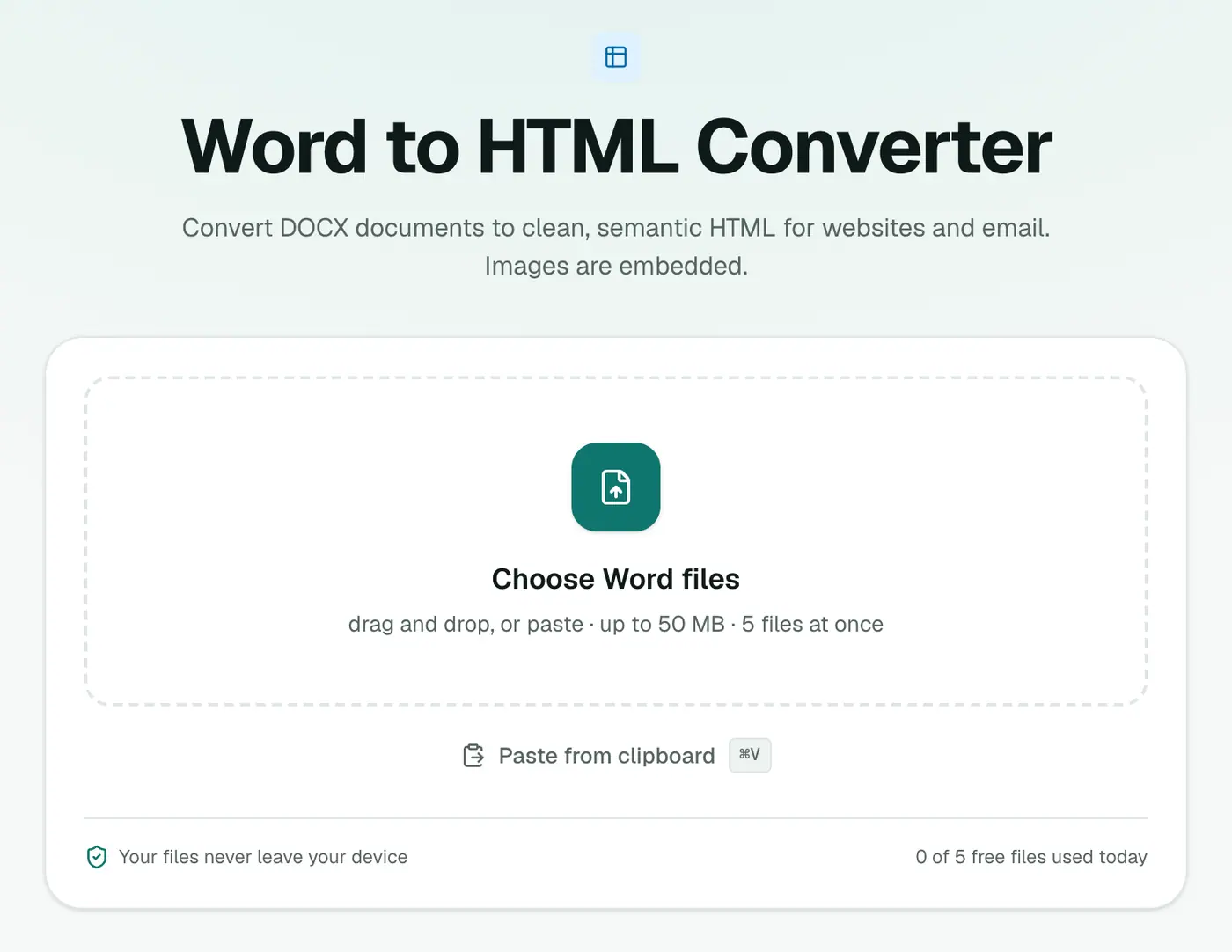
1. Open the converter
Go to the Word to HTML converter.
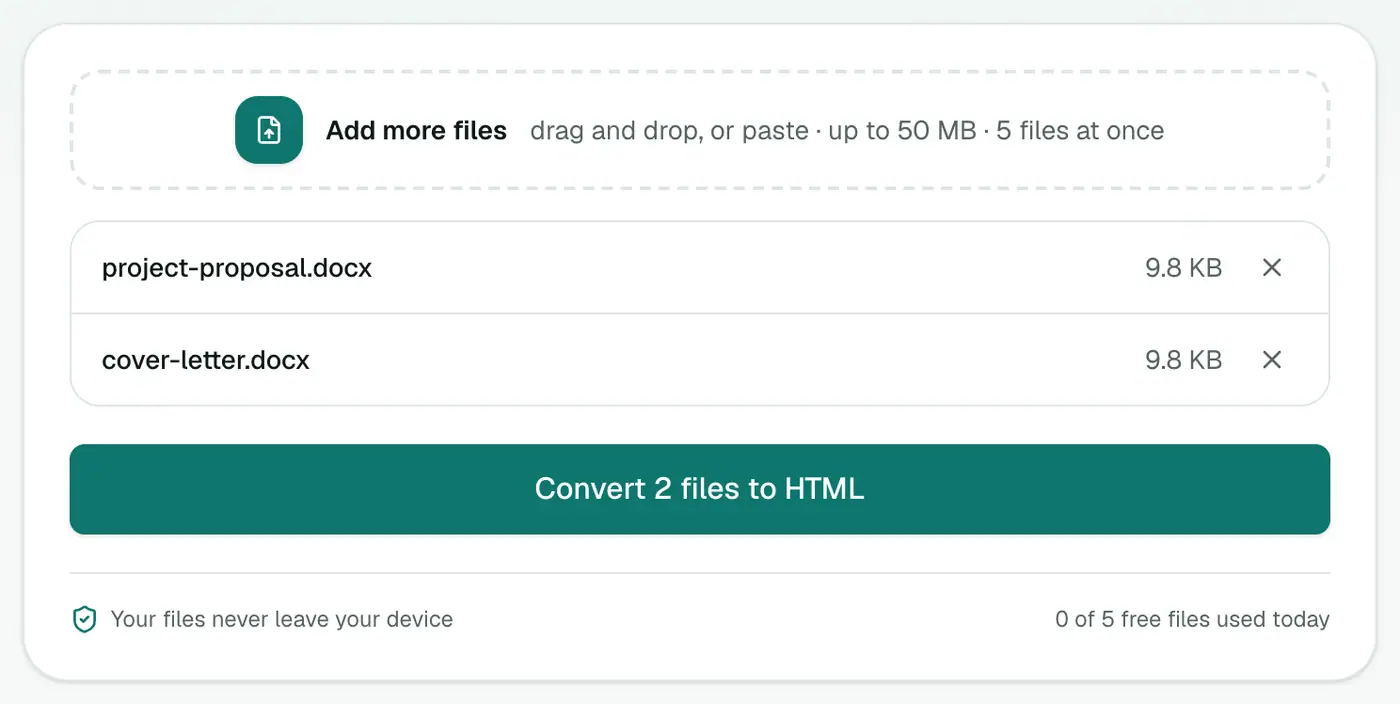
2. Add your DOCX files
Drop them in.
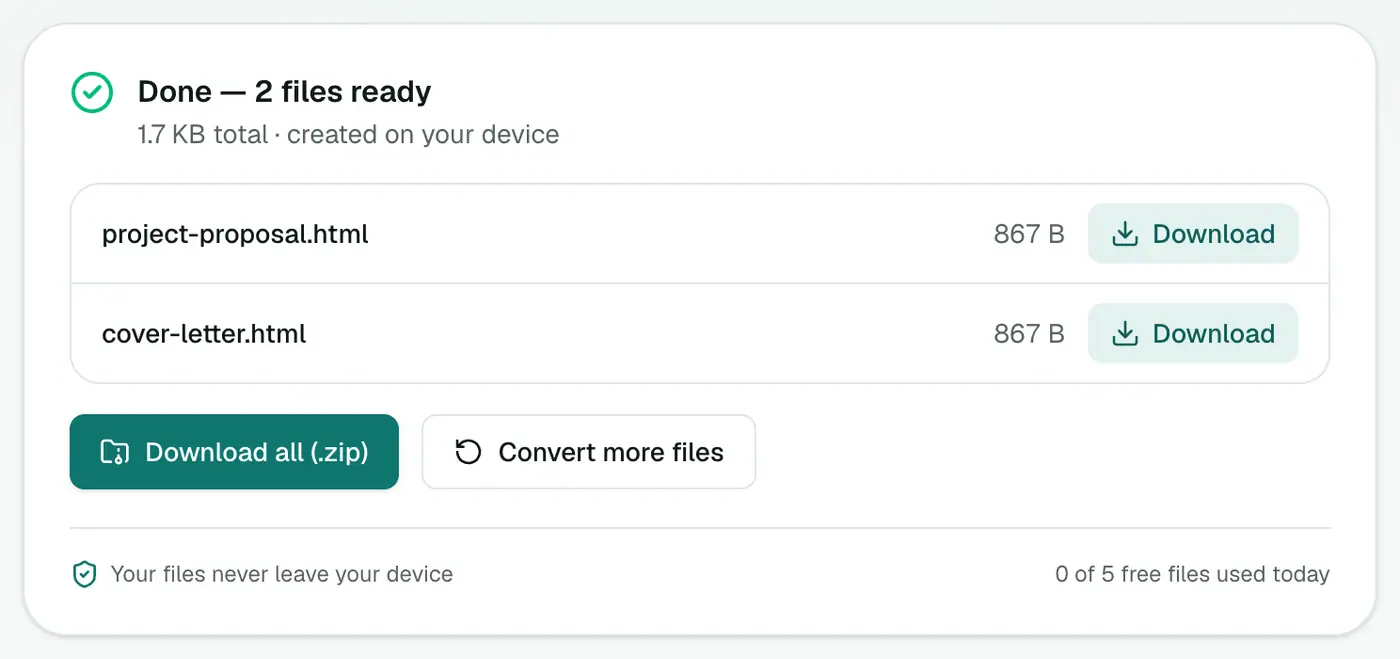
3. Convert and download
Click Convert to HTML.
Tips for the best result
- Use Word's heading styles (Heading 1, Heading 2…) rather than just making text big and bold. Only real headings become
<h1>–<h6>. - Use real lists, not lines starting with dashes typed by hand.
- Big images are embedded as data, which makes the HTML file large. For a website, consider uploading images separately and swapping the
src.
Related
- Word to Markdown for docs sites and GitHub.
- HTML to Word to go the other way.
Clean HTML vs Word's 'Save as Web Page'
| This converter | Word's Save as Web Page | |
|---|---|---|
| Markup | Clean semantic tags | Lots of Office-specific styles |
| Ready for a CMS | ✓ | Needs cleaning |
| Needs Word installed | ✗ | ✓ |
Where to paste it
- WordPress: use the Code editor or a Custom HTML block.
- Newsletters: paste into your email platform's HTML block.
- Static sites and intranets.
Tips
- Use heading styles in Word so they become
<h2>,<h3>and so on. - Add alt text to images in your CMS after pasting.
- Prefer Markdown? Word to Markdown.
Summary
The Word to HTML converter gives you markup you'd actually want on your website: headings, lists and tables as proper tags, without Office clutter.
FAQs
Why not use Word's own Save as Web Page?
Word's HTML export is full of Office-specific markup and inline styles that clutter websites. This converter produces simple, semantic tags.
What happens to images?
They're embedded directly in the HTML, so the file works on its own.
Are Word styles kept?
Headings map to <h1>-<h6>, lists to <ul>/<ol>, tables to <table>, bold and italic to <strong> and <em>. Fonts and colors are left to your website's styling.
Is my document uploaded?
No. It's converted in your browser.
Why not just copy and paste from Word?
Pasting from Word brings hidden styles and messy markup. Converting maps headings, lists and tables to clean HTML tags.
Try the Word to HTML Converter
Free to start, no install, and your files never leave your device.