Data & docs2 min read
How to Convert Markdown to HTML (Full Page or Snippet)
Turn Markdown into clean HTML for a website, CMS or newsletter. Get a full styled page, or a fragment to paste into an existing template.
By the ZapMorph team
On this page
Just want it done?
Open the Markdown to HTML Converter — it runs in your browser and nothing is uploaded.
Markdown is how many people write: READMEs, docs, notes, AI drafts. HTML is what websites, CMSs and email builders need. Converting is straightforward, as long as you choose the right output for where it's going.
Full page or fragment?
- Full HTML page: a standalone
.htmlfile with basic styling. Double-click it and it opens nicely in a browser. Good for sharing a document or a quick static page. - HTML fragment: just the content (
<h1>,<p>,<ul>…), no<html>or<head>. Good for pasting into WordPress, Ghost, Webflow, a newsletter tool or your own template.
How to convert Markdown to HTML with ZapMorph
1. Open the converter
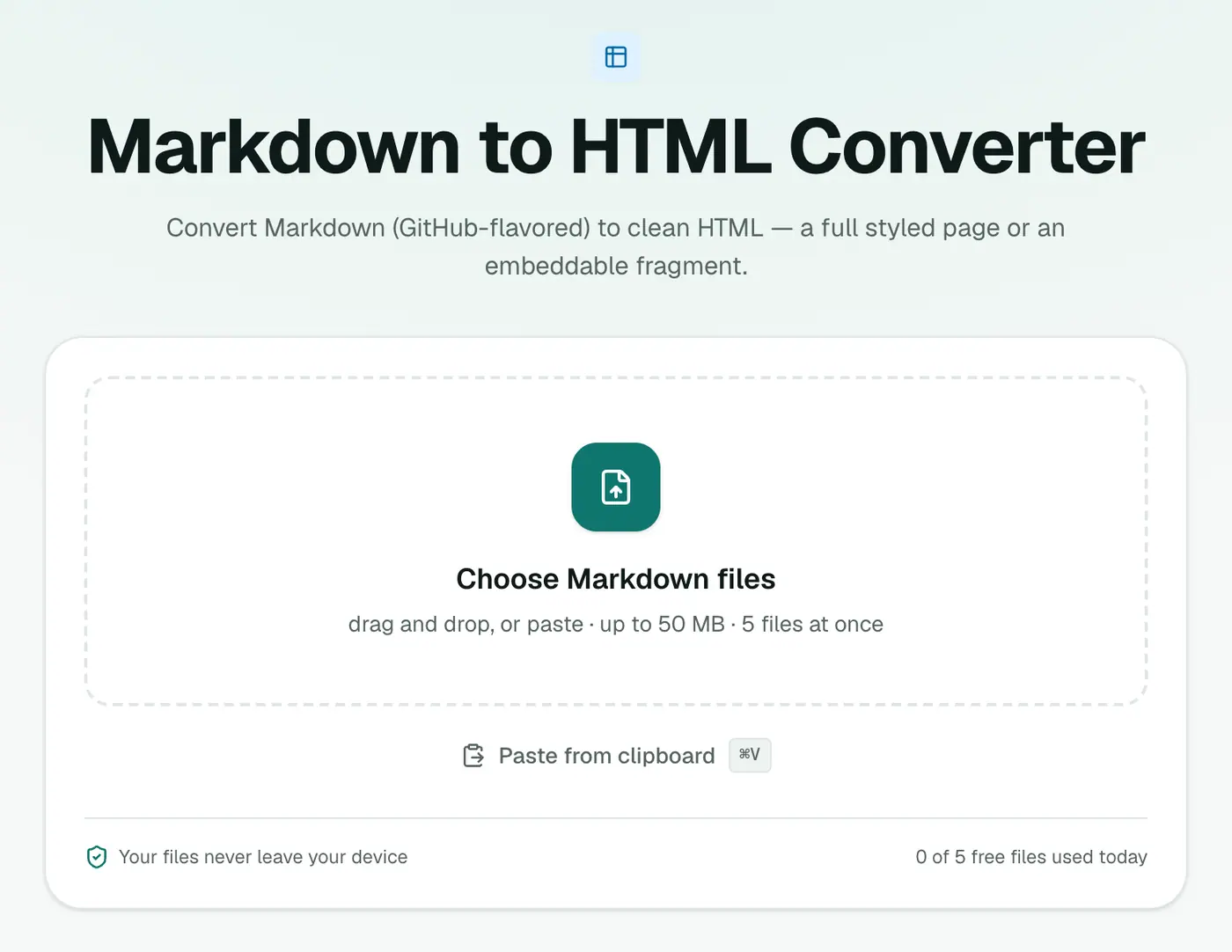
Go to the Markdown to HTML converter.
2. Add your Markdown and choose the output
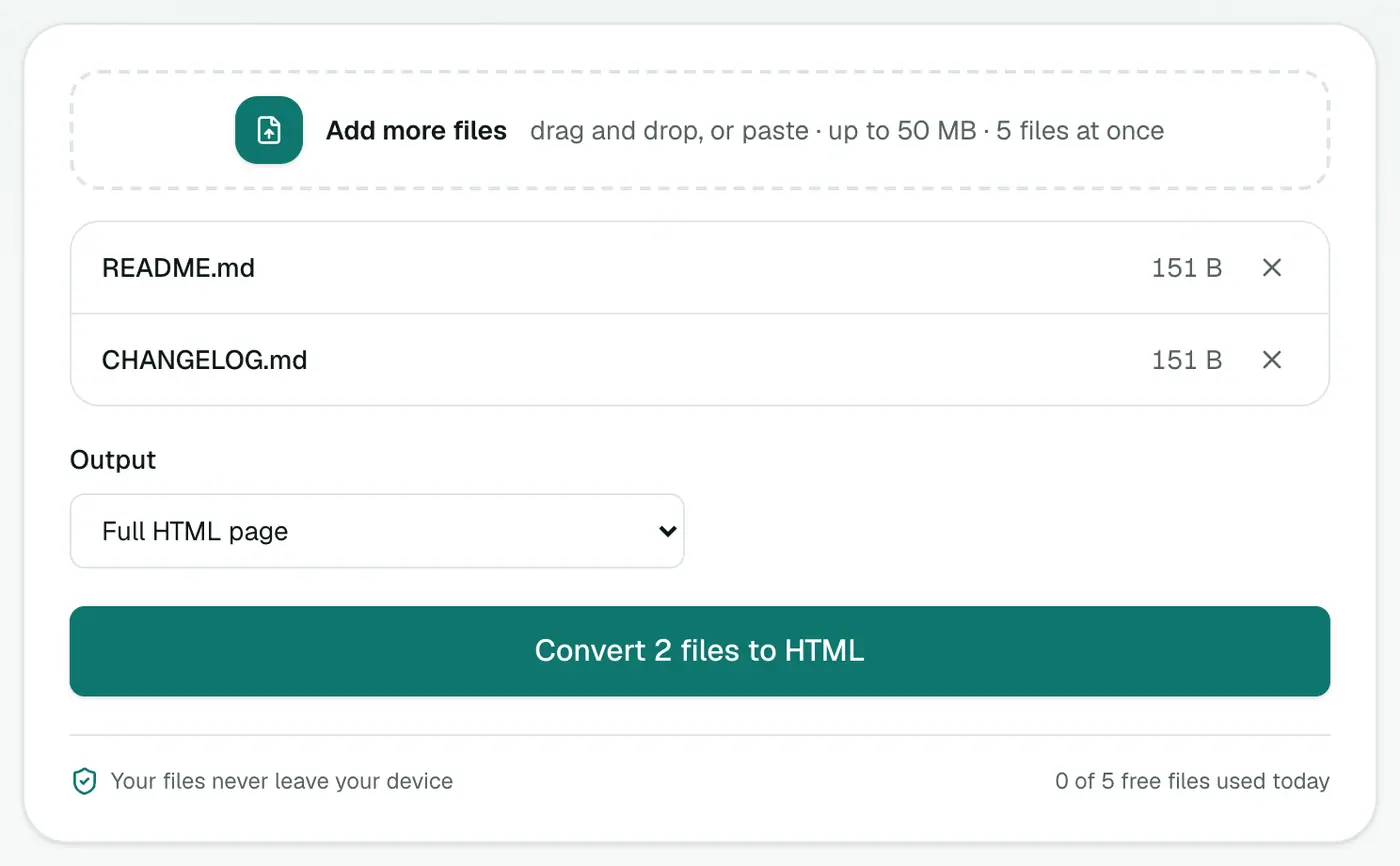
Drop in .md files and pick Output: Full HTML page or HTML fragment.
3. Convert and download
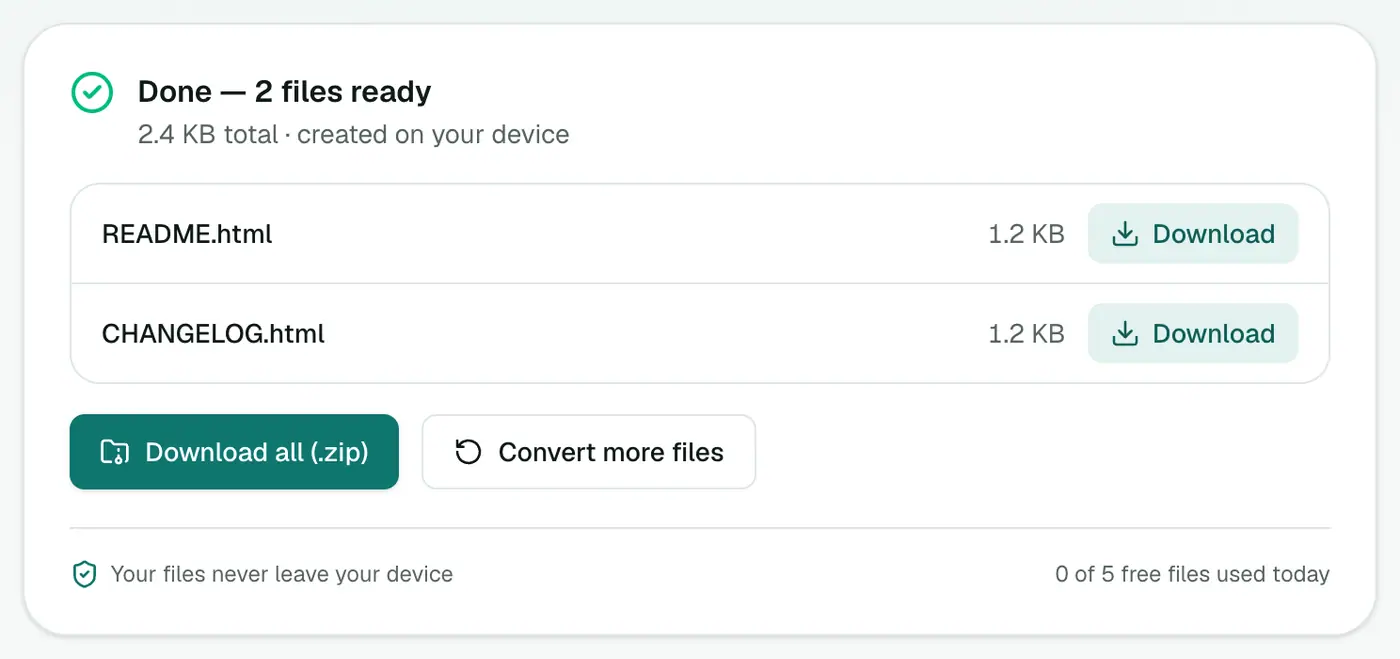
Click Convert to HTML.
What's supported
Headings, paragraphs, bold and italic, links, images, lists, task lists (- [x] done), tables, blockquotes, inline code and fenced code blocks.
Tips
- Preview first in the Markdown viewer. It renders as you type.
- Need a document instead? Markdown to PDF or Markdown to Word.
- Going the other way? HTML to Markdown.
Example
## Setup

- Install the app
- Run `npm start`
<h2>Setup</h2>
<ul>
  <li>Install the app</li>
  <li>Run <code>npm start</code></li>
</ul>
Uses
- CMS posts: write in Markdown, paste HTML.
- Email newsletters drafted in a notes app.
- Documentation pages without a static site generator.
Tips
- Preview first in the Markdown viewer.
- Style it yourself: the HTML is clean, so your site's CSS controls the look.
Summary
Pick a full page to share, or a fragment to paste. The Markdown to HTML converter handles GitHub-flavored Markdown cleanly.
FAQs
What's the difference between a full page and a fragment?
A full HTML page includes <html>, <head> and simple styling, so it opens nicely on its own. A fragment is just the converted content, ready to paste into a CMS or template.
Is GitHub-flavored Markdown supported?
Yes, including tables, task lists and fenced code blocks.
Can I paste the HTML into WordPress?
Yes. Use the fragment option and paste it into a Custom HTML block or the code editor.
Is my text uploaded?
No. It's converted in your browser.
Does it support tables and task lists?
Yes. GitHub-flavored Markdown, including tables, task lists and fenced code blocks, is supported.
Try the Markdown to HTML Converter
Free to start, no install, and your files never leave your device.