Image2 min read
How to Convert WebP to PNG and Keep the Transparent Background
Got a WebP logo or sticker you need as a PNG? Here's how to convert it while keeping transparency intact, with no software to install.
By the ZapMorph team
On this page
Just want it done?
Open the WebP to PNG Converter — it runs in your browser and nothing is uploaded.
WebP to PNG is the conversion you want when the image isn't a photo. Think logos, icons, stickers, screenshots of an interface, anything with a transparent background or crisp edges.
JPG would flatten the background to white and soften the edges. PNG keeps both.
When PNG is the right target
Pick PNG over JPG if any of these apply:
- The image has a transparent background (a logo you'll put on a colored slide, a sticker, a product cut-out).
- It's mostly text, lines or flat colors, like a chart or a UI screenshot.
- You're going to edit it in Photoshop, Canva, GIMP or Figma.
- The place you're uploading to simply asks for PNG.
For ordinary photos, WebP to JPG gives you a much smaller file.
How to convert WebP to PNG with ZapMorph
1. Open the converter
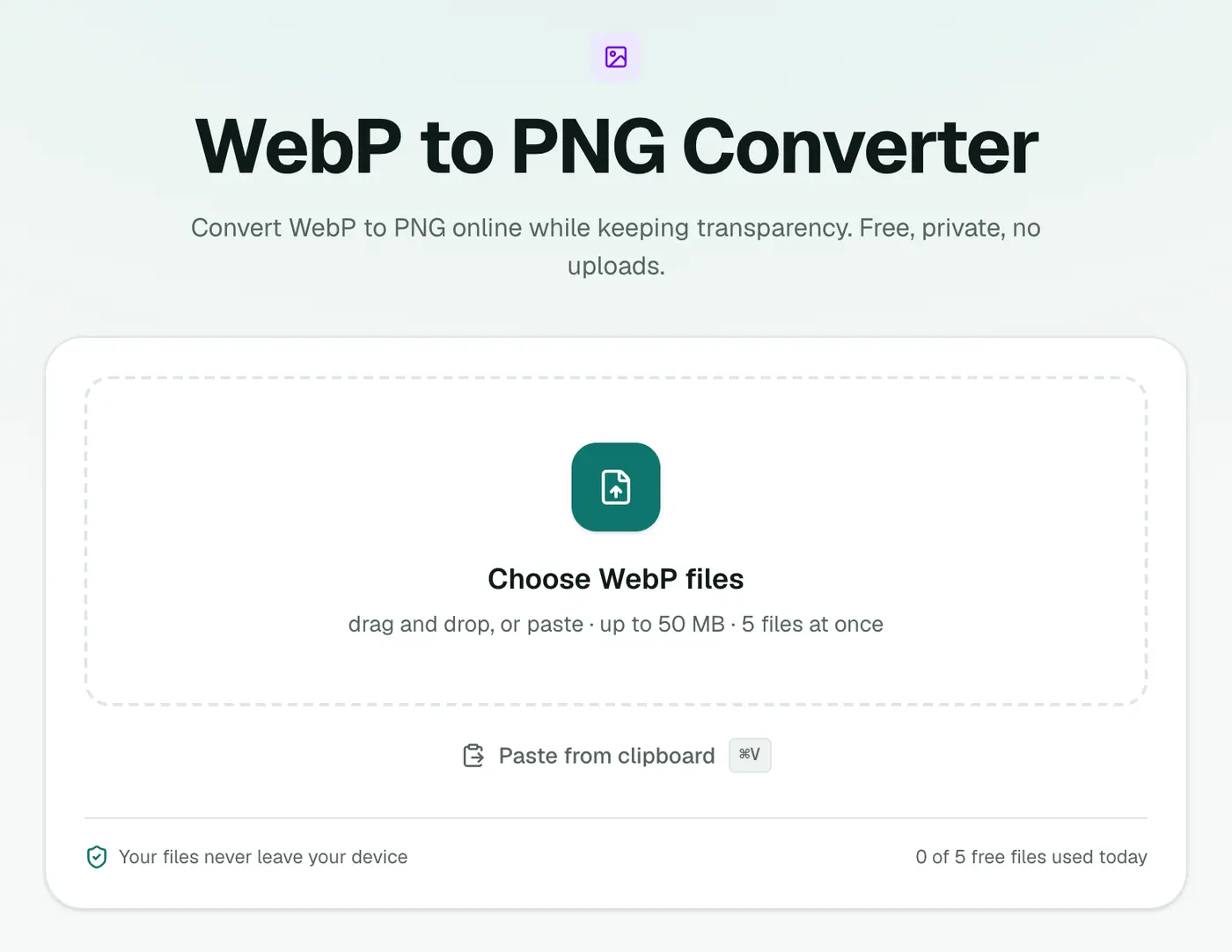
Go to the WebP to PNG converter.
2. Add the WebP files
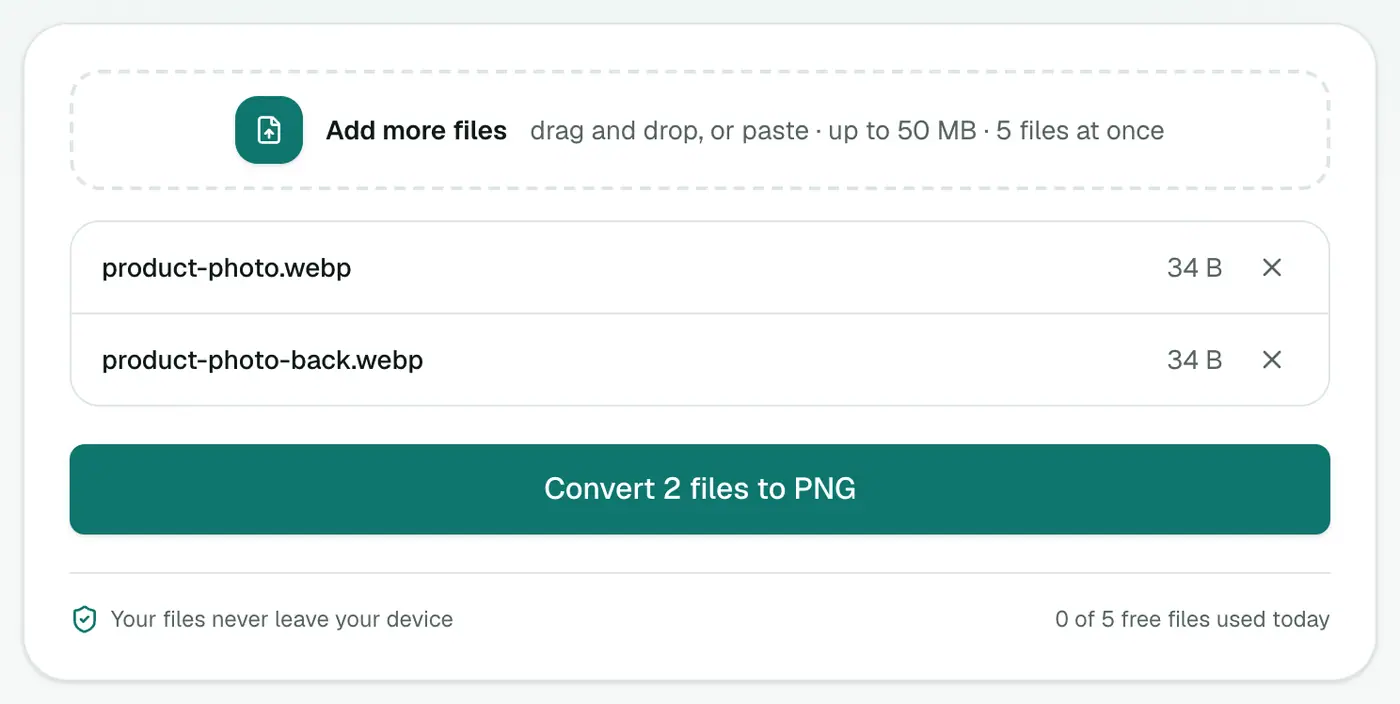
Drag them in or click to choose. There aren't any settings, because PNG is lossless. You get an exact copy of what's in the WebP.
3. Convert and download
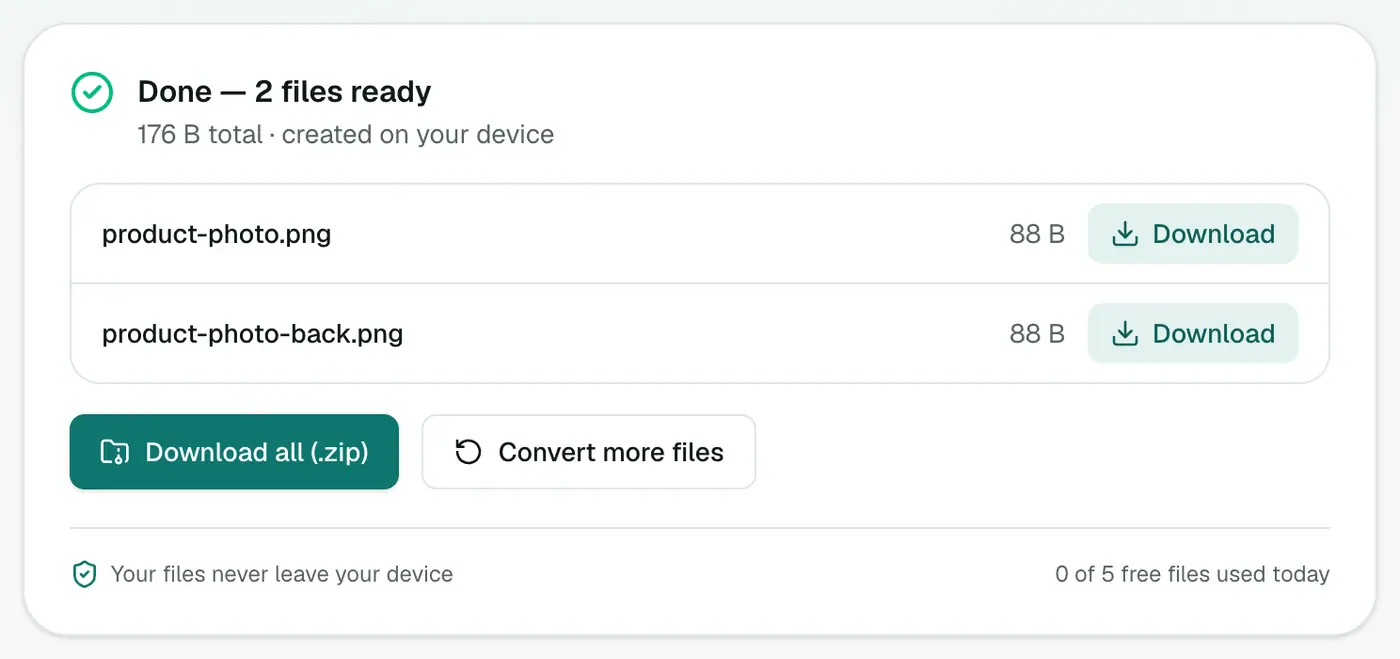
Click Convert to PNG. Save each file, or download the ZIP if you converted a batch.
Without a website
Windows: Paint opens WebP on Windows 10 and 11. Use File → Save as → PNG picture. Be aware Paint doesn't handle transparency well. It may fill the background with white.
Mac: open the WebP in Preview and use File → Export → PNG. Transparency is kept.
Design apps: Photoshop (2022 and later), GIMP and Figma all open WebP and can export PNG. That's overkill if you just need the file converted.
Tips
- Check transparency after converting by dropping the PNG onto a dark slide or document. If the background is still checkered or invisible, you're good.
- The file's too big for where it's going? PNG is heavy. Try the image compressor with output set to WebP or JPG, or shrink the dimensions with the image resizer.
- Making an icon? The PNG to ICO converter takes WebP files too, so you can skip this step.
Size you can expect
| Image | WebP | PNG |
|---|---|---|
| Logo, 512 px | 15–30 KB | 30–80 KB |
| Product cut-out, 1200 px | 60–120 KB | 400 KB – 1.5 MB |
| Photo, 1600 px | 150–250 KB | 2–4 MB |
For photos, WebP to JPG gives much smaller files. Keep PNG for graphics and transparency.
Editing the result
PNG opens in Photoshop, GIMP, Canva, Figma, PowerPoint, Word and Google Docs, so it's the safest format to bring a web graphic into a design or document.
Wrapping up
If your WebP has transparency or sharp graphics, PNG is the format to convert it to. The WebP to PNG converter keeps the image pixel-for-pixel, transparent background included, and does it all inside your browser.
FAQs
Does WebP to PNG keep transparency?
Yes. PNG supports full transparency, so a see-through WebP stays see-through after conversion.
Why is my PNG much larger than the WebP?
WebP compresses very efficiently and PNG is lossless, so the PNG stores every pixel in full. A bigger file is expected.
Should I choose PNG or JPG?
PNG if the image has transparency, sharp text or flat colors, or you'll edit it further. JPG if it's a photo and you want a small file.
What about animated WebP files?
Only the first frame is saved, since PNG is a still-image format.
Is my image uploaded?
No. It's converted in your browser.
Try the WebP to PNG Converter
Free to start, no install, and your files never leave your device.