Audio & video2 min read
How to Convert WebM to MP4 (Screen Recordings and Downloads)
WebM files from screen recorders and browsers often won't play on iPhones, in PowerPoint or in editing apps. Convert them to MP4 (H.264 + AAC), privately.
By the ZapMorph team
On this page
Just want it done?
Open the WebM to MP4 Converter — it runs in your browser and nothing is uploaded.
You recorded your screen in the browser, or a recording extension gave you a .webm. It plays in Chrome, but PowerPoint won't embed it, iMovie won't import it, and your boss's iPhone shows nothing.
MP4 fixes all of that.
How to convert WebM to MP4 with ZapMorph
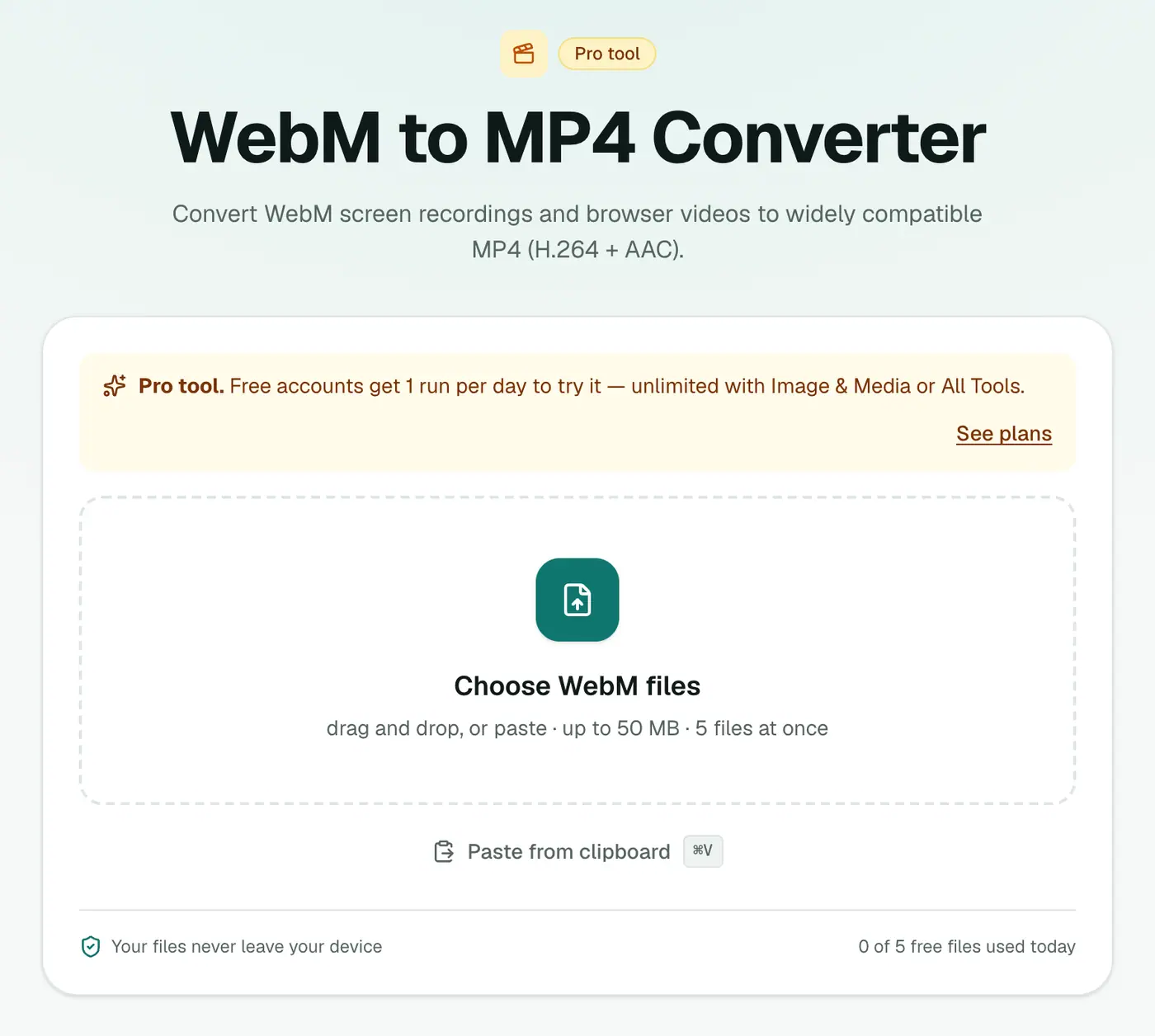
1. Open the converter
Go to the WebM to MP4 converter.
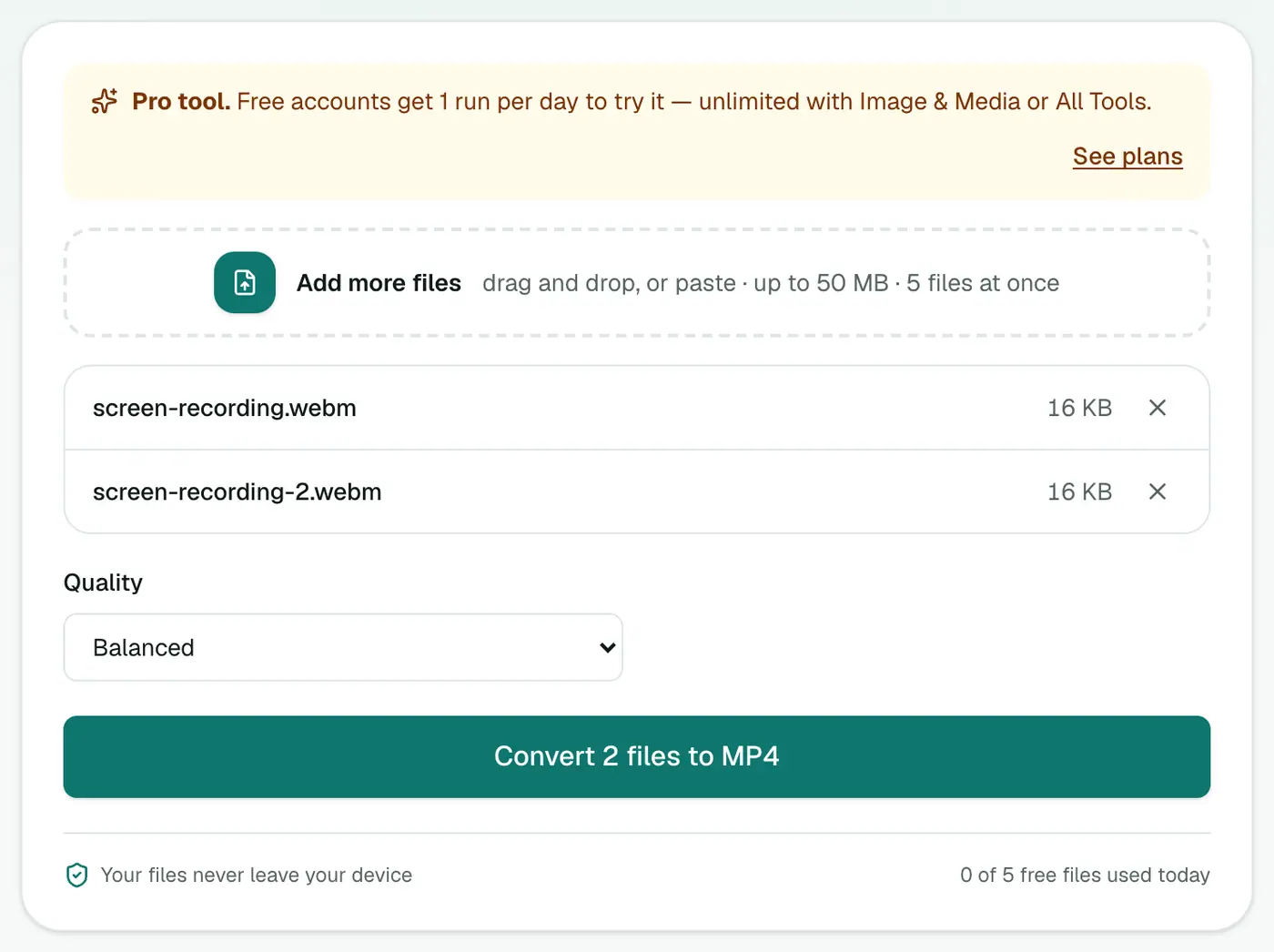
2. Add recordings and choose the quality
Drop in your .webm files and choose High (larger file), Balanced or Small file.
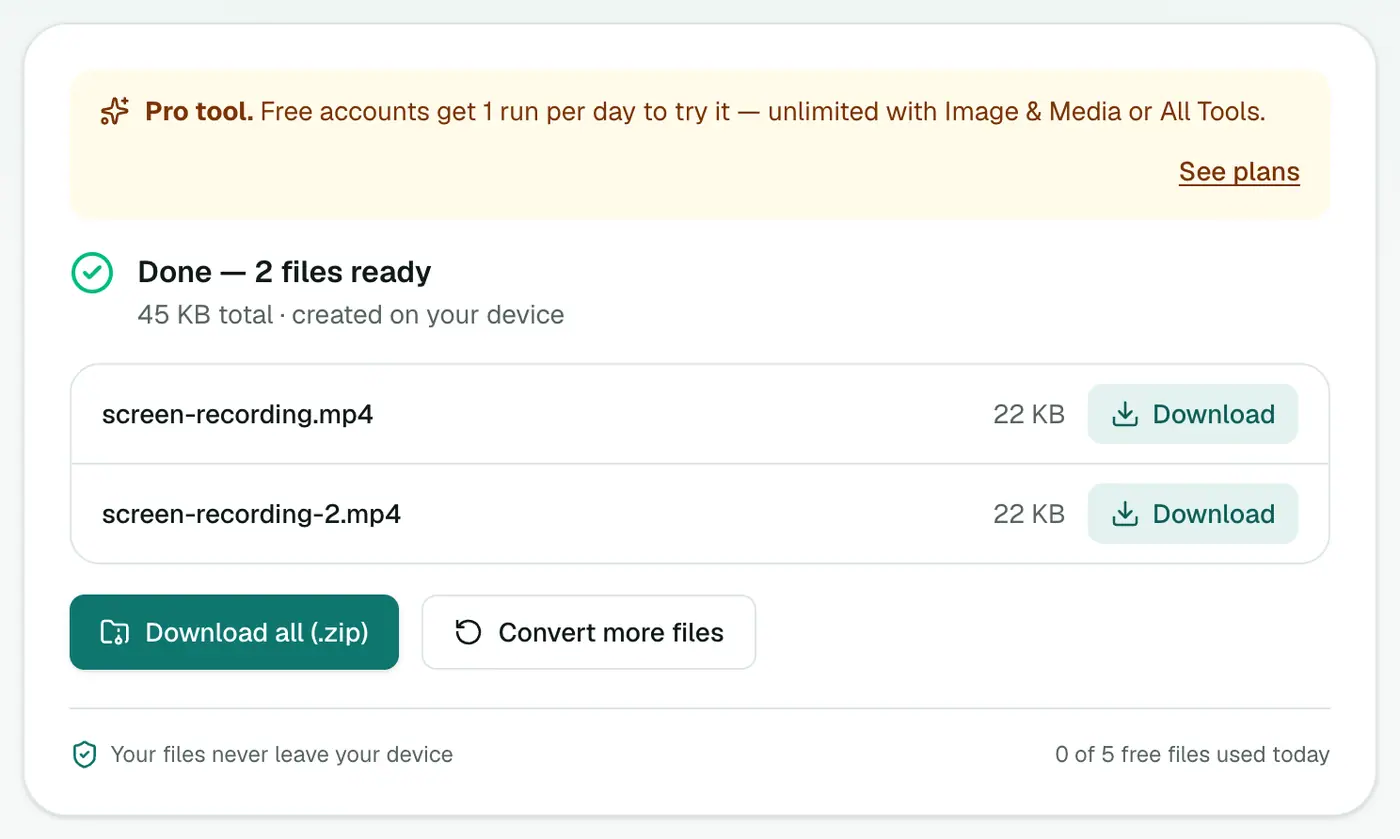
3. Convert and download
Click Convert to MP4.
Where WebM struggles and MP4 doesn't
| App or device | WebM | MP4 (H.264) |
|---|---|---|
| Chrome, Edge, Firefox | ✓ | ✓ |
| iPhone and older Safari | Limited | ✓ |
| PowerPoint and Keynote | ✗ | ✓ |
| iMovie, Premiere, DaVinci Resolve | Limited | ✓ |
| WhatsApp, Instagram, LinkedIn uploads | Often rejected | ✓ |
| Smart TVs and USB playback | Rarely | ✓ |
Quality settings explained
- High: for recordings you'll edit further, or with fine text and code on screen.
- Balanced: the right choice for most tutorials and demos.
- Small file: for quick bug reports and when email limits are tight.
Tips
- Screen recordings compress very well, so Balanced or even Small file usually looks fine.
- Recording a tutorial? Our screen recorder saves recordings you can convert right here.
- Need a GIF for a ticket? Video to GIF.
- Need captions? The subtitle generator creates SRT and VTT files from the audio.
Troubleshooting
It's slow. WebM usually uses VP8 or VP9, so it has to be fully re-encoded to H.264 on your device. Long recordings take a while; leave the tab open.
The video's frame rate is odd. Browser recordings sometimes have variable frame rates. MP4 handles this, but some editors prefer constant rates. Most editors can conform the clip on import.
Summary
The WebM to MP4 converter turns browser recordings into MP4s for PowerPoint, iPhones and video editors.
FAQs
Where do WebM files come from?
Browser-based screen recorders, Chrome's built-in recording tools, OBS on some settings, and video saved from websites.
Why won't my WebM play?
Older iPhones and Macs, PowerPoint, iMovie and many editors have limited or no WebM support.
Which quality setting should I use?
Balanced for most recordings. High if you'll edit the video afterwards.
Is it free?
Yes, once a day: one file up to 25 MB with no account. A free account gets one Pro tool run a day, and paid plans are unlimited.
Is the audio kept?
Yes. The first audio track is converted to AAC, which plays everywhere MP4 does.
Is my recording uploaded?
No. The conversion runs in your browser.
Try the WebM to MP4 Converter
Free to start, no install, and your files never leave your device.