Audio & video2 min read
How to Convert iPhone MOV Videos to MP4
iPhone and Mac videos are MOV files that some Windows apps, websites and Android phones won't play. Convert them to universally compatible MP4, privately.
By the ZapMorph team
On this page
Just want it done?
Open the MOV to MP4 Converter — it runs in your browser and nothing is uploaded.
You AirDrop an iPhone video to a Windows laptop and it won't play. A website upload rejects .mov. A friend on Android gets a black screen. The usual cause: iPhone videos are MOV files with HEVC video, and not every device can decode that.
MP4 with H.264 plays basically everywhere.
What happens to your video
| Inside the MOV | What the converter does | Speed |
|---|---|---|
| H.264 + AAC (Most Compatible, screen recordings) | Repackages into MP4, no quality loss | Seconds |
| HEVC / H.265 (iPhone default "High Efficiency") | Re-encodes to H.264 | Minutes, longer for 4K |
| ProRes (pro iPhone and camera footage) | Re-encodes to H.264 | Slow, very large inputs |
How to convert MOV to MP4 with ZapMorph
1. Open the converter
Go to the MOV to MP4 converter.
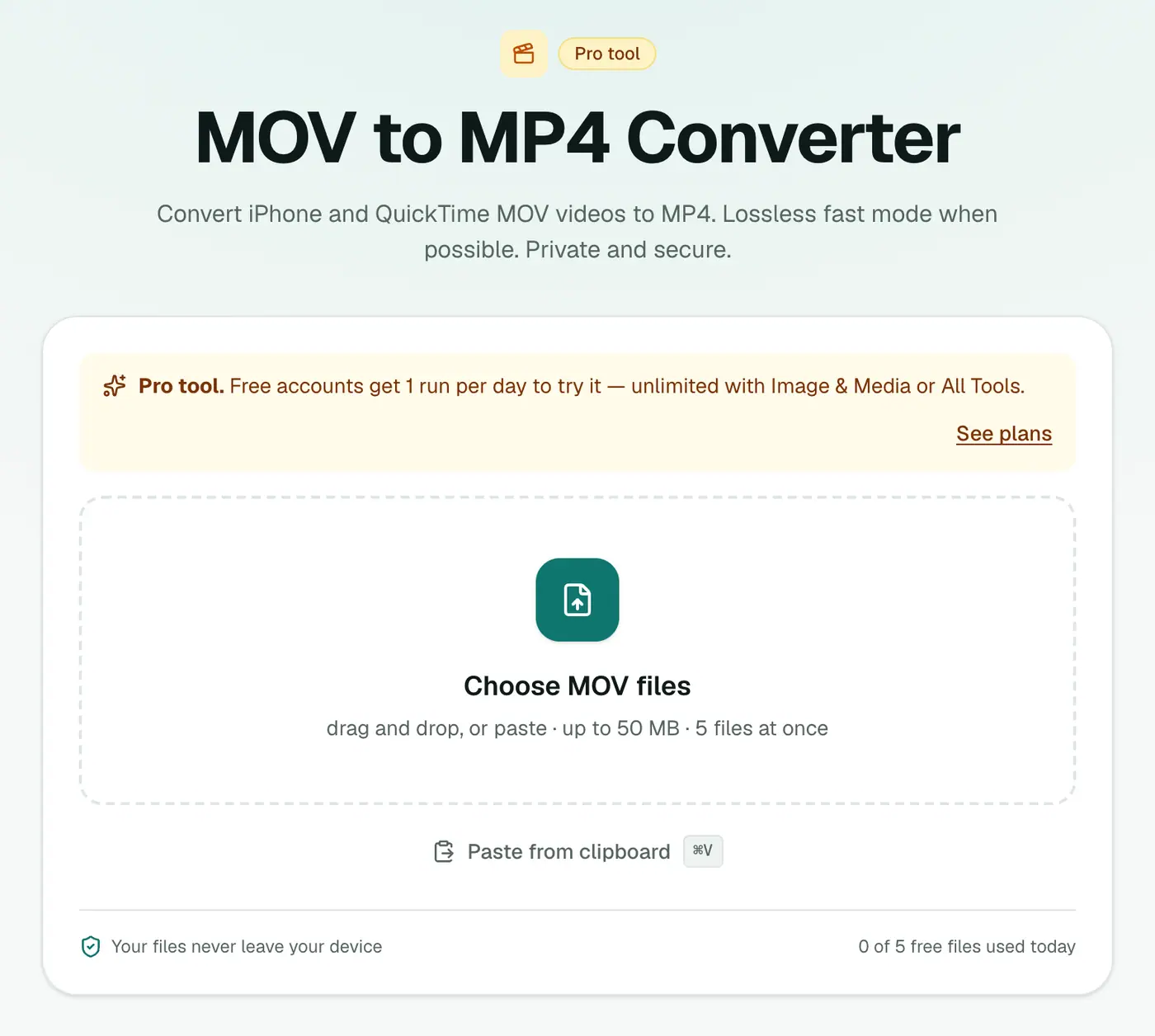
2. Add videos and choose the quality
Drop in .mov files and pick a setting:
- High (larger file): for footage you'll keep or edit.
- Balanced: the right choice for most videos.
- Small file: for chat apps and email.
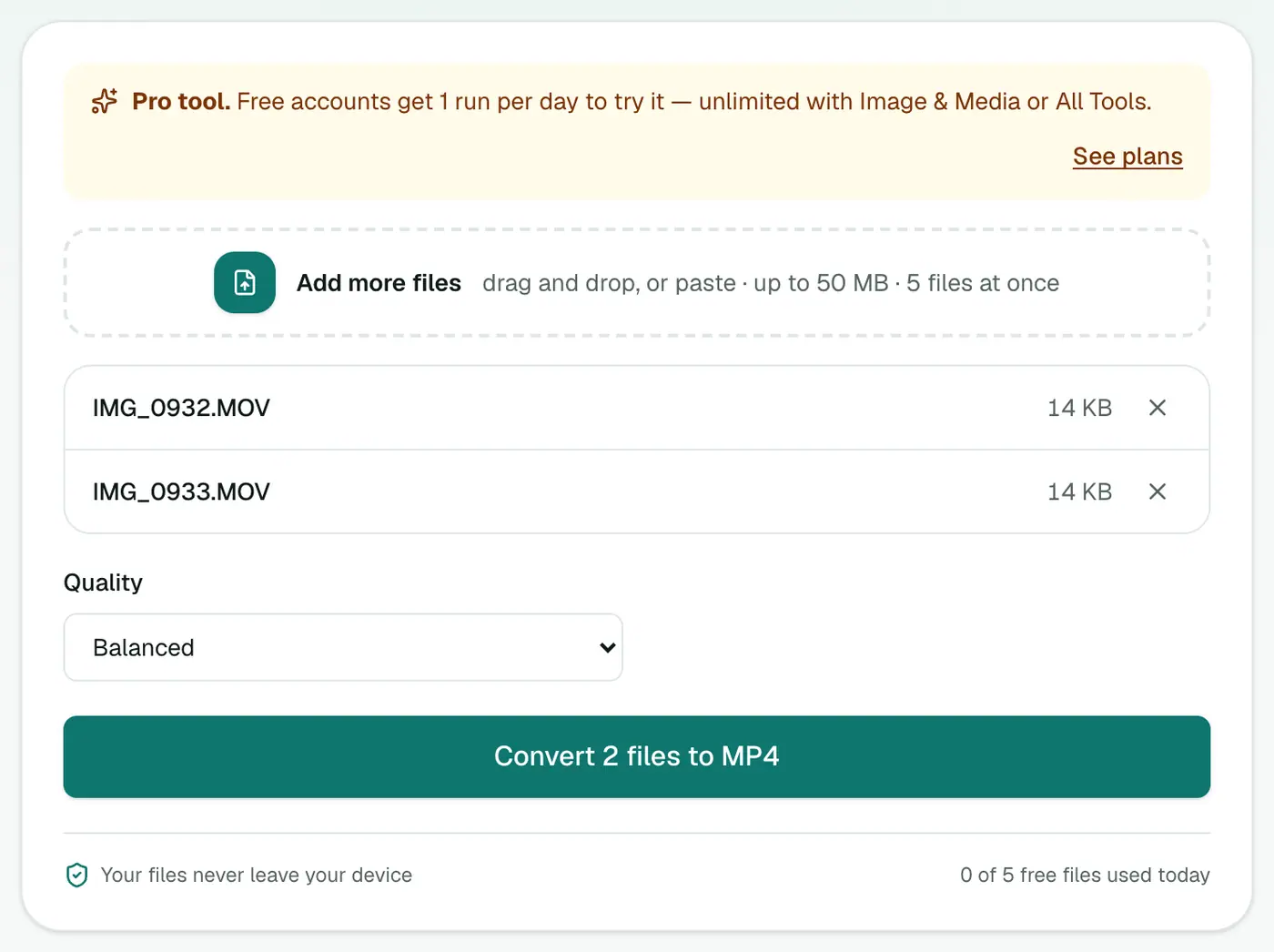
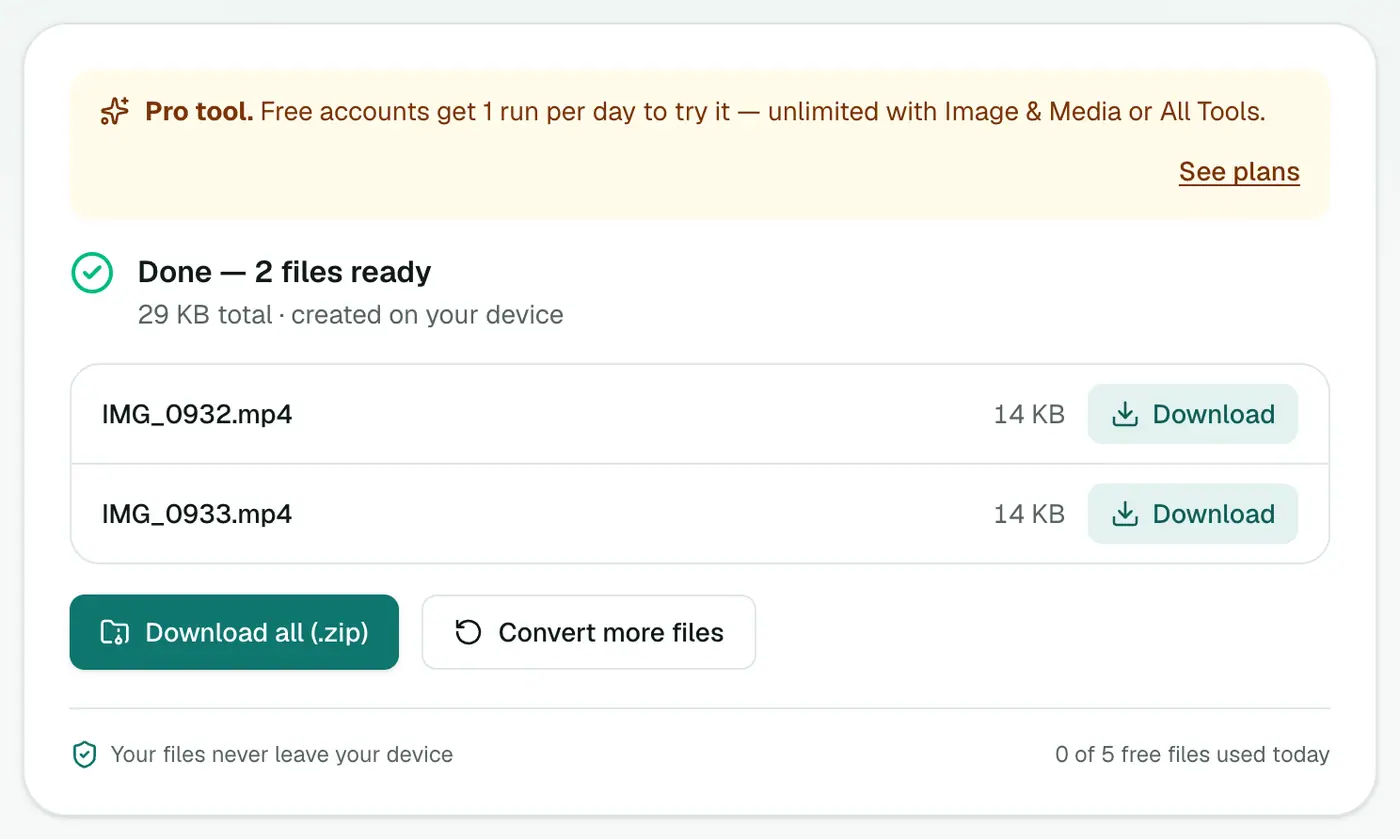
3. Convert and download
Click Convert to MP4. Conversion runs on your device, so give long 4K clips some time.
Avoid the problem next time
On iPhone: Settings → Camera → Formats → Most Compatible records H.264 video, which plays almost everywhere. Files are larger, though. Alternatively, Settings → Photos → Transfer to Mac or PC → Automatic converts when copying over USB.
Tips
- Trim first in the Photos app (Edit → drag the ends) so you only convert what you need.
- Large 4K clips: Small file or Balanced keeps sizes manageable for sharing.
- Want a GIF of a moment? Video to GIF.
- Just need the audio? Video converter can output MP3.
Troubleshooting
"Couldn't be converted." The file may be incomplete. iCloud sometimes leaves a low-resolution placeholder until the full video downloads. Open it on the iPhone first, then export again.
It's slow. HEVC to H.264 is heavy work on a single browser thread. Close other tabs and keep the laptop plugged in.
Summary
The MOV to MP4 converter turns iPhone and Mac videos into MP4s that play on any device, without uploading them.
FAQs
Why does my iPhone record MOV?
MOV is Apple's QuickTime container. iPhone videos are usually HEVC (H.265) inside MOV, which some devices and apps can't decode.
Which quality should I choose?
Balanced suits most videos. Choose High for footage you'll edit or keep, and Small file for sharing over chat or email.
Are my videos uploaded?
No. The conversion runs in your browser. Long 4K videos take a while on slower computers.
Is it free?
Yes, once a day: one file up to 25 MB with no account. A free account gets one Pro tool run a day, and paid plans are unlimited.
Why was one video converted instantly?
If the MOV already contains H.264 video with AAC or MP3 audio (Most Compatible mode, many screen recordings), it's repackaged into MP4 without re-encoding: seconds, with no quality loss.
Is HDR kept?
HEVC videos are re-encoded to standard H.264, so HDR (Dolby Vision) footage becomes standard dynamic range. Colours may look a little flatter.
Try the MOV to MP4 Converter
Free to start, no install, and your files never leave your device.