Email2 min read
How to Open Phone Contacts in Excel (vCard to Excel)
Convert VCF contacts into an Excel spreadsheet with one row per contact, for cleaning up duplicates, sharing a list or making a backup. Private, free.
By the ZapMorph team
On this page
Just want it done?
Open the vCard to Excel Converter — it runs in your browser and nothing is uploaded.
After years of phone upgrades, most address books are a mess: duplicates, half-filled entries, "John Plumber" and "John (plumber)". Fixing that on a phone screen is painful. In Excel it's quick.
Get your contacts as a VCF
- iPhone: icloud.com → Contacts → select all → ⚙ → Export vCard.
- Android / Google: contacts.google.com → Export → vCard.
- Samsung: Contacts → ☰ → Manage contacts → Import or export → Export.
How to convert VCF to Excel with ZapMorph
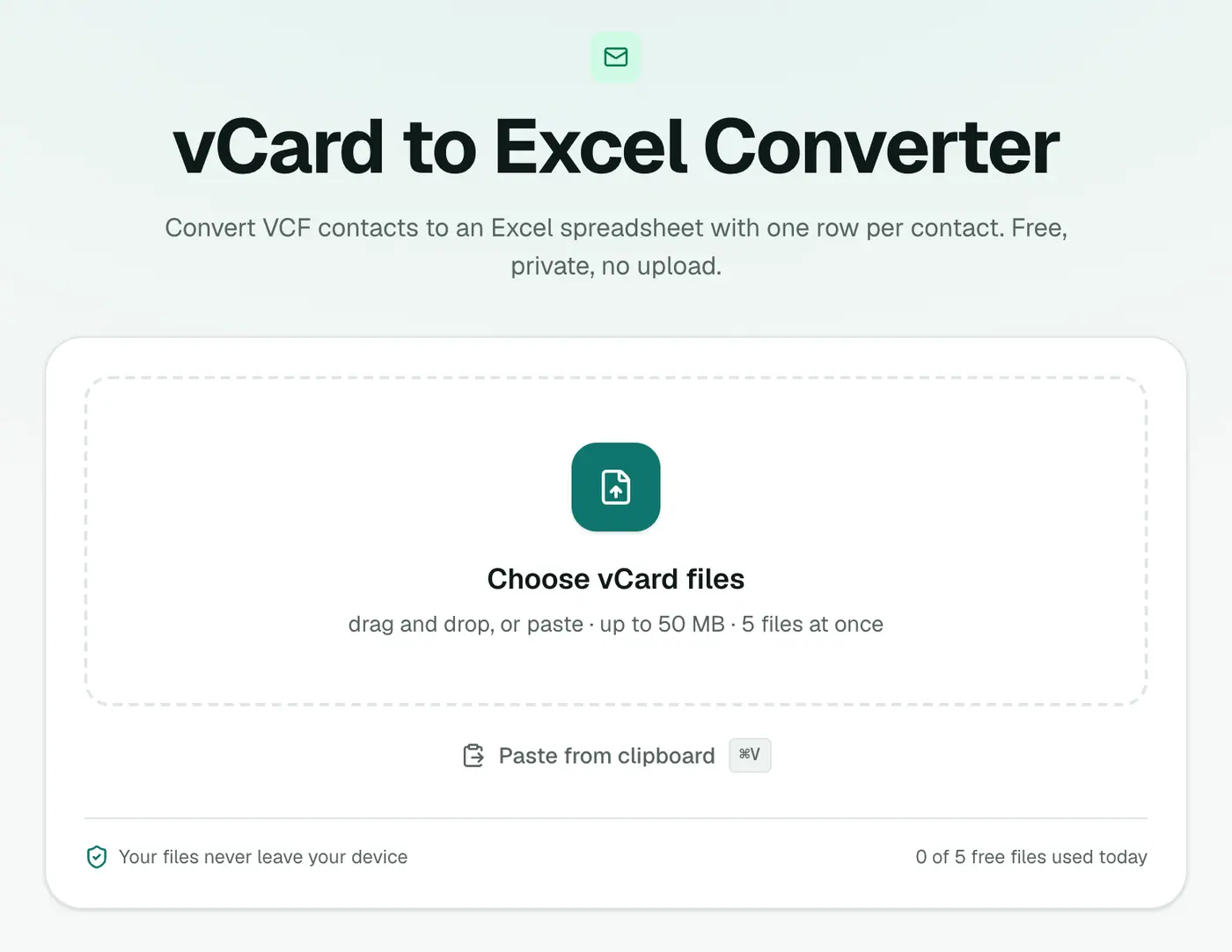
1. Open the converter
Go to the vCard to Excel converter.
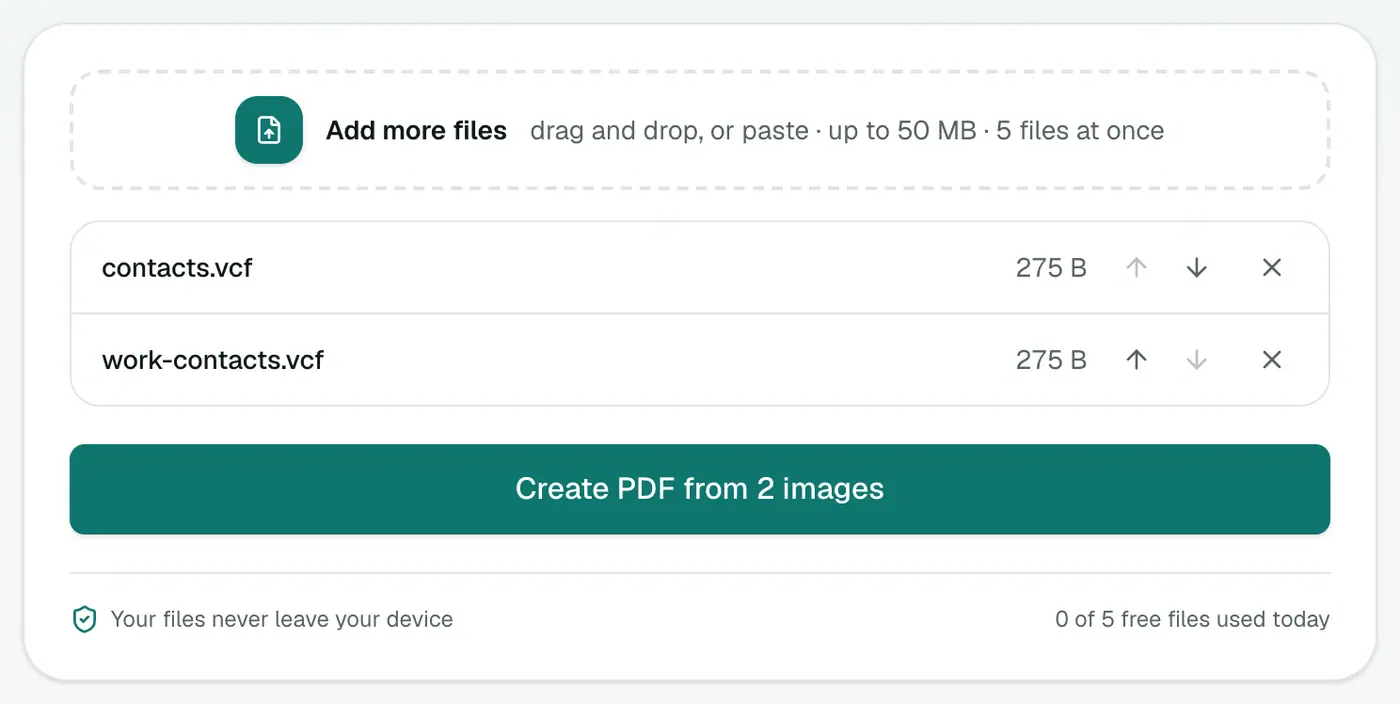
2. Add your VCF files
Drop in one or more .vcf files.
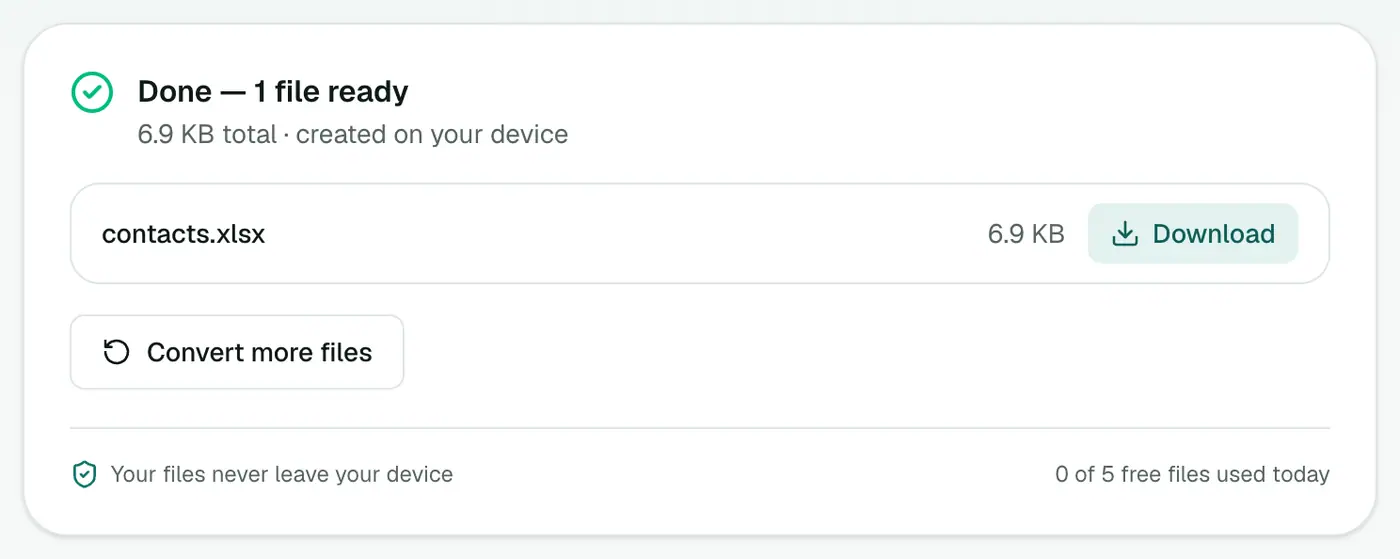
3. Convert and download
Click Convert to Excel.
A clean-up routine
- Sort by name and delete obvious duplicates.
- Filter blank phone and email columns. Contacts with neither are often junk.
- Standardise phone numbers with the country code (+44, +1, +91…).
- Convert back with Excel to vCard, delete the old contacts on your phone, and import the clean file.
Keep a copy of the original VCF until you're sure everything looks right.
Excel tricks for contacts
| Task | How |
|---|---|
| Highlight duplicates | Select the Mobile Phone column → Conditional Formatting → Highlight Duplicate Values |
| Remove exact duplicates | Data → Remove Duplicates, tick Full Name and Mobile Phone |
| Strip spaces from numbers | =SUBSTITUTE(E2," ","") |
| Add a country code | =IF(LEFT(E2,1)="+",E2,"+44"&MID(E2,2,20)) (adjust +44) |
| Proper-case names | =PROPER(A2) |
Other reasons to have contacts in Excel
- A backup you can read without any phone or account.
- Sharing a team or club list with people who don't need it in their phone.
- Printing an address list for holiday cards or invitations.
- Moving to a new phone platform with a check in between.
Related
- CSV instead? vCard to CSV.
- Look before converting: vCard viewer.
Summary
The vCard to Excel converter gets your contacts into a spreadsheet where cleaning, sharing and backing up is easy.
FAQs
What columns do I get?
Full Name, First Name, Last Name, Organization, Job Title, four phone columns, three email columns, Address, Website, Birthday and Notes.
Why Excel instead of CSV?
An XLSX opens correctly in Excel without encoding problems with accented names or phone number formatting surprises.
Can I put the cleaned list back on my phone?
Yes. Save your edits, then use Excel to vCard and import the VCF.
Can I combine contacts from several phones?
Yes. Add several VCF files and they're merged into one sheet, which makes duplicates easy to spot.
Are my contacts uploaded?
No. The spreadsheet is built in your browser.
Try the vCard to Excel Converter
Free to start, no install, and your files never leave your device.