Email2 min read
How to Convert vCard (VCF) Contacts to CSV
Turn contacts exported from iPhone, Android or Google into a CSV with names, phones, emails, company, address and notes, for Excel, CRMs and mailing tools.
By the ZapMorph team
On this page
Just want it done?
Open the vCard to CSV Converter — it runs in your browser and nothing is uploaded.
Your contacts live in your phone. Your CRM, newsletter tool or spreadsheet wants a CSV. A VCF export from the phone is the bridge, and this turns it into rows and columns.
The columns you get
| Full Name | First Name | Last Name | Organization | Mobile Phone | Address | … | |
|---|---|---|---|---|---|---|---|
| Ana Silva | Ana | Silva | Globex | +351 912 345 678 | ana@example.com | Rua Augusta 1, Lisboa | … |
There are 16 columns in total, including Job Title, Home, Work and Other Phone, three Email columns, Website, Birthday and Notes.
Exporting contacts as VCF
- iPhone / iCloud: go to icloud.com → Contacts, select all (Cmd/Ctrl+A), then ⚙ → Export vCard.
- Google Contacts: contacts.google.com → Export → vCard.
- Android: Contacts app → Settings → Export → save the
.vcf. - Outlook: export contacts, or forward contacts as vCards.
How to convert VCF to CSV with ZapMorph
1. Open the converter
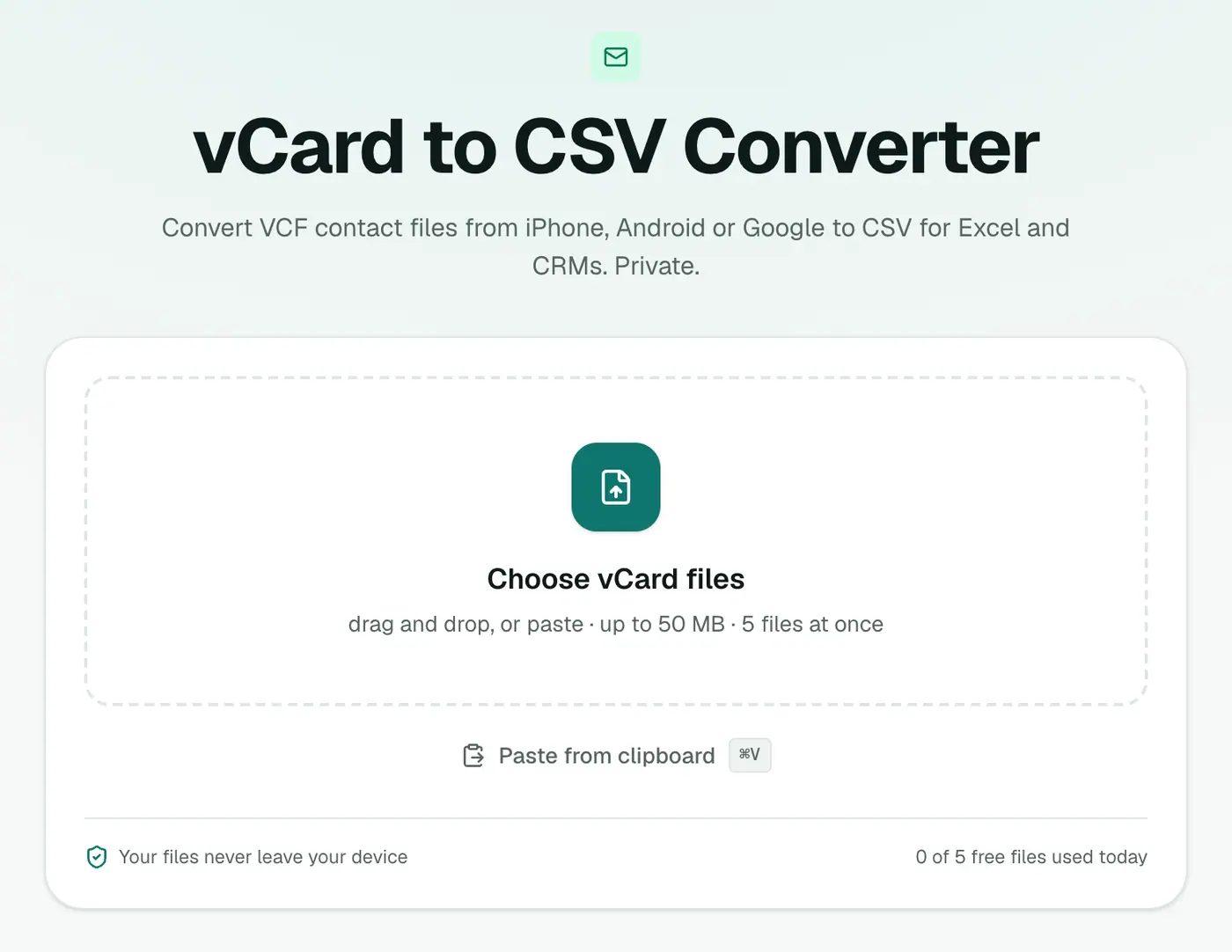
Go to the vCard to CSV converter.
2. Add your VCF files
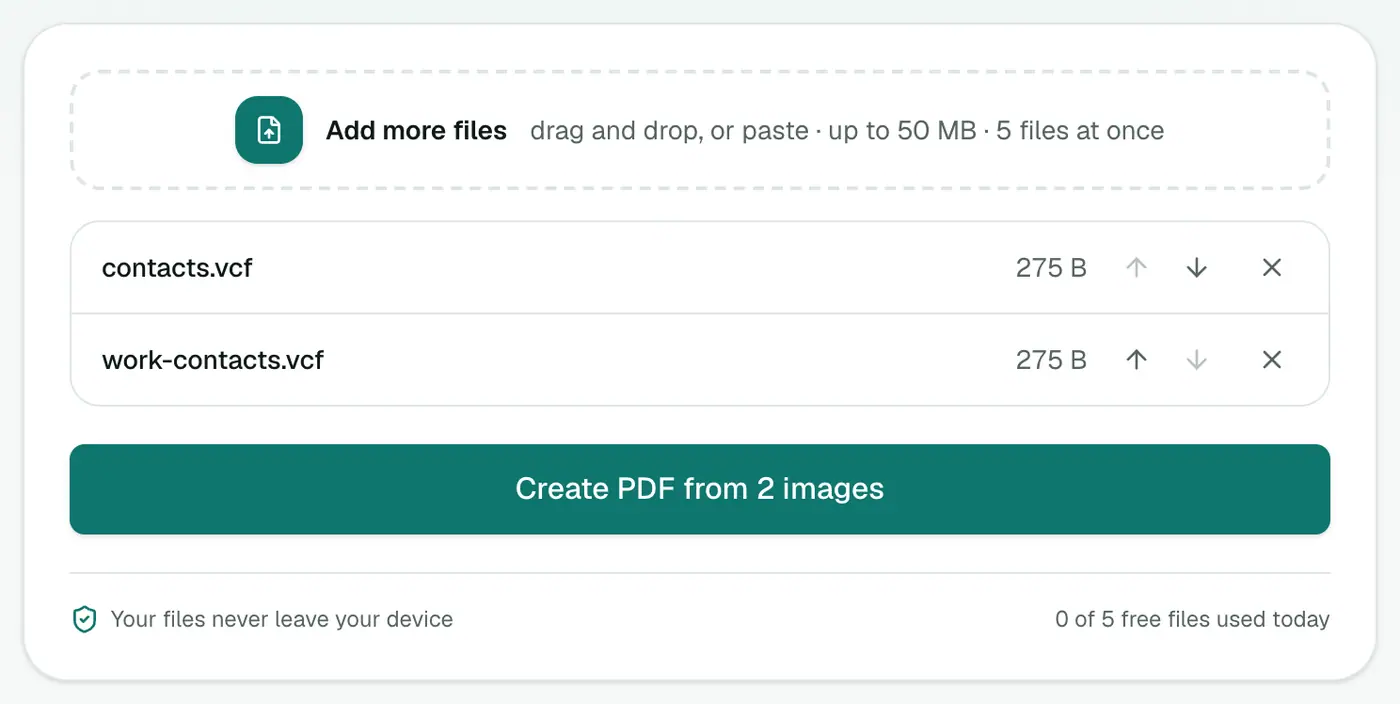
Drop in one or more .vcf files. They're combined into one CSV.
3. Convert and download
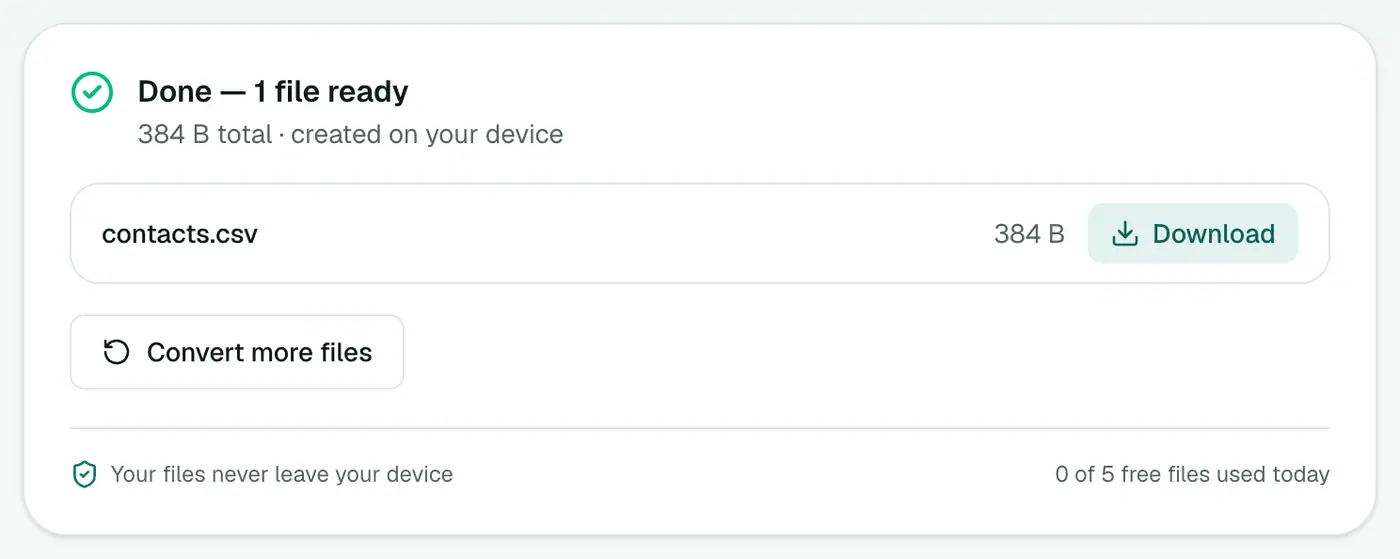
Click Convert to CSV.
Importing the CSV elsewhere
- Mailchimp, Brevo and similar: import the CSV and map Email, First Name and Last Name.
- HubSpot, Zoho, Pipedrive and other CRMs: import contacts from CSV, mapping columns as prompted.
- Outlook: File → Open & Export → Import/Export → Import from another program or file → Comma Separated Values.
Mailing lists: only add people who've agreed to receive your emails. Phone contacts haven't automatically opted in.
Tips
- Check before converting with the vCard viewer.
- Excel user? vCard to Excel gives you an XLSX with no encoding issues.
- Back to the phone? After editing, CSV to vCard.
- Duplicates: sort by Full Name or Email and remove repeats, or use Excel's Data → Remove Duplicates.
Troubleshooting
"Doesn't contain any vCard contacts." The file isn't a vCard. Open it in a text editor. A real one contains BEGIN:VCARD.
Phone numbers show as 4.47E+11 in Excel. Excel turned them into numbers. Open the file via Data → From Text/CSV and set the phone columns to Text, or use vCard to Excel.
Summary
The vCard to CSV converter turns phone contacts into a spreadsheet for CRMs, mailing lists and clean-ups.
FAQs
Can a VCF with thousands of contacts be converted?
Yes. Large contact files are fine. Every contact becomes a row.
Can I combine several VCF files?
Yes. Add them all and they're combined into one CSV.
How do I export contacts from my iPhone?
On icloud.com, open Contacts, select all, then use the gear menu → Export vCard. Or share contacts from the Contacts app.
Which columns are in the CSV?
Full Name, First Name, Last Name, Organization, Job Title, Mobile/Home/Work/Other Phone, Email, Email 2, Email 3, Address, Website, Birthday and Notes.
Do accented names display correctly in Excel?
Yes. The CSV is UTF-8 with a marker Excel recognises. Old vCard 2.1 files with encoded names are decoded too.
Are my contacts uploaded?
No. The conversion runs in your browser.
Try the vCard to CSV Converter
Free to start, no install, and your files never leave your device.