Email2 min read
How to Open Gmail Takeout MBOX in Excel (MBOX to CSV)
Convert a Gmail Takeout or Thunderbird MBOX into a CSV spreadsheet: one row per email with date, sender, recipients, subject, attachments and body.
By the ZapMorph team
On this page
Just want it done?
Open the MBOX to CSV Converter — it runs in your browser and nothing is uploaded.
A spreadsheet of your email is surprisingly useful: list every client who wrote in this year, total the invoices that came by email, or hand a lawyer a sortable index of correspondence.
What the spreadsheet looks like
| Date | From | To | Cc | Subject | Attachments | Body |
|---|---|---|---|---|---|---|
| 2024-03-18 09:12 | Stripe <receipts@…> | you@gmail.com | Your receipt #1042 | receipt.pdf | Amount paid… |
- Date is
YYYY-MM-DD HH:MM, so sorting works straight away. - Several recipients are comma-separated, several attachments semicolon-separated.
How to convert MBOX to CSV with ZapMorph
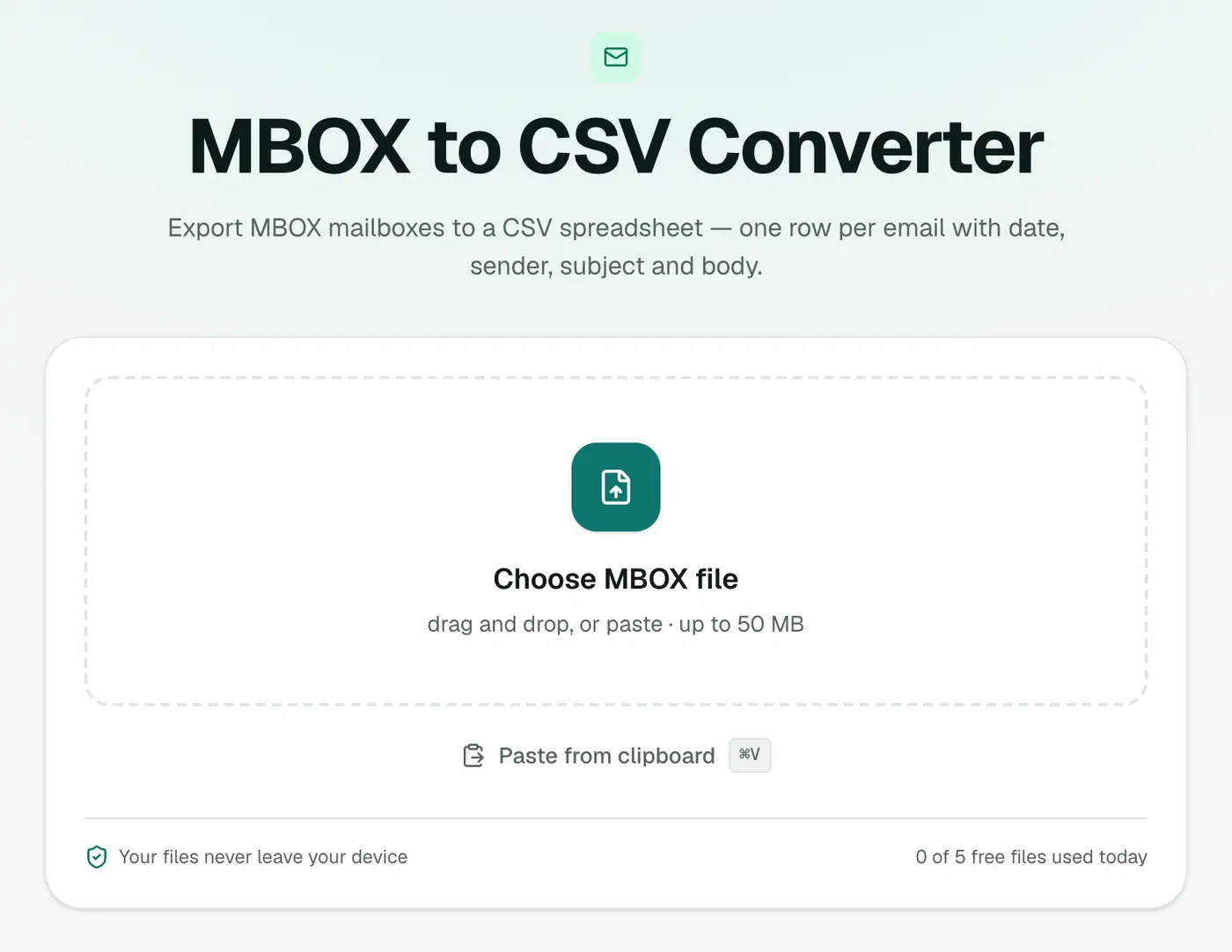
1. Open the converter
Go to the MBOX to CSV converter.
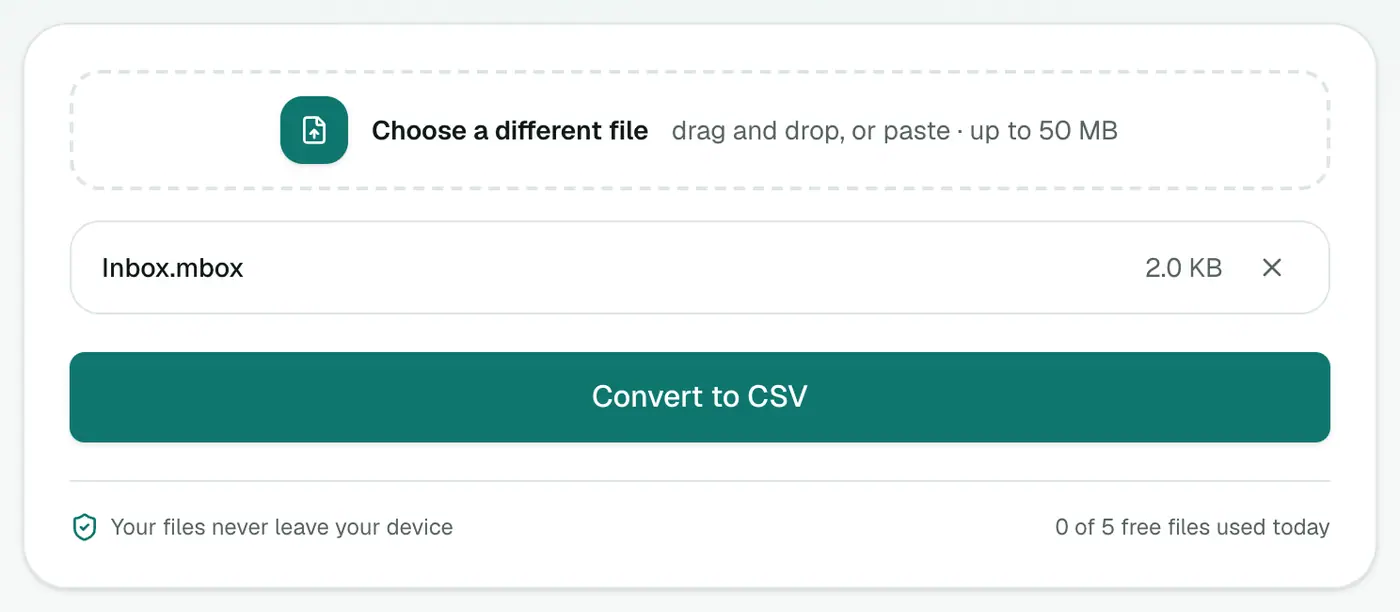
2. Add your mailbox
Drop in the .mbox file. From Gmail Takeout, unzip the download first and use the .mbox inside.
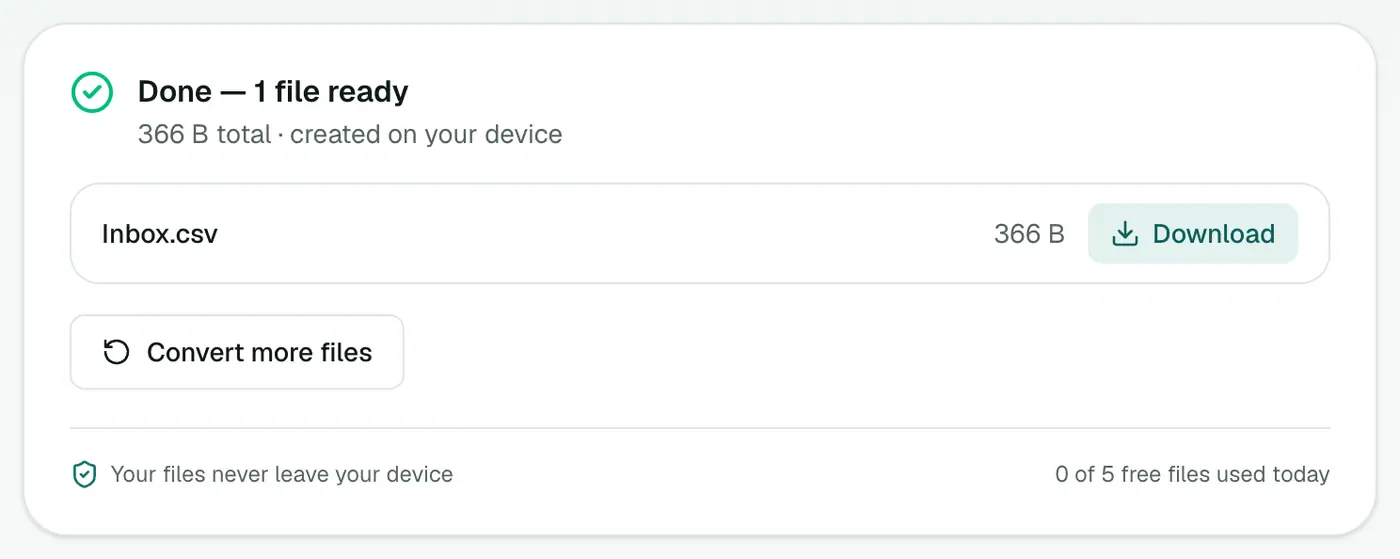
3. Convert and download
Click Convert to CSV and open it in Excel or Google Sheets.
Ideas
- Pivot by sender to see who emails you most.
- Filter Attachments for "invoice" to find bills.
- Build a timeline of a dispute by sorting on Date.
- Find subscriptions: filter Body for "unsubscribe" to list every newsletter and mailing list.
- Tax time: filter Subject for "receipt" or "invoice" and the right year.
Getting an MBOX
- Gmail: takeout.google.com → Deselect all → tick Mail → choose labels → Create export.
- Apple Mail: select a mailbox → Mailbox → Export Mailbox.
- Thunderbird: the ImportExportTools NG add-on → Export folder.
Handy formulas
| Goal | Formula |
|---|---|
| Emails per year | PivotTable, Date grouped by Years |
| Emails from a domain | =COUNTIF(B:B,"*@amazon.*") |
| Mentions of a word | =COUNTIF(G:G,"*refund*") |
Troubleshooting
"Has no messages in it." The file isn't an MBOX. For Apple Mail exports, use the file named mbox inside the exported folder.
The mailbox is too big. Export only the labels you need from Takeout, or check your plan's file size limit.
Summary
The MBOX to CSV converter turns a mailbox export into a spreadsheet you can sort, filter and pivot.
FAQs
Which columns are included?
Date, From, To, Cc, Subject, Attachments and Body.
Will Excel handle a big mailbox?
Excel allows about a million rows, which covers most mailboxes. Excel limits a cell to 32,767 characters, so very long bodies are trimmed to 32,000. Use MBOX to Text for the full text.
Can I import the CSV into a CRM?
Yes. Most CRMs can import a CSV of contacts or activity. Map the From and Date columns during import.
Will non-English names display correctly?
Yes. The CSV is UTF-8 with a marker that Excel recognises.
Are Gmail labels included?
No. The CSV has the seven columns above. To keep emails separated by label, export each label separately from Google Takeout.
Is my mailbox uploaded?
No. The CSV is created in your browser.
Try the MBOX to CSV Converter
Free to start, no install, and your files never leave your device.