PDF2 min read
How to Convert a TXT File to PDF (Notes, Logs and Code)
Turn plain text files into clean, paginated PDFs with automatic line wrapping. Choose the font, size and paper. Handy for notes, logs and code listings.
By the ZapMorph team
Just want it done?
Open the TXT to PDF Converter — it runs in your browser and nothing is uploaded.
Plain text is the most portable format there is, until you need to print it nicely, attach it to a formal email, or submit it somewhere that only accepts PDF. Print a .txt straight from Notepad and long lines get chopped off at the edge, there are no margins worth speaking of, and you can't easily share it.
How to convert TXT to PDF with ZapMorph
1. Open the converter
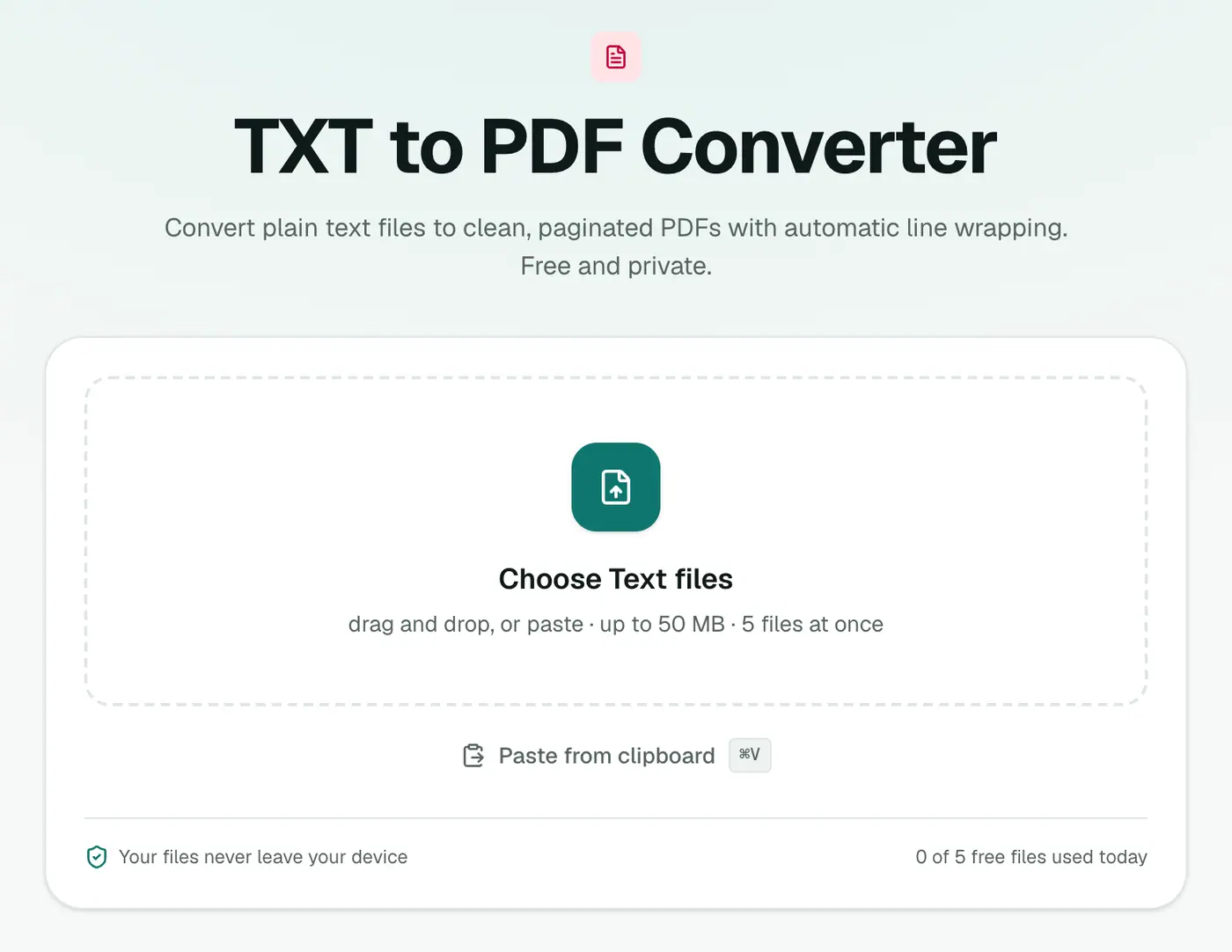
Go to the TXT to PDF converter. It accepts .txt, .text and .log files.
2. Add your files and pick the look
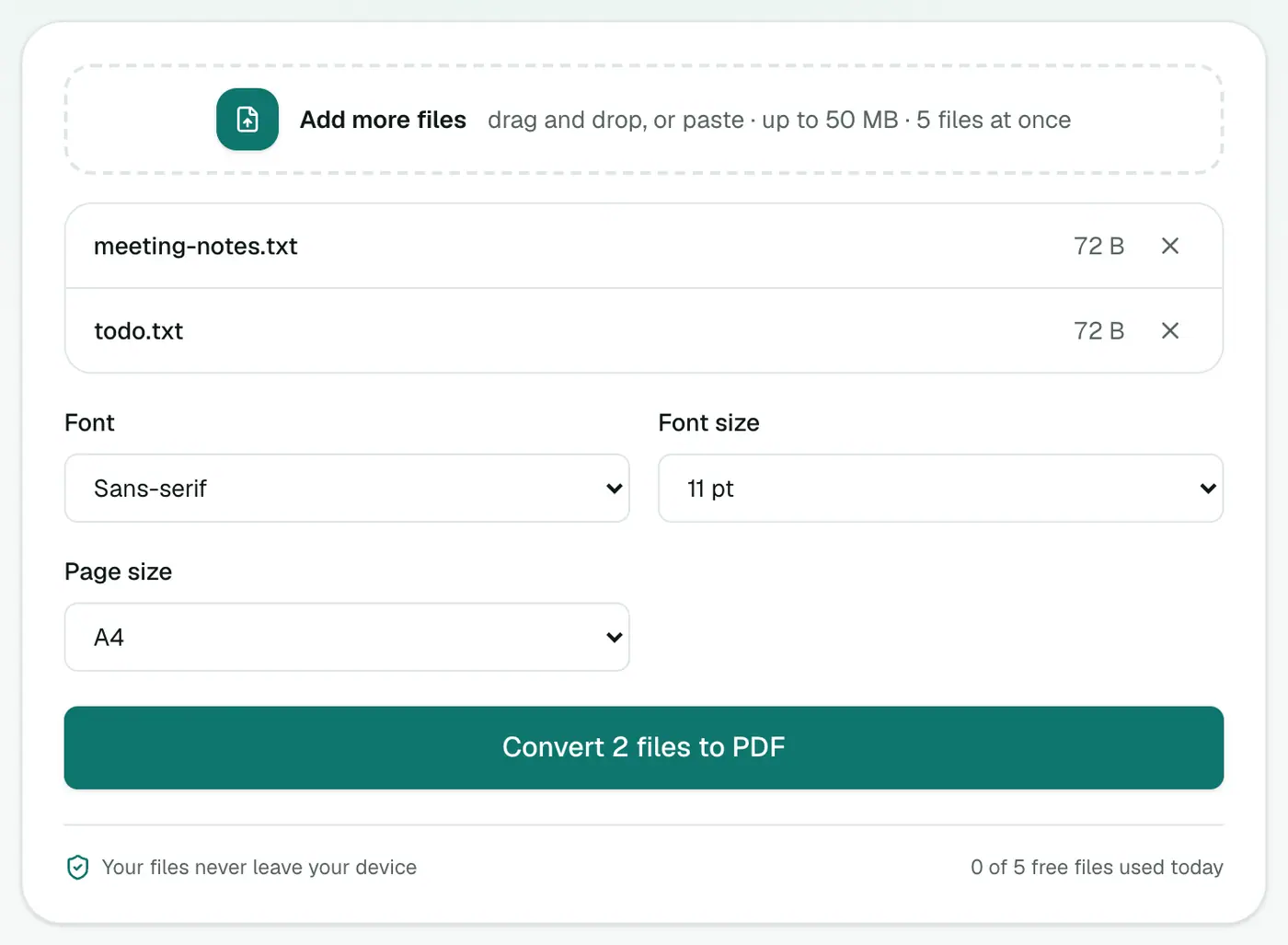
Drop in your text files and set:
- Font: Sans-serif (clean, modern), Serif (bookish, good for long reading) or Monospace (for code, logs and anything with columns).
- Font size: 10–14 pt. 11 pt is comfortable for most documents.
- Page size: A4 or US Letter.
3. Convert and download
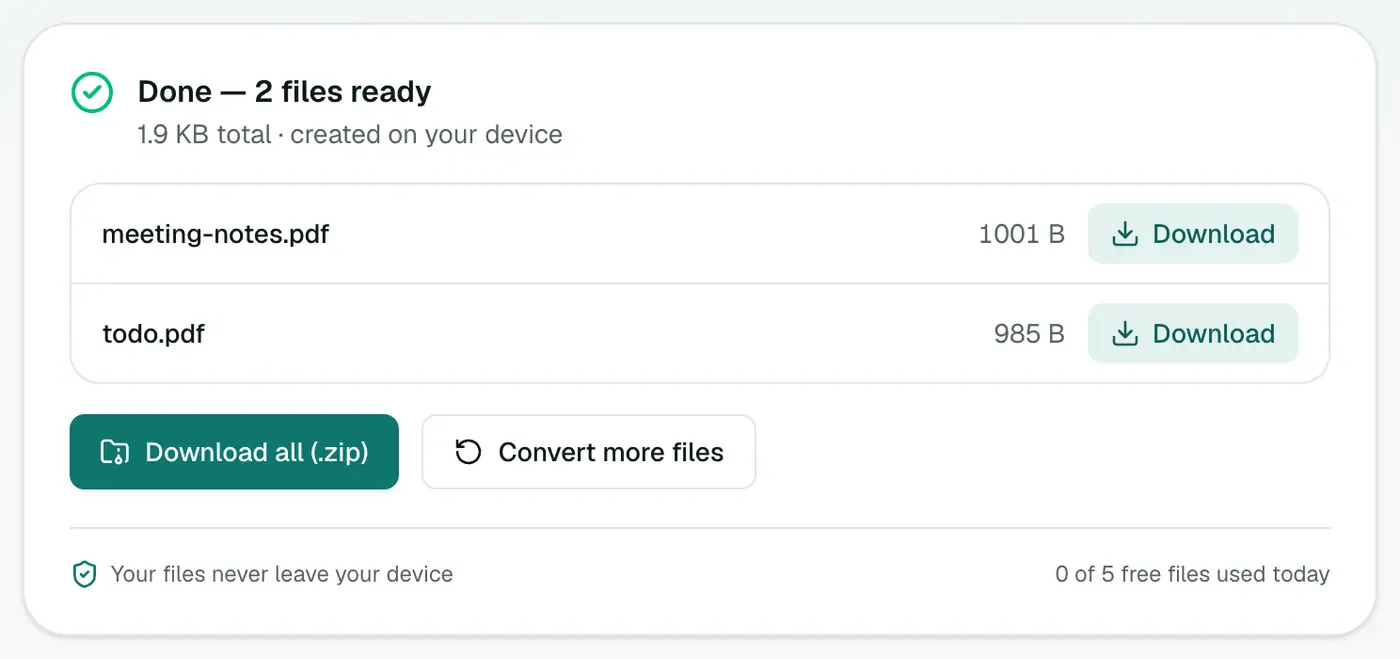
Click Convert to PDF. Each text file becomes its own nicely paginated PDF.
Good uses
- Server and app logs attached to a support ticket.
- Notes from a plain-text app you want to share or print.
- Code listings for coursework or a code review on paper.
- Transcripts and exported chats. For WhatsApp specifically, WhatsApp to PDF formats them much better.
Other ways
- Windows: open the file in Notepad, File → Print, choose Microsoft Print to PDF. Long lines may be cut off depending on settings.
- Mac: open in TextEdit and use File → Export as PDF.
- Word/Google Docs: paste the text in, format it, and save as PDF. More control, more effort.
Tips
- Need an editable document instead? TXT to Word makes a DOCX.
- Writing in Markdown? Markdown to PDF renders headings, lists and tables properly.
- Long logs? Monospace at 10 pt fits more on each page without losing alignment.
Good uses
- Logs and outputs to attach to a ticket or report.
- Notes from plain-text apps.
- Code listings for printing or review.
- Transcripts for sharing as a fixed document.
Tips
- Long lines wrap automatically and pages break for you.
- Tabs become spaces, so column alignment may shift slightly.
- Need headings and bold? Write it in Markdown and use Markdown to PDF.
- Need to edit later? TXT to Word.
Summary
For a printable, shareable version of any plain text file, the TXT to PDF converter gives you proper wrapping, margins and page breaks in a couple of clicks.
FAQs
Do long lines get cut off?
No. Long lines wrap automatically and pages break for you.
Which font should I choose for code or logs?
Monospace. It keeps columns and indentation lined up.
Which languages are supported?
Latin-alphabet text, including English and Western European languages. Scripts like Chinese, Arabic or Hindi aren't supported in this converter.
Can I convert several text files at once?
Yes. Each text file becomes its own PDF.
Try the TXT to PDF Converter
Free to start, no install, and your files never leave your device.