Email2 min read
How to Convert an Outlook PST File to PDF Without Outlook
Open an old Outlook .pst archive and save its emails as a PDF, with sender, recipients, date and subject on every message. No Outlook needed, nothing uploaded.
By the ZapMorph team
On this page
Just want it done?
Open the PST to PDF Converter — it runs in your browser and nothing is uploaded.
PST files are Outlook for Windows' archive format. They turn up when someone leaves a company ("here's their mailbox as a PST"), when an old PC is retired (archive.pst from 2014), or when a legal or HR request asks for "all emails from that account".
Without Outlook, they're unreadable. And even with Outlook, turning hundreds of emails into a document is slow: Outlook's own Print to PDF handles one message at a time. Converting the whole PST gives you one readable file.
Where PST files come from
In Outlook for Windows: File → Open & Export → Import/Export → Export to a file → Outlook Data File (.pst). You can choose a folder and include subfolders. Older Outlook versions also create archive.pst automatically through AutoArchive.
Default locations: Documents\Outlook Files\ (Outlook 2013 and later) or %localappdata%\Microsoft\Outlook\ (older versions).
How to convert PST to PDF with ZapMorph
1. Open the converter
Go to the PST to PDF converter.
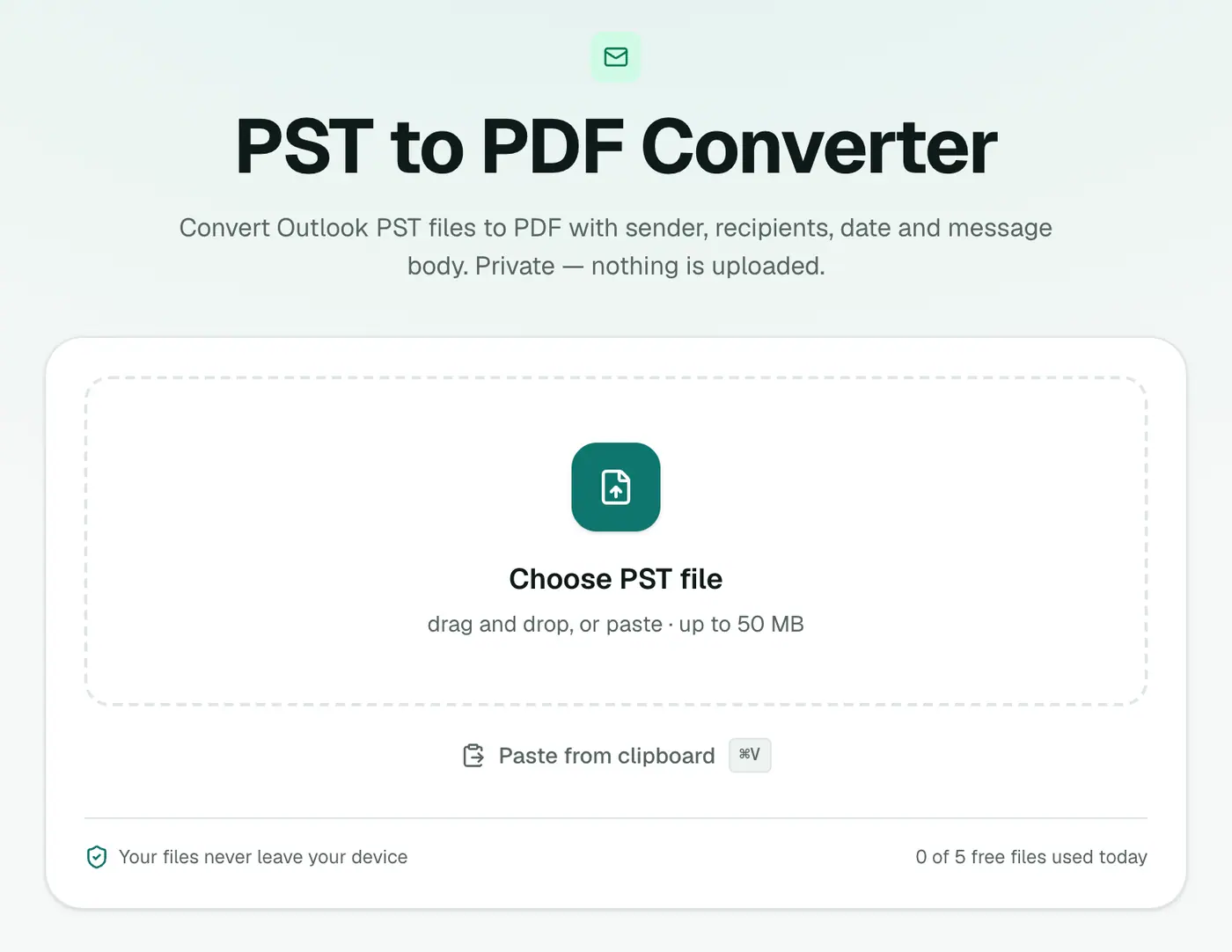
2. Add your PST and choose the paper size
Drop in the .pst file and pick A4 or US Letter.
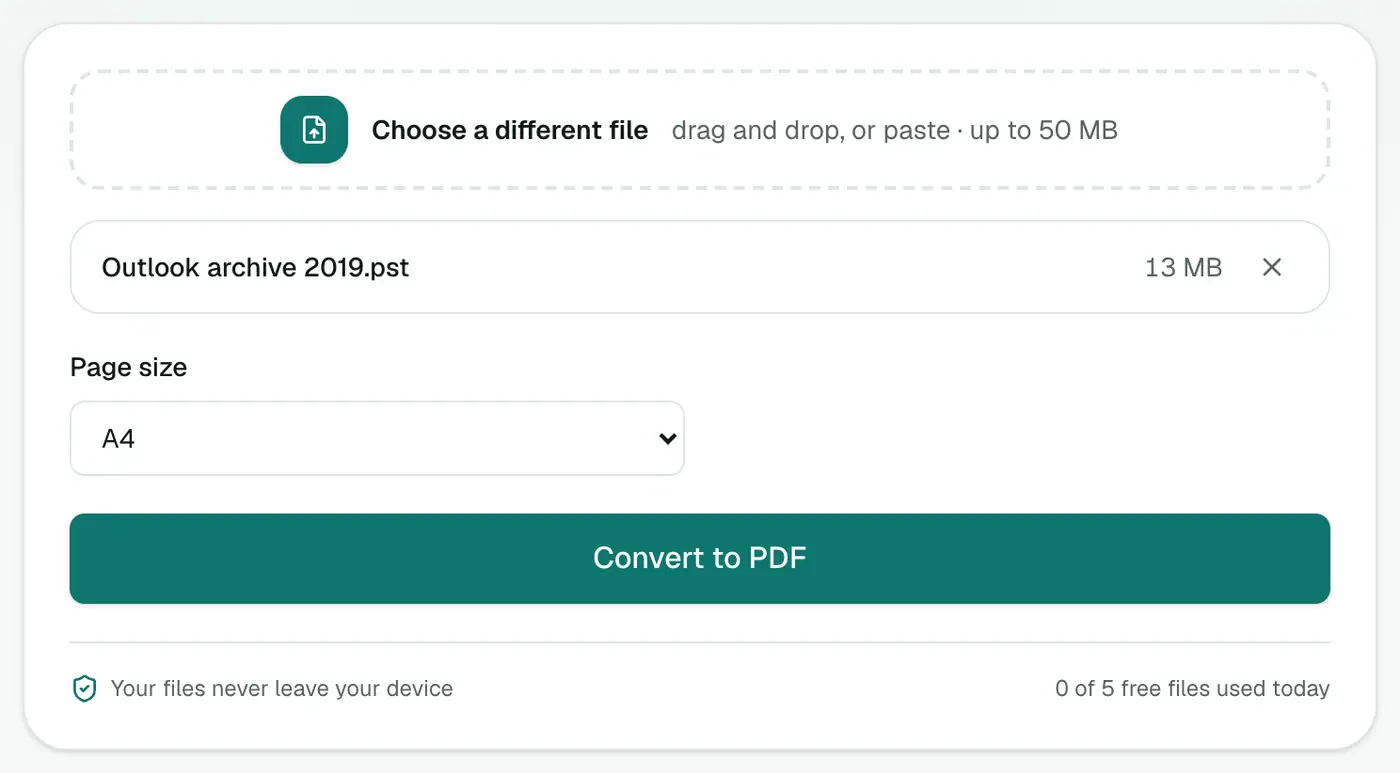
3. Convert and download
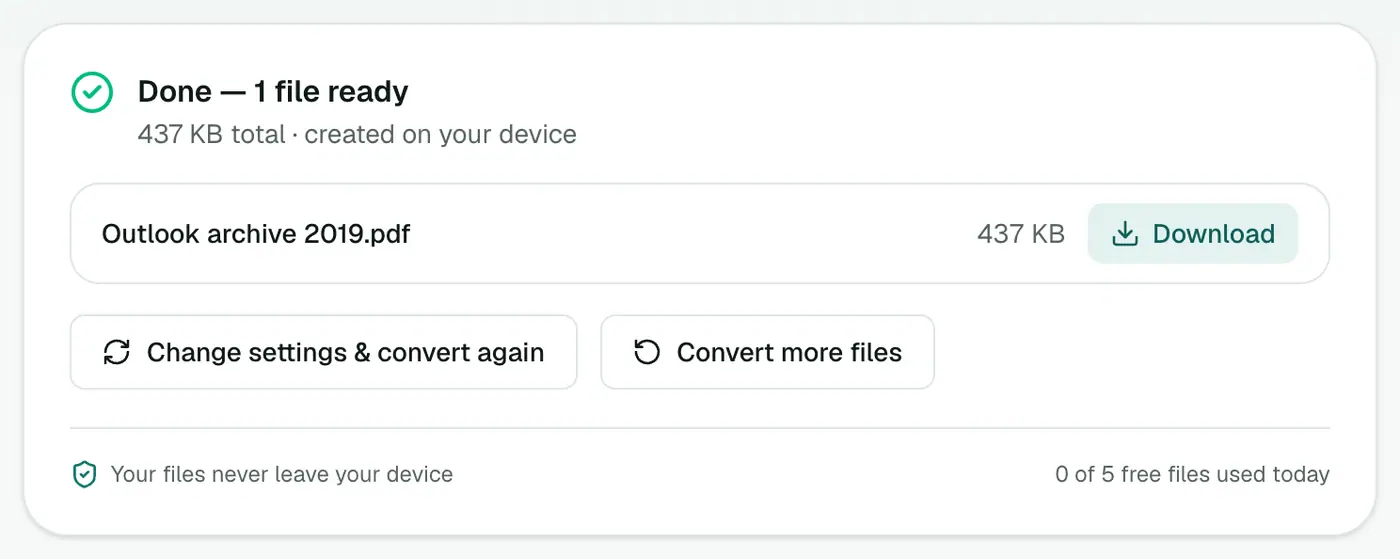
Click Convert to PDF. Every email is in the PDF, each on its own page.
What each page looks like
- The subject as a heading.
- From, To, Cc, Date and Attachments (with sizes).
- A divider, then the body, with paragraphs, headings and lists kept.
Getting it ready for legal, HR or audit
- Number the pages: Add Page Numbers.
- Hand over only what's relevant: Extract PDF Pages or Remove PDF Pages.
- Black out personal data: Redact PDF.
- Restrict access: Protect PDF.
- Make it smaller for email: Compress PDF.
Tips
- See what's in it first. The PST viewer browses folders and messages without converting, and the PST analyzer gives you counts by folder and sender.
- Only need a few emails? Convert to EML, pick the ones you need, then merge them into one PDF with EML Merge.
- Need contacts or calendar too? PST to vCard and PST to ICS.
Troubleshooting
"Isn't a readable Outlook data file." The PST is damaged. Run Microsoft's Inbox Repair Tool (scanpst.exe, in the Office install folder) on a copy, then convert the repaired copy.
Some pages say "(This message has no text.)" The email held only an attachment or an image.
Summary
The PST to PDF converter turns an Outlook archive into a readable, printable, searchable PDF, no Outlook licence required.
FAQs
Do I need Outlook to read a PST?
No. The PST is read in your browser, so it works on a Mac or a PC without Office.
What does the PDF contain?
Every email in the PST, each starting on a new page with From, To, Cc, Date and Subject, then the body. Attachment names are listed.
My PST is 10 GB. Will it work?
Large archives depend on your plan's file size limit and your device's memory. If it's too big, ask whoever has Outlook to export just the folders or date range you need into a smaller PST.
What if the PST is password-protected?
If it won't open, remove the password in Outlook for Windows first (File → Account Settings → Data Files → Settings → Change Password, leaving the new password blank), then try again.
Is the PDF searchable?
Yes. The text is real text, not images, so Ctrl+F works and you can copy from it.
Are attachments embedded in the PDF?
No, they're listed by name and size. To keep the files, convert to EML or download them from the PST viewer.
Try the PST to PDF Converter
Free to start, no install, and your files never leave your device.