Email2 min read
How to Move an Outlook PST to Thunderbird or Apple Mail (PST to MBOX)
Convert an Outlook PST archive into an MBOX mailbox and import it into Thunderbird or Apple Mail. No Outlook needed for the conversion, nothing uploaded.
By the ZapMorph team
On this page
Just want it done?
Open the PST to MBOX Converter — it runs in your browser and nothing is uploaded.
Leaving Outlook for Thunderbird or Apple Mail? Your old mail is probably in a PST, which neither app reads. MBOX is the format they both understand.
Why MBOX?
MBOX is the simplest, oldest mailbox format: all emails in one text file, one after another. Almost every desktop mail app can import it, and Gmail's own Takeout export uses it. That makes it a good format for moving mail and for keeping it long term.
| PST | MBOX | |
|---|---|---|
| Opens without Outlook | ✗ | ✓ |
| Apple Mail import | ✗ | ✓ built in |
| Thunderbird import | Windows + Outlook only | ✓ with a free add-on |
| Contacts and calendar | ✓ | Emails only |
How to convert PST to MBOX with ZapMorph
1. Open the converter
Go to the PST to MBOX converter.
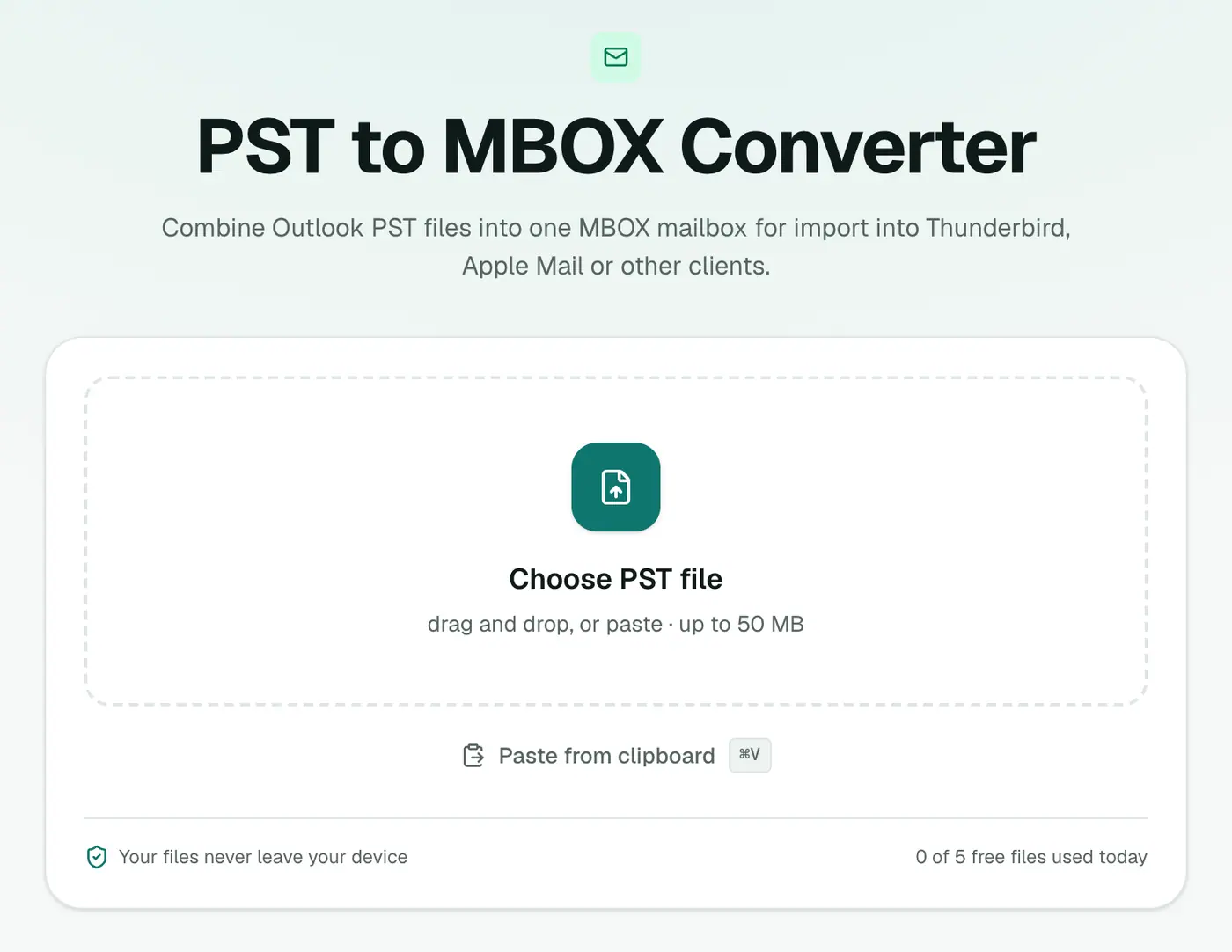
2. Add your PST
Drop in the .pst file. Close Outlook first if the PST is open in it.
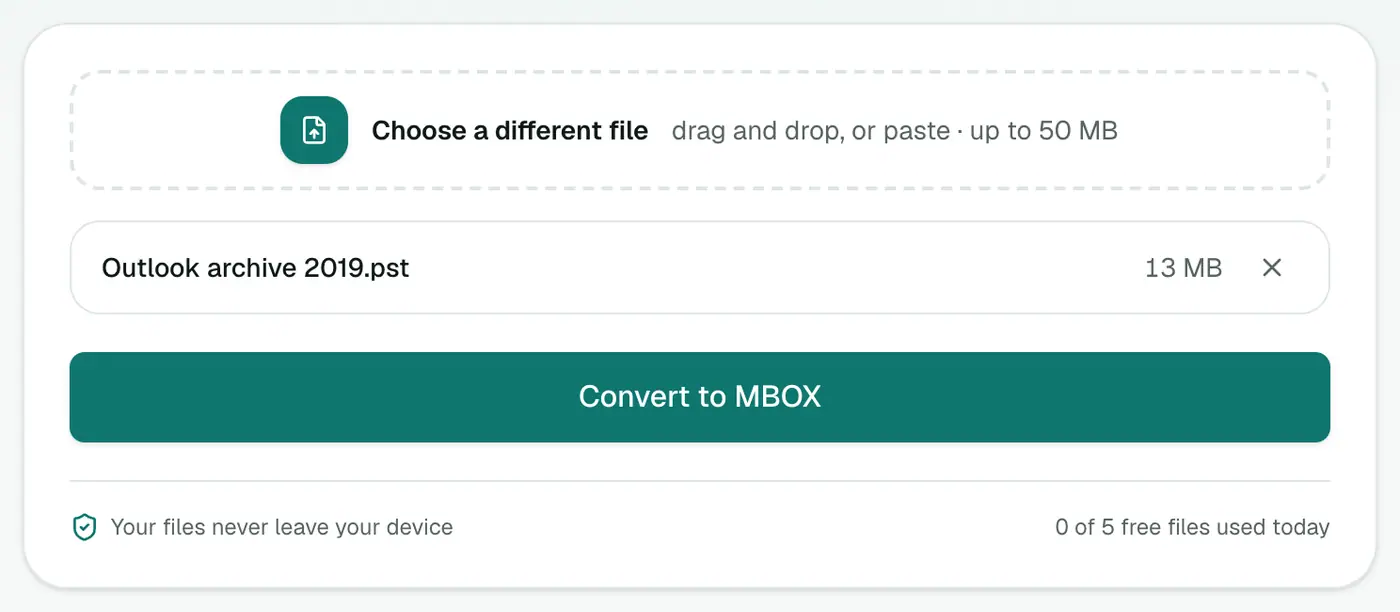
3. Convert and download
Click Convert to MBOX.
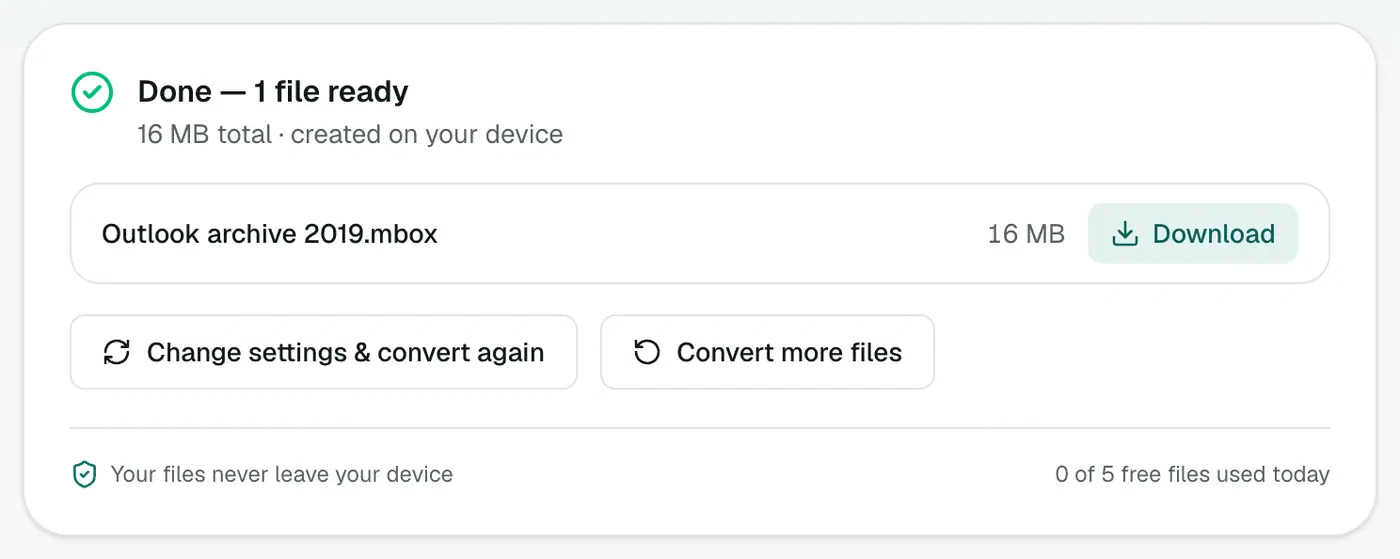
Importing the MBOX
Thunderbird:
- Install the ImportExportTools NG add-on (Tools → Add-ons and Themes).
- Right-click Local Folders and choose ImportExportTools NG → Import mbox file.
- Pick the file.
Apple Mail: File → Import Mailboxes → Files in mbox format. The emails appear under On My Mac → Import.
Gmail, iCloud or another online account: import into Thunderbird or Apple Mail with that account added, then drag the imported emails into one of its folders. They upload to the server and sync everywhere.
Don't forget contacts and calendar
A PST also holds your address book and appointments:
- PST to vCard for contacts.
- PST to ICS for calendar items.
Tips
- Check the numbers. The PST analyzer shows how many emails the PST holds. Compare that with the count after importing.
- Sort after importing. Use the mail app's search (by sender, date or subject) to move messages into folders.
- Keep the MBOX. It's a solid archive copy. Store it somewhere safe in case you switch apps again.
Troubleshooting
"Password-protected." Remove the PST password in Outlook (Account Settings → Data Files → Settings → Change Password).
"Isn't a readable Outlook data file." Repair a copy with scanpst.exe (Microsoft's Inbox Repair Tool) and try again.
Apple Mail imports nothing. Make sure you chose Files in mbox format in the import window.
Summary
The PST to MBOX converter is the bridge from Outlook to Thunderbird or Apple Mail, done privately in your browser.
FAQs
Which mail apps can import MBOX?
Thunderbird (with the ImportExportTools NG add-on), Apple Mail, and many others.
Are folders kept?
All messages go into one MBOX file. Mail apps import it as a single folder, which you can then sort into subfolders.
Can I import MBOX into Gmail?
Not directly. A common route is to import the MBOX into Thunderbird with your Gmail account connected, then drag messages into a Gmail label.
Are attachments kept?
Yes. Every email keeps its attachments and inline images.
Does Thunderbird import PST directly?
Only on Windows, and only with Outlook installed, because its import uses Outlook's components. Converting to MBOX avoids that.
Is the PST uploaded?
No. The conversion runs in your browser.
Try the PST to MBOX Converter
Free to start, no install, and your files never leave your device.