PDF2 min read
How to Convert PowerPoint (PPTX) to PDF Without Office
Turn a PowerPoint presentation into a PDF with one slide per page, for sharing with people without PowerPoint or printing handouts. No Office needed.
By the ZapMorph team
On this page
Just want it done?
Open the PowerPoint to PDF Converter — it runs in your browser and nothing is uploaded.
Sending a .pptx file is risky. The recipient might not have PowerPoint, fonts get substituted, and on a phone it may not open at all. A PDF of the slides opens anywhere and looks the same for everyone.
How to convert PowerPoint to PDF with ZapMorph
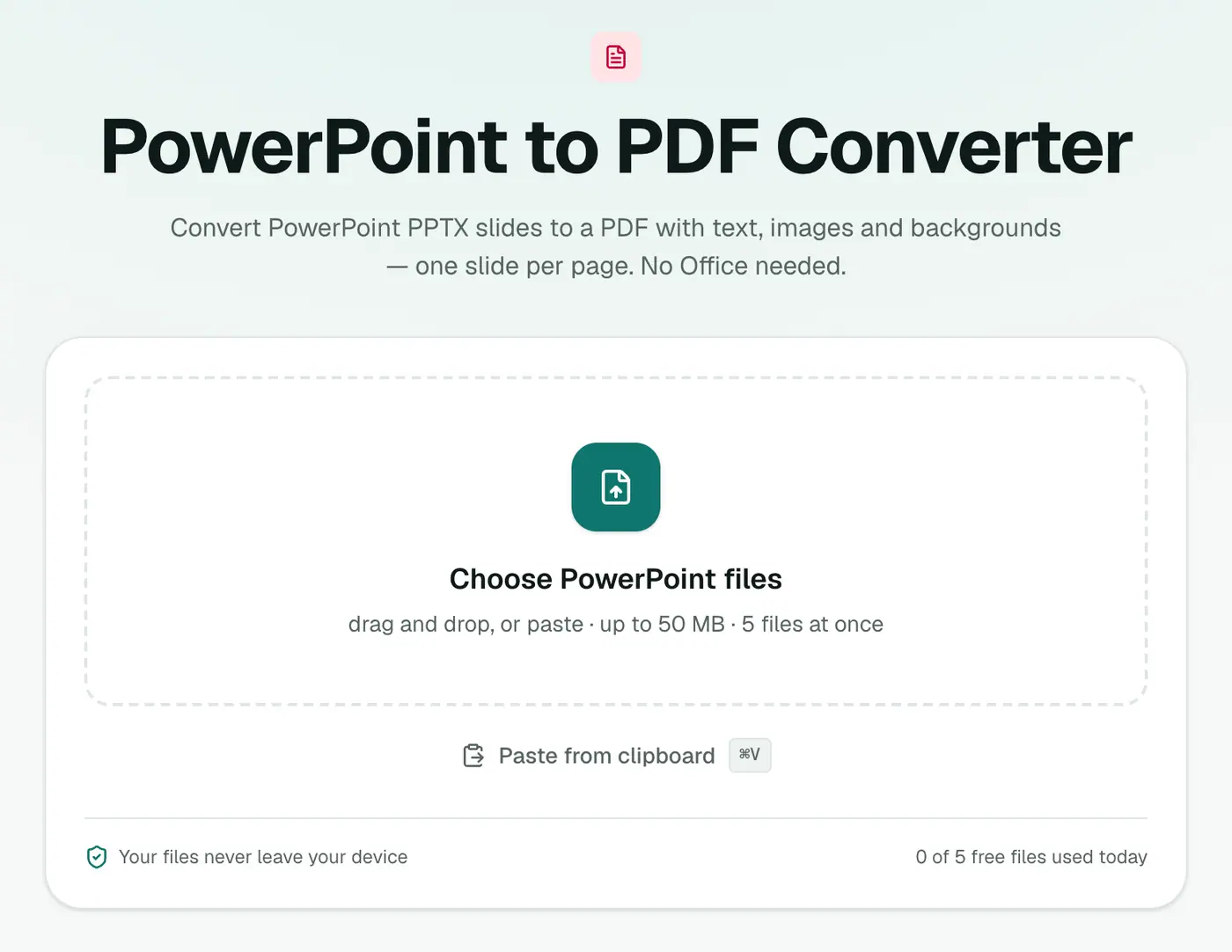
1. Open PowerPoint to PDF
Go to the PowerPoint to PDF converter.
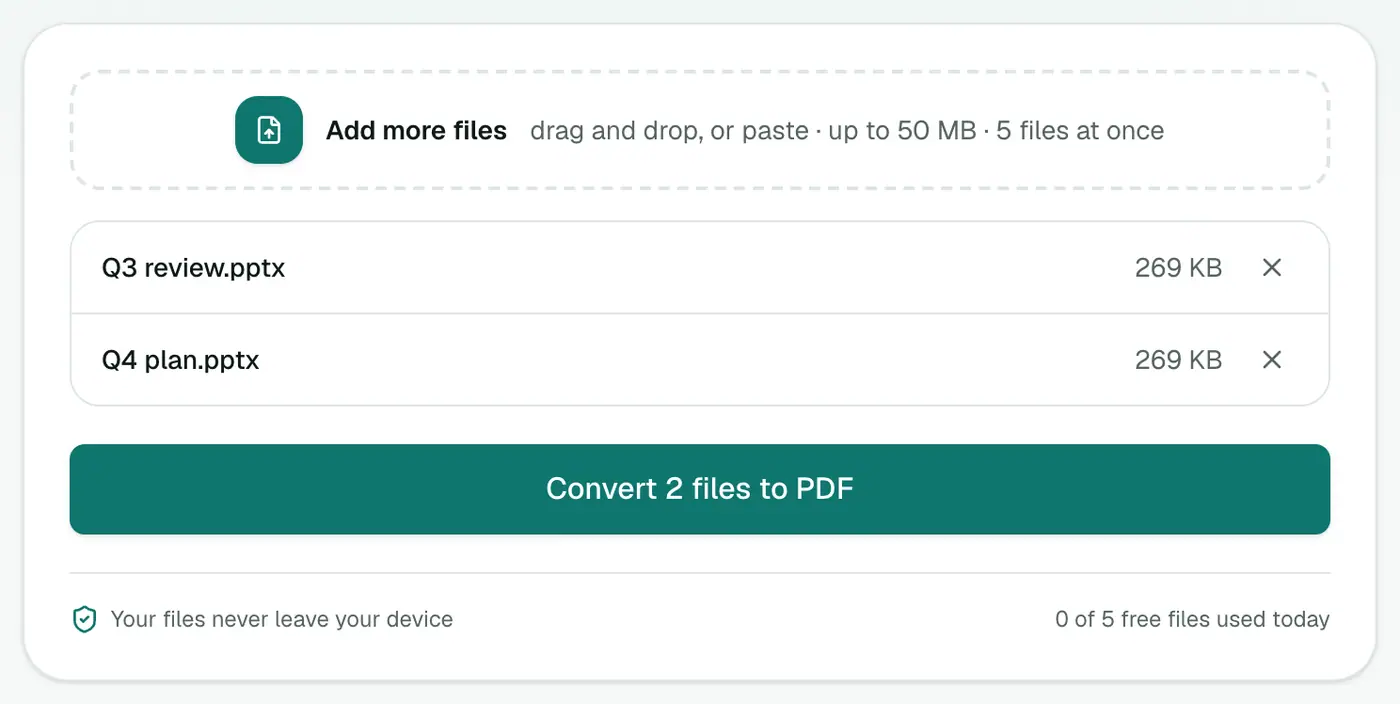
2. Add your PPTX files
Drop in one or more .pptx presentations.
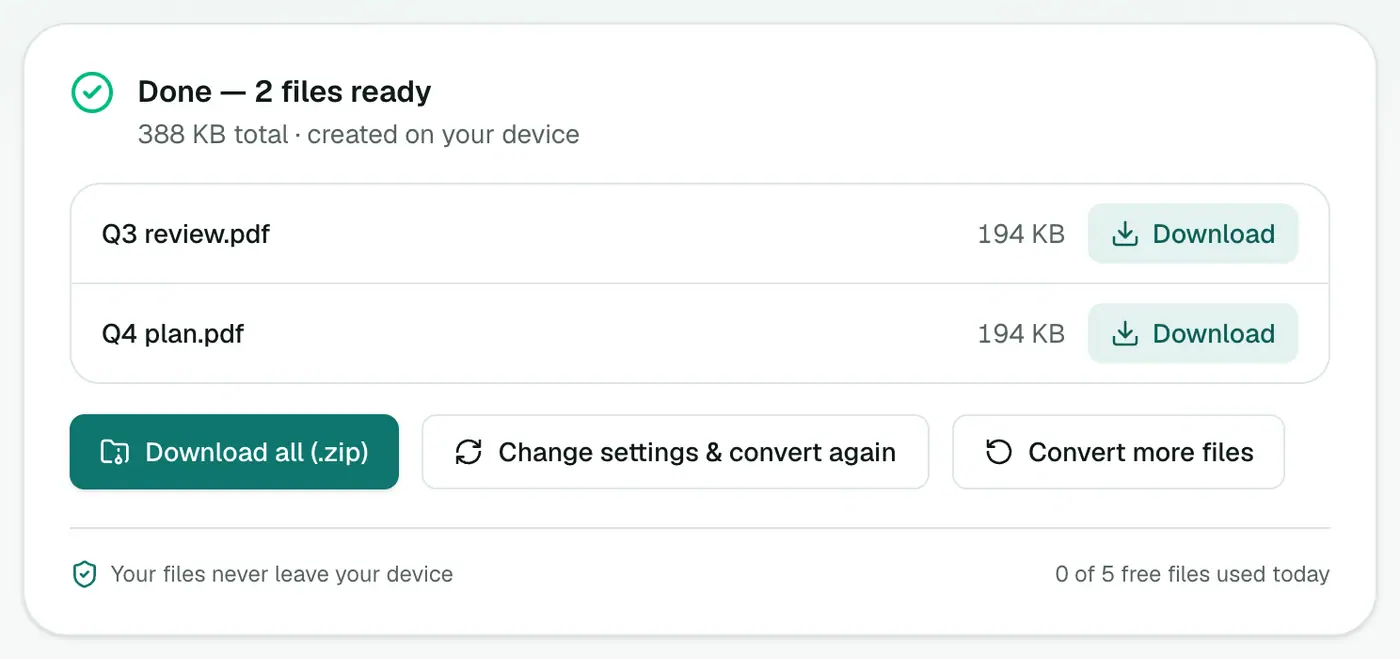
3. Convert and download
Click convert and download the PDFs. One slide per page.
What to expect
The converter rebuilds each slide from its parts: text boxes, images, shapes and the background. That works very well for typical business and lecture slides.
Things that are simplified: charts, SmartArt diagrams and unusual effects. Not included: animations, transitions, embedded video and audio.
If your deck is heavy on charts and you have PowerPoint, its own export will be more faithful.
Using PowerPoint or Keynote's own export
- PowerPoint (Windows/Mac): File → Save As → PDF, or File → Export.
- Keynote: File → Export To → PDF.
- Google Slides: File → Download → PDF Document.
Handouts and printing
- Several slides per page: convert to PDF, then use Print Multiple Pages Per Sheet. 4 or 6 per sheet is ideal for handouts, and it can turn dark backgrounds white to save ink.
- Page numbers on the handout: Add Page Numbers.
- File too big to email? Compress PDF.
What's kept
| Kept | Simplified |
|---|---|
| Text boxes and titles | Animations and transitions (removed) |
| Pictures | Charts and SmartArt |
| Shapes and backgrounds | Embedded video and audio |
| Slide order | Speaker notes |
For an exact copy including complex charts, export from PowerPoint itself (File → Export → PDF) if you have it.
Handouts
- Convert the deck to PDF.
- Use Print Multiple Pages Per Sheet to put 2, 4 or 6 slides on a page.
Other next steps
- Shrink it for email: Compress PDF.
- Slides as images: PDF to PNG.
Summary
For sharing slides with anyone, on any device, the PowerPoint to PDF converter creates a clean one-slide-per-page PDF without needing Office.
FAQs
What's kept in the PDF?
Each slide's text boxes, pictures, shapes and background, one slide per page.
What's simplified?
Animations and transitions aren't included (a PDF can't play them), and charts and SmartArt are simplified.
Can I convert old .ppt files?
Save them as .pptx first in PowerPoint, Keynote, Google Slides or LibreOffice Impress.
How do I print several slides per page?
Convert to PDF, then use Print Multiple Pages Per Sheet to put 2, 4, 6 or more slides on each sheet.
Is my presentation uploaded?
No. It's converted in your browser.
Can I convert .ppt files?
Only .pptx. Open an old .ppt in PowerPoint, Keynote or LibreOffice and save it as .pptx first.
Try the PowerPoint to PDF Converter
Free to start, no install, and your files never leave your device.