Image3 min read
How to Convert PNG to WebP (Smaller Files, Transparency Kept)
PNG graphics slowing down your site? Convert them to WebP for much smaller files while keeping transparent backgrounds. Here's how, step by step.
By the ZapMorph team
On this page
Just want it done?
Open the PNG to WebP Converter — it runs in your browser and nothing is uploaded.
PNG is the go-to format for graphics with transparency, but it's heavy. A single transparent hero image or a page full of product cut-outs can add megabytes to a page. WebP keeps the transparency and drops most of the weight.
Where PNG to WebP pays off
- Product photos on transparent backgrounds in an online shop.
- Screenshots in blog posts and documentation.
- Illustrations and hero graphics exported from design tools as PNG.
- Any PNG that's really a photo. These are the biggest wins.
Keep PNG for anything that leaves the web: email signatures, Word or PowerPoint documents, print files and favicons.
How to convert PNG to WebP with ZapMorph
1. Open the converter
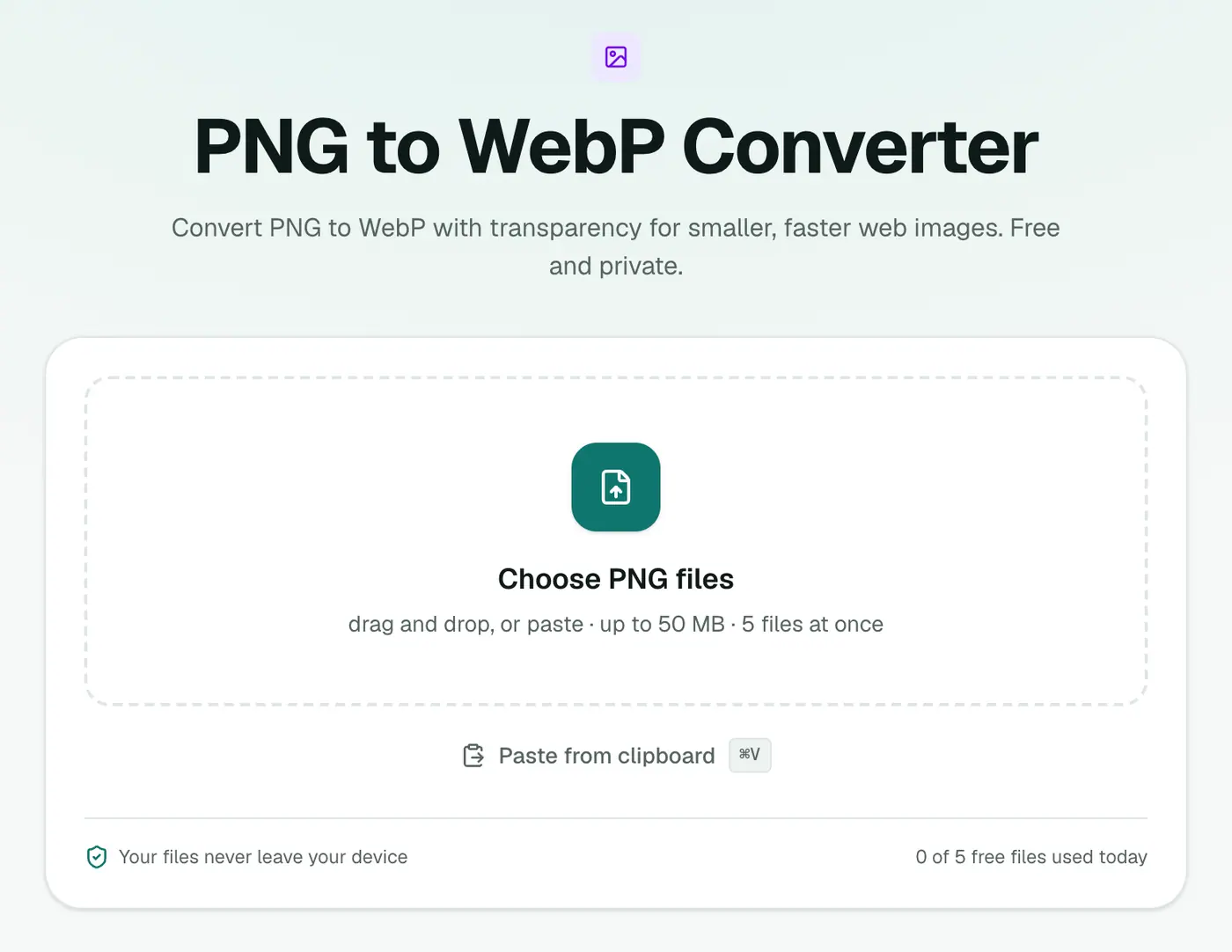
Go to the PNG to WebP converter.
2. Add your PNGs and choose a quality
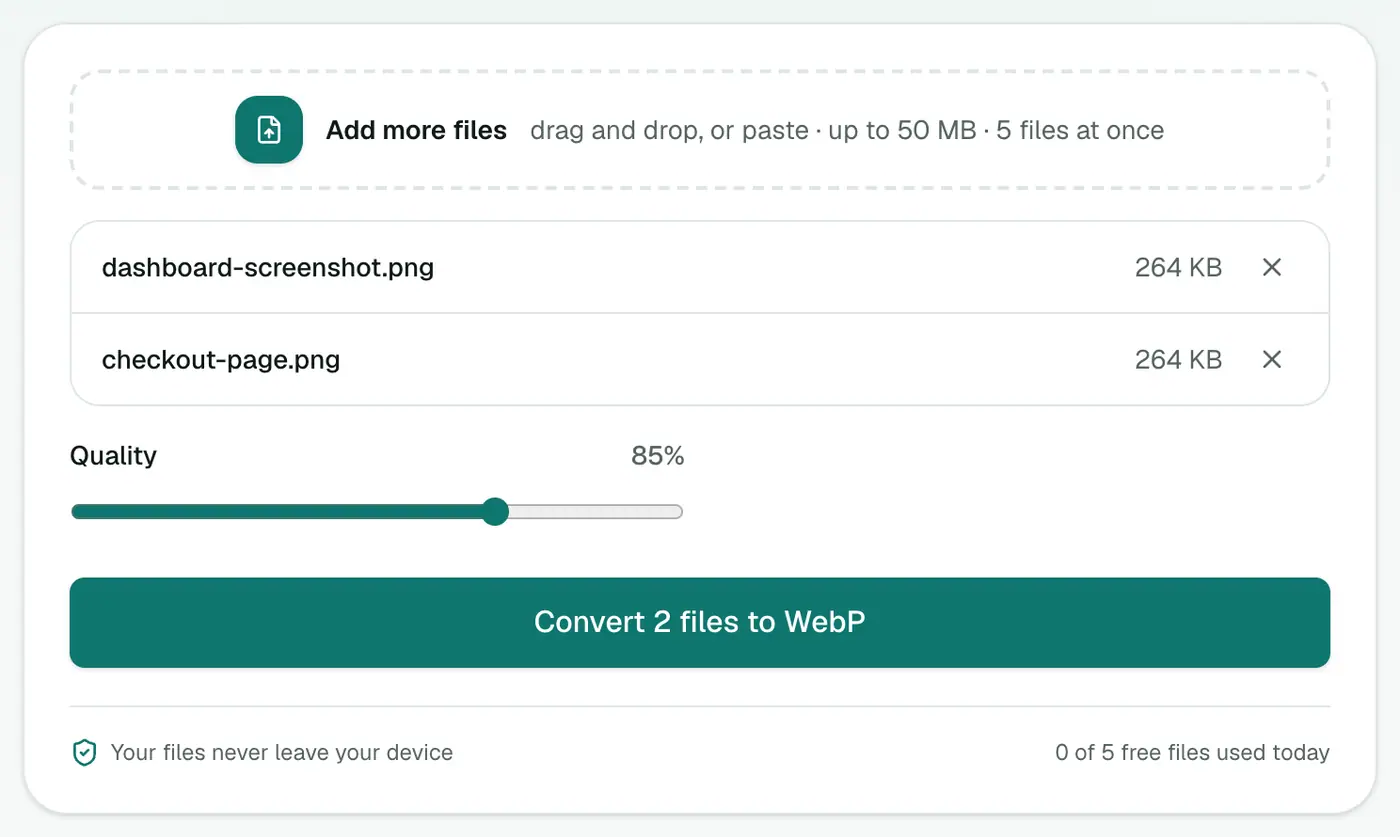
Drag in your images. The Quality slider starts at 85%.
- For photos and product shots, 80–85% is plenty.
- For screenshots with small text, go up to 90–95% so the text stays sharp.
3. Convert and download
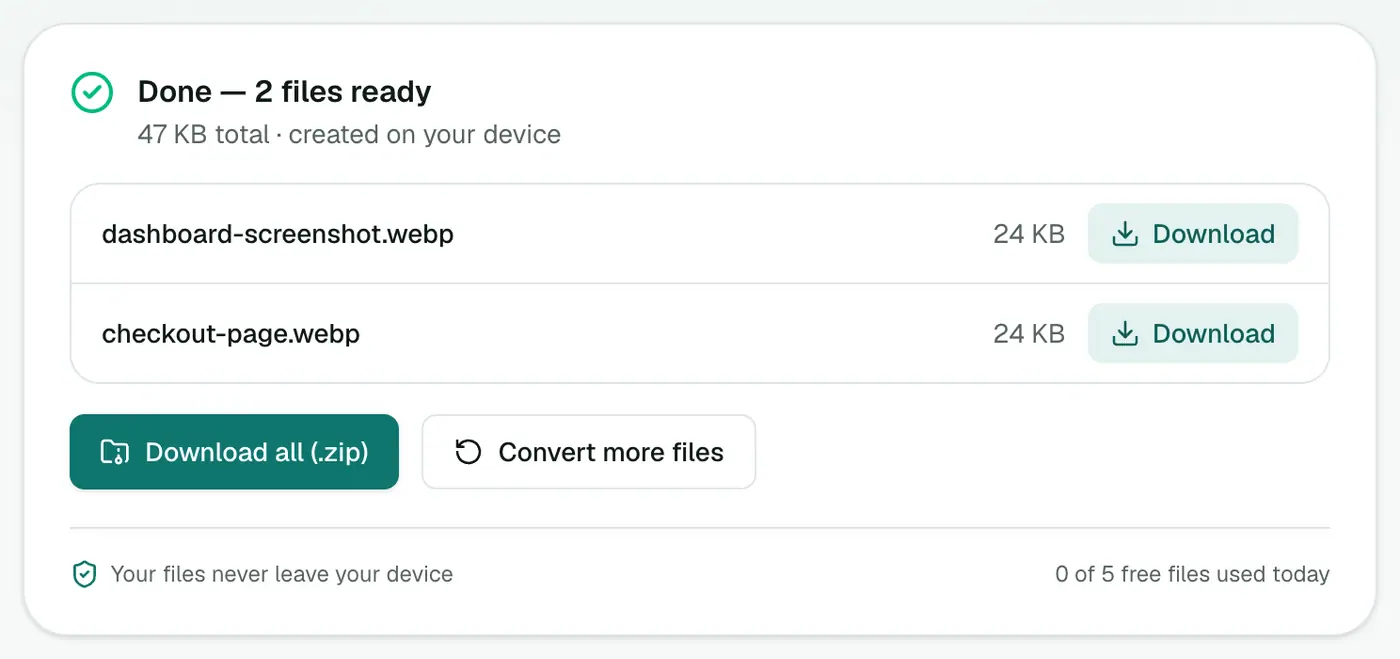
Click Convert to WebP. The download panel shows each new file size, so you can see how much you saved straight away.
A quick comparison
Here's roughly what to expect. Your images will vary.
| Image type | Typical PNG | Typical WebP (85%) |
|---|---|---|
| Product photo, transparent background | 1.8 MB | 150–250 KB |
| Full-screen app screenshot | 900 KB | 120–200 KB |
| Simple flat logo | 25 KB | 10–20 KB |
The flatter and simpler the graphic, the smaller the gain. For tiny icons it's often not worth it.
Other ways to convert
- Figma, Sketch and Photoshop can export WebP directly. If the image came from a design file, export it as WebP from the source instead of converting.
- Squoosh (Google's web app) lets you compare quality side by side for a single image.
cwebpon the command line is great for automated builds.
Tips
- Test on a dark background. After converting a transparent image, put it on a dark page to check the edges. Low quality settings can leave a faint halo.
- Resize as well. If your PNG is 3000 px wide and your site shows it at 800 px, resizing gets you a bigger saving than any format change. The image compressor can do both at once.
- Have photos as JPG? Use JPG to WebP for those.
Typical savings
| Image | PNG | WebP |
|---|---|---|
| Screenshot, 1440 px | 900 KB | 120–200 KB |
| Illustration with transparency | 400 KB | 60–120 KB |
| Logo, 512 px | 40 KB | 15–25 KB |
Where to keep PNG
- Email signatures and newsletters (some email clients don't show WebP).
- Word, PowerPoint and PDF documents.
- App icons and favicons, which have their own formats (favicon generator).
In short
PNG to WebP is one of the easiest ways to lighten an image-heavy site without giving up transparent backgrounds. Run your graphics through the PNG to WebP converter, check text-heavy ones at a higher quality, and keep the PNG originals for anything that isn't going on the web.
FAQs
Does WebP keep the transparent background of my PNG?
Yes. WebP supports transparency, so logos and cut-outs keep their see-through background.
How much smaller is WebP than PNG?
For photos saved as PNG, often 70–90% smaller. For simple graphics the saving is smaller but usually still noticeable.
Will text and sharp edges look blurry?
At high quality (90%+) they stay crisp. At lower settings you may see slight softening around small text, so check screenshots with text before publishing.
Is WebP OK for email signatures or documents?
Not really. Many email clients and older Office versions don't display WebP. Keep PNG for those.
Is my image uploaded?
No. It's converted in your browser.
Which quality should I pick for logos?
90% or higher keeps sharp edges clean. The default 85% is great for photos and illustrations.
Try the PNG to WebP Converter
Free to start, no install, and your files never leave your device.